# Stacklet
Stacklet (opens new window) is a cloud governance and cost management platform that helps you enforce policies, manage security, and optimize cloud costs across your infrastructure. This connector enables you to automate governance workflows, integrate compliance monitoring with business processes, and streamline cloud resource management through GraphQL-based operations.
This connector allows you to:
- Query data from Stacklet's GraphQL API
- Perform mutations to create, update, or delete records
- Execute custom GraphQL operations with variables
# Prerequisites
You must have an AWS Cognito client ID and a Stacklet instance to establish a connection to Stacklet.
# Obtain your AWS Cognito client ID
Complete the following steps to retrieve your AWS Cognito client ID:
Sign in to your AWS Management Console (opens new window).
Search for Cognito and select Amazon Cognito.
Select User Pools in the left-hand navigation pane.
Select the user pool that contains the app client your Stacklet instance is associated with.
Click App Integration.
Go to the App clients section to view a list of all of the clients associated with the user pool.
Copy your Client ID from the App clients section to use when setting up your connection in Workato. If your client is confidential, you can click Show details to reveal your Client ID.
# Obtain Stacklet account information
Complete the following steps to obtain your Stacklet account information:
Sign in to Stacklet and open the Stacklet API console in your browser.
Copy the domain from the URL. For example, api.acme.stacklet.io. This is your Base URL.
Click the profile icon in the bottom left corner of the Stacklet API console to obtain your Stacklet Username.
# Connection setup
Connecting to the Stacklet involves the following steps:
# Download Stacklet from the Community library
Complete the following steps to install the Stacklet connector from the community library (opens new window):
Open the recipe editor and search for a connector. Alternatively, you can search for a connector in the community library (opens new window).
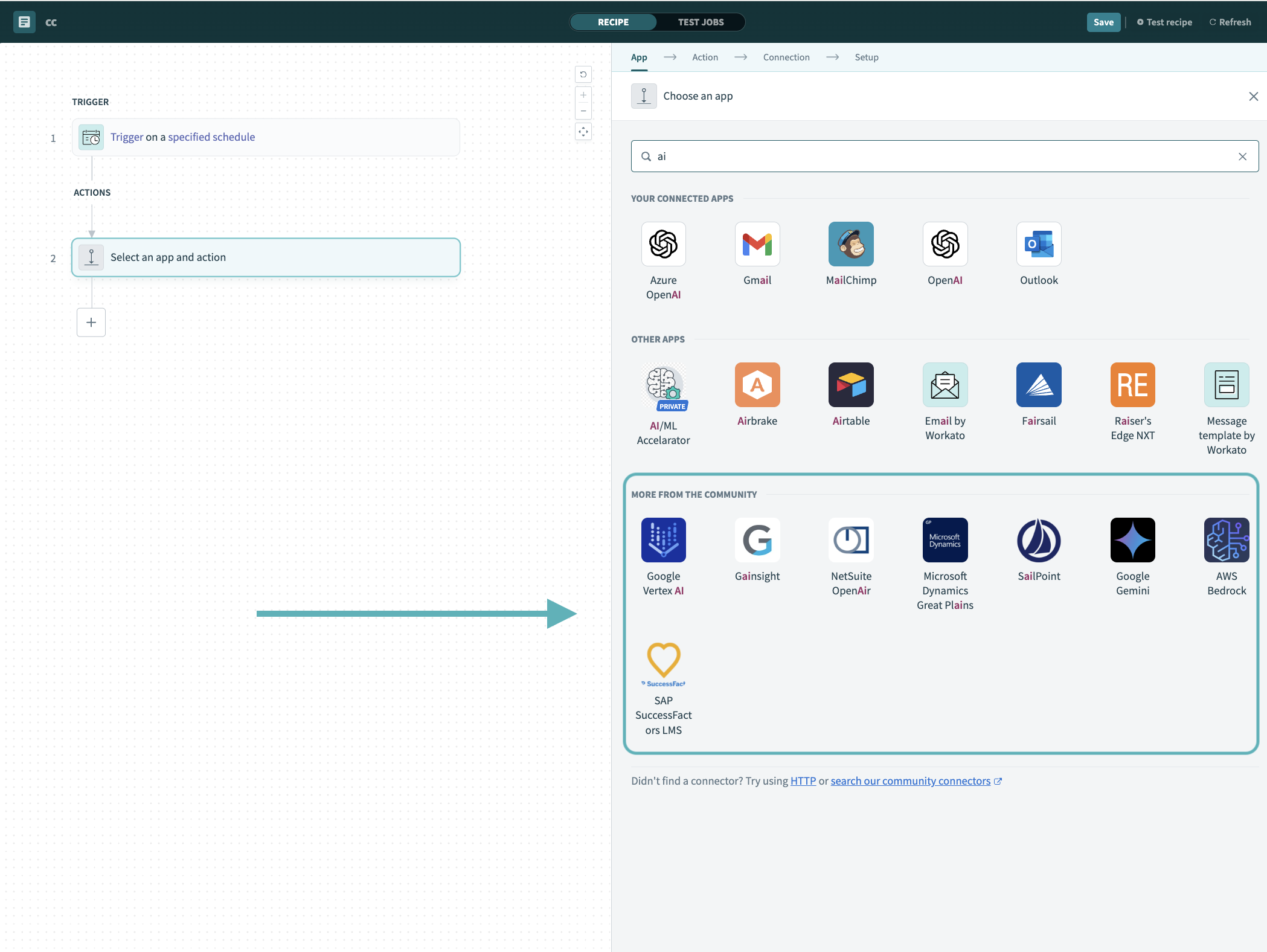 Search for community connectors in the recipe editor
Select the community connector you plan to install.
Click Install to install the connector from the community library.
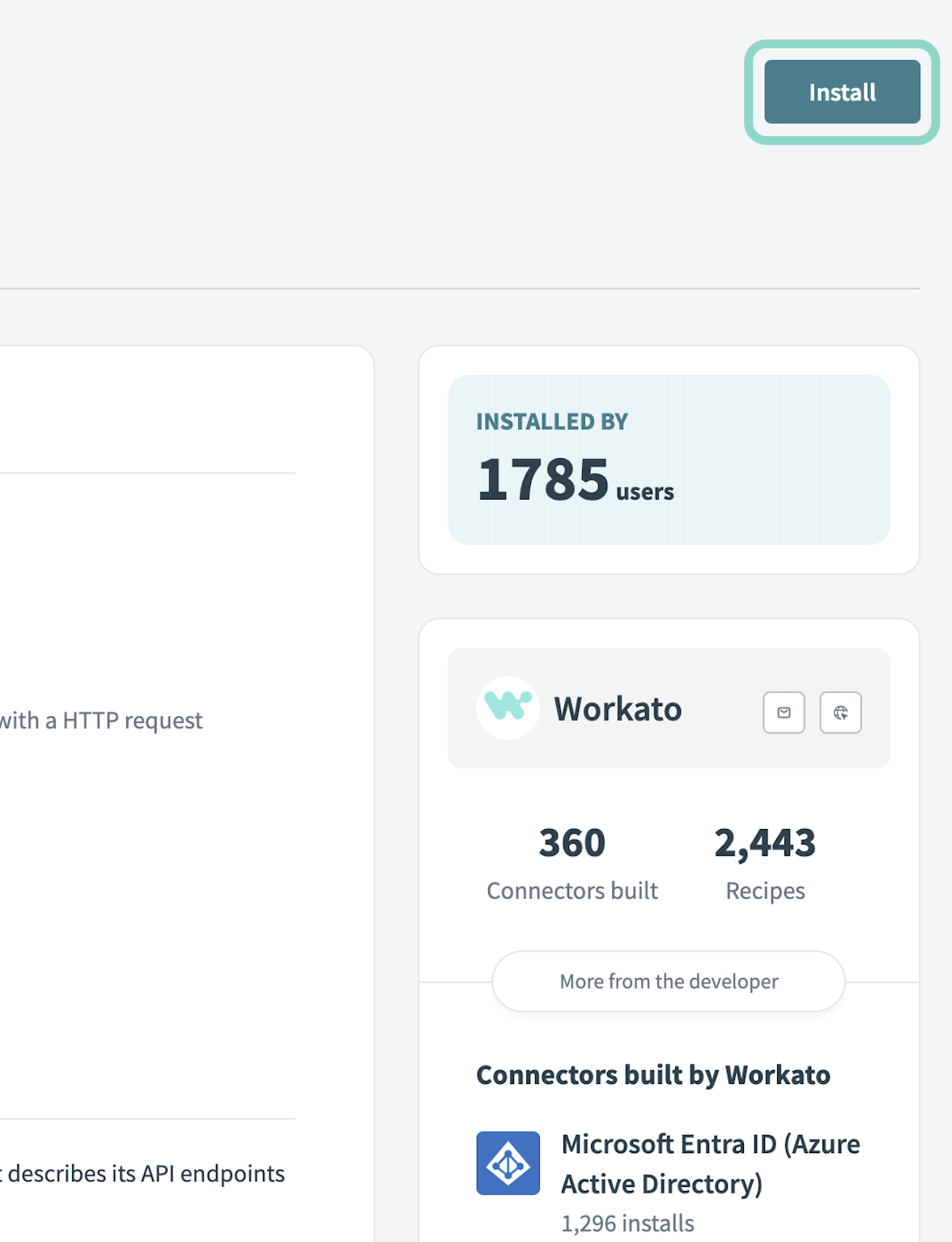 Click Install
Select Release connector. Alternatively, select Review code to review and modify the connector code before releasing it to the workspace.
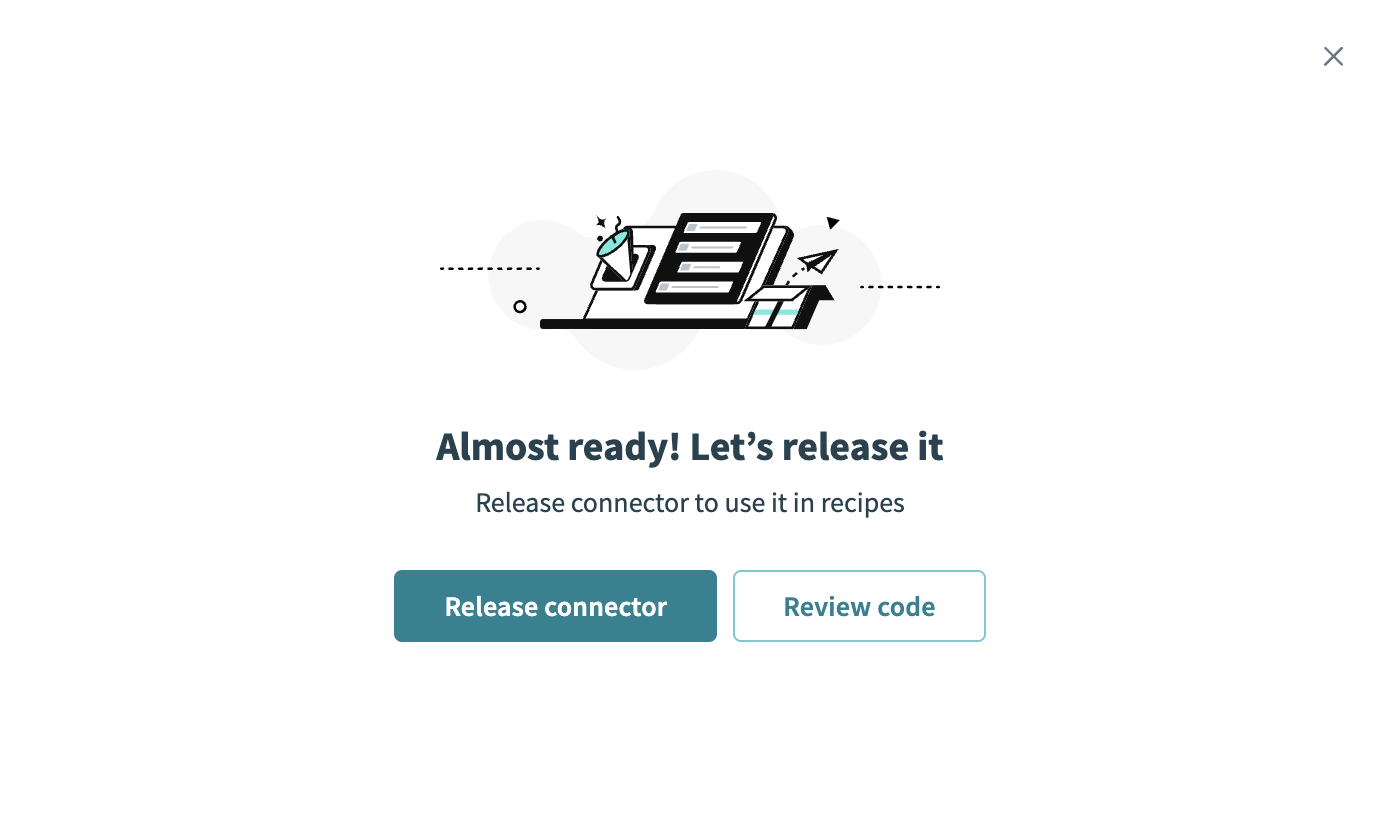 Release the connector
Summarize any changes you made to the connector, then click Release to allow workspace collaborators to use the connector in recipes.
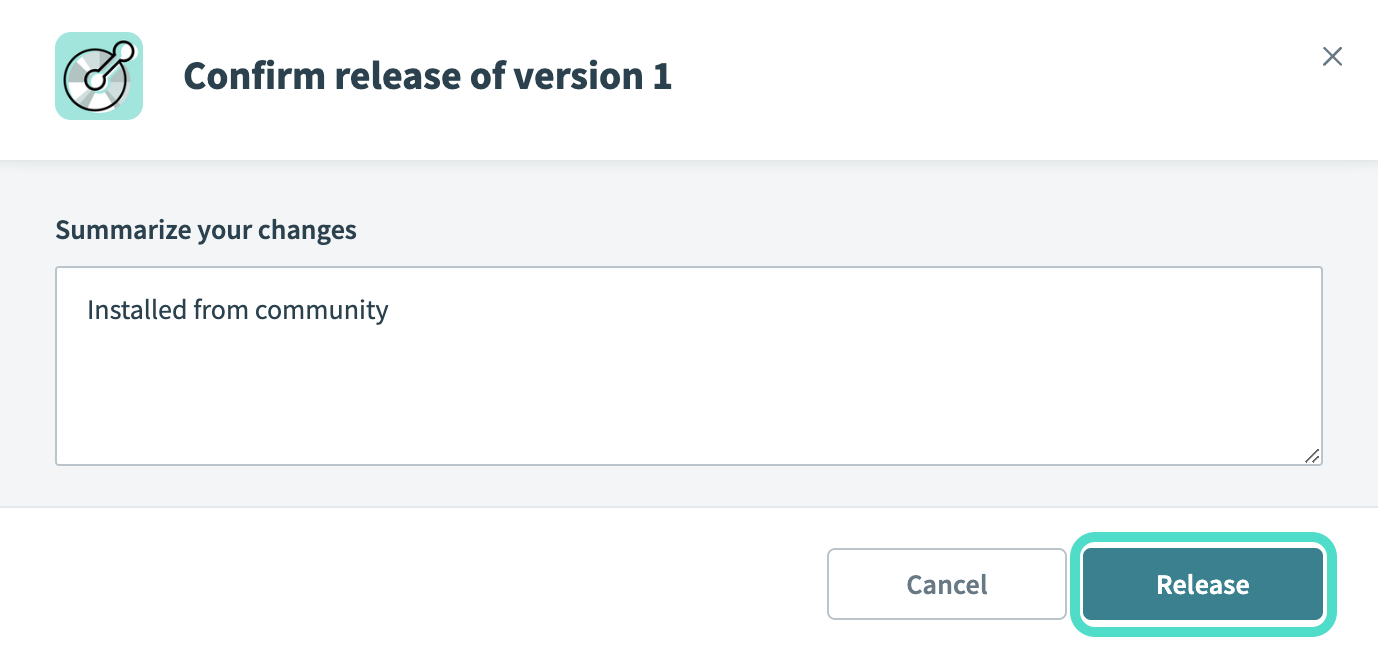 The Confirm release dialog
# Complete setup in Workato
Complete the following steps to establish a connection to Stacklet in Workato:
Click Create > Connection.
Search for and select Stacklet as your connection on the New Connection page.
Provide a unique name for the connection in the Connection name field.
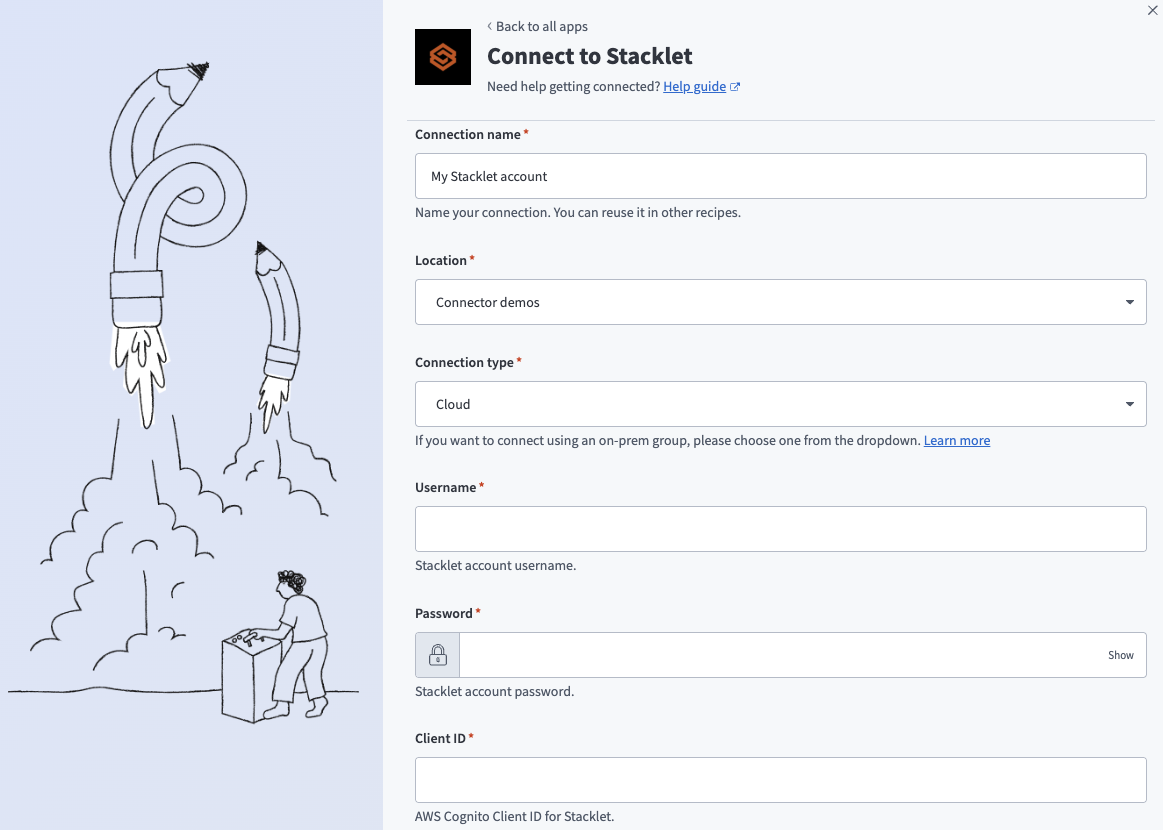 Create your connection
Use the Location drop-down menu to select the project where you plan to store the connection.
Use the Connection type drop-down menu to select the connection type.
Enter your Stacklet Username.
Enter your AWS Cognito Client ID for Stacklet.
Enter your Base URL. This is your Stacklet instance URL. For example, api.acme.stacklet.io.
Click Connect.
Last updated: 1/21/2026, 6:41:31 PM