# Upwind
Upwind (opens new window) is a cloud security platform that provides runtime-powered protection. This connector allows you to automate security workflows by integrating Upwind's threat detection, vulnerability management, and configuration compliance data with the rest of your organization's systems.
This connector has the following capabilities:
- Create tickets in a service management application when new threat events are detected in a cloud security platform
- Sync new and updated configuration compliance findings to a governance, risk, and compliance application for audit tracking
- Enrich incident records in a SIEM application with vulnerability finding and SBOM package details to accelerate security triage
- Register image build and deployment events from a CI/CD pipeline tool in a cloud security platform to enable runtime-to-code traceability
- Trigger automated notifications in a messaging application when high-severity configuration findings or threat events are identified
# Install Upwind from the community library
Complete the following steps to install the Upwind connector from the community library:
Complete the following steps to install the Upwind connector from the community library (opens new window):
Open the recipe editor and search for a connector. Alternatively, you can search for a connector in the community library (opens new window).
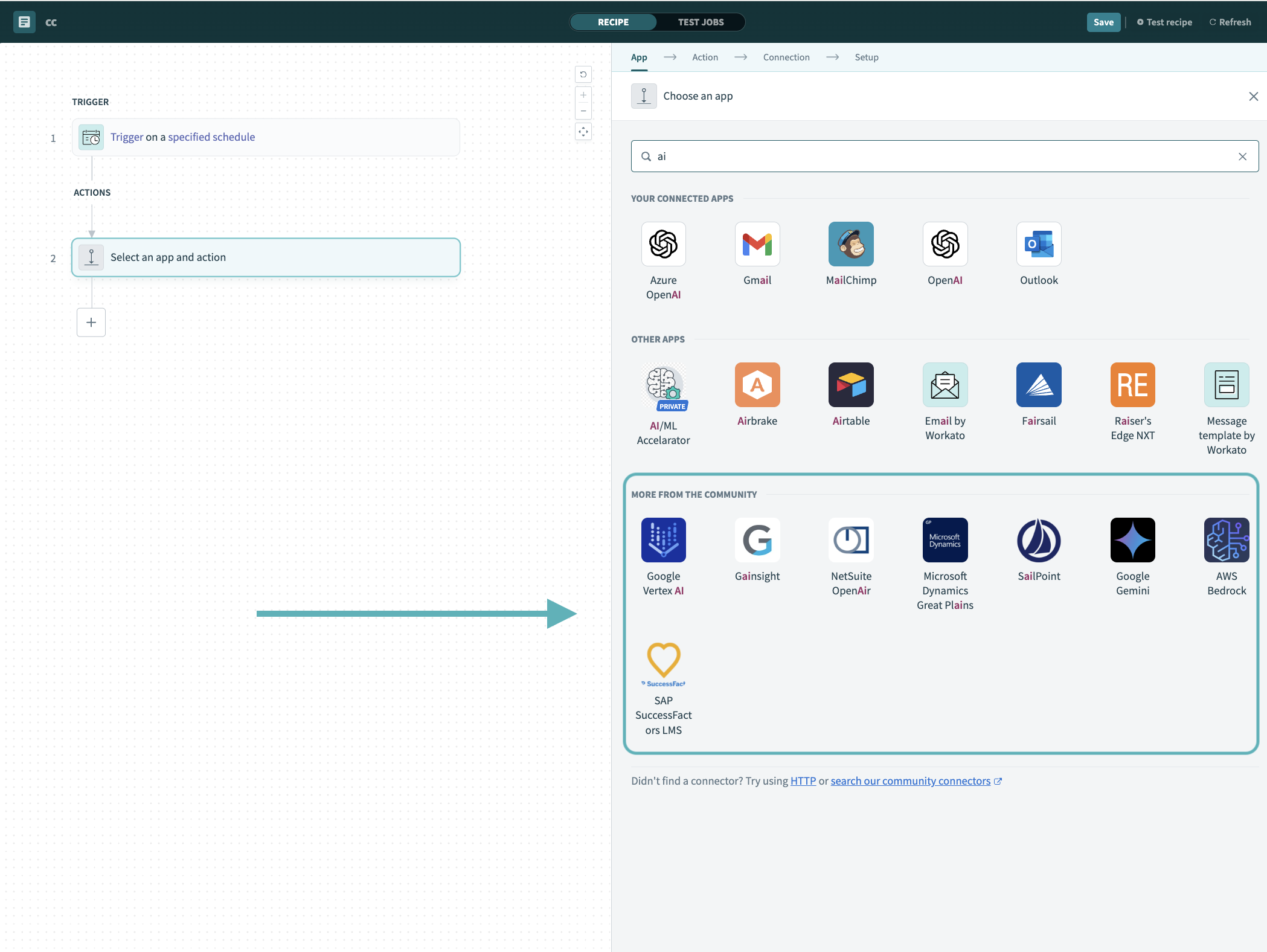 Search for community connectors in the recipe editor
Select the community connector you plan to install.
Click Install to install the connector from the community library.
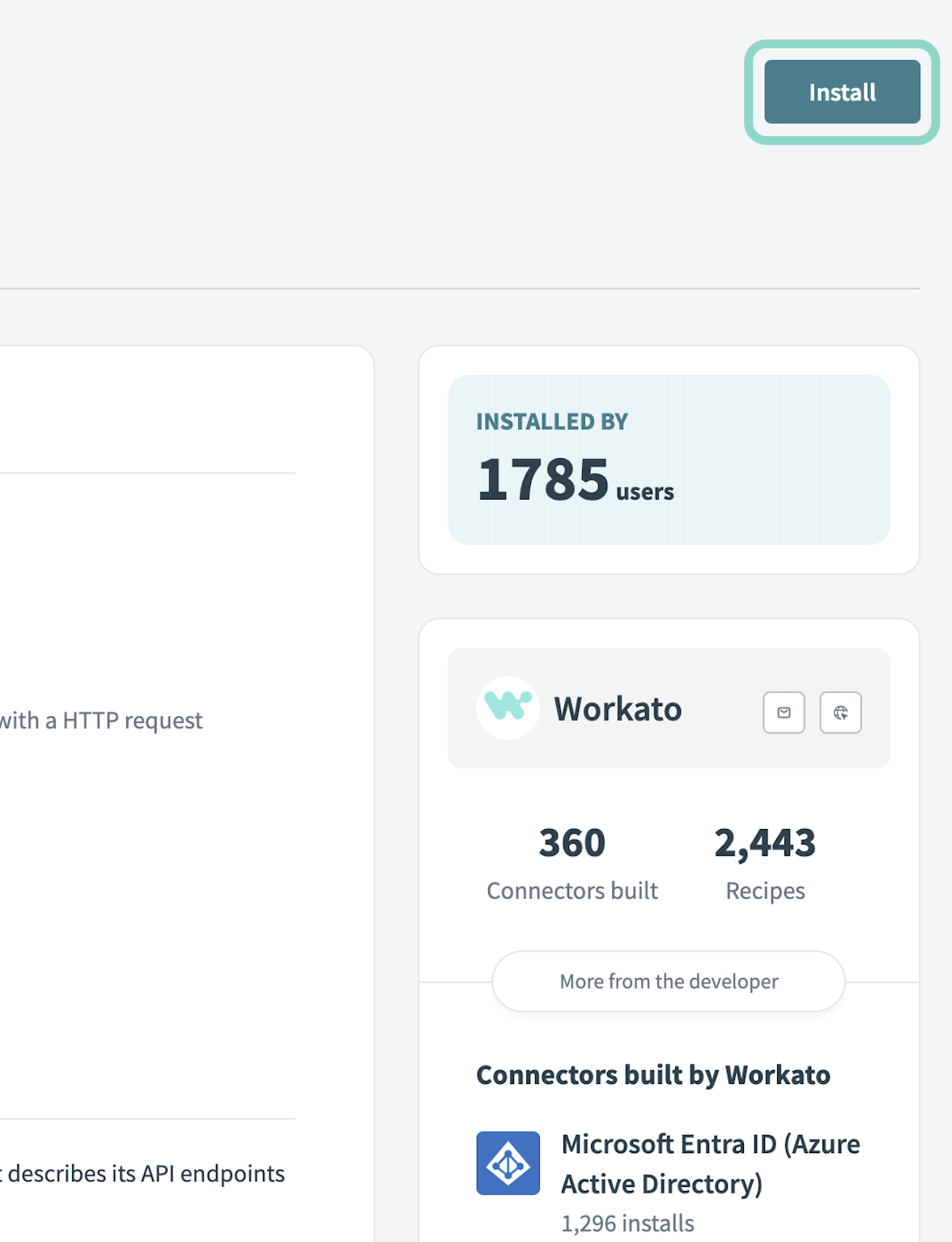 Click Install
Select Release connector. Alternatively, select Review code to review and modify the connector code before releasing it to the workspace.
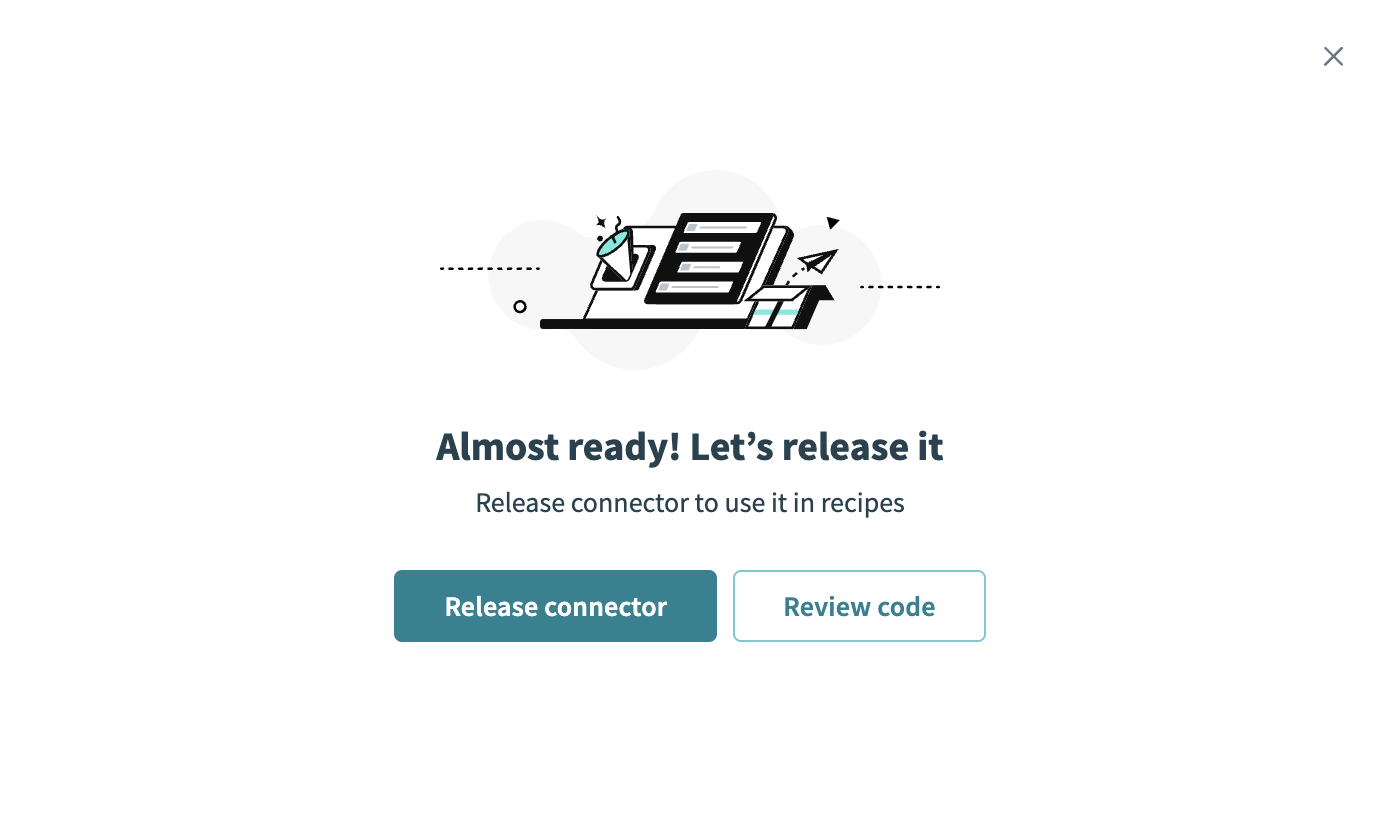 Release the connector
Summarize any changes you made to the connector, then click Release to allow workspace collaborators to use the connector in recipes.
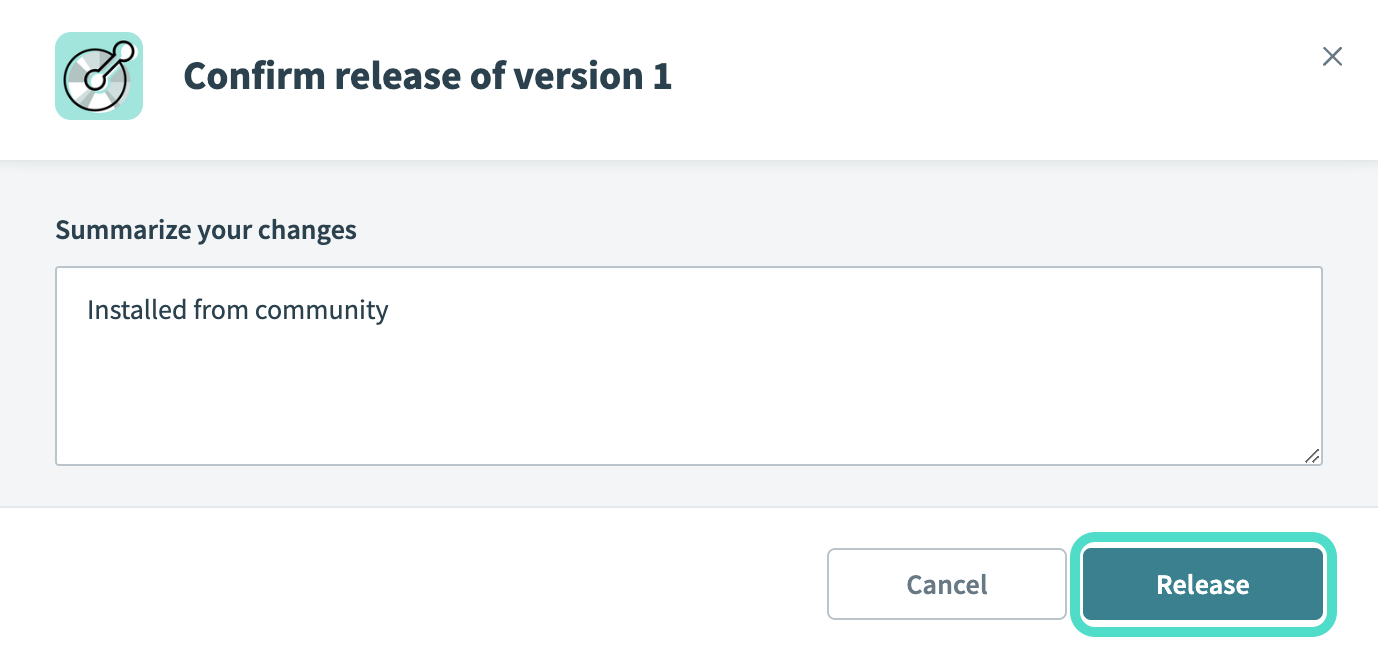 The Confirm release dialog
# Connection setup
The Upwind connector uses OAuth 2.0 authentication.
# Upwind setup
Sign in to your Upwind account.
Select your profile icon and click Settings.
Click Generate credential.
Select credential type you plan to use. Options are: Cloud account, Sensor, third-party integration or API.
Provide a Name for your credential, or use the auto-generated name.
Click Generate > Save. You must use these credentials to create a connection in Workato in later steps.
# Connect to Upwind using OAuth 2.0
Complete the following steps to connect to Upwind in Workato:
Click Create > Connection or press C twice.
Search for Upwind and select it as your app.
Enter a name for your connection in the Connection name field.
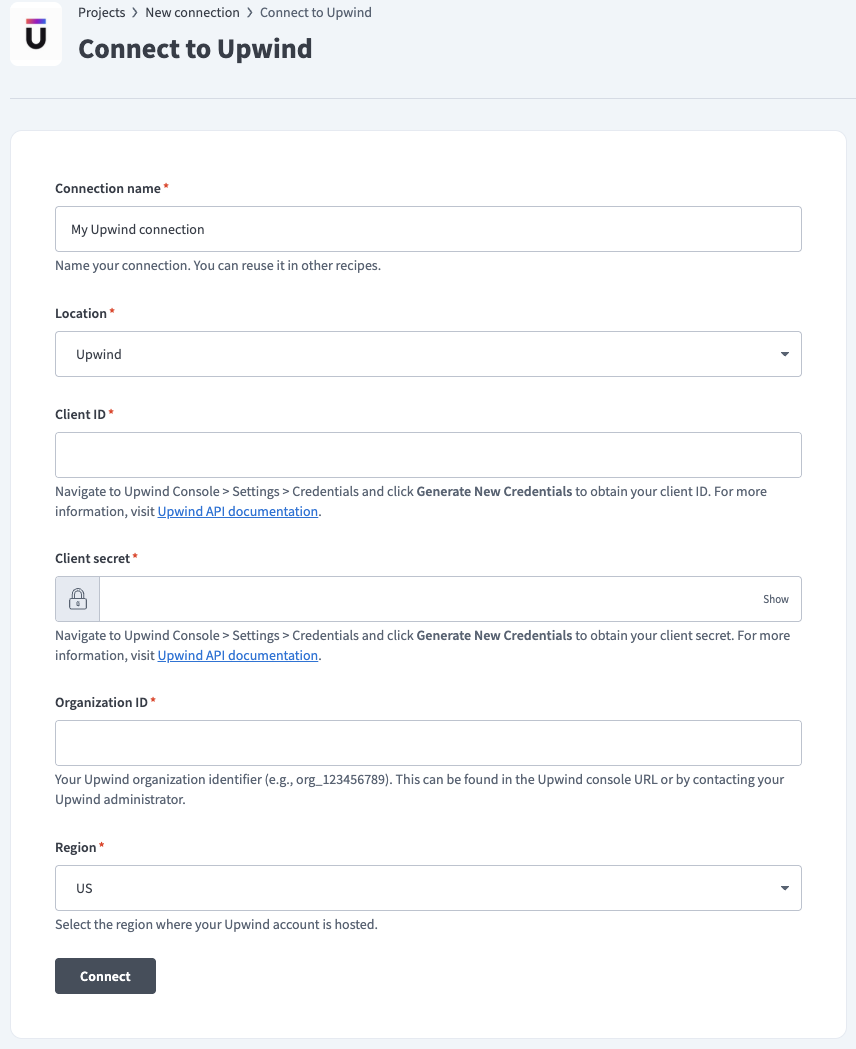 Upwind connection setup
Use the Location drop-down menu to select the project where you plan to store the connection.
Enter the Client ID for your Upwind account.
Enter the Organization ID for your Upwind account.
Select the Region where your Upwind account is hosted.
Click Connect.
Last updated: 4/30/2026, 3:06:08 PM