# X (Twitter)
X (formerly Twitter) provides a social media service for microblogging and social networking services. X enables you to share text messages, images, and videos in posts and like other users' content. The X connector allows you to automate workflows to search tweets and users and post your status.
# Connection setup
The X connector uses OAuth 1.0a authentication.
# X setup for OAuth 1.0a authentication
Complete the following steps to connect to X in Workato with OAuth 1.0a authentication:
# Generate a consumer key and secret
Complete the following steps to generate a consumer key and secret in X:
Sign in to the X Developer Console.
Click Apps > Create App.
Enter an Application Name.
Select an Environment.
Click Create New Client Application.
Copy and save the Consumer Key and Secret Key for use in Workato.
SAVE YOUR CREDENTIALS
The credentials only display once. If you lose them, you must generate new ones.
# Generate an access token and secret
Complete the following steps to generate an access token and secret in X:
Sign in to the X Developer Console.
Click Apps.
Click on the app you created in the preceding steps.
Under OAuth 1.0 Keys, click Generate for Access Token.
Copy and save the Access Token and Access Token Secret for use in Workato.
SAVE YOUR CREDENTIALS
The credentials only display once. If you lose them, you must generate new ones.
# Connect to X with OAuth 1.0a
Complete the following steps to connect to X in Workato:
Click Create > Connection.
Search for X and select it as your app.
Enter a name for your connection in the Connection name field.
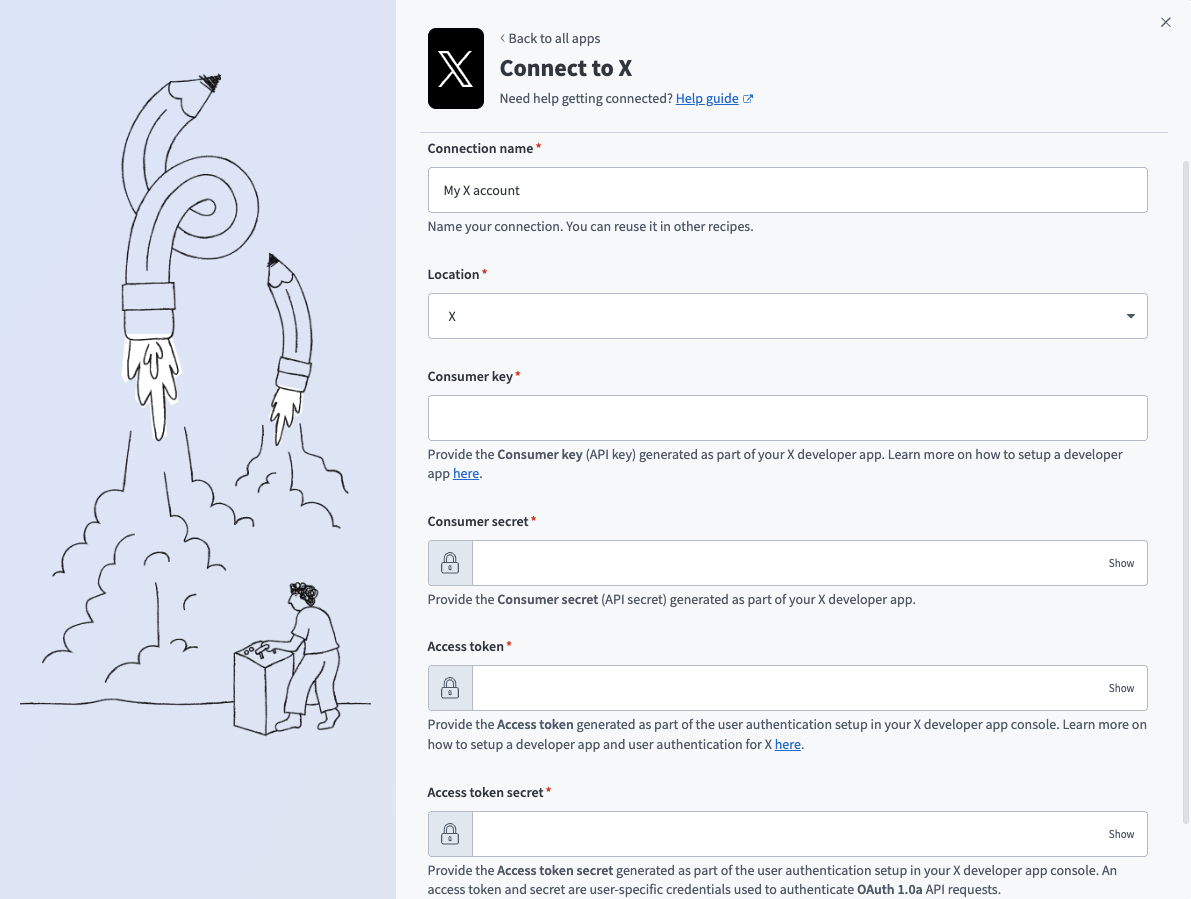 X connection setup
Use the Location drop-down menu to select the project where you plan to store the connection.
Enter the Consumer key and Consumer secret.
Enter the Access token and Access token secret.
Click Connect.
Last updated: 4/30/2026, 9:17:08 PM