Authentication
Control plane allows you to manage a single identity for authentication across multiple workspaces.
Collaborators sign in with their email address and password by default. You can enable SAML-based SSO to require collaborators to authenticate through your identity provider (IdP) for all domains or selected domains.
Set up a SAML-SSO provider
Complete the following steps to set up a SAML-SSO provider:
NOT FOR WORKFLOW APPS SAML-BASED SSO
This documentation is specific to Control plane. Refer to SAML-based single sign-on authentication to configure SAML authentication for Workflow apps.
Sign in to your Workato account.
Expand the workspaces menu.
Click Control plane.
Sign in using your Control plane credentials or SSO.
Go to Control plane settings > Authentication.
Enable the SAML-based SSO authentication toggle.
Click + Set up identity provider.
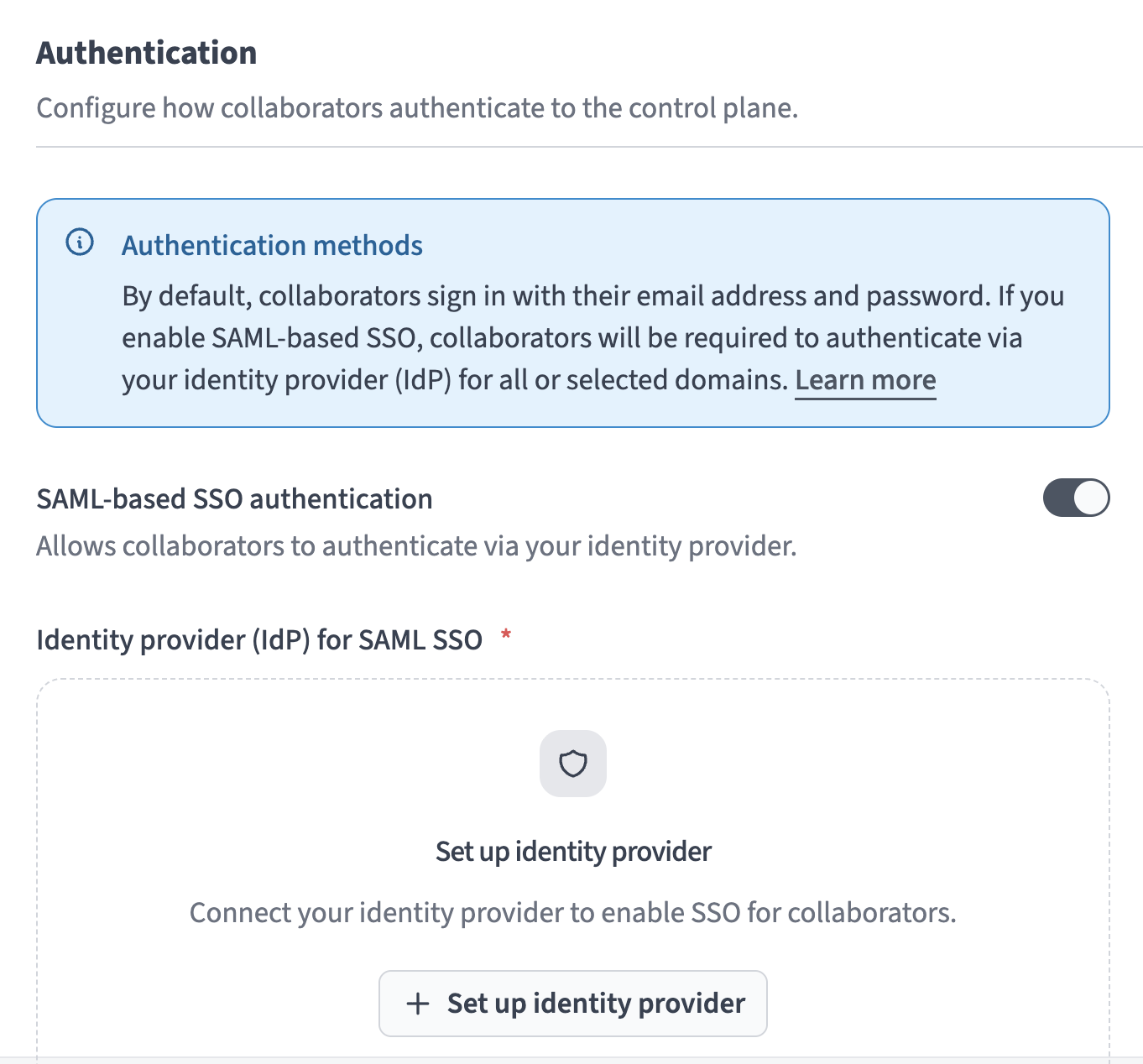 Click + Set up identity provider
Go to the Enforce SAML authentication for section and select either All domains or Selected domains. You must enter multiple domains separated by commas in the Specify domains field if you choose Selected domains.
Go to the SP Entity ID field and click Copy. You must add this value to your IdP to configure SAML SSO.
Go to the ACS (Reply) URL field and click Copy. You must add this value to your IdP to configure SAML SSO.
Go to the Do you have your identity provider metadata URL? section and select the option that applies to you.
Click Setup.
Last updated: