SCIM provisioning
SCIM (System for Cross-domain Identity Management) provisioning automatically synchronizes user accounts and groups between your identity provider and Workato Control plane. This eliminates the need for administrators to manually create or update accounts, and allows you to manage Workato Control plane users and groups entirely from your existing identity provider.
Prerequisites
You must have the following configurations before you can enable SCIM provisioning:
- A configured SAML-SSO provider for Control plane
Enable SCIM provisioning
Complete the following steps to enable SCIM provisioning:
NOT FOR WORKFLOW APPS SAML-BASED SSO
This documentation is specific to Control plane. Refer to SAML-based single sign-on authentication to configure SAML authentication for Workflow apps.
Sign in to your Workato account.
Expand the workspaces menu.
Click Control plane.
Sign in using your Control plane credentials or SSO.
Go to Control plane settings > Authentication.
Go to the Identity provider (IdP) for SAML SSO section and click the provisioning Setup now link for the IdP where you plan to enable SCIM.
Click SCIM provisioning in the Provisioning modal.
Click Continue.
Copy the Base URL and SCIM token values in the Get your SCIM credentials modal. Store the token securely. You won’t be able to view it again. You must re-generate the token if you lose it.
Click Done.
Refer to the following IdP resources for IdP-specific SCIM provisioning configuration information and examples:
Rotate SCIM token
You can rotate your SCIM token in Control plane.
Complete the following steps to rotate your SCIM token:
Go to Enterprise controls and click Control plane.
Sign in using your Control plane credentials or SSO.
Go to Settings > Authentication.
Go to the Identity provider (IdP) for SAML SSO section and click the ... (ellipsis) option menu of the IdP with SCIM token you plan to rotate.
Click Provisioning to open the Provisioning modal.
Click Rotate.
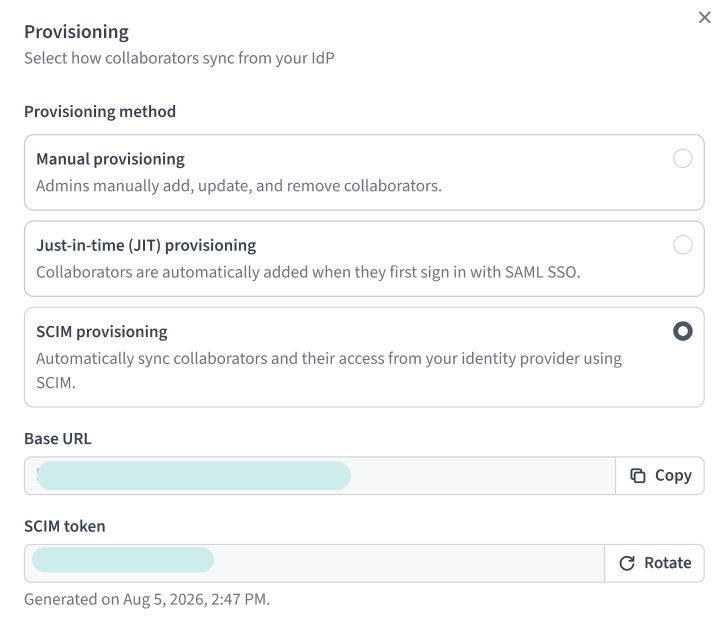 Click Rotate
Click Save changes.
Last updated: