Data table permissions
A collaborator's project role controls what they can do with data tables in a project: view, create, edit records, delete, or modify structure.
The following table shows the default data tables access for each system project role:
| Role | Data tables permissions |
|---|---|
| Project admin | Full access |
| Advanced builder | Full access |
| Builder | Full access |
| Project operator | None |
If the system roles don't fit, create a custom project role and pick the data tables privileges yourself.
Configure data tables privileges in a custom project role
Data tables privileges appear under the Project assets section of the project role editor.
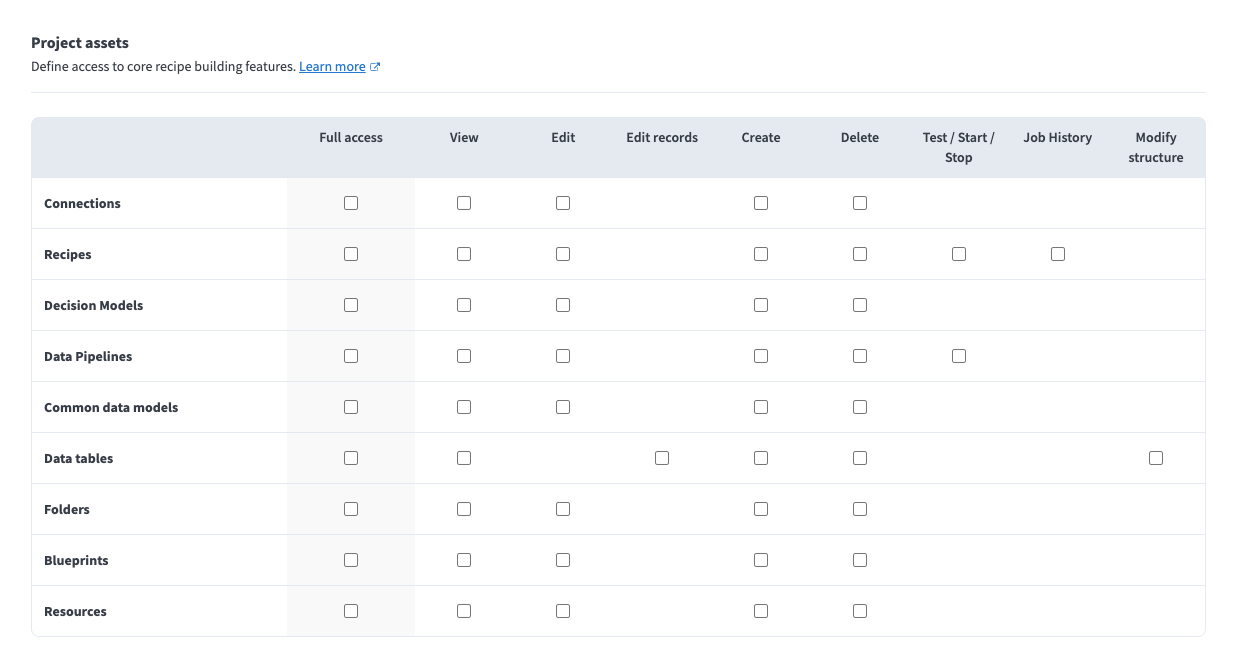 Assign data tables permissions
Complete the following steps to configure data tables privileges in a custom project role:
Sign in to your Workato account.
Go to Workspace admin > Project roles and click + Add project role. Alternatively, you can modify an existing custom role.
Navigate to Project assets > Data tables.
Determine the privileges to assign to this role.
Click Save changes.
Assign roles
Data tables access is controlled by project roles, which are assigned per project. A new collaborator must also be assigned an environment role when they're invited to the workspace, but environment roles don't grant data tables access on their own.
- To invite a new collaborator and assign their environment role, refer to Invite collaborators.
- To assign or change a collaborator's project role (which controls their data tables access), refer to Manage a collaborator's project access.
Last updated: