Process purchase orders with a procurement genie
This use case configures a procurement genie with a skill that calls a decision model to evaluate purchase order requests. Rather than encoding business rules in prompts, the decision model applies your organization's fulfillment logic, such as holiday freezes, price deviation thresholds, and inventory checks, and returns a deterministic decision that the skill uses to route the order.
What does this genie do?
This genie processes purchase order requests from users and uses a decision model in a skill to determine whether to accept, reject, or back-order the purchase.
Create your procurement genie
Complete the following steps to build a procurement genie that uses a decision model to process purchase orders:
USE CASES ARE INTENDED AS EXAMPLES ONLY
Use cases are intended to serve as examples. Genie modifications, such as triggers or custom actions, may require adjustments for your specific setup.
Sign in to Workato.
Select the project where you plan to create your genie and skill.
Go to AI Hub > Agent Studio.
Create a genie.
Create a genie
This step creates the procurement genie that users will interact with to submit and check purchase orders.
Sign in to Workato.
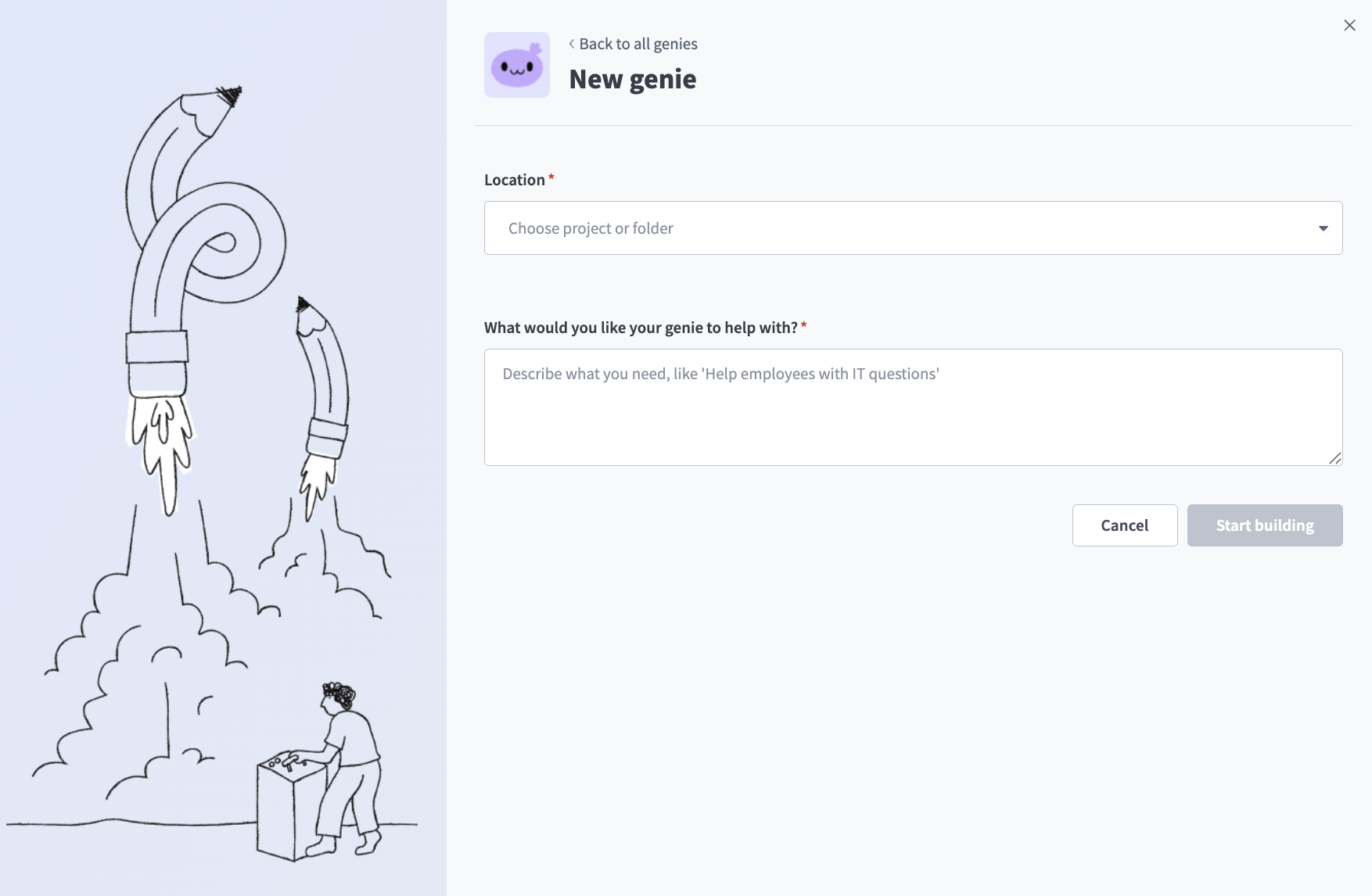
Go to AI Hub > Agent Studio and click + Create genie. Alternatively, go to the Projects page and click Create > Genie or press C+G.
Select New genie to create a blank genie.
Use the Location drop-down menu to select a location for your genie.
Enter a request or goal for your genie in the What would you like your genie to help with? field.
 Create a genie
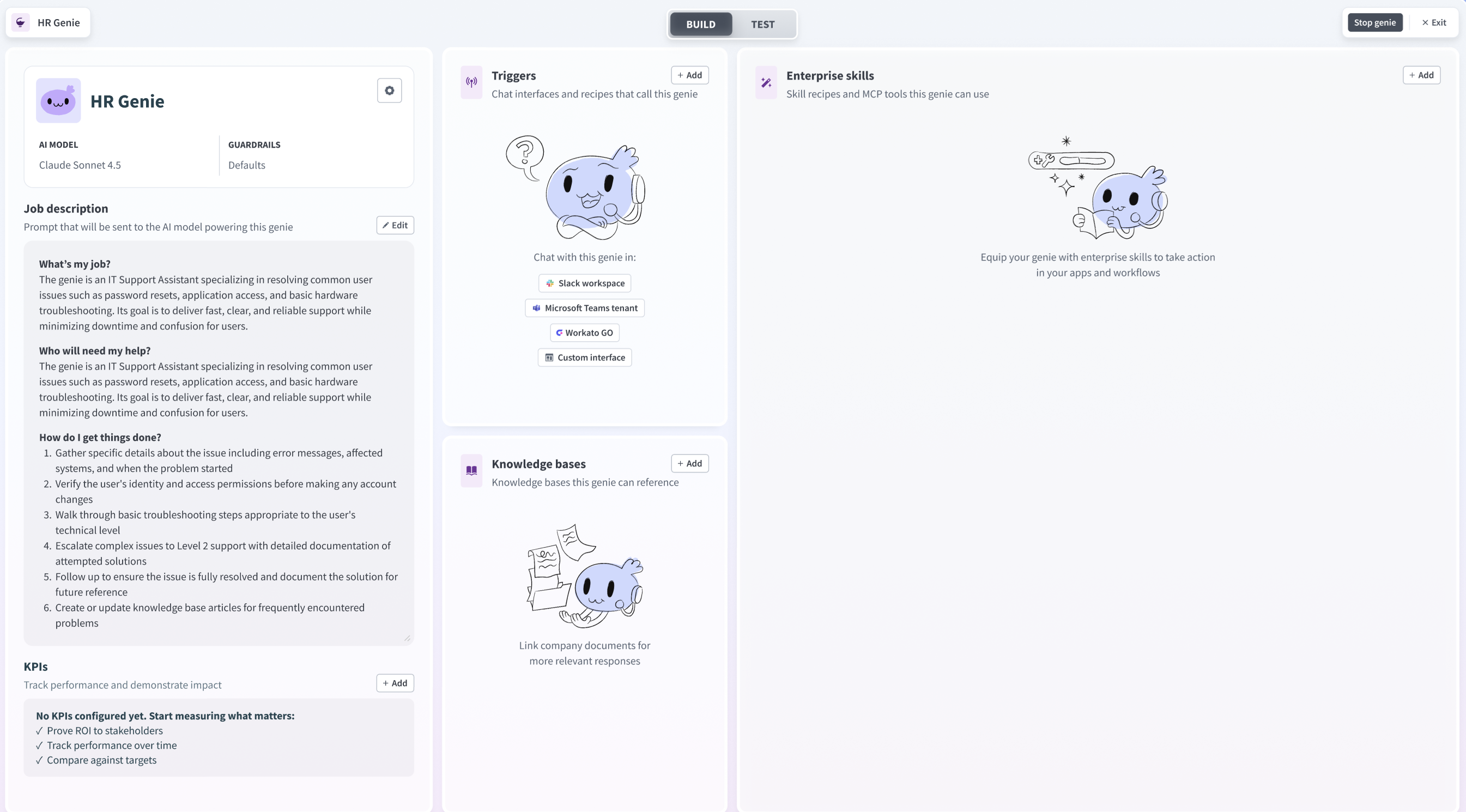
Click Start building. The genie Build page displays.
JOB DESCRIPTIONS ARE AUTOMATICALLY GENERATED
The Job description is automatically generated based on the input you provide to the What would you like your genie to help with? field during genie setup and can be edited to suit your requirements.
 Genie build page
Create the decision model.
Create the decision model
This step defines the fulfillment rules your skill will use to evaluate purchase orders. The decision model is the single source of truth for your business logic. Rules can be updated here independently of the genie or skill.
Go to Projects and click Create > Decision model.
Enter a name for your decision model in the Decision model name field. For example: Purchase order fulfillment.
Click Start building.
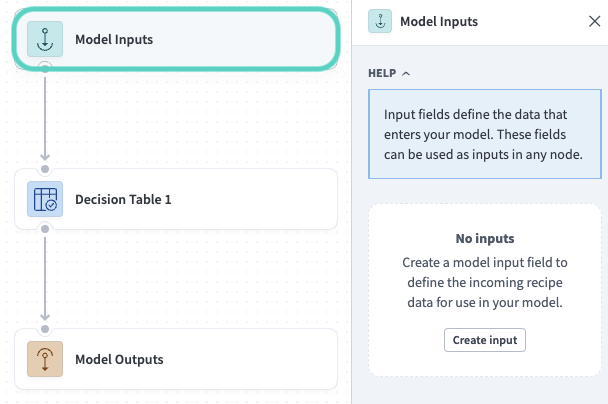
Define your input schema in the Model Inputs node. These are the fields your skill will supply when calling the model. For example:
supplier_score(Number): The supplier's risk or performance scorerisk_level(String): The supplier's risk classification, such asLow,Medium, orHighrequest_type(String): The type of purchase request, such asStandardorEmergencyorder_value(Number): The total value of the purchase orderlead_time_days(Number): The supplier's current lead time in dayscurrent_stock(Number): Current inventory level for the ordered item
 Add fields to the Model Inputs node
Go to the Fields sidebar and create a decision field (String). This field carries the model's output, such as Approved, Rejected, Escalate, or Review, back to the skill.
Configure the Model Outputs node to return decision.
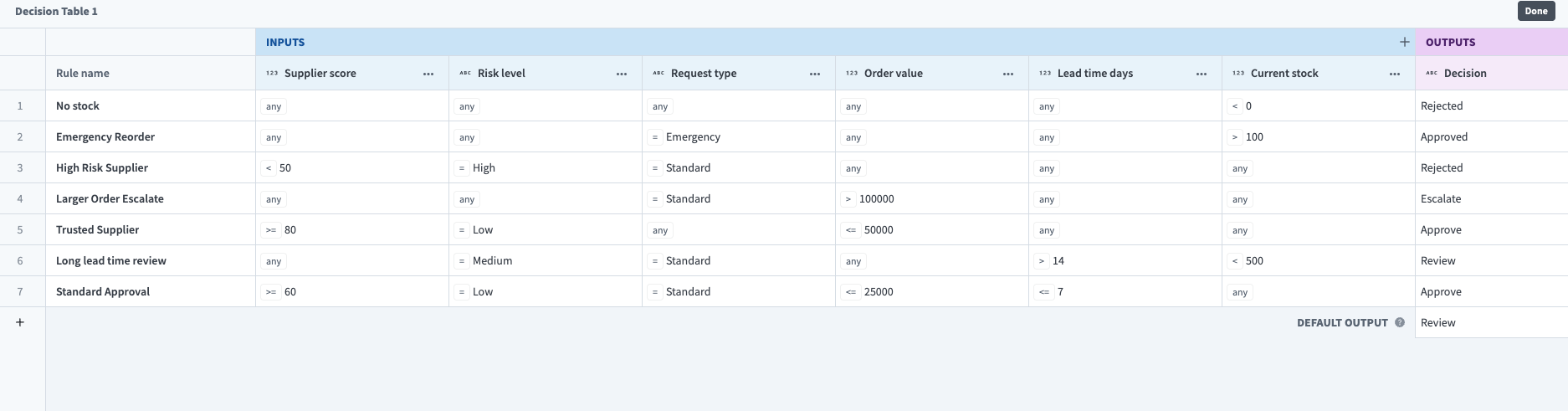
Open the Decision table node and add your fulfillment rules as rows. Rules are evaluated top to bottom: the first row that matches all conditions determines the output. You can also set a Default output that applies when no rule matches. For example:
| Rule name | Supplier score | Risk level | Request type | Order value | Lead time days | Current stock | Decision |
|---|---|---|---|---|---|---|---|
| No stock | Any | Any | Any | Any | Any | < 0 | Rejected |
| Emergency reorder | Any | Any | Emergency | Any | Any | > 100 | Approved |
| High risk supplier | < 50 | High | Standard | Any | Any | Any | Rejected |
| Large order escalate | Any | Any | Standard | > 100000 | Any | Any | Escalate |
| Trusted supplier | ≥ 80 | Low | Any | ≤ 50000 | Any | Any | Approve |
| Long lead time review | Any | Medium | Standard | Any | > 14 | < 500 | Review |
| Standard approval | ≥ 60 | Low | Standard | ≤ 25000 | ≤ 7 | Any | Approve |
| Default output | — | — | — | — | — | — | Review |
 Add fulfillment rules as rows in the decision table
Click Save.
Create a skill.
Create a skill
This step adds a new skill to your genie where you can build the purchase order processing recipe.
Go to the genie Build page.
Go to the Enterprise skills section and click + Add.
Select Skill.
Select New skill.
Click Create new skill.
Alternatively, you can create a skill from the Projects page by clicking Create > Skill or pressing C+S.
Enter a name for your skill in the Skill name field. For example: Process purchase order.
Use the Location drop-down menu to select a location for your skill.
Click Start building. The recipe editor opens with the Start workflow trigger and Return response action automatically selected.
Set up your skill trigger.
Set up your skill trigger
This step tells the genie when to invoke this skill and what information to extract from the user's message.
Select the Start workflow trigger.
Enter a description in the When should your genie run this skill? field. For example:
Run this skill when a user submits a purchase order or asks whether a purchase order will be fulfilled. Extract the product ID, order value, and request type from the user's message.

Do not run this skill for:
- General questions about procurement policy
- Requests to look up order historyGo to the What inputs will your genie require to run this skill? section and add the fields the genie will extract from the user's message and pass to the recipe. For example:
product_id(String): The product being orderedorder_value(Number): The total value of the purchase orderrequest_type(String): The type of purchase request, such asStandardorEmergency
Go to the What should be returned to the genie after this skill is run? section and add a decision_result (String) output field. The skill uses this to return the fulfillment outcome to the genie.
Click Save.
Set up the Decision Models action.
Set up the Decision Models action
This step adds the Decision Models by Workato connector to the skill and maps the purchase order data to the decision model's inputs.
Add any steps needed to fetch data the decision model requires before making a decision. For example, use the Search action in a connector such as NetSuite to look up supplier risk scores and current inventory levels for the submitted product_id.
Click + Add step in the recipe editor.
Search for and select Decision Models by Workato.
Select the Make a decision action.
Use the Model name drop-down to select your Purchase order fulfillment model.
Map the input datapills to the model's input fields. For example:
order_value→ Order valueStep 1 from the skill triggerrequest_type→ Request typeStep 1 from the skill triggersupplier_score→ Supplier score from your supplier lookup steprisk_level→ Risk level from your supplier lookup steplead_time_days→ Lead time days from your supplier lookup stepcurrent_stock→ Current stock from your supplier lookup step
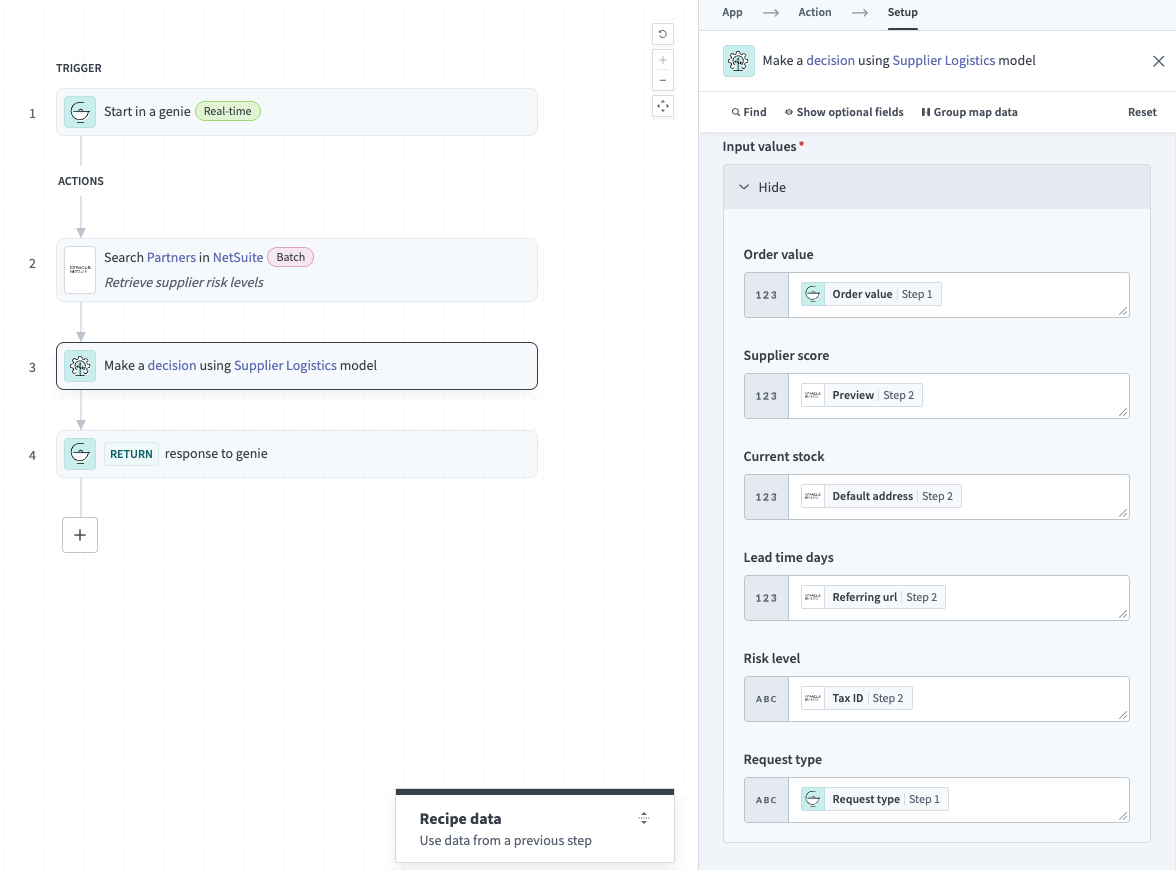 Map datapills from earlier recipe steps to the decision model's input fields
Click Save.
Configure the Return Response to Genie block.
Configure the Return Response to Genie block
This step returns the decision model's output to the genie so it can relay the fulfillment outcome to the user.
Select Return Response to Genie in the recipe editor.
Map the Decision output datapill from the Make a decision step to the decision_result output field. The genie uses this value to inform the user of the fulfillment outcome.
Click Save.
Test your skill.
Test your skill
This step verifies that your genie correctly invokes the skill and that the decision model returns the expected fulfillment decision.
Return to the genie Build page and click Test.
Enter a purchase order request in the chat. For example:
I'd like to submit a purchase order for product SKU-1234, order date today, at $450. Can you process this?Verify that the genie invokes the skill, the decision model evaluates the order against your rules, and the genie returns the fulfillment decision. Edit your decision table or skill and test again if the results aren't correct.
Last updated: