Route requests across agents with a decision model
This use case configures a front-facing genie that uses a decision model to route user requests to the correct specialist genie. Rather than relying on prompts to determine which agent should handle a request, the decision model applies predefined routing rules deterministically, giving you full control, auditability, and testability over how requests are distributed across your agent network.
End users interact with a single genie. Behind the scenes, the decision model routes each request to the appropriate specialist genie based on the request category and other criteria you define.
What does this genie do?
This genie receives user requests, extracts the request category and domain, and uses a decision model in a skill to assign the request to the correct specialist genie.
Set up your routing genie
Complete the following steps to build a front-facing genie that uses a decision model to route requests to specialist genies:
USE CASES ARE INTENDED AS EXAMPLES ONLY
Use cases are intended to serve as examples. Genie modifications, such as triggers or custom actions, may require adjustments for your specific setup.
Sign in to Workato.
Select the project where you plan to create your genie and skill.
Go to AI Hub > Agent Studio.
Create a front-facing genie.
Create a front-facing genie
This step creates the genie that end users interact with. This genie acts as a single entry point and delegates requests to specialist genies behind the scenes.
Sign in to Workato.
Go to AI Hub > Agent Studio and click + Create genie. Alternatively, go to the Projects page and click Create > Genie or press C+G.
Select New genie to create a blank genie.
Use the Location drop-down menu to select a location for your genie.
Enter a request or goal for your genie in the What would you like your genie to help with? field.
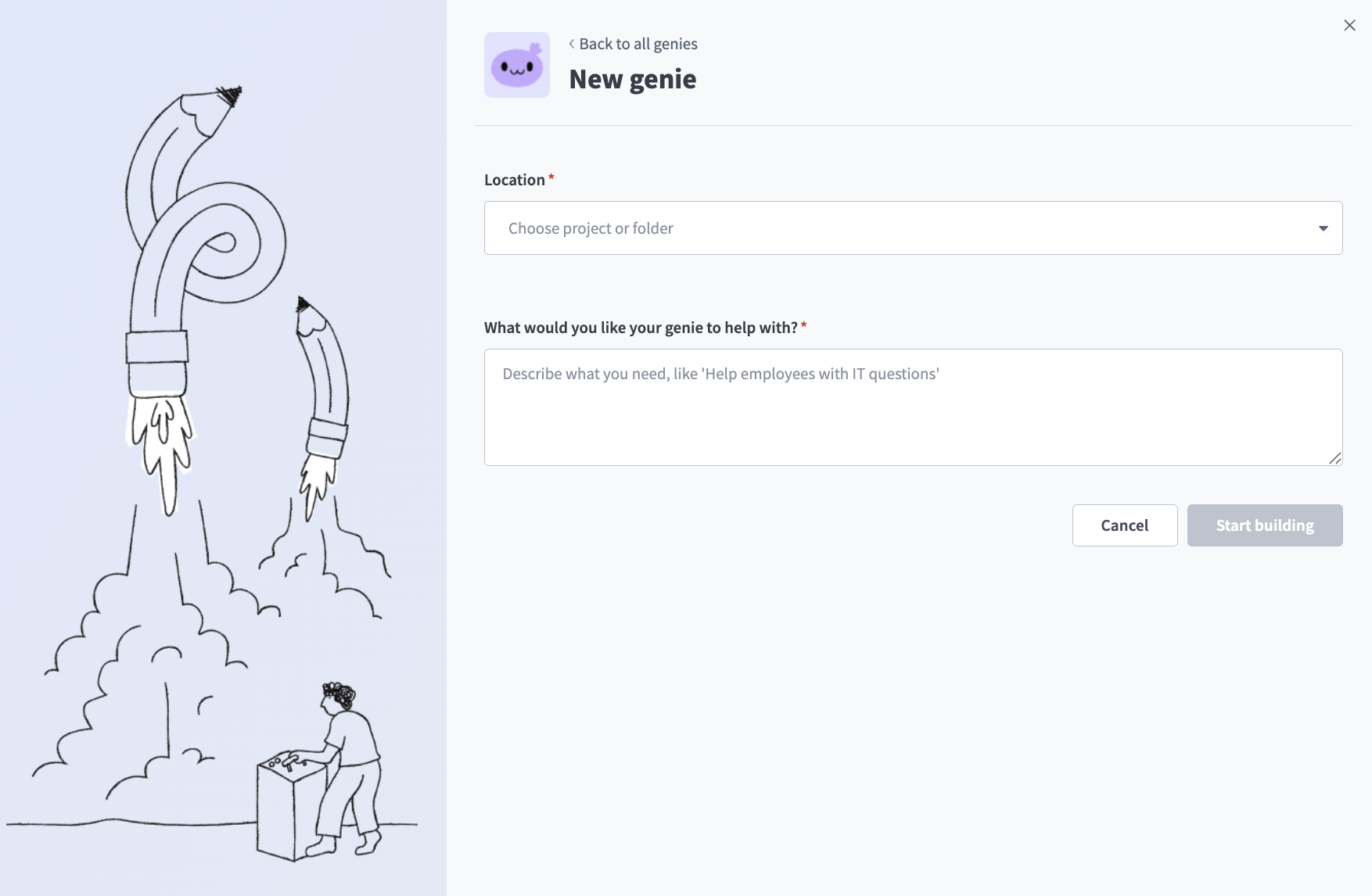 Create a genie
Click Start building. The genie Build page displays.
JOB DESCRIPTIONS ARE AUTOMATICALLY GENERATED
The Job description is automatically generated based on the input you provide to the What would you like your genie to help with? field during genie setup and can be edited to suit your requirements.
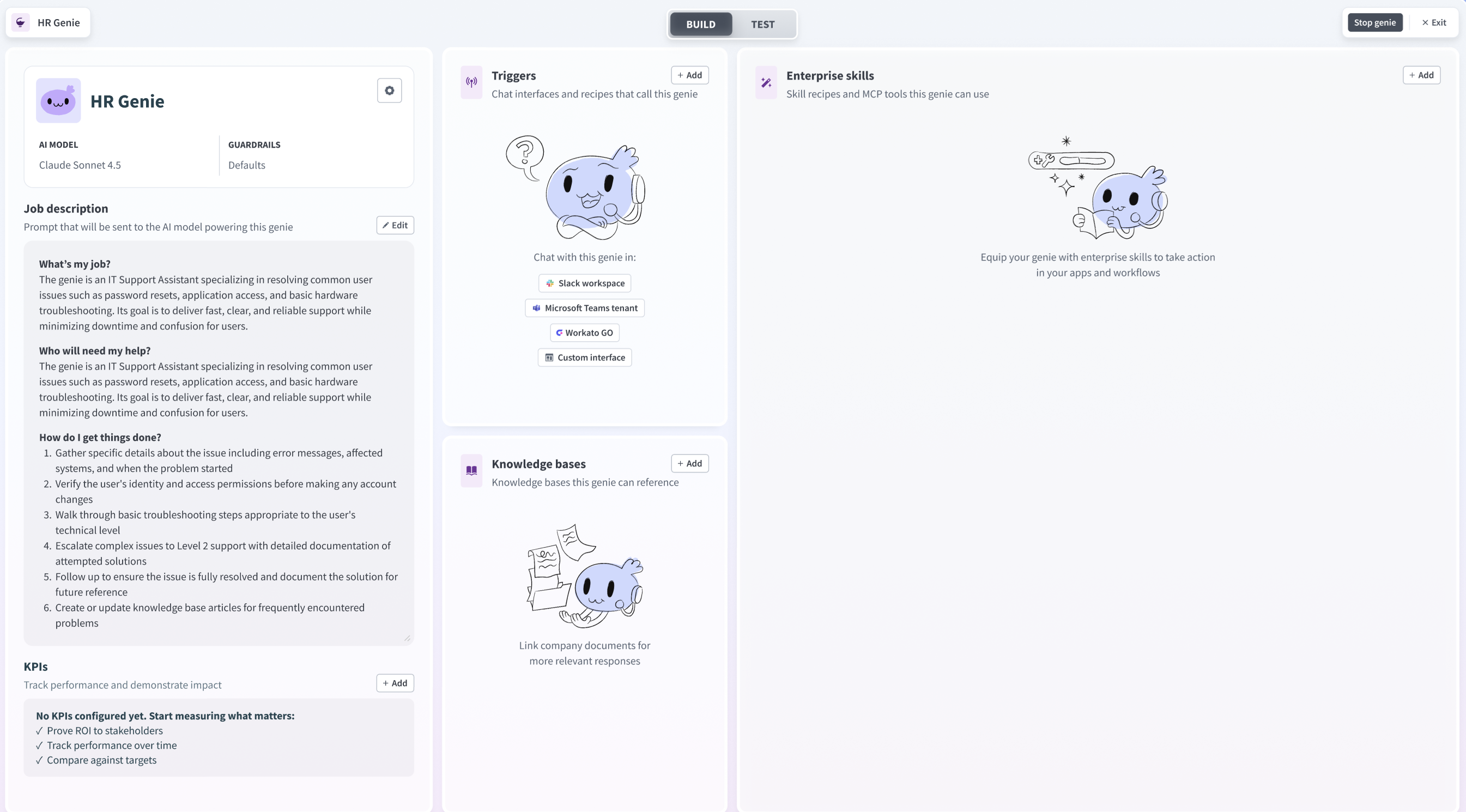 Genie build page
Create the routing decision model.
Create the routing decision model
This step defines the routing rules that determine which specialist genie handles each request. The decision model is maintained independently of the genie, so you can update routing logic without modifying any skills or prompts.
Go to Projects and click Create > Decision model.
Enter a name for your decision model in the Decision model name field. For example: Request routing.
Click Start building.
Define your input schema in the Model Inputs node. These are the fields the front-facing genie will extract from the user's message and pass to the model. For example:
domain(String): The area of the request, such asSoftware/App,Device/Hardware, orOffice/Facilitiespurchase_needed(Boolean): Whether the request requires a purchasecatalog_type(String): The catalog category for purchase requests, such asIT,Office, orNot in catalog
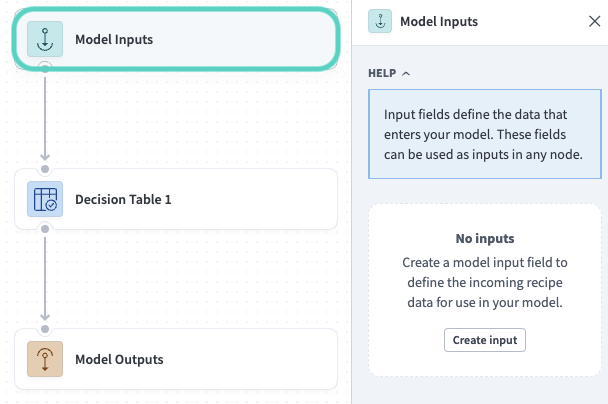 Add fields to the Model Inputs node
Go to the Fields sidebar and create a genie field (String). This field returns the name of the specialist genie the request should be routed to.
Configure the Model Outputs node to return genie.
Open the Decision table node and add your routing rules as rows. Rules are evaluated top to bottom: the first matching row determines the output. You can also set a Default output that applies when no rule matches. For example:
| Rule name | Domain | Purchase needed | Catalog type | Genie |
|---|---|---|---|---|
| New purchases | Any | true | Not in catalog | Procurement |
| IT purchases | Any | true | IT | IT |
| Office purchases | Any | true | Office | Office Management |
| Office/Facilities issues | Office/Facilities | Any | Any | Office Management |
| Printing/AV issues | Printing/AV | Any | Any | Office Management |
| Software issues | Software/App | Any | Any | IT |
| Hardware issues | Device/Hardware | Any | Any | IT |
| Network/VPN issues | Network/VPN | Any | Any | IT |
| Access/Account issues | Access/Account | Any | Any | IT |
| Default output | — | — | — | Escalation |
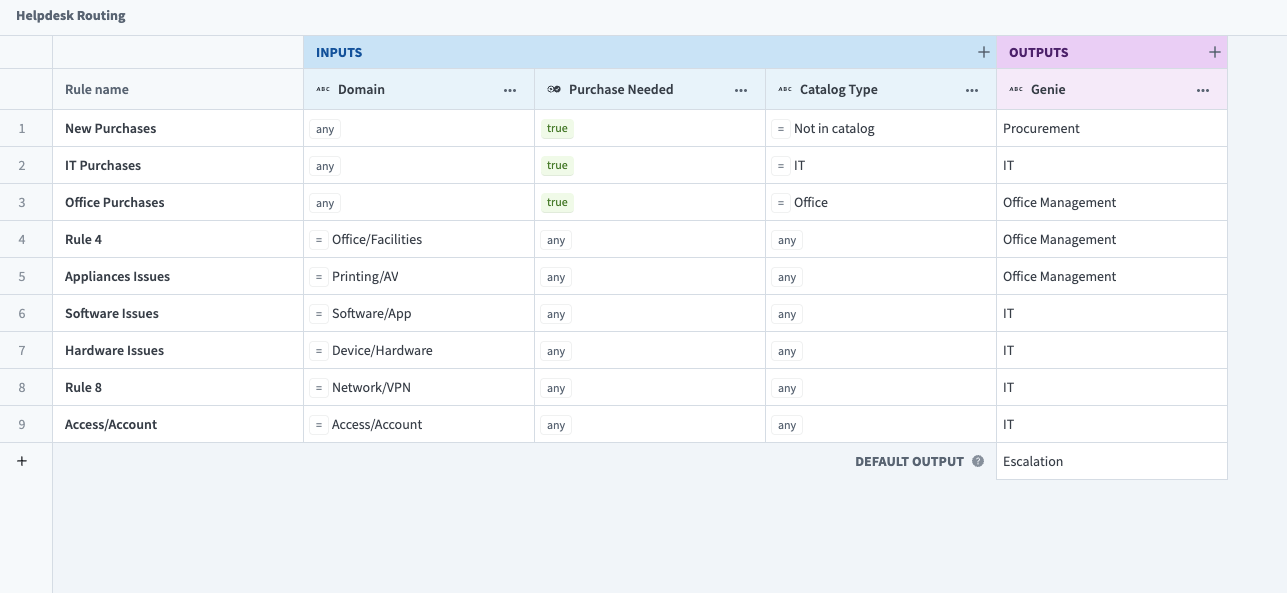 Add routing rules as rows in the decision table
Click Save.
Create a skill.
Create a skill
This step adds a routing skill to your front-facing genie.
Go to the genie Build page.
Go to the Enterprise skills section and click + Add.
Select Skill.
Select New skill and click Create new skill.
Alternatively, you can create a skill from the Projects page by clicking Create > Skill or pressing C+S.
Enter a name for your skill in the Skill name field. For example: Route request to specialist.
Use the Location drop-down menu to select a location for your skill.
Click Start building. The recipe editor opens with the Start workflow trigger and Return response action automatically selected.
Set up your skill trigger.
Set up your skill trigger
This step defines when the genie should invoke the routing skill and what information it needs to extract from the user's message.
Select the Start workflow trigger.
Enter a description in the When should your genie run this skill? field. For example:
Run this skill for every new request that needs to be routed to a specialist. Extract the domain, whether a purchase is needed, and the catalog type from the user's message before invoking this skill.Go to the What inputs will your genie require to run this skill? section and add the fields the genie will extract and pass to the recipe. For example:
domain(String): The area of the request extracted from the user's messagepurchase_needed(Boolean): Whether the request requires a purchasecatalog_type(String): The catalog category for purchase requests
Click Save.
Set up the Decision Models action.
Set up the Decision Models action
This step calls the routing decision model and retrieves the name of the specialist genie to assign the request to.
Click + Add step in the recipe editor.
Search for and select Decision Models by Workato.
Select the Make a decision action.
Use the Model name drop-down to select your Request routing model.
Map the input datapills to the model's input fields:
domain→ DomainStep 1 from the skill triggerpurchase_needed→ Purchase neededStep 1 from the skill triggercatalog_type→ Catalog typeStep 1 from the skill trigger
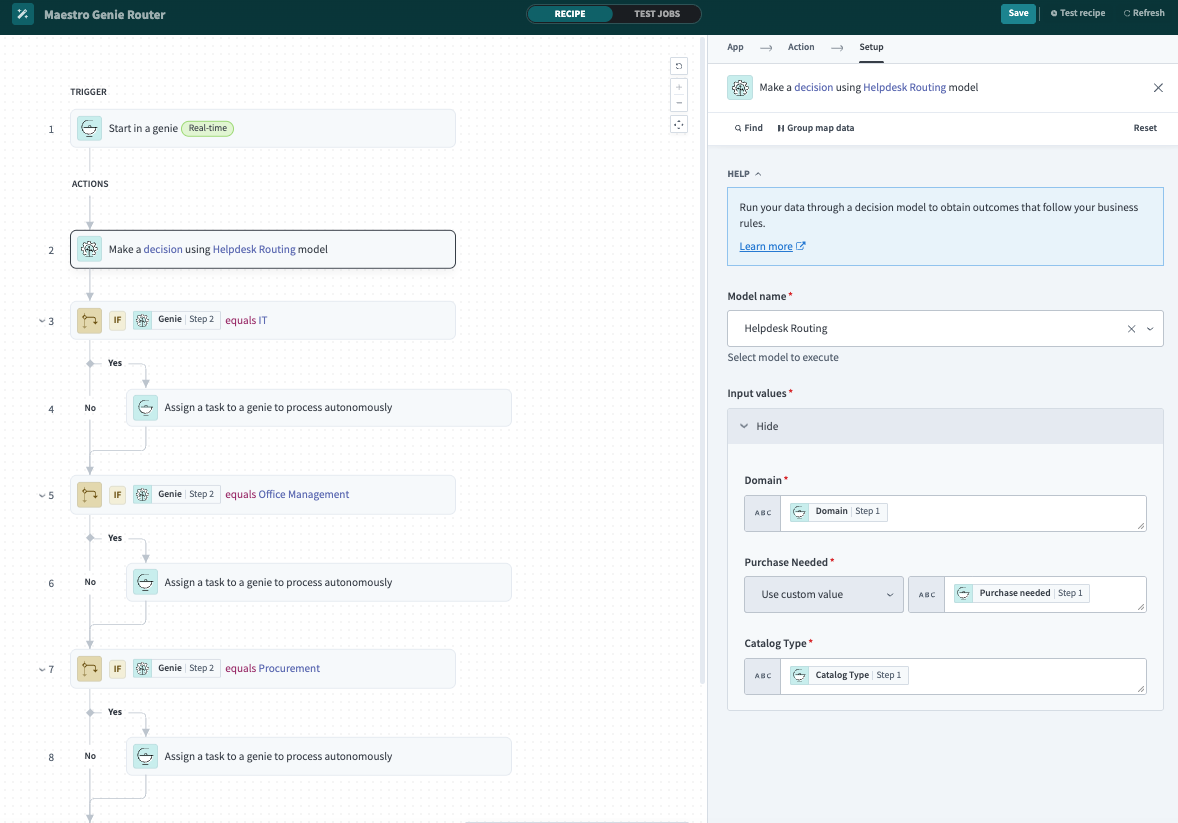 Map skill trigger datapills to the routing model's input fields
Click Save.
Set up the agent orchestration action.
Set up the agent orchestration action
This step uses IF conditions to branch on the decision model's Genie output and assign the task to the correct specialist genie using agent orchestration.
Click + Add step in the recipe editor.
Select IF condition.
Set the Data field to the Genie output datapill from the Make a decision step, set Condition to equals, and enter the name of the first specialist genie as the Value, for example, IT.
Go to the Yes branch, click + Add step, search for and select Workato Genie, and select the Assign a task to genie action.
Configure the action to assign the request to the matching specialist genie.
Repeat steps 1–3 for each routing value from the decision model, for example, Office Management and Procurement. Each branch can assign the task to a specialist genie or trigger a different action. For example, an Escalation branch could update a Jira issue and assign it to an on-call team instead of routing to a genie.
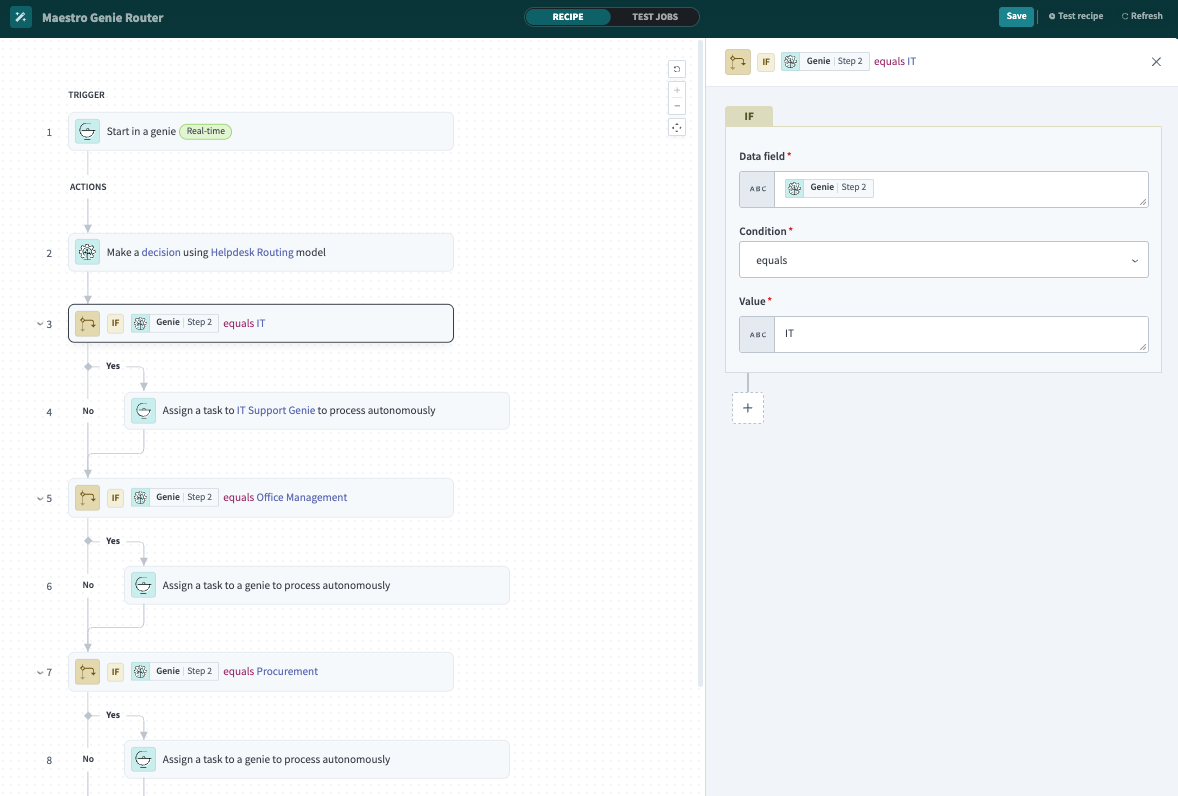 Add an IF condition and action step for each routing value
Click Save.
Test your skill.
Test your skill
This step verifies that the front-facing genie correctly routes requests to the appropriate specialist genie.
Return to the genie Build page and click Test.
Enter requests that should route to different specialist genies. For example:
I need to order new monitors for my team.My laptop won't connect to the VPN and I have a presentation in an hour.Verify that the genie invokes the skill, the decision model returns the correct specialist genie for each request, and the orchestration action assigns the task accordingly. Edit your decision table and test again if any requests are routed incorrectly.
More resources
Last updated: