Error handling and retries
File transfers include built-in error handling to ensure reliable file delivery. Select a run in the transfer's Runs tab to see its attempt history, including the status of each retry and error details.
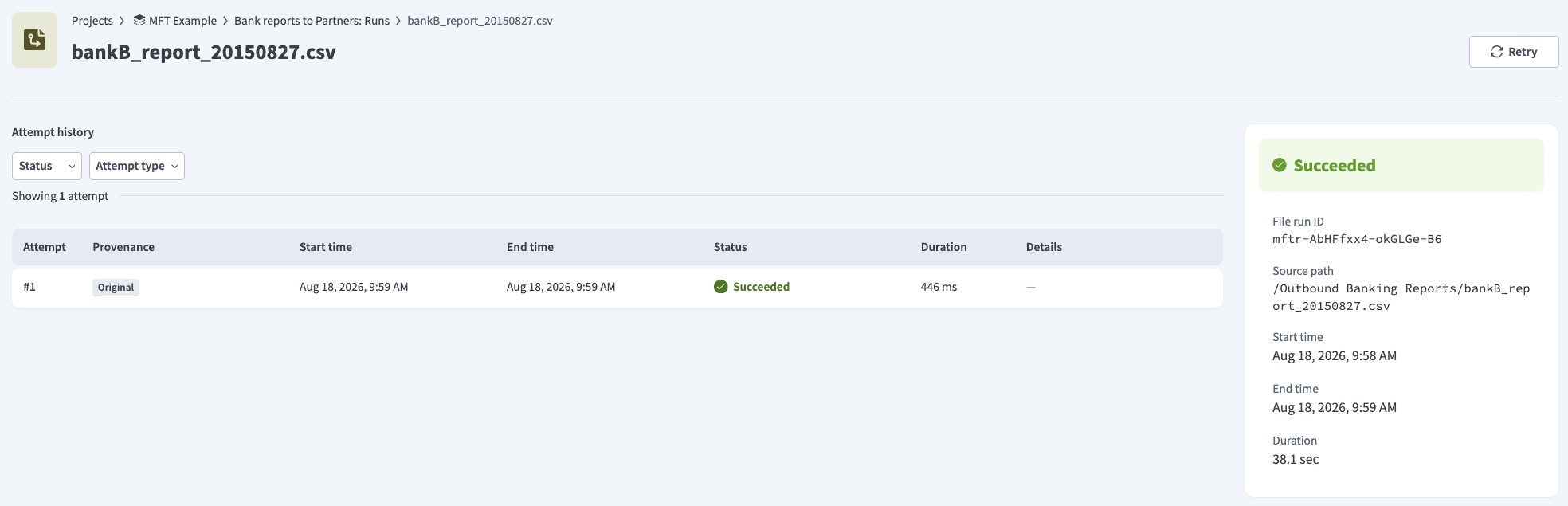 Attempt history
Automatic retry
File transfers automatically retry failed runs. Workato doesn't classify failures by error type or distinguish transient from permanent issues. The same retry settings apply to every failure.
For example, an attempt fails if it exceeds the maximum attempt duration of 8 hours. The failure automatically triggers another attempt, unless the run has reached the maximum retry duration, maximum retry attempts, or consecutive run error threshold.
Workato uses exponential backoff with jitter between attempts, increasing the delay between each retry to reduce load on a struggling endpoint.
Automatic retry settings
Complete the following steps to configure automatic retry settings:
Select the File transfer asset that you plan to configure.
Go to Settings > Retry settings.
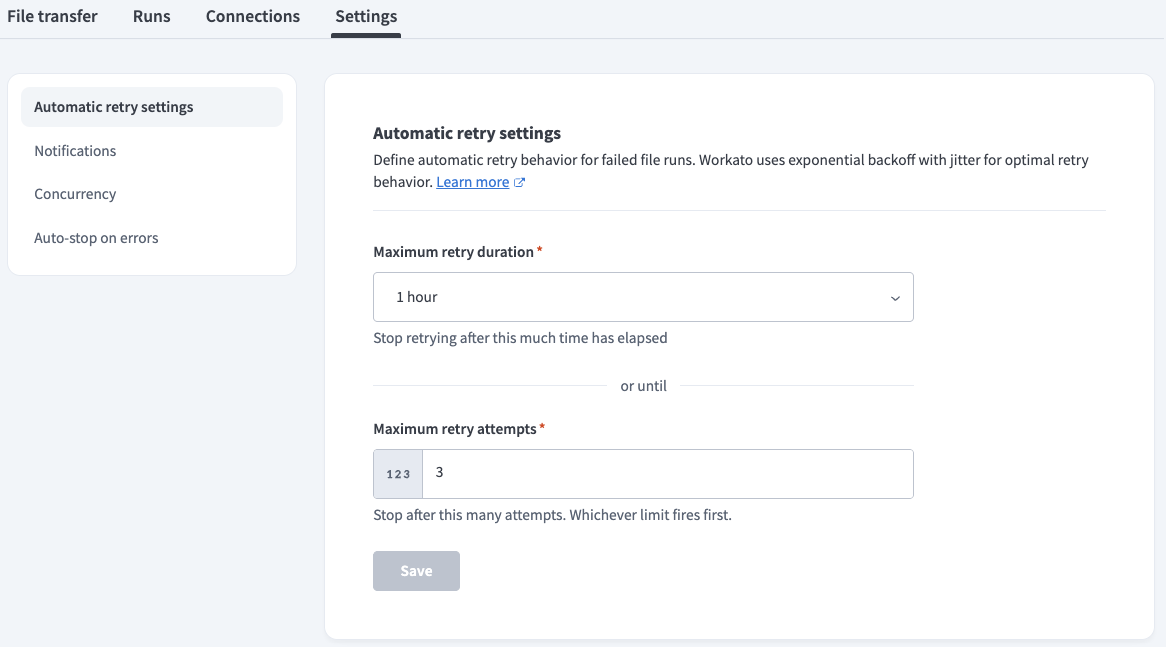 Retry settings
Configure the retry behavior for failed runs using the following settings:
Maximum retry duration: Set a maximum duration for retry attempts. The minimum value is
5 minutes, the maximum is24 hours, and the default is1 hour. Individual attempts have a quota of 8 hours, regardless of your selection.Maximum retry attempts: Enter a quota for the number of retry attempts. The maximum value is
10and the default is3.
Workato stops retrying a run when either the duration or the attempt quota is reached, whichever comes first. For example, a Maximum retry attempts value of 3 allows 1 original attempt and 3 automatic retries for a total of 4 attempts per run.
Click Save.
Manual retry
Complete the following steps to manually retry transfers that have reached the automatic retry quota. Manual retries don't count toward the transfer's consecutive run error threshold.
Select the File transfer asset that you plan to retry.
Go to the Runs tab.
Select rows, then click Retry runs. You can retry both successful and failed runs.
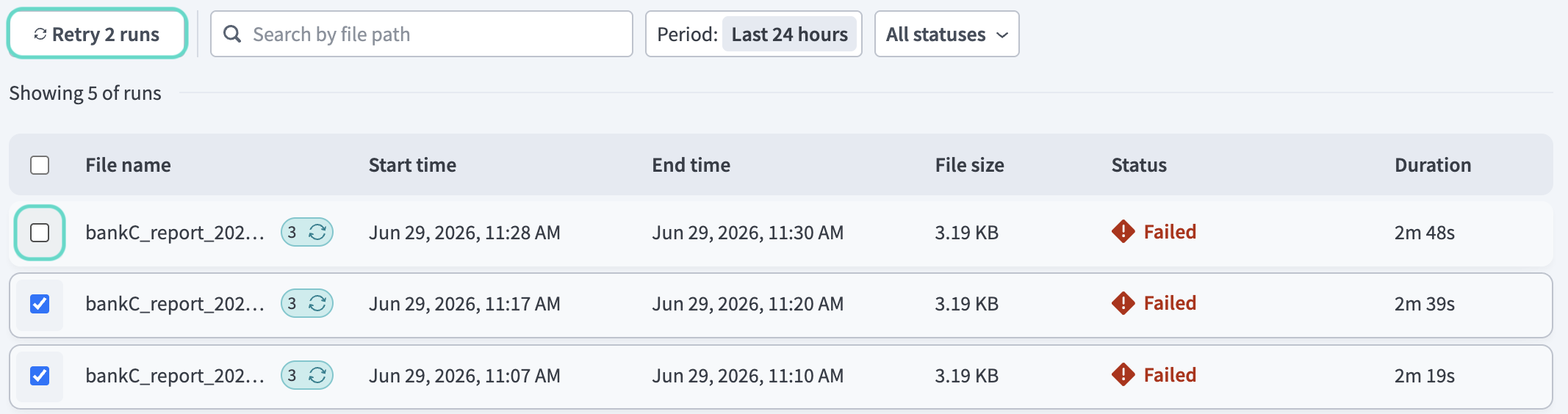 Manual retry
Transfer auto-stop
Workato tracks how many consecutive runs have exhausted their automatic retry attempts and automatically stops the transfer when this count reaches the Consecutive run error threshold.
When a transfer auto-stops:
- The transfer's status changes to Inactive.
- An error banner displays on the file transfer page with the reason for the stop.
- Workato sends a notification to the MFTOps Transfer stopped trigger.
Auto-stop also affects files based on their state at the time of the stop:
| File state | Resulting status |
|---|---|
| The file whose run triggered the auto-stop | Failed |
| Files queued but not yet picked up | Stopped |
| Files already in-flight | Continue running normally; unaffected by the stop |
Investigate and resolve the underlying issue, then manually reactivate the transfer. Refer to Start a transfer for activation steps.
Auto-stop settings
Complete the following steps to configure auto-stop settings:
Select the File transfer asset that you plan to configure.
Go to Settings > Auto-stop on errors.
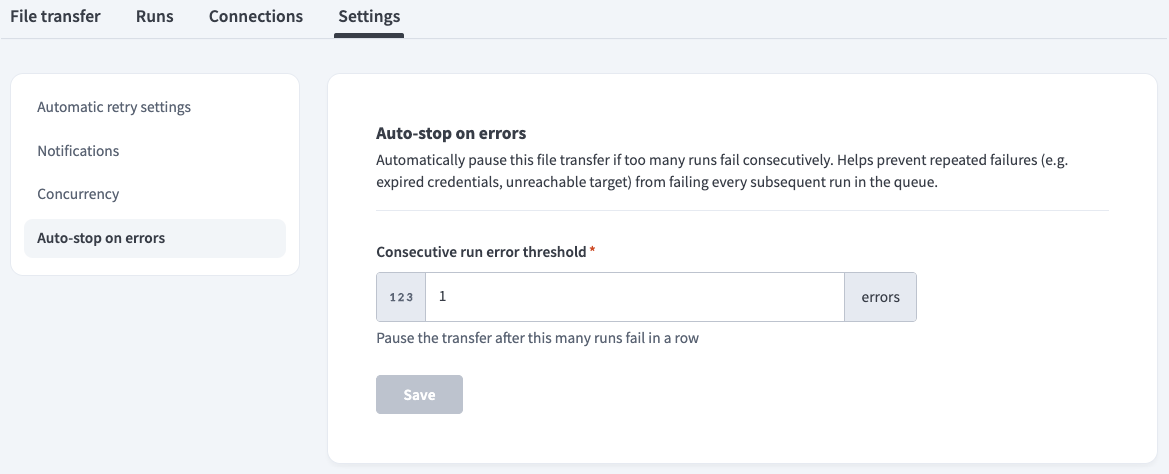 Auto-stop settings
Set a Consecutive run error threshold that configures the number of consecutive runs that must exhaust their retry attempts and fail for Workato to stop the transfer. The minimum value is 1. This setting applies per transfer and can't be disabled.
Refer to Transfer auto-stop for more information.
Click Save.
FEATURE AVAILABILITY
Contact your Customer Success Manager for information about access to Workato MFT.
Last updated: