Transfer orchestration
File transfers automate the movement of files between systems. Each transfer manages the full lifecycle, including detection, validation, transformation, delivery, and deletion. Transfers include built-in scheduling, processing, and error handling.
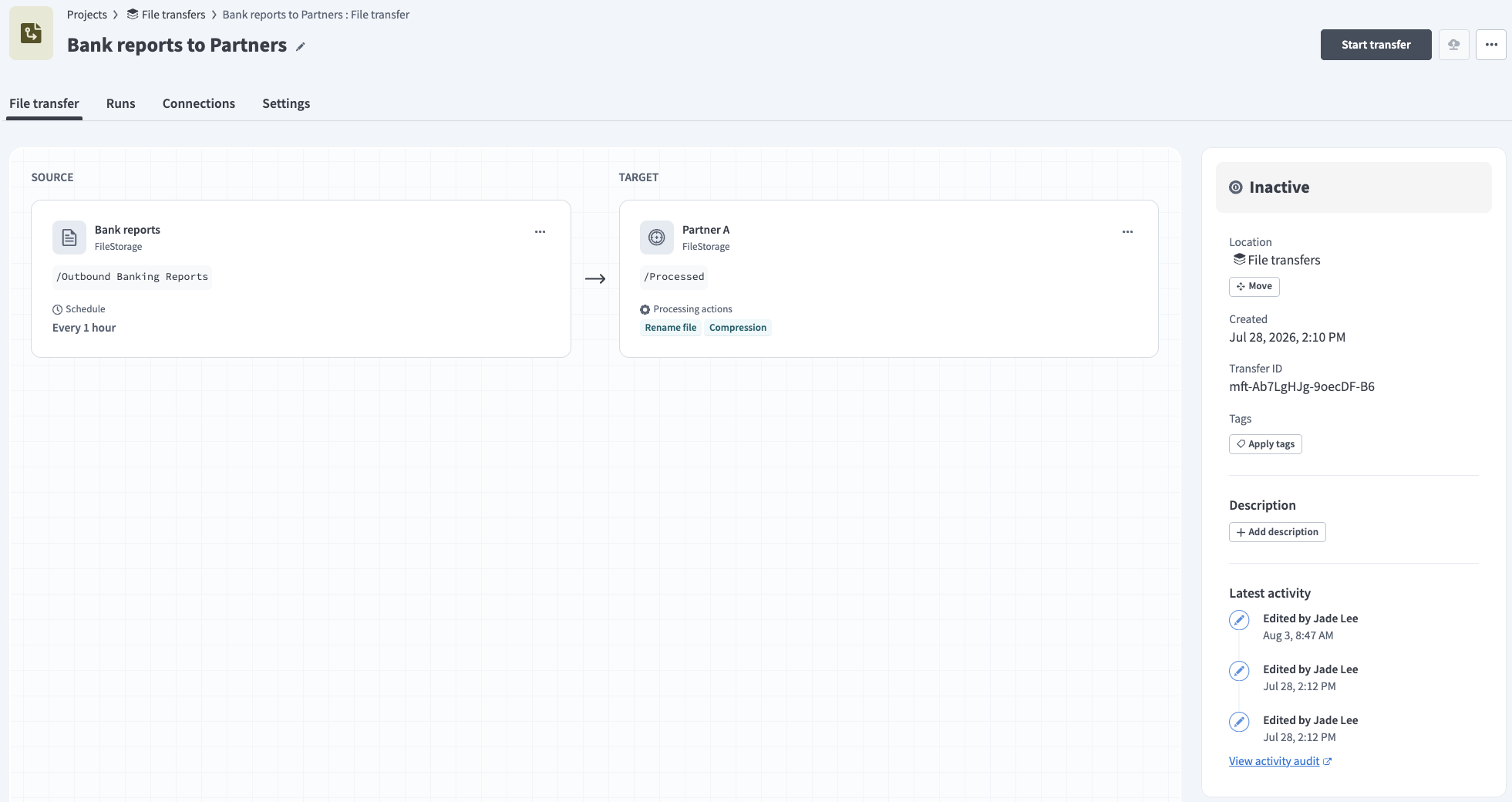 A configured file transfer
Source: Monitors a location for new files and picks them up based on a schedule.
Target: File transfers upload files to a target location after processing.
Supported endpoint types
File transfers support the following connections as a source or target:
- Workato FileStorage
- External SFTP server
Workato plans to support the following additional connections:
- Amazon S3
- Azure Blob Storage
- Sharepoint
- HTTPS
Refer to the Add a source and Add a target sections for more information about connections.
ON-PREMISES ENDPOINTS
Use the Workato OPA for dedicated MFT use cases such as transferring files directly between two on-premises SFTP servers without routing file payloads through the Workato Cloud.
Configure a file transfer
Each file transfer supports one source and one target. Complete the following steps to create a new file transfer that automates file movement between systems:
Click Create > File transfer. The Create a file transfer modal displays.
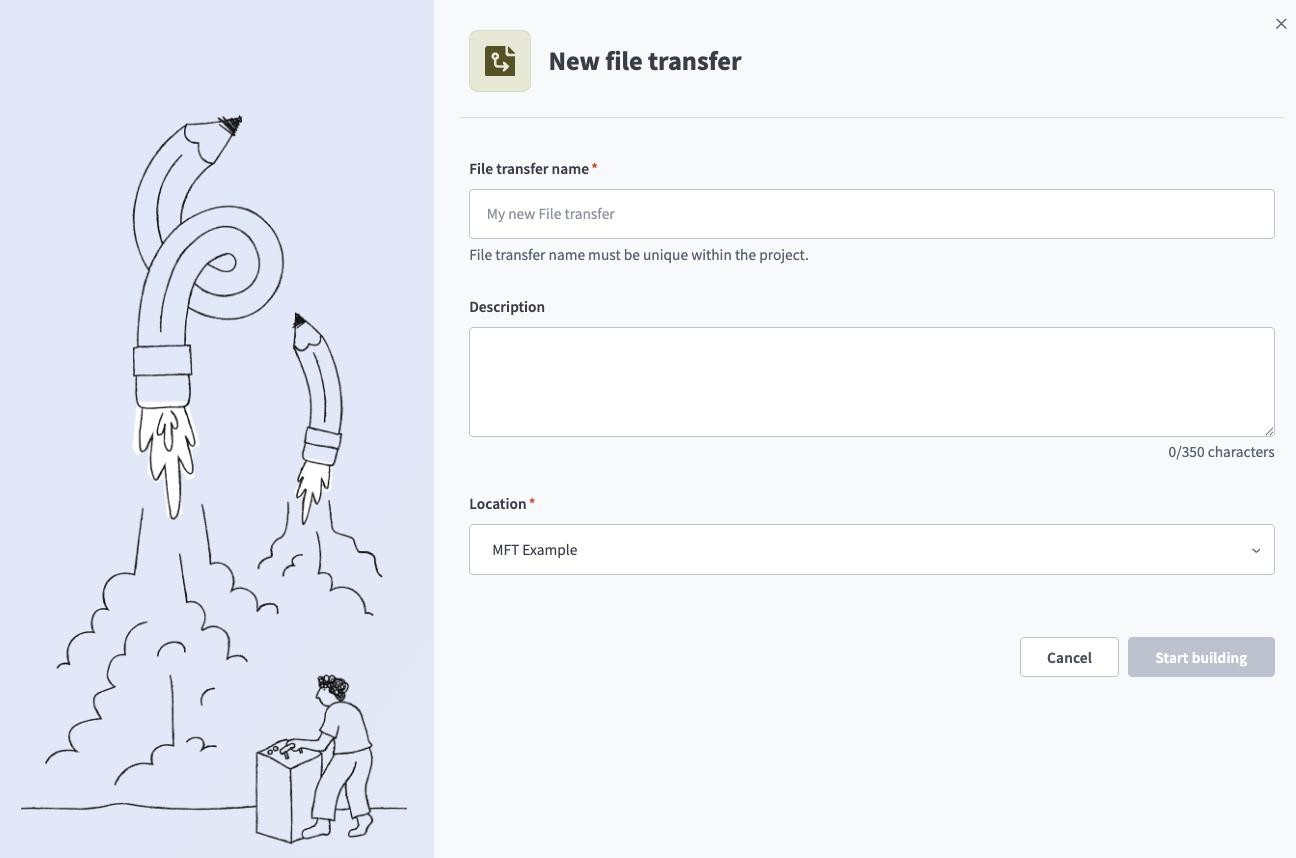 The Create a file transfer modal
Enter a descriptive Transfer name. For example: Partner Orders Import or Daily Report to S3. Names must be unique within a project.
Optional. Enter a Description of what the transfer does. This field has a maximum of 350 characters.
Use the Location drop-down menu to select the project where you plan to store the file transfer.
Click Start building. The file transfer is created in an Inactive state and the Transfer page displays.
Refer to Add a source and Add a target to complete the remaining set up steps.
Add a source
Sources define where to pick up files, when to check for new files, and how to handle source files after a successful transfer.
Complete the following steps to add a source to your file transfer:
Select the File transfer asset you plan to configure.
Click + Add source. The Add source setup wizard displays.
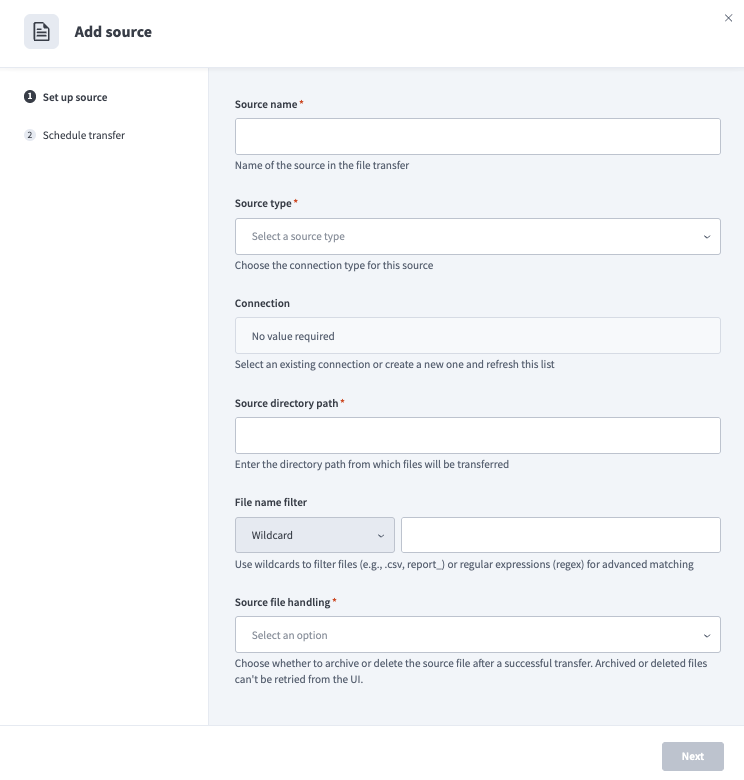 The Add source setup wizard
Enter a descriptive name in the Source name field. For example: Partner SFTP or Bank Reports. This name appears in logs and monitoring.
Use the Source type drop-down menu to select a connection type. Workato supports the following connections:
- Workato FileStorage
- External SFTP server
Workato plans to support the following additional connections:
- Amazon S3
- Azure Blob Storage
- Sharepoint
- HTTPS
Connections are reusable across all flow assets including file transfers. Use the Connection drop-down menu to select a connection if your Source type is External SFTP. You can also click Create new connection, then click Refresh to update the list.
Enter the folder path to retrieve files from in the Source directory path field. Ensure the source connection has permission to download from this path.
Use the Only transfer files with a successful virus scan toggle to set the transfer's security scan behavior if your Source type is FileStorage. FileStorage automatically scans files up to 100 MB.
Enter a pattern to filter files by in the File name filter field. Use the drop-down menu to select a pattern type. Select Wildcard for simple patterns or Regex for advanced matching.
Wildcards
Wild card patterns use the following format:
Single character wildcard
?Represents one instance of any character. For example,
Report_draft_?.pdfcan representReport_draft_1.pdf,Report_draft_2.pdforReport_draft_3.pdf.Multiple character wildcard
*Represents zero or more instances of any character. For example,
Report_draft*.pdfcan representReport_draft.pdf,Report_draft_1.pdf,Report_draft_2.pdforReport_draft_3.pdf.
Use the Source file handling to configure what happens to files at the source after a successful transfer:
- Keep at source (default): Files remain at the source directory.
- Archive: Moves the file to a configured archive subfolder. Requires write and delete permission at the source. Archived files can't be retried from the UI.
- Delete: Permanently deletes the file. Requires delete permission at the source. Deleted files can't be retried from the UI.
Click Next, then refer to the Schedule transfers section to configure the transfer schedule.
Schedule transfers
Complete the following steps to schedule file transfers after you add a source:
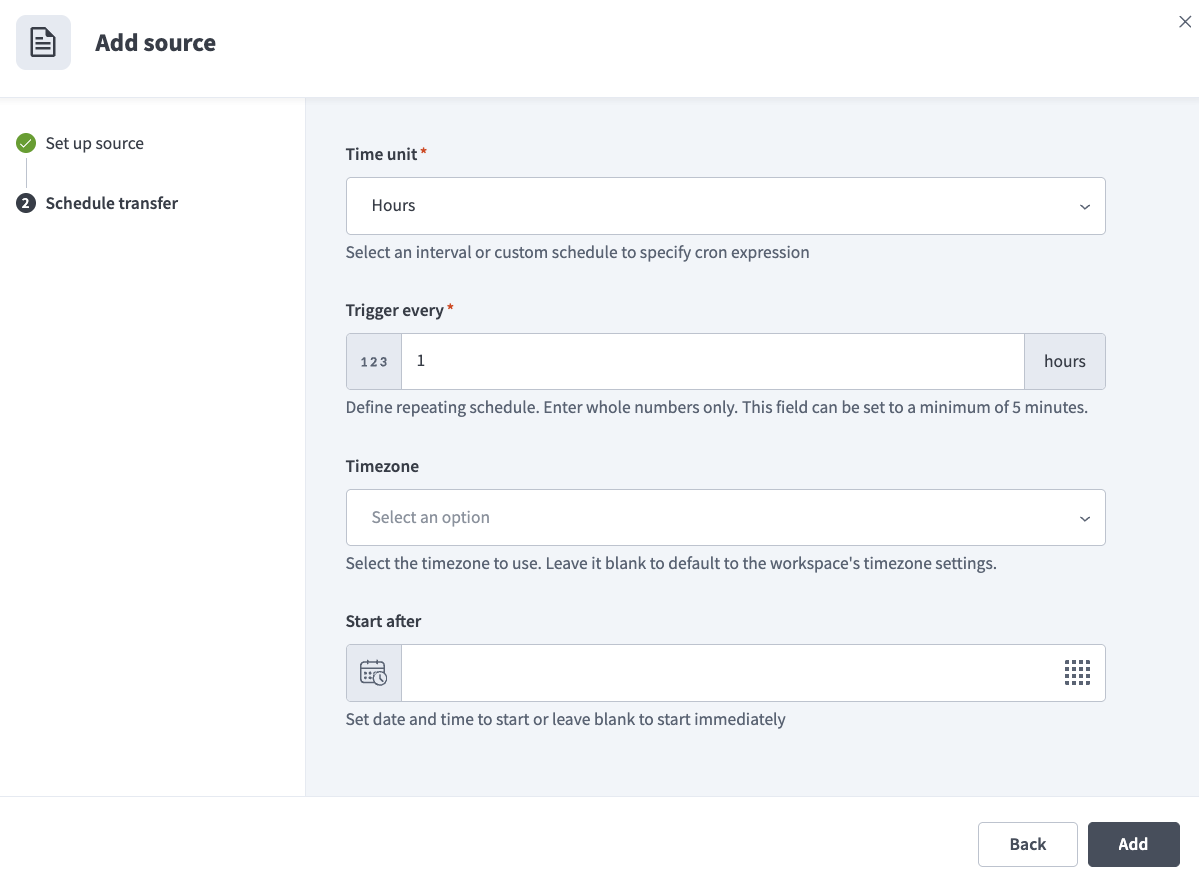 The Schedule transfer page
Add a target
Targets define where to deliver files and what processing actions to perform on files before delivery.
Complete the following steps to add a target to your file transfer:
Select the File transfer asset you plan to configure.
Click + Add target. The Add target setup wizard displays.
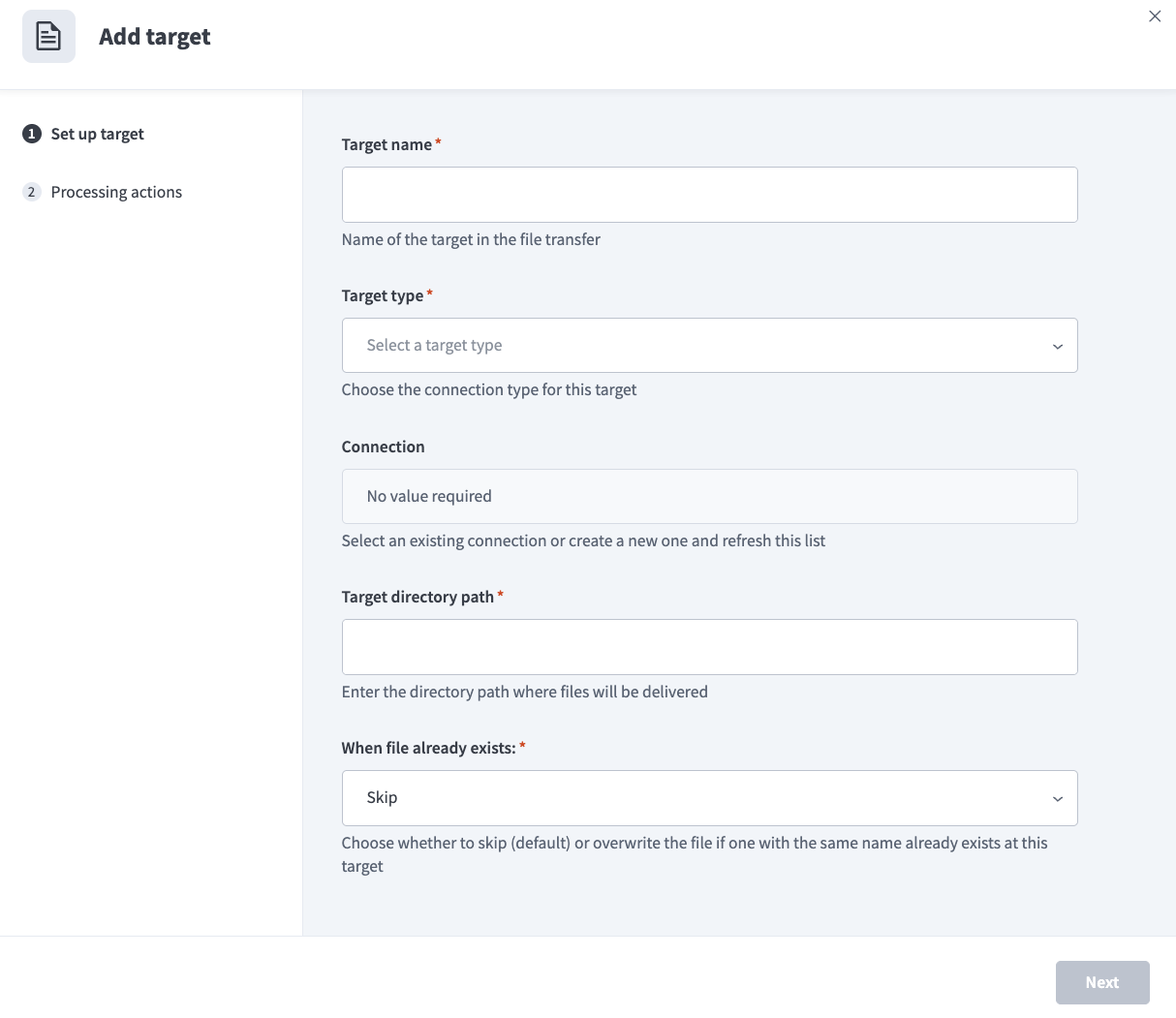 The Add target setup wizard
Enter a descriptive name for the target in the Target name field. This name appears in logs and monitoring.
Use the Target type drop-down menu to select a connection type. Workato supports the following connections:
- Workato FileStorage
- External SFTP server
Workato plans to support the following additional connections:
- Amazon S3
- Azure Blob Storage
- Sharepoint
- HTTPS
Use the Connection drop-down menu to select a connection if your Target type is External SFTP. Connections are reusable across all flow assets including file transfers. You can also click Create new connection, then click Refresh to update the list.
Enter the folder path to deliver files to in the Target directory path field. Ensure the target connection has the permission to upload to this path.
Use the When a file already exists at destination field to configure conflict resolution:
- Skip (default): Doesn't transfer the file and logs the event as Skipped. Note that skipped files are considered successful runs, so the source-file handling rule configured in Set up source still applies.
- Overwrite: Replaces the existing file at the destination. The original file is permanently replaced and can't be recovered.
Click Next, then continue to Processing actions.
Processing actions
Processing actions are performed on files after pickup from the source and before delivery to the target. Workato MFT supports the following processing actions:
| Action | Description |
|---|---|
| PGP encryption | Encrypt files using a PGP public key. Create and select a connection to the PGP tools by Workato connector to define your PGP keys for this transfer. |
| PGP decryption | Decrypt files using a PGP private key. Create and select a connection to the PGP tools by Workato connector to define your PGP keys for this transfer. |
| Rename | Rename files dynamically using functions and the following variables:
|
Complete the following steps to define processing actions after you add a target:
Select the File transfer asset you plan to configure.
Click ... (ellipsis) on the target.
Click Edit processing actions.
Click + Add action to add a new processing action.
Configure the action, then click Save.
Configure settings
The Settings page allows you to configure the following aspects of your file transfer:
Start a transfer
Complete the following steps to start a file transfer after adding a source and a target:
Select the File transfer asset you plan to start.
Click Start transfer. The status changes from Inactive to Active. Transfers begin based on the schedule and Start after time configured during source setup. Restarting a stopped transfer doesn't trigger an immediate poll; it waits until the next scheduled poll time.
Check for files now
Complete the following steps to poll a file transfer immediately, without waiting for its next scheduled poll:
Select the File transfer asset you plan to poll.
Go to the Runs tab.
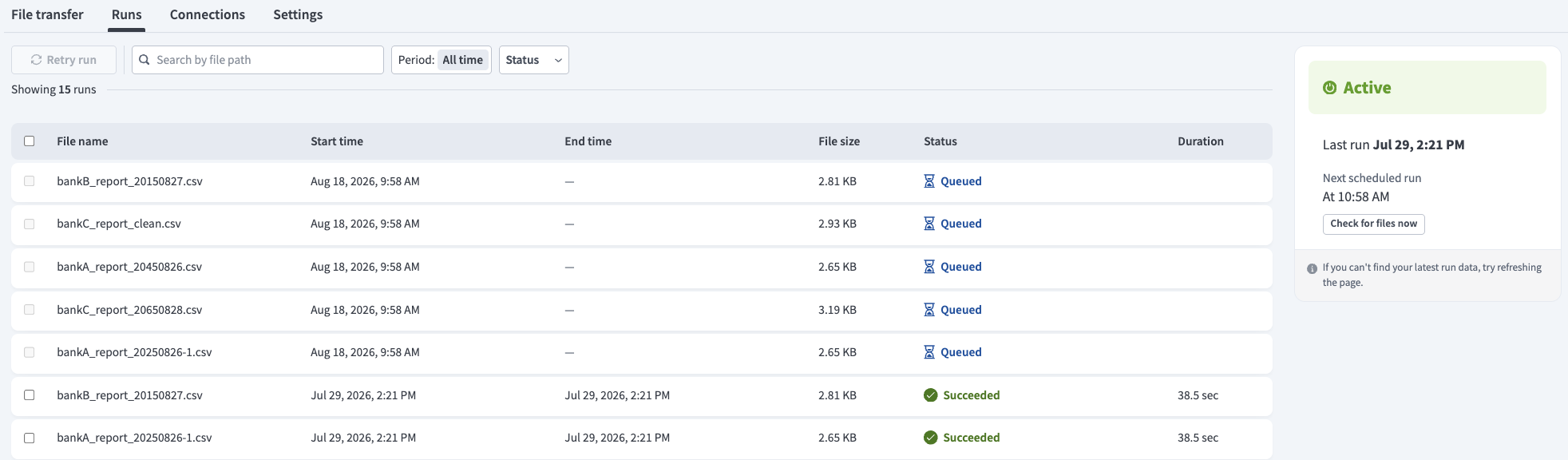 The Runs tab
Click Check for files now.
The transfer checks for new files and reschedules the next poll based on the current time and the configured poll interval.
Stop a transfer
Complete the following steps to stop a file transfer:
Select the File transfer asset you plan to stop.
Click Stop transfer. The status changes from Active to Inactive.
Scheduled runs pause and in-progress file transfers complete. Transfers you resume continue processing files from the poll event where they stopped.
Limits
File transfers have the following limits:
| Description | Limit |
|---|---|
| Maximum file size for a file transfer | No limit |
| Maximum duration of a single transfer attempt | 8 hours |
FEATURE AVAILABILITY
Contact your Customer Success Manager for information about access to Workato MFT.
Last updated: