Dropbox MCP server
The Dropbox MCP server enables LLMs to interact with files and folders stored in Dropbox through natural conversation. It provides tools to search files, browse folder contents, retrieve file metadata, access file content, organize files, and share files through links without requiring direct interaction with the Dropbox interface.
Uses
Use the Dropbox MCP server to perform the following actions:
- List files and subfolders within a specified Dropbox folder
- Search for files using keywords and filters
- Retrieve metadata for a specific file or folder
- Access a file's content
- Move or rename a file or folder
- Create a duplicate of a file
- Create a new folder
- Delete a file or folder
- Create or retrieve a shared link for a file or folder
- List existing shared links for a file or across the account
- Revoke a shared link to remove access
Example prompts
Use the following example prompts to invoke Dropbox MCP server tools:
What's inside my Projects folder?Find files related to the Q2 budget.Get the metadata for this file before I move it.Open this document so I can review it.Move this file to the Archive folder.Rename this folder to match the new project name.Make a copy of this file before I start editing.Create a new folder called Client Deliverables.Delete this old draft.Share a link to this file with the client.Is this file already shared?Revoke the shared link for this document.
Dropbox MCP server tools
The Dropbox MCP server provides the following tools:
| Tool | Description |
|---|---|
| list_folder | Lists files and subfolders within a Dropbox folder you specify. |
| search_files | Searches for files using keywords and filters. |
| get_file_metadata | Retrieves metadata for a file or folder you specify. |
| download_file | Retrieves access to a file's content. |
| move_file | Moves or renames a file or folder. |
| copy_file | Creates a duplicate of a file. |
| create_folder | Creates a new folder. |
| delete_file | Deletes a file or folder. |
| create_shared_link | Creates or retrieves a shared link for a file or folder. |
| list_shared_links | Lists shared links for a file or across the account. |
| revoke_shared_link | Revokes a shared link. |
Install the Dropbox MCP server
Complete the following steps to install a prebuilt MCP server to your project:
Sign in to your Workato account.
Go to AI Hub > Enterprise MCP.
Click + Create MCP server.
Go to the Start with pre-built MCP Servers using your connected apps section and select the prebuilt MCP server you plan to use.
Click Use this server.
Provide a name for your MCP server in the Server name field.
Use the Location drop-down menu to select the project for the MCP server.
Go to the Connections section and connect to your app account.
Select the connection type you plan to use for the MCP server template.
- User's connection: MCP server tools perform actions based on the identity and permissions of the user who connects to the application. Users authenticate with their own credentials to execute the skill.
- Your connection: This option uses the connection established by the recipe builder and follows the same principles as normal app connections.
 Select your connection type
VERIFIED USER ACCESS AUTHENTICATION REQUIREMENTS
Only app connections that use OAuth 2.0 authorization code grant are available for user's connection. Refer to Verified user access for more information.
Complete the app-specific connection setup steps in the following section.
Dropbox connection setup
View Dropbox connection setup steps
The Dropbox connector uses OAuth 2.0 authentication.
Minimum and default scopes
The Dropbox connector supports two scope types: individual scopes and team scopes.
Individual scopes
View individual scopes
The following individual scopes are requested by default:
account_info.readfiles.metadata.writefiles.content.writefiles.content.readsharing.writefile_requests.writecontacts.write
The minimum required scope is account_info.read, which is always requested in addition to any selected permissions. You can select scopes from the drop-down menu to overwrite the default scopes.
Team scopes
View team scopes
The following team scopes are requested by default:
account_info.readfiles.metadata.writefiles.content.writefiles.content.readsharing.writefile_requests.writecontacts.write
The minimum required scopes are team_info.read and team_data.member, which are always requested in addition to any selected permissions. Note that team_data.member is required for folder access in team accounts. You can select scopes from the drop-down menu to overwrite the default scopes.
INDIVIDUAL SCOPES AND TEAM SCOPES
account_info.read is also requested when team scopes are selected but individual scopes are left blank.
Connect to Dropbox with OAuth 2.0
View connect to Dropbox with OAuth 2.0 steps
Complete the following steps to connect to Dropbox in Workato:
Click Create > Connection or press C twice.
Search for Dropbox and select it as your app.
Enter a name for your connection in the Connection name field.
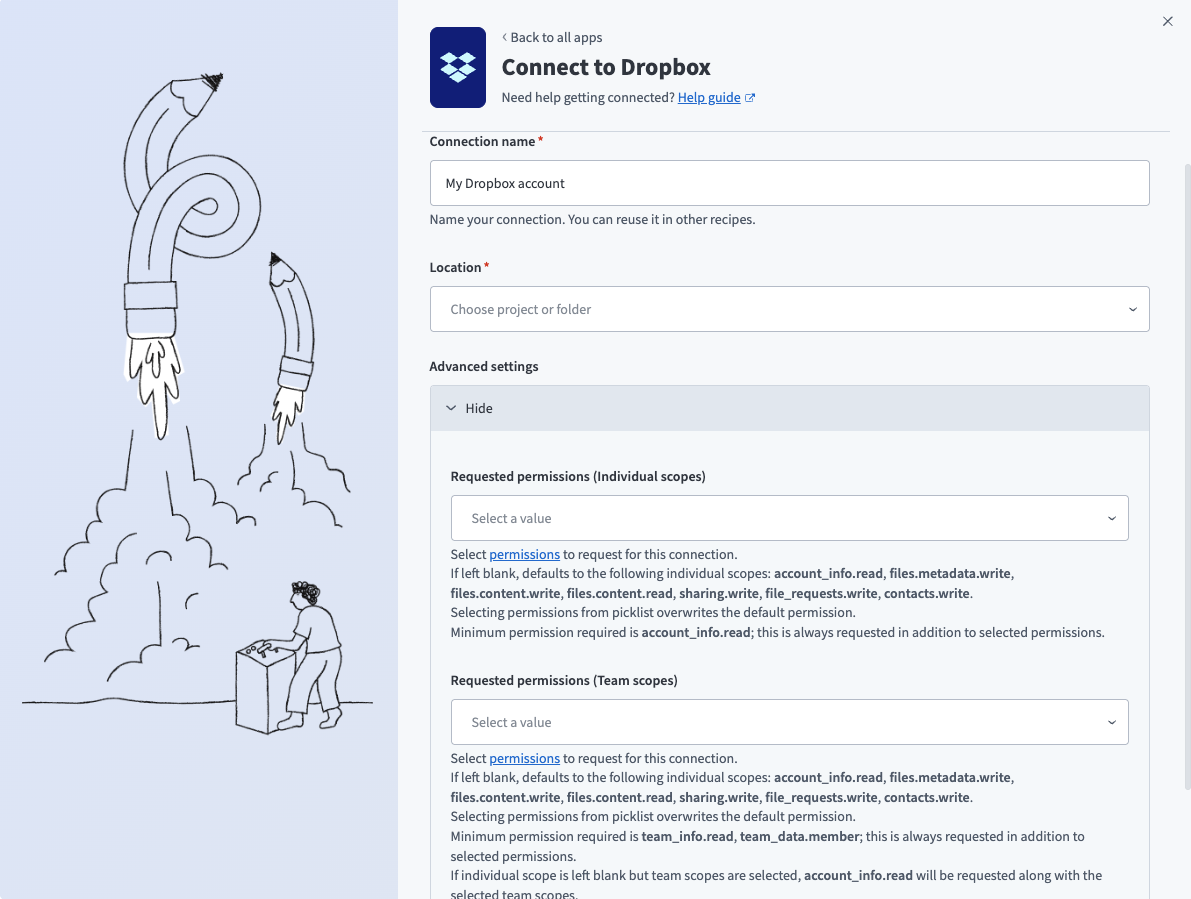 Dropbox connection setup
Use the Location drop-down menu to select the project where you plan to store the connection.
Optional. Expand Advanced settings to select any additional individual or team scopes required by the actions and triggers you plan to use. Refer to Minimum and default scopes for more information.
Click Connect.
Sign in to your Dropbox account and click Allow to grant Workato access when prompted.
Project property configuration
The Dropbox MCP server supports the following project-level properties to control behavior and defaults:
| Parameter | Description |
|---|---|
inline_content_max_size_bytes | Defines the maximum file size eligible for inline content return in download_file. Files larger than this threshold return only a temporary access link. Recommended default: 1,048,576 bytes (1 MB). |
View project-level property configuration steps
Complete the following steps to configure your project-level properties:
Sign in to your Workato account and go to Projects.
Go to the project that contains your MCP server.
Click the Settings tab.
 Click the Settings tab.
Select Project properties.
Go to the project property you plan to update and click the Edit (pencil) icon.
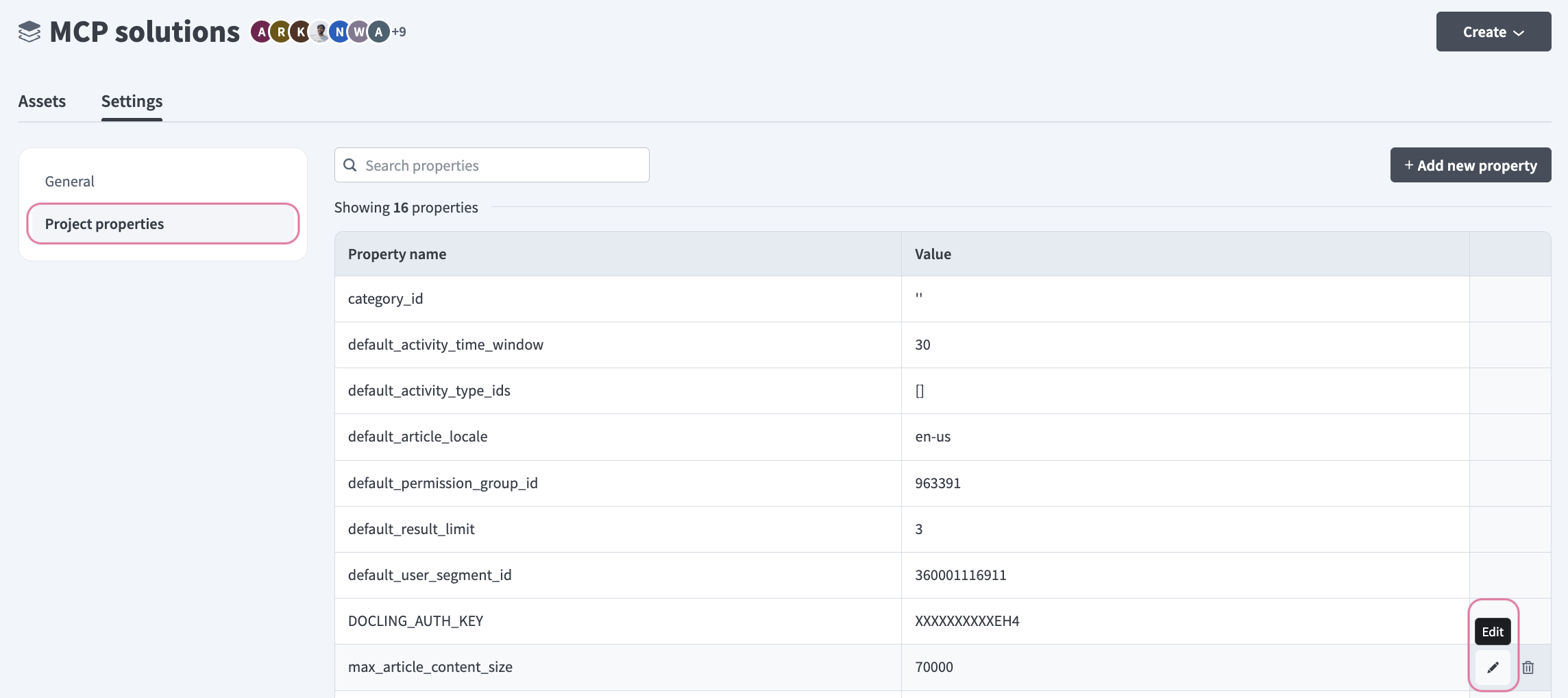 Click the Edit (pencil) icon.
Go to the Value field and make your changes.
How to use Dropbox MCP server tools
Refer to the following sections for detailed information on available tools:
list_folder tool
The list_folder tool lists files and subfolders within a specified Dropbox folder. Your LLM uses this tool to view folder contents or to browse your Dropbox file structure.
Try asking:
What's inside my Projects folder?Show me the contents of this folder.Browse my Dropbox root folder.What files and subfolders are in the Client Work directory?
search_files tool
The search_files tool searches for files using keywords and filters. Your LLM uses this tool to find files by name, keyword, or other attributes without navigating folder by folder.
Try asking:
Find files related to the Q2 budget.Search for any presentations about the product launch.Look for all PDFs with "contract" in the name.Find the latest version of the project proposal.
get_file_metadata tool
The get_file_metadata tool retrieves metadata, such as size, type, and modification dates, for a file or folder you specify. Your LLM uses this tool to confirm the file is correct before performing an action on it.
Try asking:
Get the metadata for this file before I move it.When was this file last modified?Confirm the details of this folder before I delete it.What is the size and type of this file?
download_file tool
The download_file tool retrieves access to a file's content. Your LLM uses this tool to open or view a file stored in Dropbox.
CONTENT LIMITATIONS
The download_file tool doesn't support binary file content.
Try asking:
Open this document so I can review it.Show me the contents of this file.Retrieve this spreadsheet so I can read the data.Access this file so I can summarize it.
move_file tool
The move_file tool moves or renames a file or folder. Your LLM uses this tool to reorganize files into a different location or give a file or folder a new name.
Try asking:
Move this file to the Archive folder.Rename this folder to match the new project name.Move all draft files into the Drafts directory.Rename this document to the final version name.
copy_file tool
The copy_file tool creates a duplicate of a file. Your LLM uses this tool when you explicitly ask to duplicate a file or need a working copy before making edits.
Try asking:
Make a copy of this file before I start editing.Duplicate this template so I can use it for a new project.Create a backup copy of this document.Copy this file into the new client folder.
create_folder tool
The create_folder tool creates a new folder in Dropbox. Your LLM uses this tool to set up a new location for organizing files.
Try asking:
Create a new folder called Client Deliverables.Set up a folder for the new project.Add a subfolder inside the Q2 directory.Create an Archive folder to store old files.
delete_file tool
The delete_file tool deletes a file or folder. Your LLM uses this tool only when you explicitly request deletion.
Try asking:
Delete this old draft.Remove this folder and its contents.Delete the duplicate files from this directory.Permanently remove this outdated document.
create_shared_link tool
The create_shared_link tool creates or retrieves a shared link for a file or folder. Your LLM uses this tool to share a file with someone outside your Dropbox account.
Try asking:
Share a link to this file with the client.Generate a shareable link for this folder.Create a link I can send to the team.Get the shared link for this document.
list_shared_links tool
The list_shared_links tool lists shared links for a file or across the account. Your LLM uses this tool to check whether a file is already shared or view all existing shared links.
Try asking:
Is this file already shared?Show me all shared links for this document.List all active shared links across my Dropbox.Check what files I currently have shared.
revoke_shared_link tool
The revoke_shared_link tool revokes a shared link, removing access for anyone who has it. Your LLM uses this tool to stop sharing a file or folder.
Try asking:
Revoke the shared link for this document.Remove access to this shared file.Stop sharing this folder.Disable the link I sent for this file.
Getting started
View and manage your MCP server tools in the Overview page Tools section. Tool management provides the following capabilities:
TOOLS MUST BE STARTED
Your LLM can only access active tools in your MCP server connector.
Last updated: