# Resources
Resources are assets you can define once and reference across multiple recipes. Use resources as a single source of truth for common XML files (XSD, XSLT, and WSDL).
Resources provide the following additional benefits:
Version management: Workato retains the last 100 versions of a resource in the Versions tab. You can download and re-upload a previous version to restore it.
Security: Workato parses resources without resolving external references. This protects your environment from potential vulnerabilities. Workato also scans uploaded files for threats and blocks malicious files from view or use.
Automatic updates: Recipes automatically update to use the newest version of a resource after it passes security checks.
PRIVATE BETA
Resources are in private beta and only available to selected customers. Contact your Customer Success Manager to learn more.
# Recipe integration
You can use a resource as a data source for supported XML tools by Workato actions:
# Validate XML document with XSD
The Validate XML document with XSD action supports resources as XSD schemas. Refer to the File references section for information about how the schema resolves imports and references.
Complete the following steps to use a resource as a data source for the Validate XML document with XSD action:
Use the XSD document drop-down menu to select Use a resource.
 XSD document drop-down menu
Use the XSD resource drop-down menu to select the resource to use.
Resource references always use the latest safe resource version. You can't prevent a reference in a recipe from updating. Refer to Restore a resource version to restore a resource to a previous version.
 XSD resource drop-down menu
# Transform XML using XSLT
The Transform XML using XSLT action supports resources as XSLT stylesheets. Refer to the File references section for information about how the stylesheet resolves imports and references.
Complete the following steps to use a resource as a data source for the Transform XML using XSLT action:
Use the XSLT Document drop-down menu to select Use a resource.
 XSLT Document drop-down menu
Use the XSLT Resource tree to select the resource to use.
Resource references always use the latest safe resource version. You can't prevent a reference in a recipe from updating. Refer to Restore a resource version to restore a resource to a previous version.
 XSLT resource drop-down menu
# Use cases
Resources support the following use cases:
SOAP API management
Manage WSDL files used by SOAP services. Workato stores uploaded WSDL files as resources to keep API recipes and service definitions in sync throughout the recipe lifecycle.
XSLT transformation
Transform XML documents using XSLT stylesheets stored as resources. You can optionally validate the transformation output against an XSD resource to ensure the result conforms to your expected schema.
Generate XML with XSD
Generate XML documents using an XSD resource to define the structure. You can optionally validate the generated output against the same or a different XSD resource.
Parse XML documents
Parse XML documents using generic parsing capabilities. You can optionally validate the source XML document against an XSD resource before processing.
Local XSD reference resolution
Resolve references across multi-file XSD setups stored within your Workato project folder structure. Resources traverse relative and absolute file paths automatically during processing without accessing external internet locations. This provides seamless handling of modular XSD structures, proper resolution of nested or referenced schemas, and better support for enterprise integrations relying on structured schema definitions.
# File references
Use the schemaLocation attribute to resolve paths in XSD files, or the href attribute to resolve paths in XSLT files. Relative paths start from the current file's location. Absolute paths start with / (forward slash) and resolve from the root of the Workato directory.
Use import and include to reference external files within the current file:
# Resource management
Refer to the following sections to manage resources:
- Upload resources
- View a resource
- Update a resource
- Download a resource
- Delete a resource
- Move a resource
- Version management
# Upload resources
Complete the following steps to upload resources using the Workato UI:
Go to the project where you plan to store the resource. Alternatively, go to Assets > Resources.
Click Create > Resource.
 Click Create > Resource
Use the Location drop-down menu to select the project where you plan to store the resource.
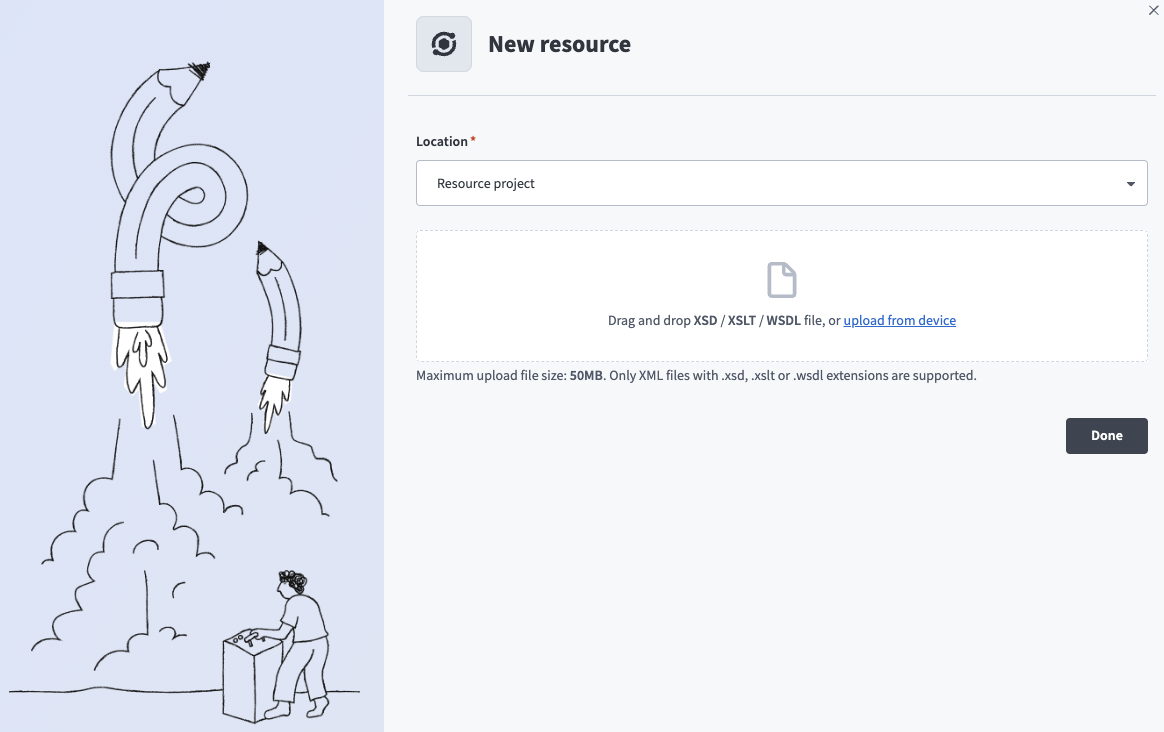 Select a Location for the resource
Drag and drop files, or click Upload from device to select files.
FILE LIMITATIONS
Resources have a maximum size of 50 MB and must be one of the following file types:
.xsd.xslt.wsdl
Upload errors
Workato stops the upload and displays an error in the following scenarios:
- A resource with the same file name already exists in this folder.
- The file exceeds the maximum allowed size of 50 MB.
- The file has an unsupported extension.
- The file was selected multiple times in this upload batch.
Click Done. Workato stores the files as resources and scans them for threats. You can't view or interact with a resource until the scan is complete.
Workato marks a file as Malicious if it detects a threat. Workato blocks malicious files from view, download, and use in recipes. Delete the file or upload a new version to proceed.
Resources are available in recipes after they pass the security check.
# View a resource
You can select a resource to view its Contents tab.
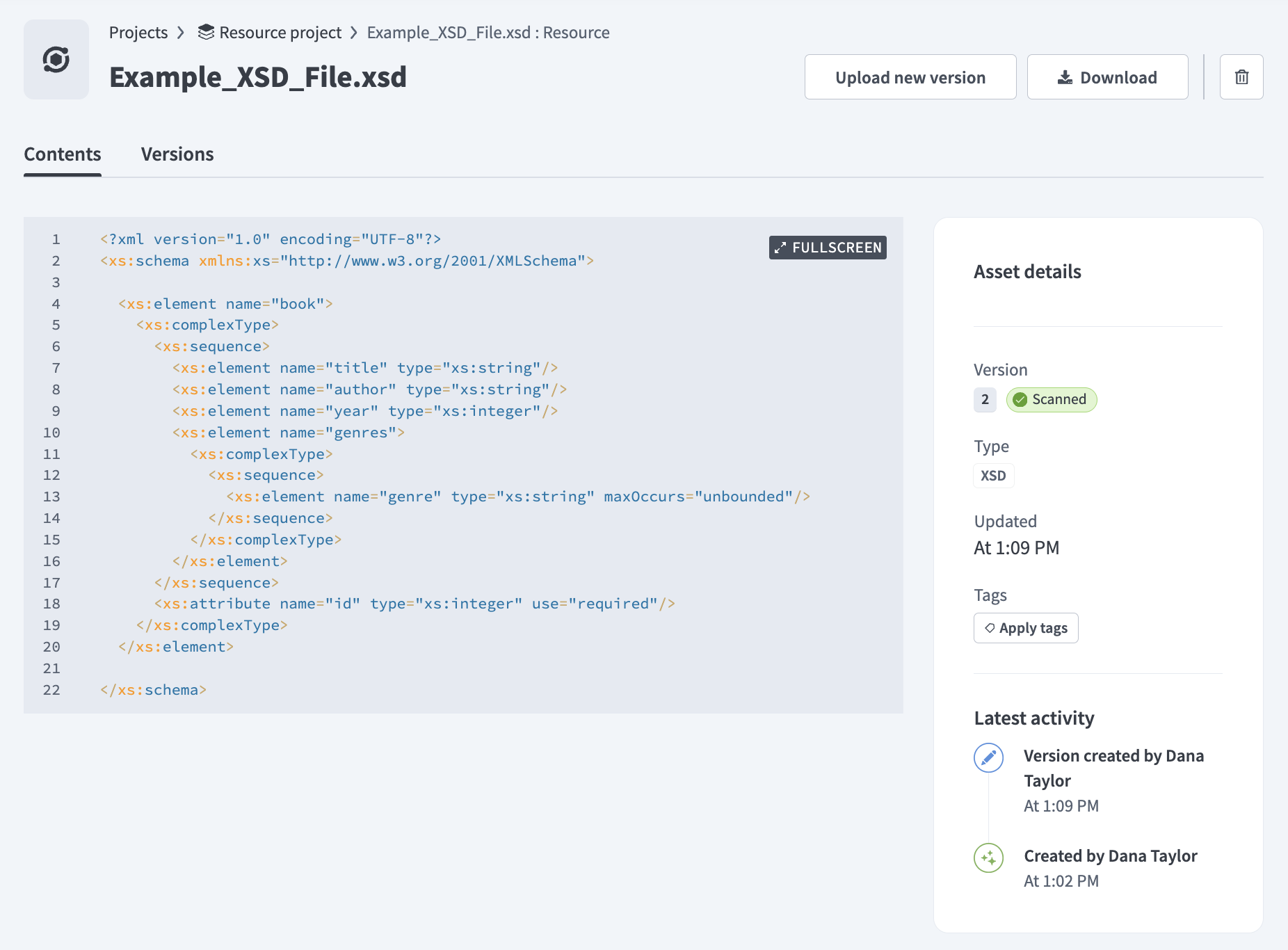 Resource Contents tab
The Contents tab contains the following information:
- A preview of the file's content.
- Version: The numerical identifier for the version and its security scan status.
- Type: The resource's file type.
- Updated: Timestamp when the resource was last updated.
- Tags: Organizational tags applied to the resource. Click Apply tags to add tags.
- Latest activity: Recent changes to the resource.
Refer to the Version management section for information about the Versions tab.
# Update a resource
Complete the following steps to upload a new version of an existing resource:
Go to the project that contains the resource or go to Assets > Resources.
Select the resource, then click Upload new version.
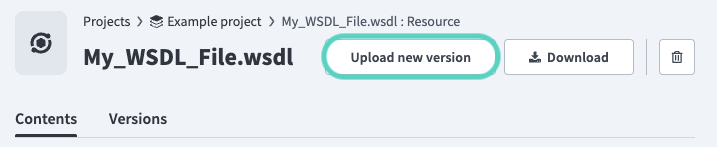 Upload a new version.
Drag and drop files or click Upload from device and select files to upload.
FILE LIMITATIONS
Resources have a maximum size of 50 MB and must be one of the following file types:
.xsd.xslt.wsdl
Click Done to upload the file.
Workato stores the new file and scans it for threats. You can't view or interact with the new version until the scan is complete, but the last resource version remains available.
Workato marks a file as Malicious if it detects a threat. Malicious files are blocked from view, download, and use in recipes. Resources continue using the latest safe version until a new version passes the security check.
# Download a resource
Complete the following steps to download a resource using the Workato UI:
Go to the project that contains the resource or go to Assets > Resources.
Select the resource to download.
Optionally, go to the Versions tab and select a previous version to download.
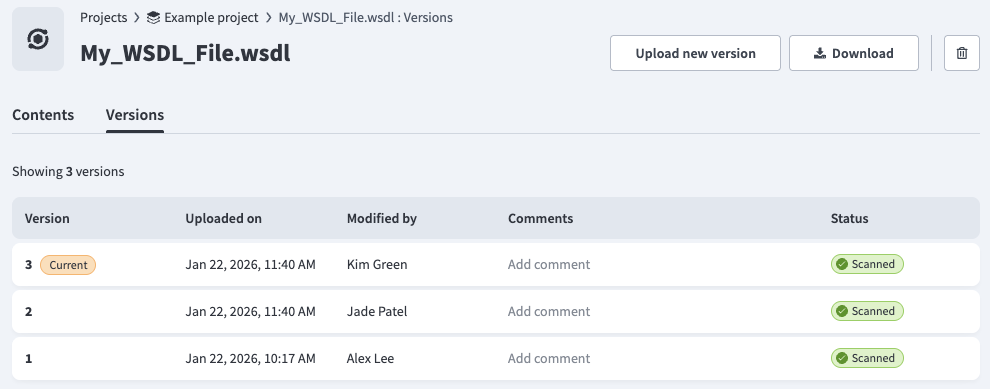 Resource Versions tab
Click Download.
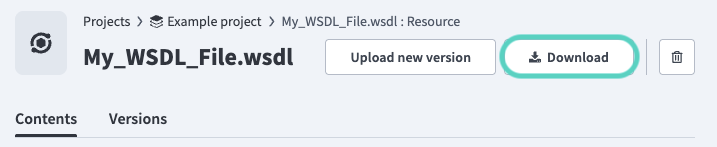 Click Download.
# Delete a resource
Complete the following steps to delete a resource using the Workato UI:
REMOVE DEPENDENCIES FIRST
Remove all references to a resource before deleting it to avoid job failures.
Go to the project that contains the resource or go to Assets > Resources.
Select the resource to delete.
Click Delete (trash icon). A confirmation modal displays the recipes that reference this resource. Remove these references before you delete the resource to avoid job failures.
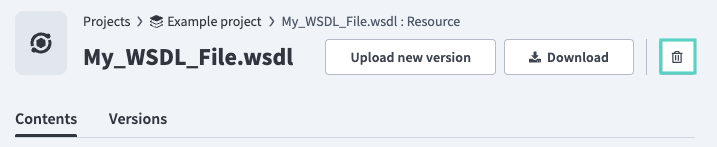 Click Delete
Click Delete resource to confirm the deletion.
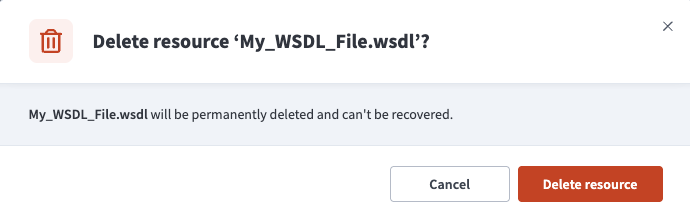 Click Delete resource.
# Move a resource
Complete the following steps to move a resource:
Go to the project that contains the resource. Alternatively, go to Assets > Resources.
Select the ... (ellipsis) on the resource you plan to move, then click Move.
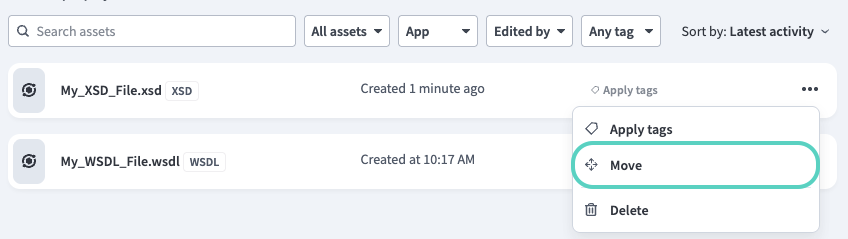 Click ... (ellipsis), then click Move.
Use the Location drop-down menu to select the project where you plan to store the resource. A warning displays the recipes that reference this resource. Remove these references before you move the resource to avoid job failures.
Click Move to move the resource.
# Version management
Workato maintains the last 100 versions of a resource. Go to a resource's Versions tab to view its history.
Resource Versions tab
The Versions tab contains the following information for each version:
- Version: The numerical identifier for the version.
- Current: A badge indicating the latest safe version. Recipes use this version at runtime.
- Uploaded on: The date and time the version was uploaded.
- Modified by: The user that last modified the version.
- Comments: The comment attached to the version. Click Add comment to attach a comment.
- Status: The results of the security scan.
Select a specific version to see a preview of its contents.
VERSION UPDATES
Resource references always use the latest safe resource version at runtime. You can't prevent a reference in a recipe from updating. Refer to Restore a resource version to restore a resource to a previous version.
# Restore a resource version
Download the version you plan to restore, then upload it as a new version to restore a resource to a previous version.
# Role-based access control
You can configure the following resource permissions using collaborator and project roles:
Full access
Grants all resource permissions.
View
View resources.
Edit
Edit resources.
Create
Create resources.
Delete
Delete resources.
Workato's default system roles provide the following permissions:
# Limitations
Resources have the following limitations:
- Maximum size of a single file: 50 MB
- Maximum size of all files in an Environment: 5 GB
- Maximum number of versions stored per resource: 100
Last updated: 4/22/2026, 8:43:04 PM