Okta SAML設定
このガイドでは、Workato IdentityのSAMLアイデンティティプロバイダー(IdP)としてOktaを設定する方法について説明します。
SAMLにより、OktaなどのIdPとWorkatoのようなサービスプロバイダー間で安全な認証が可能になります。ユーザーはOktaを通じて一度認証するだけで、アプリケーションごとに個別の認証情報を管理する代わりに、1回のログインでWorkatoにアクセスできます。
前提条件
Workato Identityは、Agent Studio、Workato GO、MCP、およびAPI開発者ポータルで利用できます。
開始する前に、Workato IdentityでSAMLベースの認証を設定します。以降の手順を完了するには、その設定で取得したシングルサインオンURLの指定とサービスプロバイダー(SP)エンティティIDの値が必要です。
OktaでSAML認証を設定する
OktaでSAML認証を設定するには、次の手順を完了します。
Workflow apps向けのSAMLベースのSSOではありません
このドキュメントはWorkato Identity専用です。 Workflow appsのSAML認証を設定するには、SAMLベースのシングルサインオン認証を参照してください。
Oktaアカウントにサインインします。
Applications > Applicationsに移動し、Create App Integrationをクリックします。
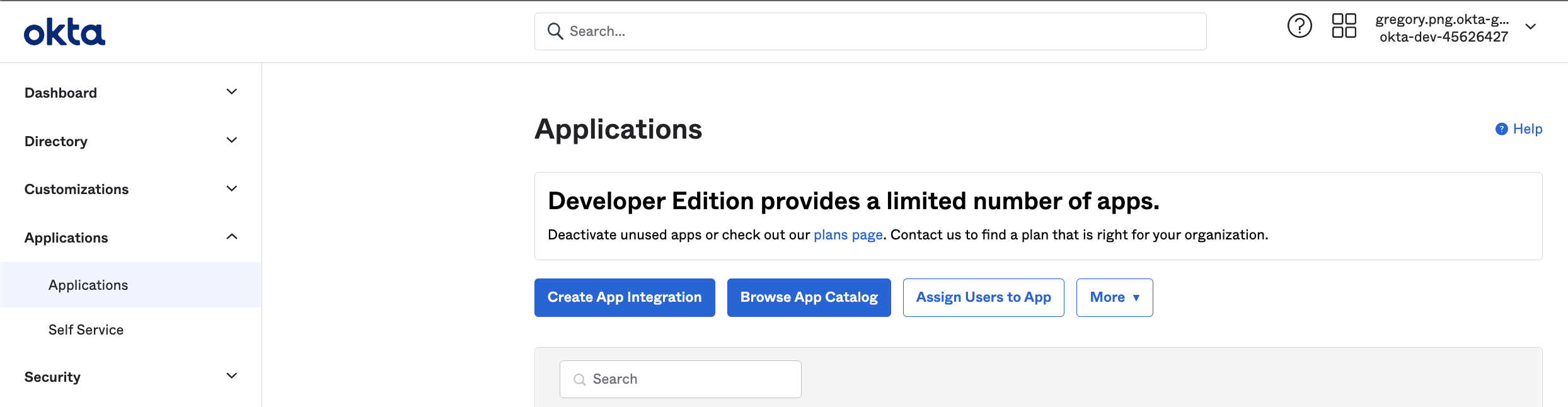 Oktaでアプリケーションを追加する
詳細については、Oktaドキュメントを参照してください。
Sign-in methodでSAML 2.0を選択し、Nextをクリックします。
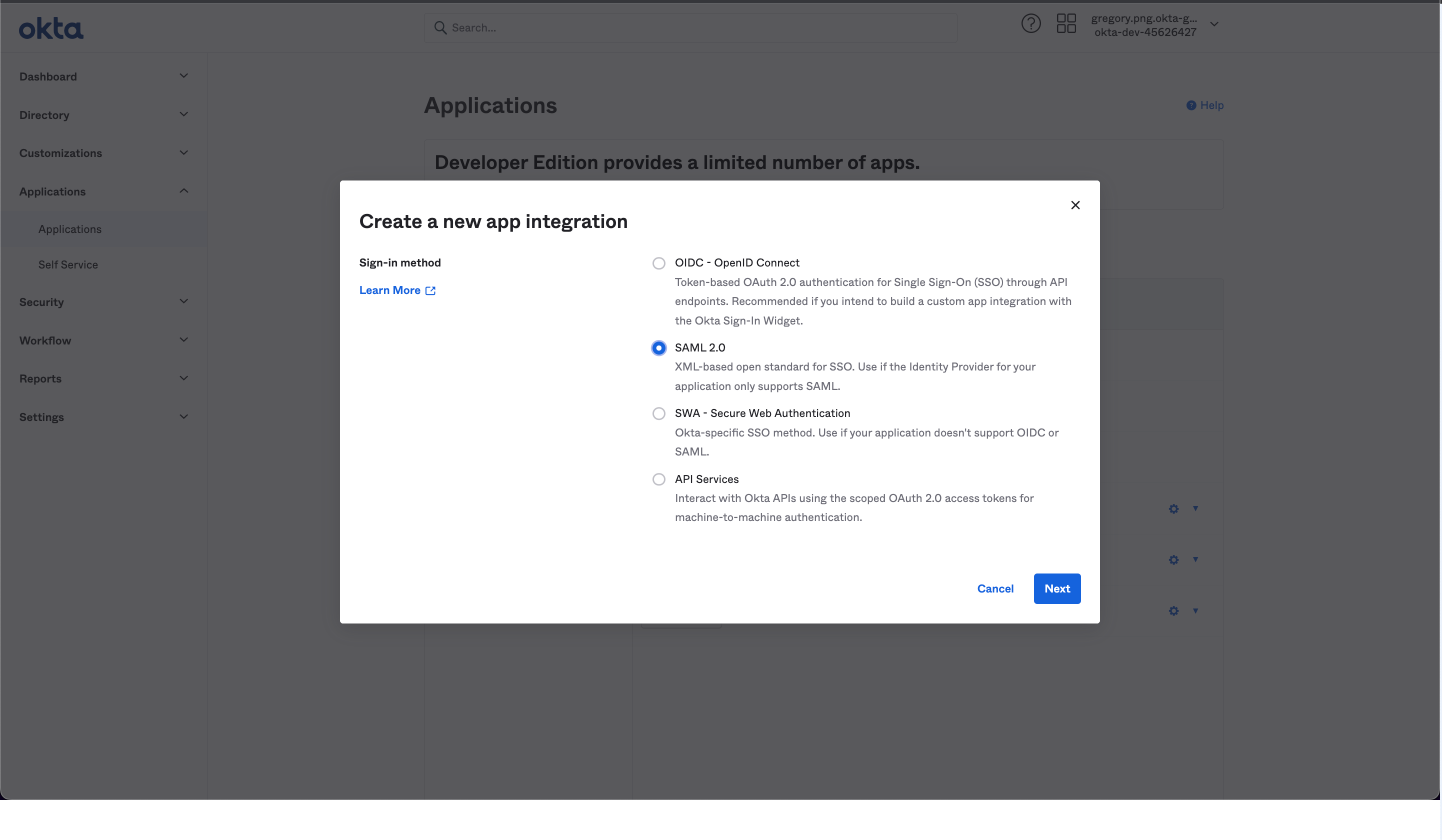 Oktaで新しいアプリケーションを作成する
「アプリ名」フィールドにアプリの名前を入力します。例:Workato AgenticまたはMCP Servers。
次へをクリックします。
WorkatoのSpecify Single sign-on URLをOktaの対応するフィールドに貼り付けます。
Use this for Recipient URL and Destination URLチェックボックスを選択します。
Service provider (SP) entity IDをAudience URI (SP Entity ID)フィールドに貼り付けます。
Name ID formatをEmailAddressに設定します。
Attribute Statementsセクションに移動し、次の属性を追加します:
| 名前 | 値 |
|---|---|
workato_end_user_name | user.displayName |
workato_end_user_groups | appuser.workato_end_user_groups |
次へをクリックします。
App typeドロップダウンメニューを使用して、This is an internal app that we have createdを選択します。
「完了」をクリックします。
Directory > Peopleに移動し、1人以上のユーザーを追加します。各ユーザーの検証手順を完了する必要があります。
Applications > My App > Assignmentsに移動します。
Assign > Assign to Peopleをクリックし、My Appに1人以上のユーザーを追加します。
完了をクリックします。
OktaでApplications > [Your App] > Sign Onに移動します。
Metadata URLをコピーします。 Workato IdentityのSet up a new providerウィザードのDo you have your identity provider metadata URL?セクションで、このURLを使用する必要があります。
変更を保存をクリックします。
Oktaアプリの表示設定を設定して、アプリケーションアイコンをユーザーに表示しないようにします。これにより、Workato機能でサポートされていないIdP開始ログインをユーザーが試行するのを防ぎます。
IDPからの直接サインインはサポート対象外
IdPからWorkatoに直接サインインすることはできません。認証は、接続済みのLLM内の会話を通じて開始された場合にのみサポートされます。
トラブルシューティング
このセクションでは、発生する可能性のあるOktaエラーのトラブルシューティングを行います。
複数のOktaグループの問題
Oktaのデフォルトの動作では、ユーザーが複数のOktaグループのメンバーである場合、SAMLグループ属性内でグループ名がカンマ区切りの文字列として連結されます。 Workato Identityでは、グループ属性は連結された文字列ではなく、個々のグループ値の配列であることが想定されています。連結された文字列形式によりグループマッピングが失敗し、ユーザーは正しいWorkatoユーザーグループの割り当てを受け取れません。
解決策
string arrayタイプが複数の値として返されるようにするには、アカウントでSAML_SUPPORT_ARRAY_ATTRIBUTESフラグを有効にしておく必要があります。アカウントにSAML_SUPPORT_ARRAY_ATTRIBUTESフラグがまだ存在しない場合は、Oktaサポートに連絡して有効にしてください。
最終更新日: