# Add a Jira data source in Workato GO
You must configure Jira to allow Workato GO to search for Jira tickets.
# Create an API token in Jira
You must create an API token to allow Workato GO to access your Jira instance.
Complete the following steps to create the API token:
Sign in to your Atlassian account.
Click the profile icon and select Account settings.
Click the Security tab.
Click Create and manage API tokens > Create API token.
Enter a name for your API token in the Name field.
Click the Expires on field and use the calendar modal to select an expiration date for your token. Tokens can't last longer than a year.
Click Create.
Click the Copy button to copy your API token. This value is required to add Jira as a data source in Workato GO.
# Add Jira as a data source
Complete the following steps to add Jira as a data source in Workato GO:
Sign in to your Workato GO account.
Expand the Admin menu in the sidebar and click Data sources.
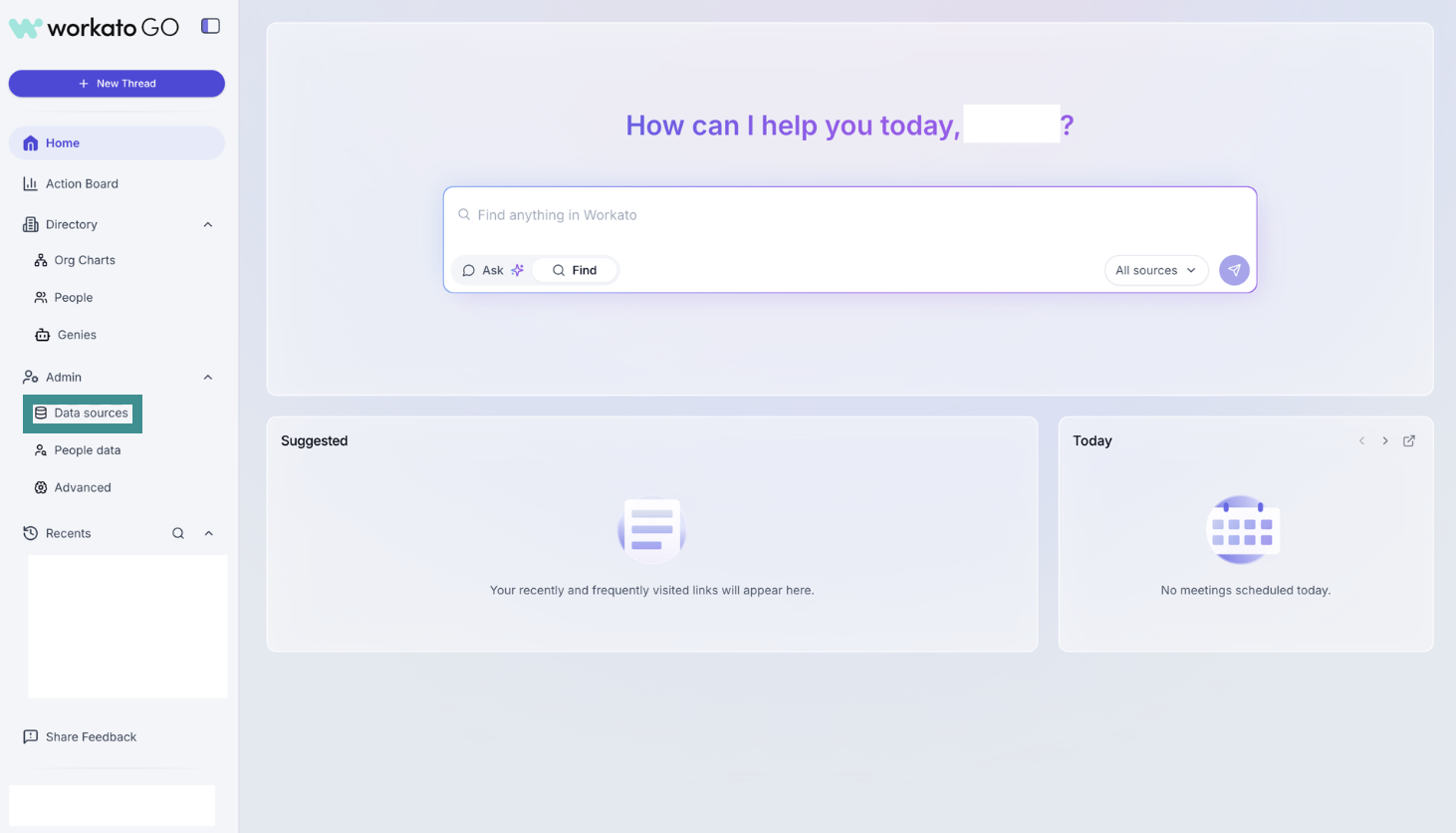 Go to Admin > Data sources
Click Add Data Source. The Add Data Source page displays.
Select the Jira app.
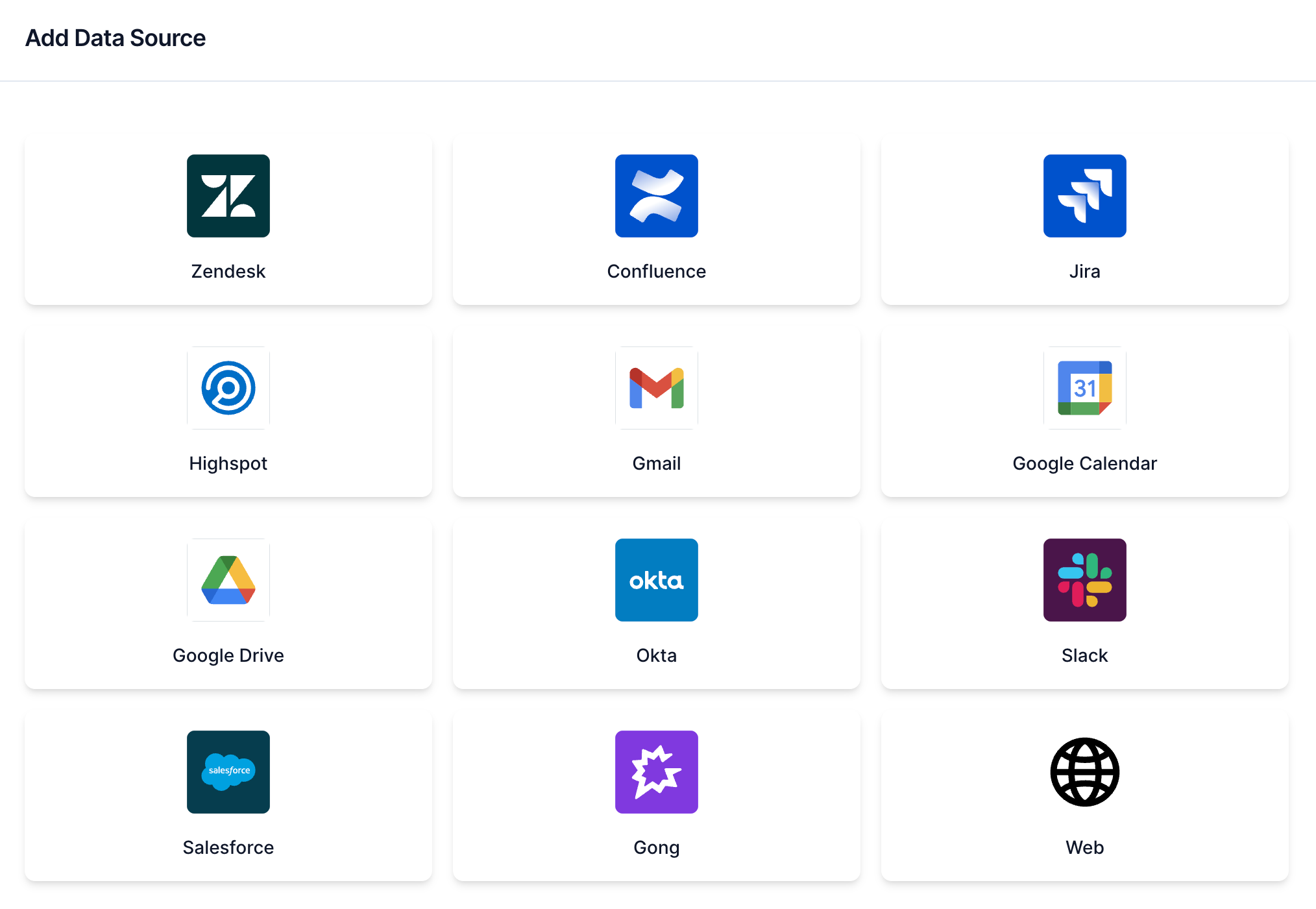 Select Jira
Enter a name for your data source in the Name field.
Enter the domain for your data source in the Domain field. For example: https://acme.atlassian.net
Enter the groups you plan to provide with default access in the Default Access Groups field. Separate groups with a comma. For example: jira-general,jira-admins. Refer to Retrieve default access groups for more information.
Enter your API token from your data source in API Token field.
Enter the email associated with the data source in the Email field. For example: [email protected]
Click Next. The Crawl configuration page displays.
Locate the Would you like to start the crawl for Jira? field and select Crawl Now or Do it later.
CRAWLING IS NECESSARY TO BUILD A SEARCH INDEX
Workato builds a search index by crawling your data source and parsing its contents, metadata, and permissions.
Click Create. Your data source is now listed on the Data Sources page.
# Retrieve default access groups
Default access groups define who can view and access Jira resources in Workato GO. You must have admin privileges in Jira to retrieve default access group names.
Complete the following steps to retrieve default access group names:
Go to https://admin.atlassian.com/ (opens new window) and sign in as an admin.
Click Directory > Groups.
Copy the group names you plan to add to the Default Access Groups field in Workato GO.
Last updated: 12/1/2025, 6:09:01 PM