# Add a Zendesk data source to Workato GO
You must configure Zendesk to allow Workato GO to search across Zendesk Help Center articles, follow user-level article permissions, and sync content and permission updates multiple times per hour after initial indexing.
INDEXED DATA
Workato GO indexes only Zendesk Help Center articles.
# Enable API access in Zendesk
You must enable API access to allow Workato GO to access your Zendesk instance.
PRIVILEGE REQUIREMENTS
You must be a Zendesk admin to complete this configuration.
Complete the following steps to enable API access within Zendesk:
Sign in to your Zendesk Admin Center.
Go to Apps and Integrations > APIs > Zendesk API.
Enable Token Access.
Generate a new API token.
Store the API token in a secure location. Your API token is required when you add Zendesk as a data source.
# Add Zendesk as a data source
You must complete the following steps to add Zendesk as a data source in Workato GO:
Sign in to your Workato GO account.
Expand the Admin menu in the sidebar and click Data sources.
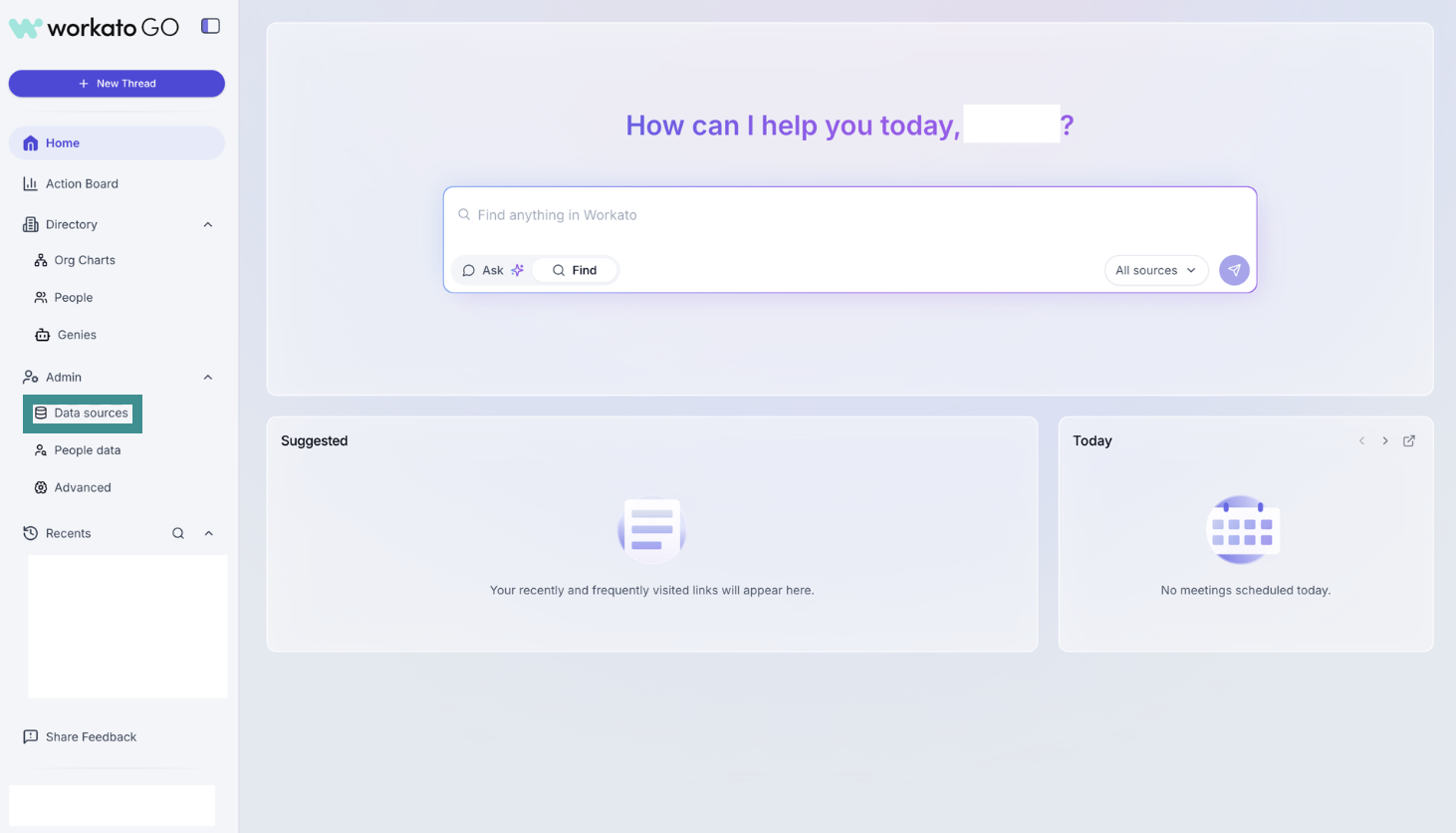 Go to Admin > Data sources
Click Add Data Source. The Add Data Source page displays.
Select the Zendesk app.
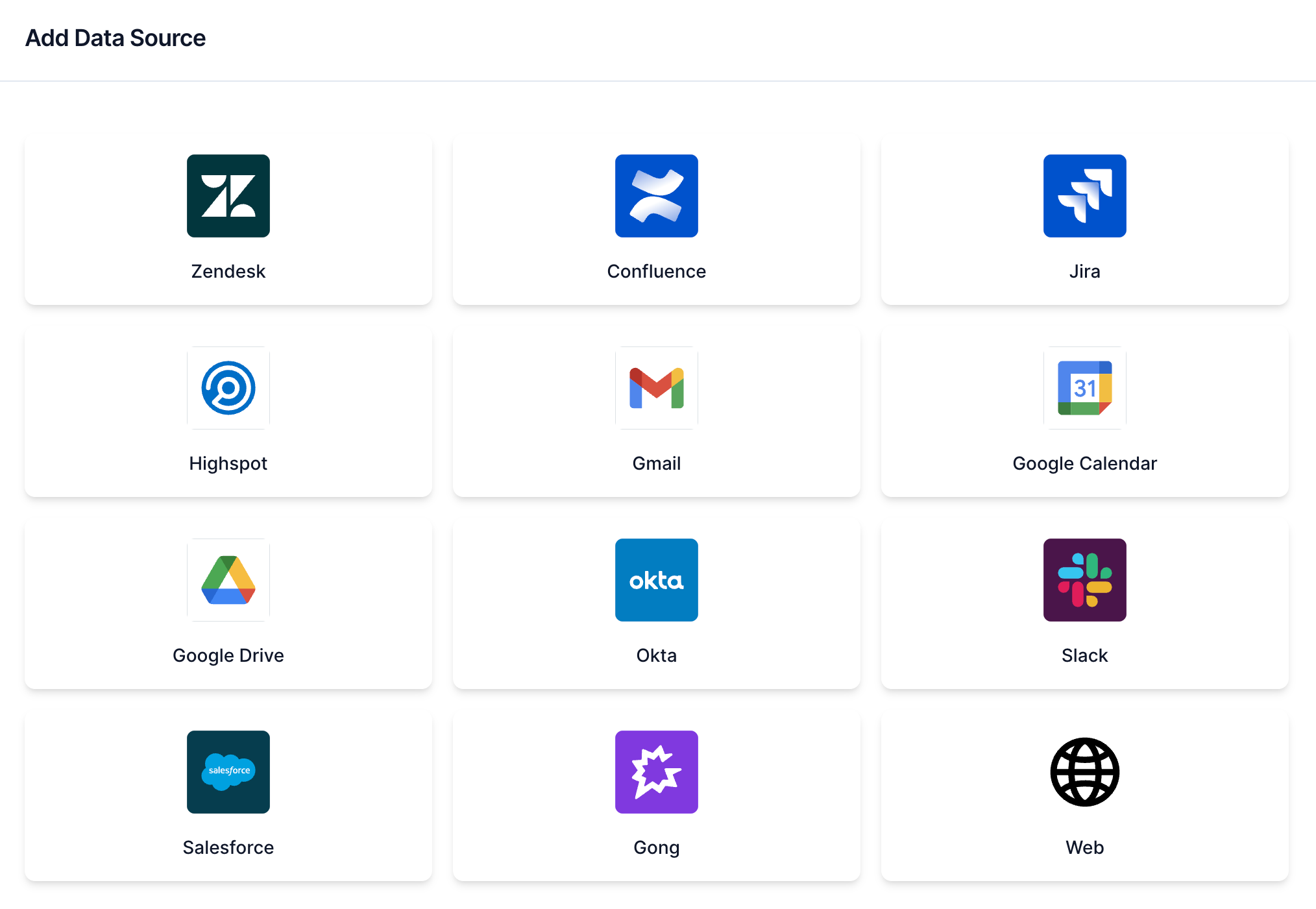 Select Zendesk
Enter a name for your data source in the Name field.
Enter the domain for your data source in the Zendesk Domain field. For example: https://acme.zendesk.com
Enter your API token from your data source in API Token field.
Enter the email associated with the data source in the Email field. For example: [email protected]
Click Next. The Crawl configuration page displays.
Optional. Click the Allow ticket crawl and Allow article crawl toggles to disable ticket and article crawling. Ticket and article crawling are enabled by default.
CRAWLING IS NECESSARY TO BUILD A SEARCH INDEX
Workato builds a search index by crawling your data source and parsing its contents, metadata, and permissions.
Click Create. Your data source is now listed on the Data Sources page.
Last updated: 12/1/2025, 6:09:01 PM