Salesforce Real-time triggers
Workato supports the following real-time triggers:
- Monitor changes in a record
- New Outbound message
- New PushTopic event
- New platform event
- New record
- New/updated record
These real-time triggers are powered by Salesforce flows. Salesforce uses flows to monitor records for changes and notifies Workato immediately when these changes occur using an outbound message. Workato recipes receive and processed these outbound messages as trigger events.
DEPRECATION NOTICE PERTAINING TO REAL-TIME TRIGGERS
Real-time triggers in Workato rely on Salesforce Workflow rules. These existing Workflow rules will continue to be supported. However, we recommend that all new recipes use Salesforce Flows, as Workflow rules and Process Builder have been deprecated by Salesforce. There is a migration tool to move your Workflow rules into Flows.
As the outbound messages configured in Salesforce will remain the same, the process should not affect Workato recipes. Nevertheless, we recommend testing the migration in the Salesforce sandbox account first to ensure that there are no unexpected issues.
Real-time trigger permissions
Flows must be set up in your Salesforce organization to use real-time triggers. Complete the following steps to grant the connected user the permissions required for real-time triggers:
Go to Setup and enter Profiles in the Quick Find box.
Click Edit on the user profile for which you plan to give flow access.
Go to General User Permissions and select Manage Flows and Run Flows.
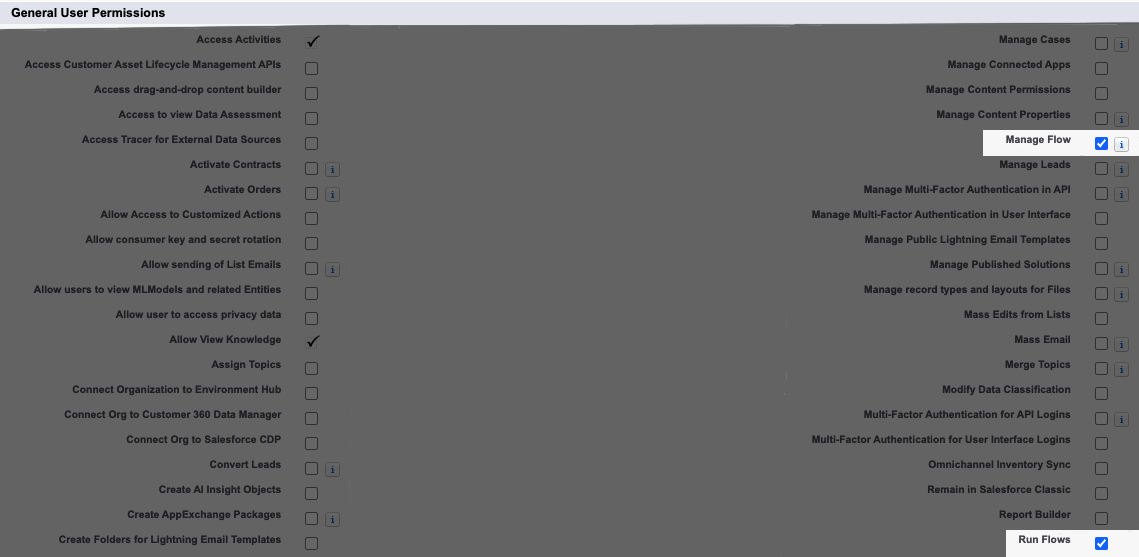 General User Permissions - profile setup
Choosing the right trigger
Refer to the following table to see the differences between the New record (real-time)/New/updated record (real-time) and New outbound message triggers:
| New & New/Updated record | New outbound message | |
|---|---|---|
| Backup polling enabled | Yes, the recipe will pick up all changes to the selected Object | No, the recipe will only trigger when it receives an Outbound message |
| Related Objects field | Yes | No |
| SOQL WHERE clause | Yes | No |
| Configure fields on the outbound message | No, Workato automatically picks up all fields or those specified in the Fields input field. | Yes, all fields that are sent in the outbound message must be specified in when setting it up in Salesforce. |
| Unique endpoint URL (per recipe) | No, the URL isn't unique for each recipe. Recipes that use the same connection and object share a unique URL. Only one recipe triggers. | Yes, the URL is unique for each recipe. Each recipe uses a distinct name to generate a unique URL. All recipes trigger independently. |
| Complex Salesforce flow Consideration | Not recommended, as the recipe will not adhere to any additional logic in the flow configured on Salesforce and will lead to inconsistencies due to backup polling. | Recommended, as no backup polling is present for the trigger, and jobs will be created only for the events where there is an outbound message. |
BACKUP POLLING
Workato's backup polling recovers missed events by checking Salesforce for the target object every six hours. When a matching object is found, Workato creates a job for the object if one doesn't already exist.
New & New/Updated Object (Real-time)
The New record (real-time) and New/Updated record (real-time) triggers use outbound messages to provide real-time monitoring, instead of checking Salesforce at a set polling interval. This is especially helpful for use cases such as point-of-sale or inventory and fulfillment.
Choosing between Real-time and Polling triggers
We recommend users who do not have a need for real-time use cases to select the polling triggers due to the ease of setup and identical behavior, with only a maximum delay of the duration of polling interval (as low as 5 minutes).
The New record trigger creates a job in real time when it receives the outbound message that an object of the selected type was created. Refer to the Setup section for an example.
Similarly, the New/Updated record trigger creates a job in real time when it receives the outbound message that an object of the selected type was either created or updated. This trigger requires you to configure the Salesforce flow to ensure it sends a message for both create and update events. Workato uses the LastModifiedDate field on the record to ensure consistency.
You can use the SOQL where clause field on the trigger or trigger conditions to filter out trigger events for specific records. Alternatively, you can directly configure the Salesforce flow to filter events that send an outbound message. This method leads to backup polling behaving erroneously and is not recommended for the New record and New/Updated record triggers.
With these 2 triggers, Workato guarantees delivery through the use of a 6-hourly backup poll where all the new/updated changes to the object are picked up even if Salesforce fails to deliver an Outbound message. This means that all record changes are picked up by the Workato recipe if not filtered out with a SOQL condition or a trigger condition.
Setup
To set up these triggers, we need to:
- Create a Workato recipe with a Salesforce real-time trigger, and copy the generated endpoint URL from the trigger.
- Configure an outbound message in Salesforce with the endpoint URL from the trigger.
- Create a Salesforce flow to monitor events we're interested in and send outbound messages when the relevant event occurs.
- Activate the flow.
- Add trigger conditions in the recipe, if desired.
- Start the recipe.
Configure a new outbound message in Salesforce
All the triggers require the creation of outbound message that we will then use in the flows. We first describe the steps necessary to configure an outbound message correctly.
Copy the webhook URL from the collapsible HELP section of the trigger you plan to configure.
Go to your Salesforce organization and select Setup.
Go to Setup > Process Automation > Workflow Actions > Outbound Messages or search for Outbound Messages in the Salesforce Setup sidebar.
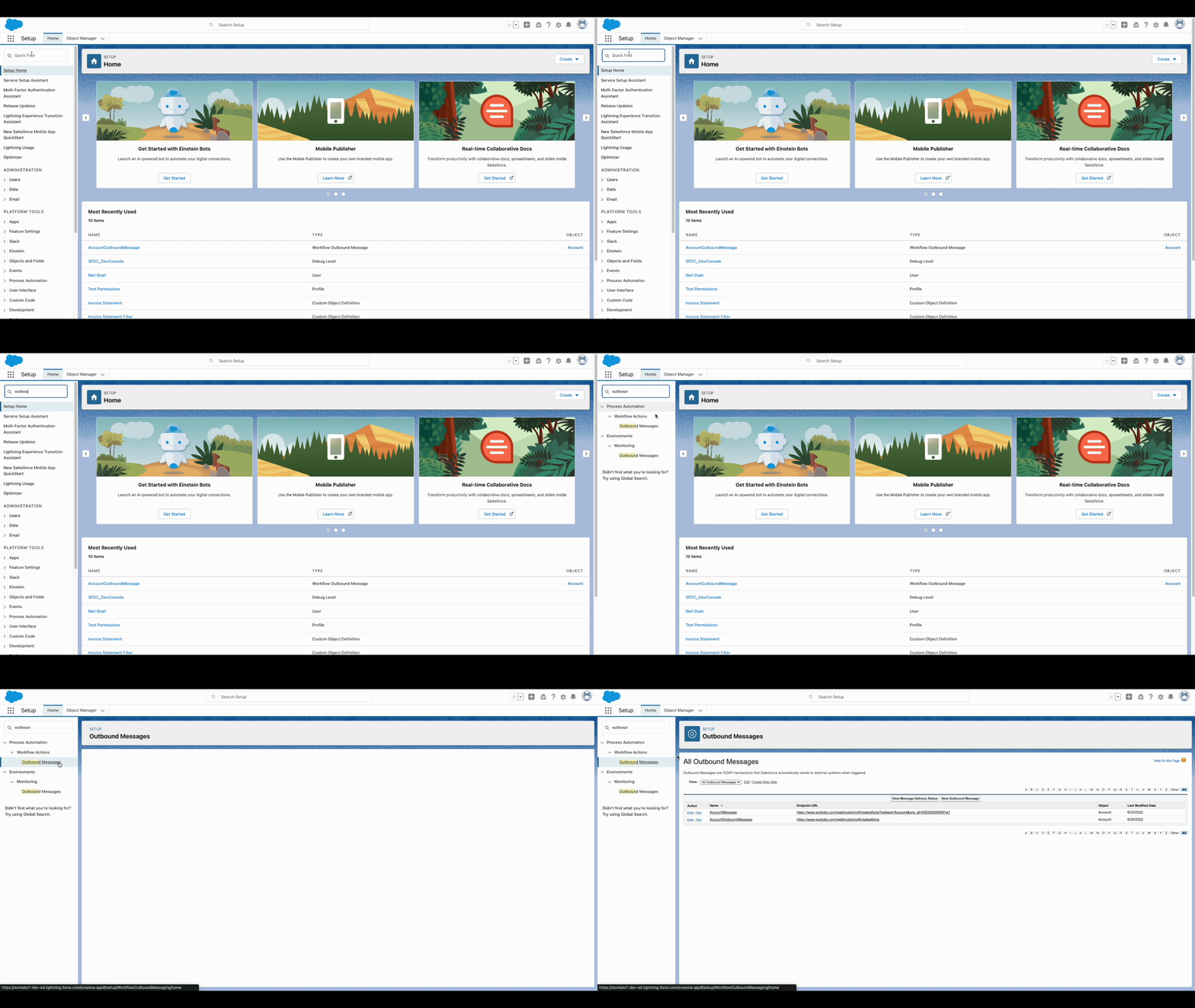 In your Salesforce organization, go to Setup > Process Automation > Workflow Actions > Outbound Messages
Click New Outbound Message and select the Object type to monitor.
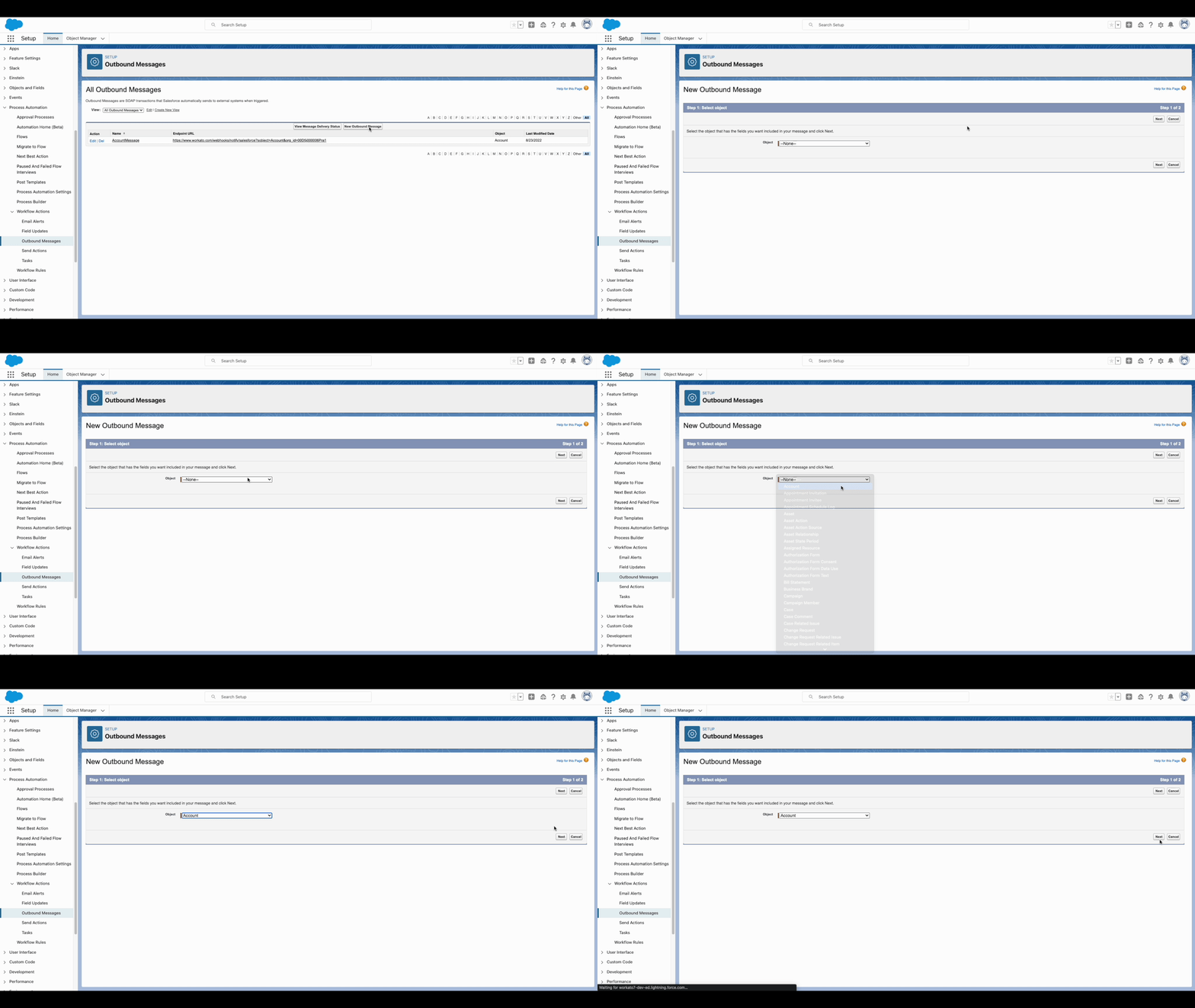 Create New Outbound Message and select relevant object
Enter a unique Name for the message, enter the Endpoint URL from Workato, and select the Fields to send.
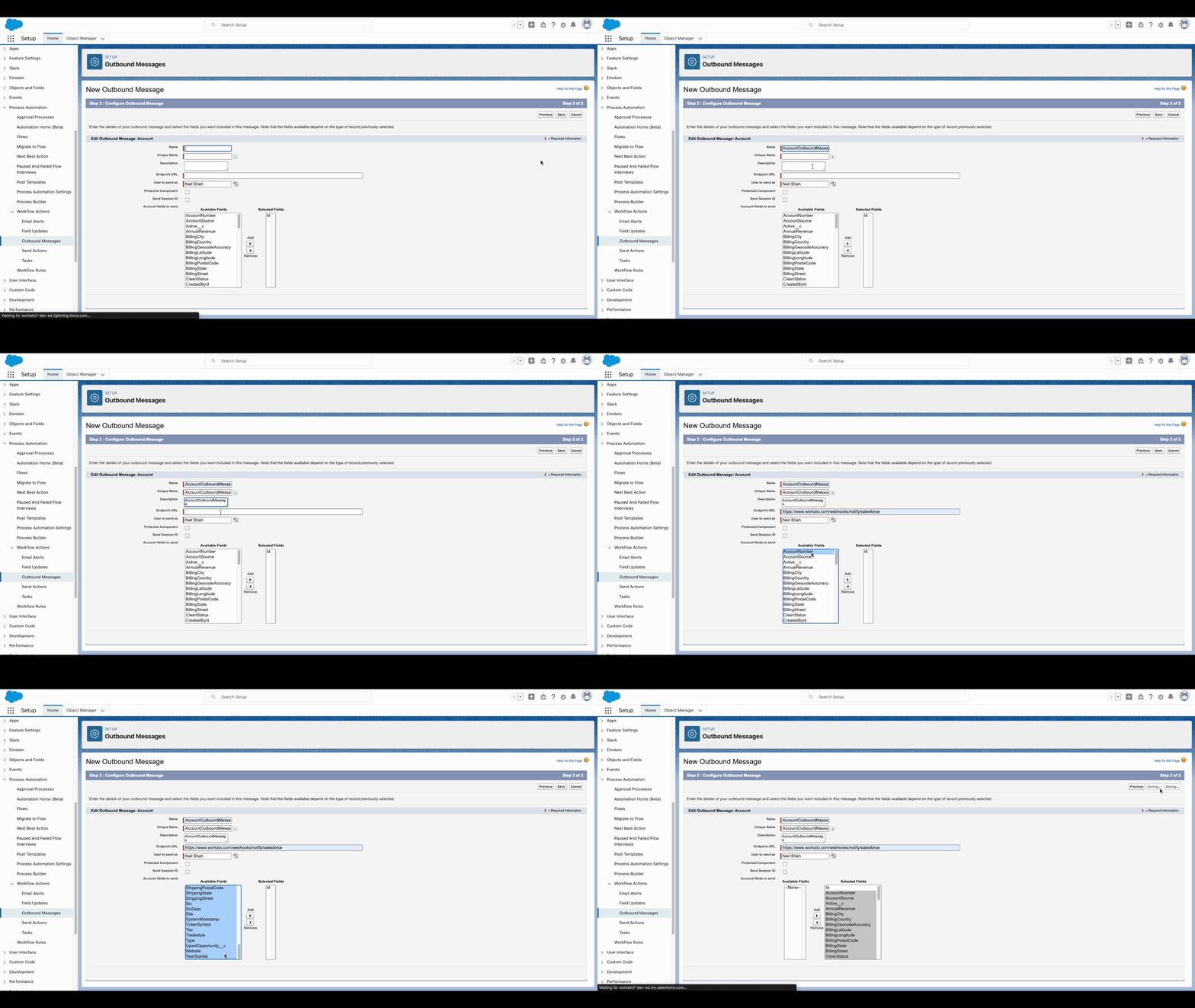 Configure Outbound Message by entering the relevant information and selecting the requisite fields.
TRIGGER CONFIGURATION
The New record and New/updated record triggers obtain fields based on the configuration in Workato. Use the New outbound message trigger to retrieve fields configured in Salesforce for an outbound message.
Setup FAQ
1. I've set up the Salesforce flow to have filters to limit the number of records sent to Workato for the New Object and New/Updated Object triggers. How will backup polling work under this setting?
Since backup polling checks for all New or New/Updated objects it will not respect the filters specified in the flow. This will lead to new jobs being created corresponding to events that might have been filtered out in the flow. To prevent this we recommend using trigger filters or SOQL conditions.
2. I've a high volume use case to monitor events happening within Salesforce. What is the recommended approach?
For high volume use cases we recommend using Platform events trigger or the Pushtopic trigger as these utilize the Salesforce Streaming API which is more durable (allows for events to be accessed for 24 hrs in the event queue).
Last updated: