Set up Sales Rep Agent
Use this guide to install and configure Sales Rep Agent in your workspace.
Prerequisites
Complete the following before beginning setup:
- Confirm that the Genie Installer is in your workspace. If it isn't, contact your Workato account team to complete this one-time setup.
- Connect Salesforce as your CRM, with API access enabled. Salesforce is the only supported CRM.
- Create the selling methodology fields your organization tracks, such as MEDDPICC or value selling fields, on the Salesforce Opportunity object. Sales Rep Agent can't populate a field from a call summary until the field exists.
- Connect at least one call recording source, either Gong or Zoom, so calls can be transcribed and summarized.
- Connect an enrichment platform to retrieve and verify company details. ZoomInfo is supported.
- Connect at least one support ticketing or ITSM application to include support context in account research. Freshdesk and Jira Service Desk are supported.
- Connect Google Calendar to include past and upcoming meetings in account research and to find customer meetings for proactive research.
- Identify the applications you plan to ingest knowledge from, such as Confluence, Jira Service Desk, Google Drive, or SharePoint.
Install Sales Rep Agent
Complete the following steps to install the required packages for Sales Rep Agent:
Go to Agentic | Installer > Templates > FUNC | [SAMPLE] 3. Install Genie Module.
Click Edit, then do the following:
Refresh the recipe to load the latest available packages.
In Step 2, select the latest version of Agentic | Sales Rep Agent from the Genie Module drop-down menu. Set Get dependencies to No.
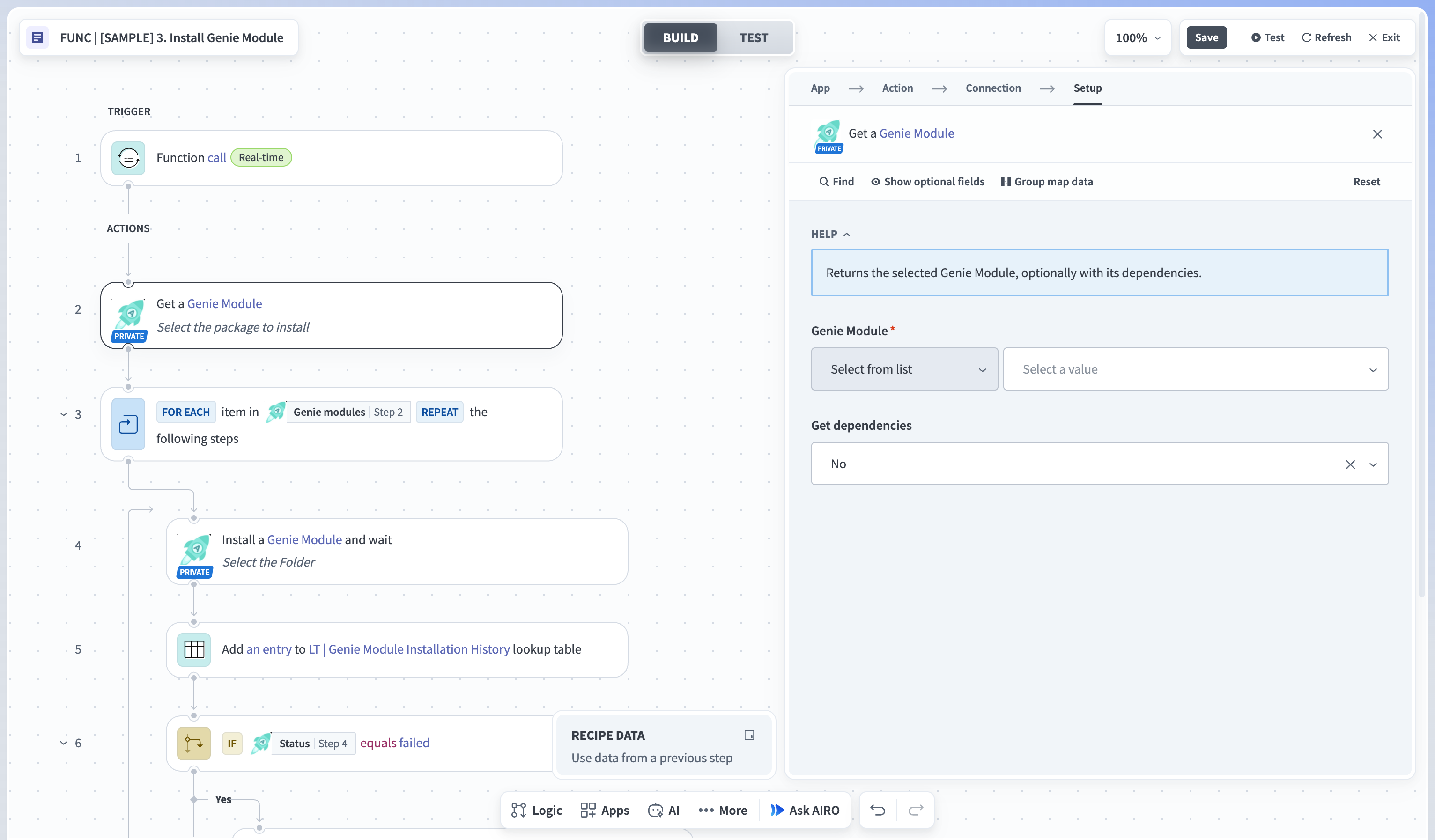 Select the latest version of the genie module
MODULE NOT VISIBLE
If Agentic | Sales Rep Agent doesn't appear in the drop-down menu, your workspace may not have been granted access. Contact your Workato account team and repeat this step once access is confirmed.
In Step 4, set the Folder field based on your install type:
- Fresh install: Leave the field empty. If you see an x icon next to the Folder field, click it to clear the cached value before running the job.
- Upgrade: Select the existing Agentic | Sales Rep Agent project. This preserves your existing configuration.
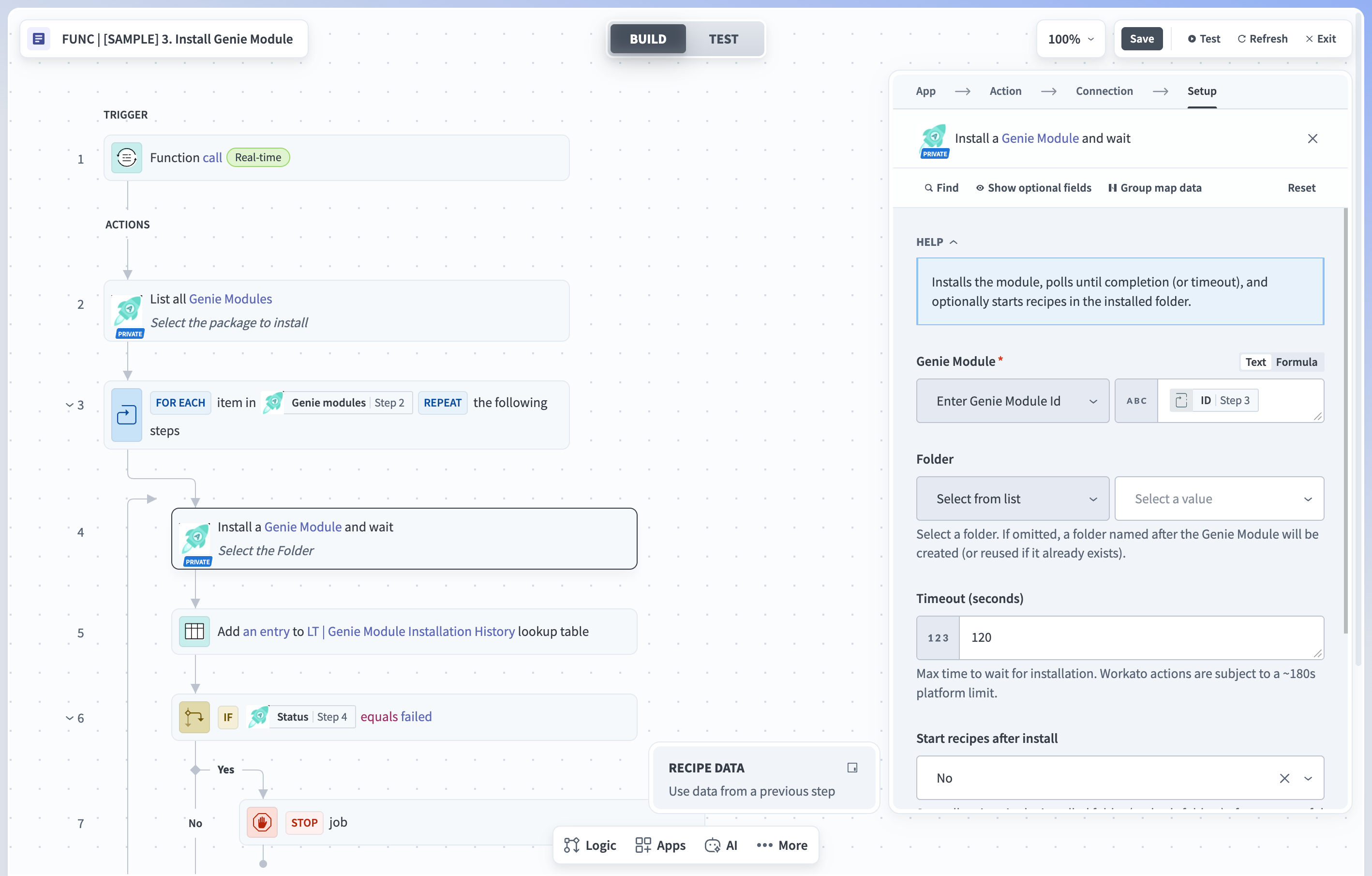 Select the folder to install Sales Rep Agent
Click Test and wait for it to complete. Confirm that the output of Step 4 in the recipe shows a success status.
Confirm that Agentic | Sales Rep Agent now appears in your workspace's projects list.
Configure connections
Go to Agentic | Sales Rep Agent > Config > Connections and configure a connection for each app you plan to use. Refer to each app's connector documentation for its connection requirements:
- Confluence
- Freshdesk
- Gmail
- Gong
- Google Calendar
- Google Drive
- Jira Service Desk
- Microsoft SharePoint
- Salesforce
- Slack
- Zoom
- ZoomInfo
Configure metadata
Complete the following steps to configure the data tables Sales Rep Agent uses to score call summaries, evaluate alerts, and schedule knowledge ingestion:
Go to Agentic | Sales Rep Agent > Config > Metadata > Agentic Data Ingestion | Scheduler. This table defines the schedule and data source for knowledge base ingestion.
| Column | Description |
|---|---|
| Data Source | Enter the name of the application that is the data source, such as Confluence. |
| Type | Enter delta to ingest only changes since the last run, or full to load all specified data. |
| Frequency | Enter how often ingestion runs, such as daily, weekly, monthly, or initial. |
| Day/Date/Time | Enter when the scheduler runs ingestion for the data source, in UTC. For example, Mon/09:00, 15/09:00, 09:00, or NA. |
| Filter/Path | Enter the scope when a data source has pages, categories, folders, domains, or spaces. For Confluence, enter the space name. |
| Is Active? | Set to TRUE to activate ingestion for this data source. |
| Exclusions | Enter a JSON object defining what to skip. Accepts file_extensions, mime_type, file_name_regex, folder_name_regex, and folder_id. For example, { "file_extensions": ["mp4","mov"] }. |
| Encrypt | Controls encryption behavior for ingested content when configured. Leave unset unless required by the deployment. |
| Anonymize | Controls anonymization behavior during ingestion when configured. Leave unset unless required by the deployment. |
| Flags | Supports additional ingestion options or processing flags when applicable. |
| Agent Name | Enter the name of the agent this ingestion row feeds, such as Sales Rep Agent. |
| Knowledge Base | Enter the name of the knowledge base the ingested content is written to, such as Confluence | Sales Rep Agent. |
| deleteFilesOlderThan_inDays | Enter the number of days after which files are deleted. Not implemented for all data sources. |
Go to Agentic | Sales Rep Agent > Config > Metadata > Agentic Selling Methodology Fields | Definition. This table defines the Salesforce fields Sales Rep Agent populates and scores from a call transcript.
| Column | Description |
|---|---|
| Field Name | Enter the API name of the Salesforce field to track. |
| Description | Enter what the field captures and why it matters for your selling methodology. |
| Object | Enter the Salesforce object the field belongs to. |
| Scoring Guideline | Enter the criteria Sales Rep Agent applies to judge how completely the call transcript covers this field. |
Go to Agentic | Sales Rep Agent > Config > Metadata > Agentic Opportunity | Alert Configurations. Each row defines one alert rule that Sales Rep Agent evaluates against opportunity or lead records.
| Column | Description |
|---|---|
| AlertType | Enter the business rule this row evaluates, exactly as shown:
|
| Threshold | Enter the comparison value used to evaluate the condition. Its data type and meaning depend on the AlertType. |
| Operator | Enter the comparison applied between the record's actual value and Threshold. For example, <=. |
| Stage | Enter a Salesforce stage to restrict the rule to opportunities currently in that stage. For example, Discovery. |
| NotificationRecipients | Enter the email address of the person notified through the chat interface when the rule fires. Separate multiple addresses with commas. |
| Opportunity Type | Enter the Salesforce opportunity types to evaluate. Only records whose type matches one of the listed values are evaluated. |
| Filter | Enter an additional condition to narrow the record set beyond Stage and Opportunity Type. The value is passed through as a query condition against Salesforce. |
| EscalationThreshold | Enter the number of days an alert can stay unresolved after firing before it escalates. |
| EscalationRecipients | Enter the email address of the person notified through the chat interface when an alert escalates. |
| SnoozeDays | Enter the cooldown in days before the same rule can fire again for the same record. |
| NotifyOnFirstInstance | Set to TRUE to notify when a record first meets this condition. |
| IsActive | Set to TRUE to evaluate this rule. Set to FALSE to disable it without deleting the row. |
Go to Agentic | Sales Rep Agent > Config > Metadata > Agentic Salesforce Objects. This table defines which Salesforce object schemas Sales Rep Agent loads.
| Column | Description |
|---|---|
| Object Name | Enter the API name of the Salesforce object to load the schema for, such as Opportunity. |
| Description | Enter what the object represents. |
Go to Agentic | Sales Rep Agent > Config > Metadata > Agentic SalesExecutives and add one row per rep. Sales Rep Agent uses this table to decide whose calendars to scan for proactive pre-meeting research.
| Column | Description |
|---|---|
| name | Enter the rep's full name. Required. |
| Enter the rep's work email, matching their Google Calendar account. Required. | |
| manager, manager_email | Enter the name and email of the rep's manager. |
| last_processed | Sales Rep Agent sets this to the time it last scanned the rep's calendar. For a new rep, enter a past date such as 2000-01-01 so the first run picks them up. |
| is_active | Set to TRUE to include the rep in proactive research. Set to FALSE to pause them. |
Configure project properties
Complete the following steps to configure project properties:
Go to Agentic | Sales Rep Agent > Settings > Project properties and edit the following properties to tell Sales Rep Agent which application fills each role:
| Property | Description |
|---|---|
| CRM.Application | Set the CRM that Sales Rep Agent reads from and writes to. Accepts Salesforce as the only supported value. |
| CallRecording.Application | Set the application Sales Rep Agent pulls call transcripts from. Accepts Gong or Zoom. |
| VideoConferencing.Application | Set the video conferencing platform used for meeting triggers and call summarization. Accepts Gong or Zoom. |
| Calendar.Application | Set the calendar system used for meeting lookups. Accepts Google Calendar as the only supported value. |
| CustomerSupport.Application | Set the support ticketing system Sales Rep Agent pulls customer support context from. Accepts Freshdesk as the only supported value. |
| DocumentRepository.Application | Set the document system Sales Rep Agent searches for internal content. Accepts Confluence as the only supported value. |
| ITSM.Application | Set the IT service management system Sales Rep Agent queries for related tickets, such as Jira. |
| Email.Application | Set the email provider Sales Rep Agent uses for follow-up emails, such as Gmail. |
| GTM.Platform | Set the enrichment platform used for company and contact lookups, such as ZoomInfo. |
Configure the following properties to control post-call behavior, research windows, and notification recipients:
| Property | Description |
|---|---|
| Salesforce.base.url | Set the base URL of your Salesforce instance. Sales Rep Agent uses it to build direct links to opportunity, account, and contact records. |
| Minimum.Call.Duration | Set the minimum call length in seconds for a call to be processed. Shorter calls are skipped. For example, 120. |
| PostCall.Create.Note | Set to true to create a CRM note after a call. |
| PostCall.Create.Tasks | Set to true to create follow-up tasks after a call. |
| PostCall.Send.Email | Set to true to have Sales Rep Agent draft a follow-up email after a call, present the draft to the rep, and send it after the rep approves it. |
| CRM.Failure.Recipient | Set the email address notified when a CRM update or sync operation fails. |
| CRM.Health.Time.Interval | Set the cron schedule, in UTC, that controls how often Sales Rep Agent evaluates the rules in the Agentic Opportunity | Alert Configurations data table. For example, 0 9 * * 1. |
| AccountResearchSummary.SendEmail | Set to true to send account research summaries by email. |
| Domain | Set your company domain, such as example.com. Sales Rep Agent uses it to identify external meeting attendees during proactive research. |
| FetchEvents.Interval | Set how often, in days, Sales Rep Agent polls for new calendar events. |
| GongCall.IntervalInMonths | Set how many months back to search for Gong calls when gathering an account's call history. |
| googlecalendar.defaultLookbackMonths | Set how many months back Sales Rep Agent searches for past calendar events. |
| googlecalendar.defaultLookforwardMonths | Set how many months ahead Sales Rep Agent searches for upcoming calendar events. |
| KBGap.digest.admins | Set the email addresses that receive the weekly knowledge gap digest. Separate multiple addresses with commas. |
Configure the properties for each optional application you connected. For any application you didn't connect, set its properties to NA or leave them as None.
Freshdesk
| Property | Description |
|---|---|
| Freshdesk.base.url | Set the base URL of your Freshdesk instance. |
| Freshdesk.API.Base.url | Set the Freshdesk API endpoint, which differs from the user-facing base URL. For example, https://example.freshdesk.com/api/v2. |
| Freshdesk.filters | Set the filter conditions applied when searching tickets. For example, status=open,resolved; priority=high. |
| Freshdesk.Ticket.LookbackDays | Set how many days back to search when gathering an account's support history. |
| Freshdesk.Ticket.MaxPages | Set the maximum number of result pages to fetch per ticket search, which bounds API calls and response size. |
| Freshdesk.tickets.real-time.data-ingestion.enabled | Set to true to ingest a Freshdesk ticket as soon as it closes, instead of waiting for the next scheduled run. Requires the TRIGGER | Ingest Closed Freshdesk Tickets into KB recipe. Refer to Ingest Freshdesk tickets when they close. |
Jira Service Desk
| Property | Description |
|---|---|
| JiraServiceDesk.Base.URL | Set the base URL of your Jira Service Desk instance. Sales Rep Agent uses it to build ticket links and API calls. |
| JiraServiceDesk.projects | Set the project keys the TRIGGER | Ingest Closed Jira Requests into KB recipe accepts webhook events for. Separate multiple keys with commas. For example, ISG. |
| JiraServiceDesk.ProjectKey | Set the project key that account ticket searches are limited to. Accepts one key, unlike JiraServiceDesk.projects. |
| JiraServiceDesk.filters | Set the JQL condition used to find tickets for an account. Enter #Keyword# where the account name belongs. For example, (organizations = "#Keyword#" OR labels = "#Keyword#") AND status='Open'. |
| JiraServiceDesk.status.required | Set the ticket statuses a ticket must match to be included in results. Separate multiple statuses with commas. For example, Resolved. |
| JiraServiceDesk.TicketsAge.Months | Set the maximum age in months of tickets to include when searching ticket history. |
Microsoft SharePoint
| Property | Description |
|---|---|
| Sharepoint.base.url | Set the base URL of your SharePoint site used for knowledge base search and document retrieval. |
Salesforce Service Cloud
Salesforce Service Cloud uses your Salesforce connection. No separate connection is required.
| Property | Description |
|---|---|
| SalesforceServiceCloud.Tickets.base.url | Set the base URL used to build direct links to the Service Cloud case records Sales Rep Agent surfaces. |
Slack
| Property | Description |
|---|---|
| Slack.KB.full-load.timeframe.months | Set how many months of Slack channel history to index during a full knowledge base load. |
| Slack.KB.full-load.max-conversations-count | Set the maximum number of Slack conversations to pull in a single full load, which bounds processing time and size. |
Go to Agentic | Sales Rep Agent > Settings > Project access and add the collaborators who need access to this project. Include only the admins and developers responsible for custom extension work. End users don't need project access.
Configure the Jira Service Desk webhook
The TRIGGER | Ingest Closed Jira Requests into KB recipe ingests a Jira Service Desk request into Sales Rep Agent's knowledge base when the request is updated.
OPTIONAL SECTION
Complete this section only if you set ITSM.Application to Jira.
Go to Agentic | Sales Rep Agent > Extensions > Knowledge Ingestion > Jira Service Desk > TRIGGER | Ingest Closed Jira Requests into KB.
Open the New event via webhook trigger step and copy the webhook URL.
Sign in to Jira as an administrator and go to Settings (⚙) > System > WebHooks (under Advanced), then click Create a WebHook.
Configure the following fields:
- Name: Enter a recognizable name, such as
Ingest Closed Jira Requests into KB. - Status: Set to
Enabled. - URL: Paste the webhook URL you copied in the previous step.
- Secret: Leave blank.
- Issue related events: Enter a JQL filter with your Jira Service Desk project keys, for example
project in (ISG). Use the same keys as the JiraServiceDesk.projects property. - Events: Select only Issue: updated, and leave all other events unselected.
- Leave Exclude body unchecked, because the recipe needs the full issue details, and leave Transitions empty.
Click Create.
Return to the recipe and click Start recipe.
The recipe acts on an event only when both of the following are true:
- The issue's status matches one of the statuses in JiraServiceDesk.status.required.
- The issue key's project prefix matches one of the keys in JiraServiceDesk.projects.
You can confirm the webhook is reaching Workato by updating the status of a Jira Service Desk request in one of your configured projects to a status listed in JiraServiceDesk.status.required, then checking that a new job appears in TRIGGER | Ingest Closed Jira Requests into KB.
Configure Sales Rep Agent
Complete the following steps to configure Sales Rep Agent:
Go to Agentic | Sales Rep Agent, select Sales Rep Agent, and click Edit. Select your AI model, then go to Triggers > + Add to select your chat interface. Don't change the genie description.
Under the Enterprise skills section, start the recipe for each application skill you want Sales Rep Agent to use.
Confirm that the following required skills are started. For any that aren't, click the skill name, then click Start recipe:
| Skill | Location |
|---|---|
| FUNC | User Notification & Genie Trigger [App Event] | Core > Functions |
| FUNC | Process Notifications | Core > Functions |
| FUNC | Send Notifications | Core > Functions |
| FUNC | Process Call Transcript | Core > Functions |
| FUNC | Data Ingestion Jobs (Data Table) | Extensions > Functions |
| Log User Conversation | Extensions > Knowledge Ingestion |
Go to Agentic | Sales Rep Agent > Core, click the All assets filter, select Recipes, and start all the recipes in the folder.
Click Start genie.
SETUP COMPLETE
Sales Rep Agent is now configured. Refer to Activate and test to confirm it's working, or Extend Sales Rep Agent to add knowledge base content and custom skills.
Extend Sales Rep Agent
You can extend Sales Rep Agent to ingest knowledge and build custom skills. All steps in this section are optional. Refer to Folder structure for the rules that govern each folder.
Enable knowledge ingestion
Complete the following steps to make sales content, documentation, or ticket and request history available to Sales Rep Agent:
Go to Agentic | Sales Rep Agent > Extensions > Knowledge Ingestion, select the folder for your source app, and start all the recipes in that folder.
Add the knowledge base for that source app to Sales Rep Agent.
Add an entry to Config > Metadata > Agentic Data Ingestion | Scheduler. Refer to Configure metadata.
Go to Agentic | Sales Rep Agent > Extensions > Functions and confirm the recipe FUNC | Data Ingestion Jobs (Data Table) is started.
After the recipes are started, a background scheduler syncs content from the source system into the knowledge base at the frequency set in the Agentic Data Ingestion | Scheduler data table, using full and delta loads. This doesn't create or modify records in the source system.
Ingest Freshdesk tickets when they close
You can ingest a Freshdesk ticket as soon as it closes, instead of waiting for the next scheduled run.
Go to Agentic | Sales Rep Agent > Settings > Project properties and set Freshdesk.tickets.real-time.data-ingestion.enabled to true.
Go to Agentic | Sales Rep Agent > Extensions > Knowledge Ingestion > Freshdesk > TRIGGER | Ingest Closed Freshdesk Tickets into KB.
Click Start recipe.
The recipe watches for ticket updates and ingests the ticket when its status changes to closed.
Custom extensions
The Custom Extensions folder is where you build new skills or modify existing Extension skills. Clone assets from the Extensions folder into Custom Extensions before making changes. Follow the same setup as the existing skills so your skill runs with the same checks and processes.
Complete the following steps to build a custom skill:
Go to Agentic | Sales Rep Agent > Custom Extensions > [App Name]. Templates for new apps are already configured.
Rename the folder and skill to match the app name.
Add the skill to Sales Rep Agent.
If a custom extension relies on a data table, add the matching entries to that table. Refer to Configure metadata.
Activate and test
Complete the following steps to confirm your setup.
Open Slack and go to the channel or direct message where you interact with Sales Rep Agent.
Enter Who are you? and send the message. Sales Rep Agent greets you by name, confirms its name, and describes its role.
Last updated: