Recipe editor
The recipe editor is where you build and test a recipe. It combines a visual recipe canvas that shows the recipe's trigger and actions, a toolbar to add steps, a panel to configure the selected step, and controls to save, test, and refresh the recipe. You open the editor when you create a recipe or edit an existing one. When you create a recipe, you first choose a starting point to set its trigger.
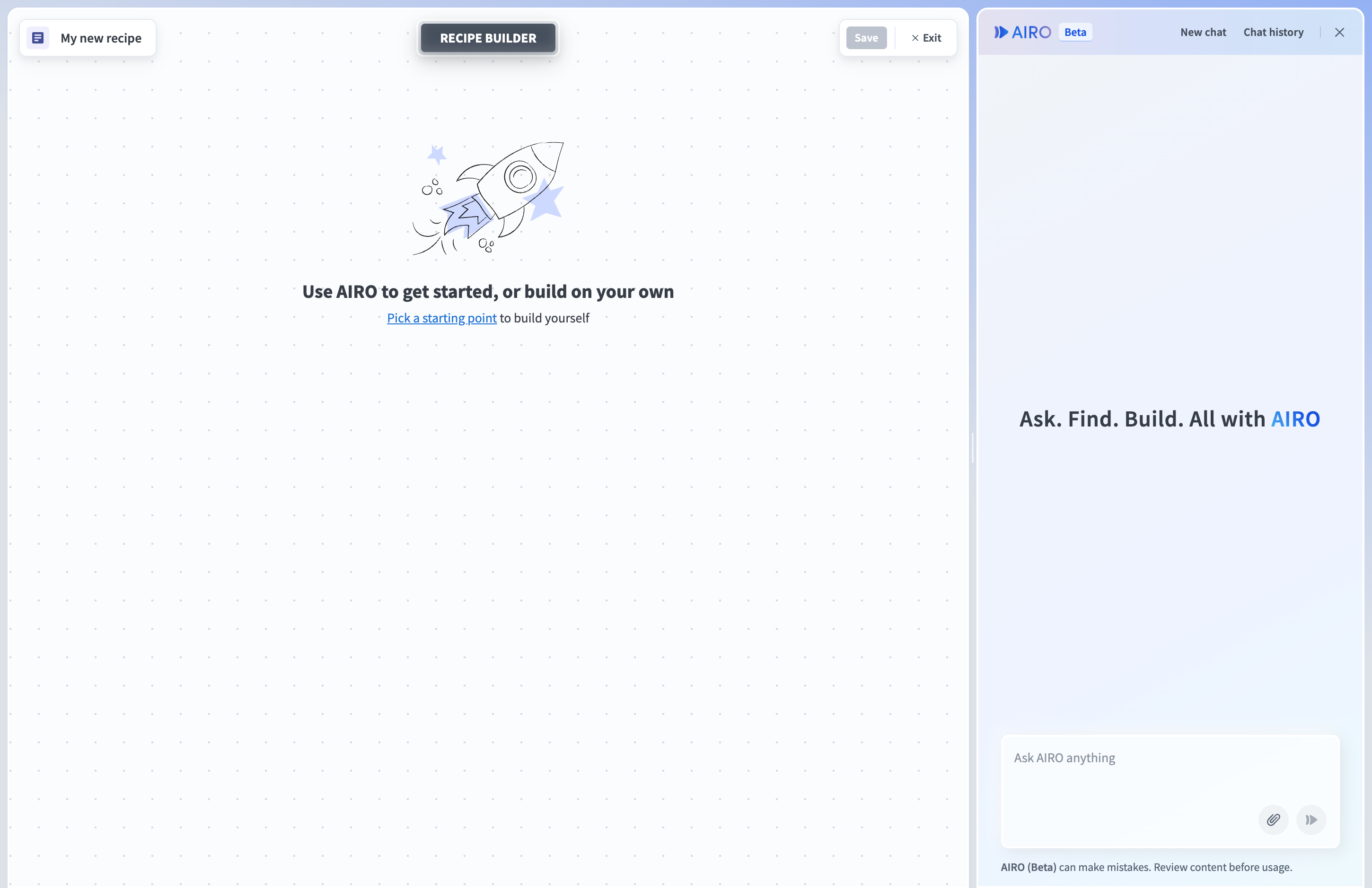 The recipe editor
The editor also shows which teammates are currently editing the same recipe. Refer to Collaboration safeguards for more information.
Build and test views
The editor has two views, which you switch between using the Build and Test toggle at the top of the editor:
- Build: The default view, where you assemble and configure the recipe's trigger and actions on the recipe canvas.
- Test: Where you run a test of the recipe and review the results. Refer to Test your recipe for more information.
Recipe canvas
The recipe canvas displays your recipe as an ordered sequence of steps. Every recipe begins with a trigger, which defines the event that starts the recipe, followed by one or more actions. Each step is numbered in the order it runs.
Add step (+) buttons appear on the recipe canvas, and between steps when you hover. Click + Add step to open a menu of common step types you can insert. Select a step on the canvas to open its configuration panel.
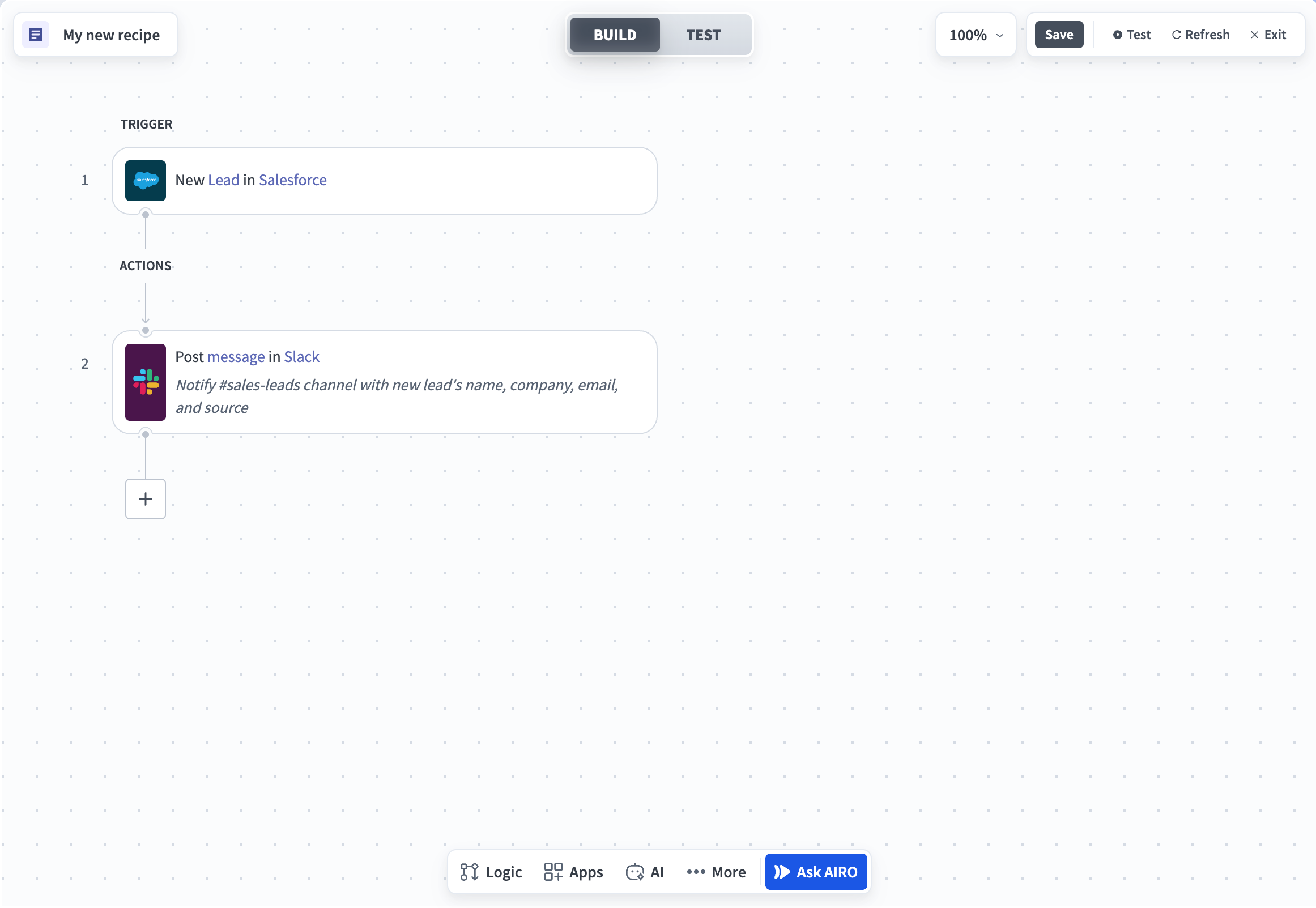 The recipe canvas
Toolbar
The toolbar at the bottom of the recipe canvas groups the building blocks you can add to a recipe by category. Each button opens a menu of options. Add a step from the Logic, Apps, AI, or More menus by dragging an item from the menu onto the canvas. Dragging is required to add a step. Clicking an item without dragging closes the menu without adding it.
 The toolbar
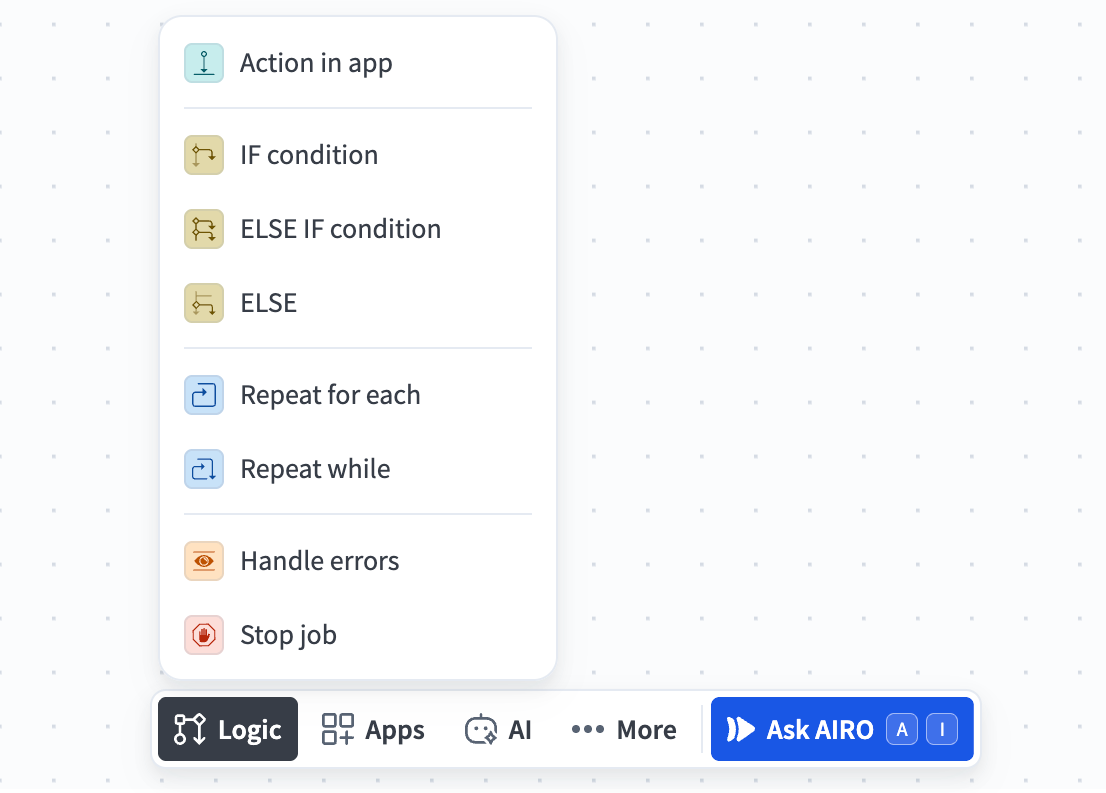 The Logic menu
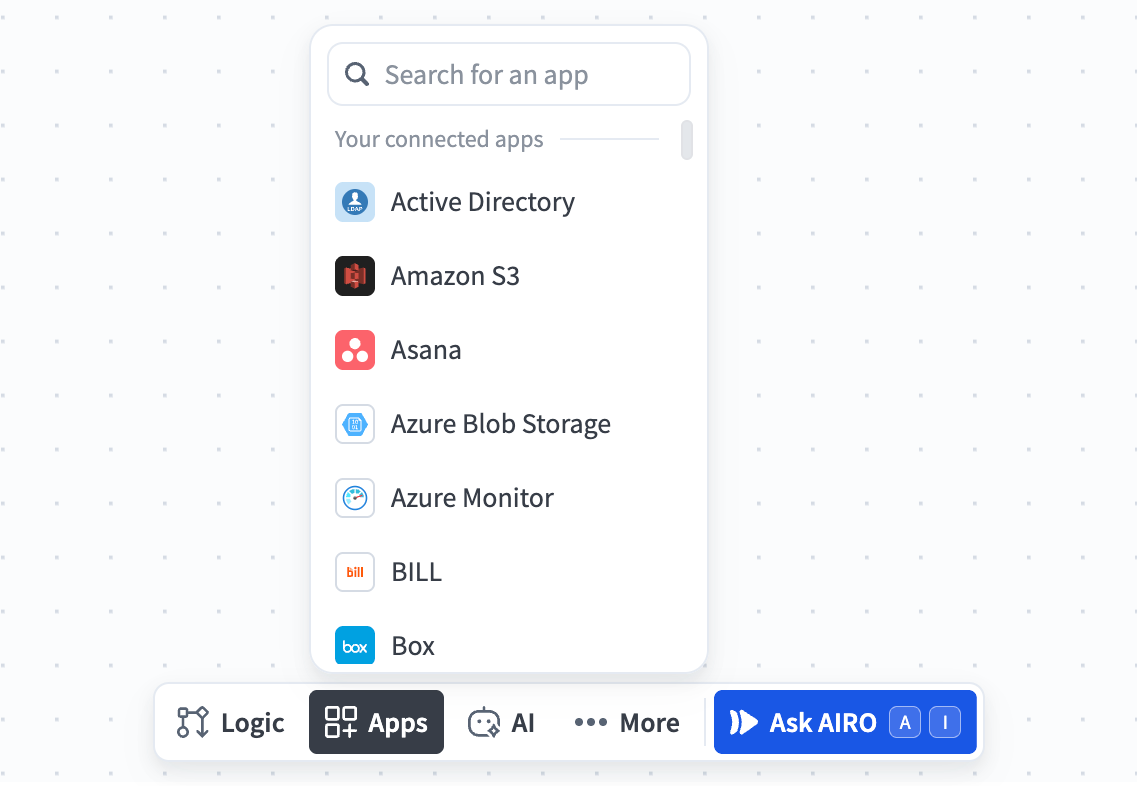 The Apps menu
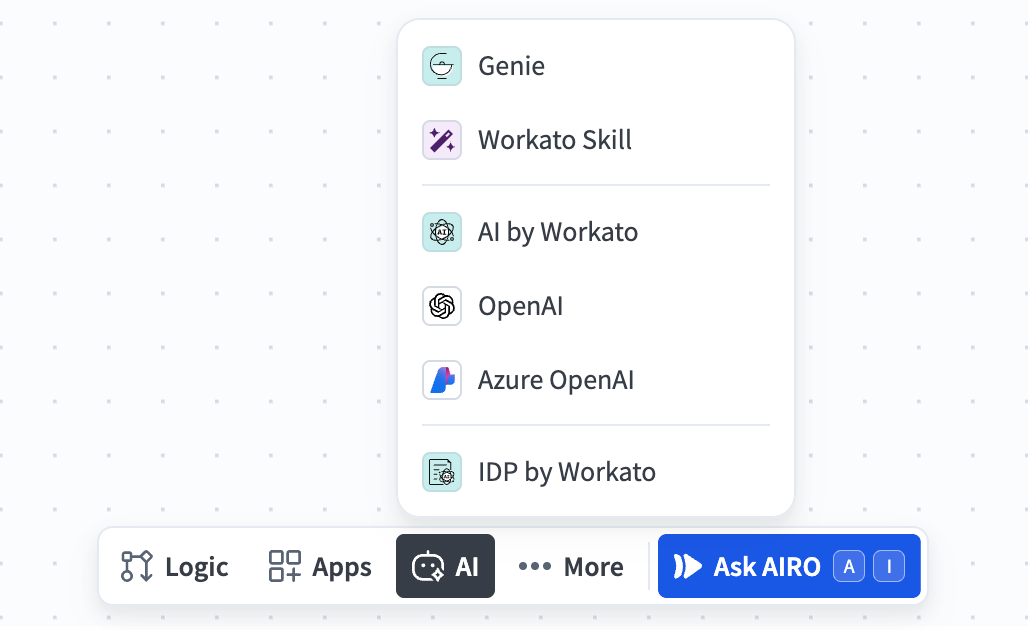 The AI menu
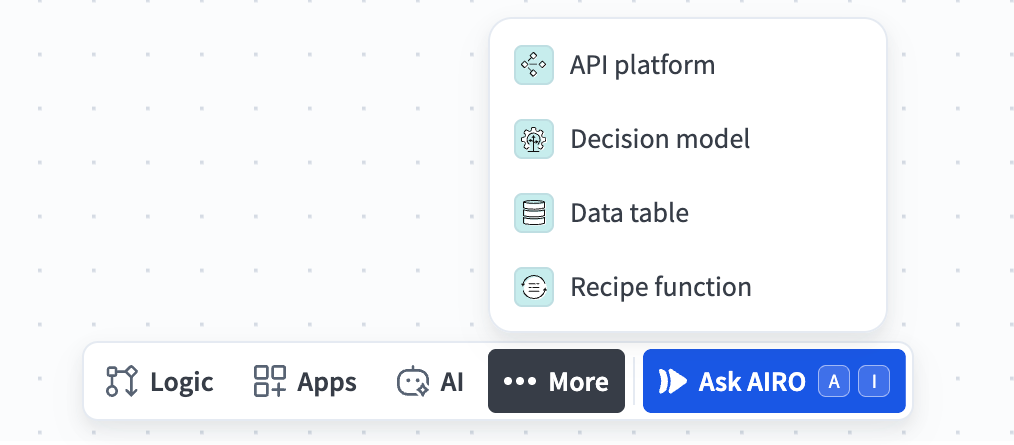 The More menu
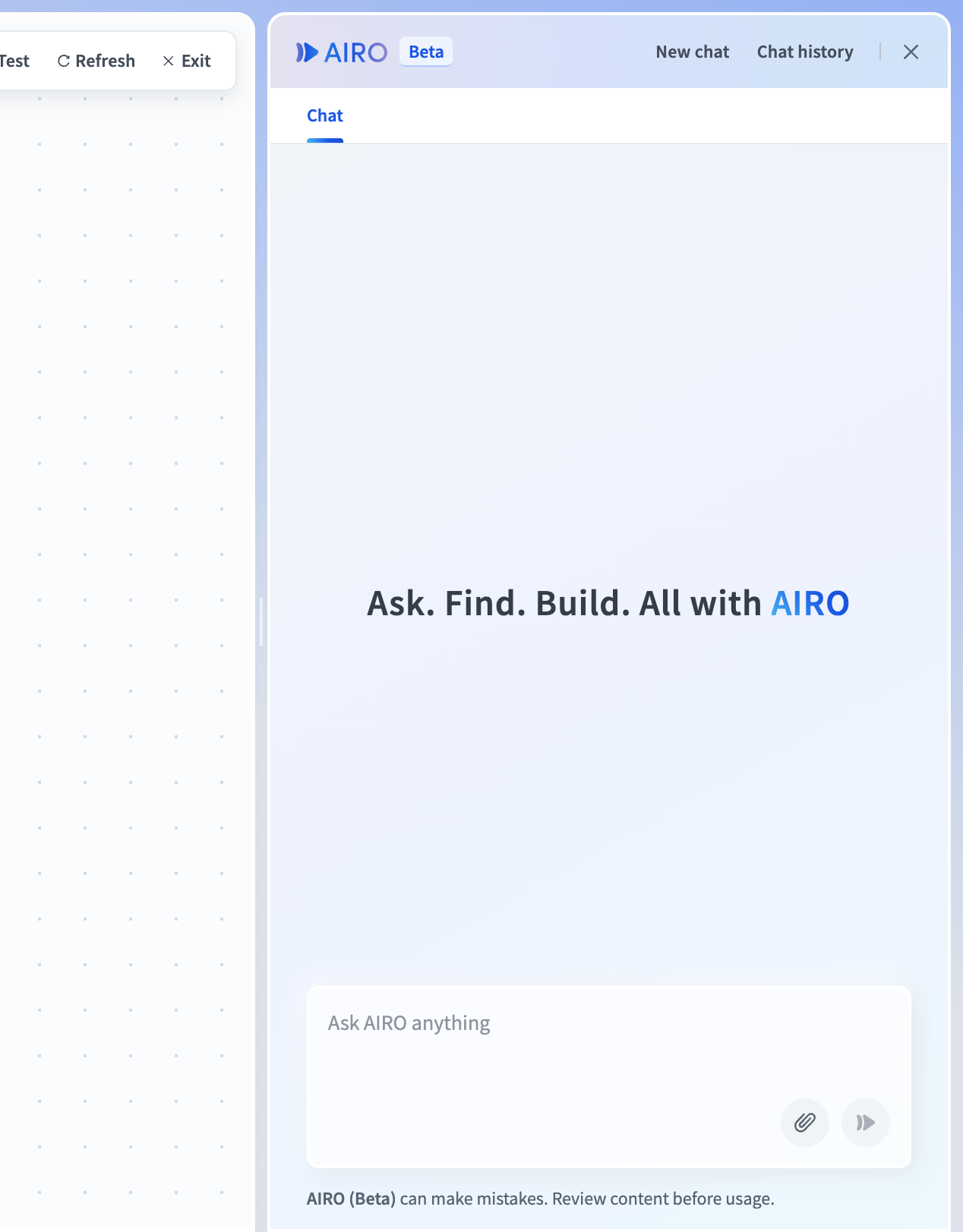 The Ask AIRO panel
Add a recipe step
You can add a step to your recipe from the recipe canvas or from the toolbar:
- From the recipe canvas: Hover where you plan to add the step and click + Add step to open a menu of common step types, such as Action in app, IF condition, Repeat for each, and Handle errors. Select a step type to insert it at that position.
- From the toolbar: Open a category (Logic, Apps, AI, or More) in the toolbar, then drag an item from the menu onto the canvas. Dragging is required to add a step. Clicking an item without dragging closes the menu without adding it.
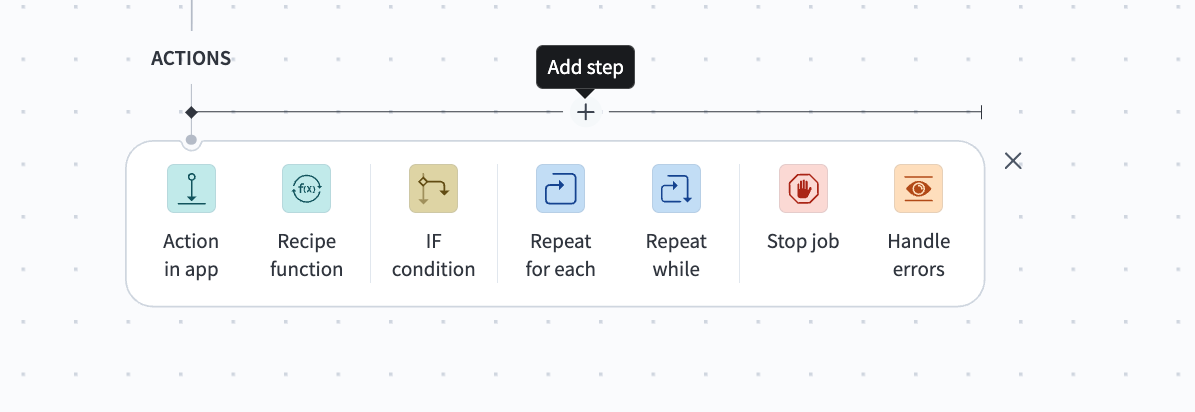 The step type picker on the recipe canvas
Configure the new step in the step configuration panel, then click Save to save the recipe.
Configure a recipe step
Select a step to open its configuration panel, where you set up what the step does. Configuring an app step involves selecting the app, the trigger or action, and the connection, then filling in the step's input fields.
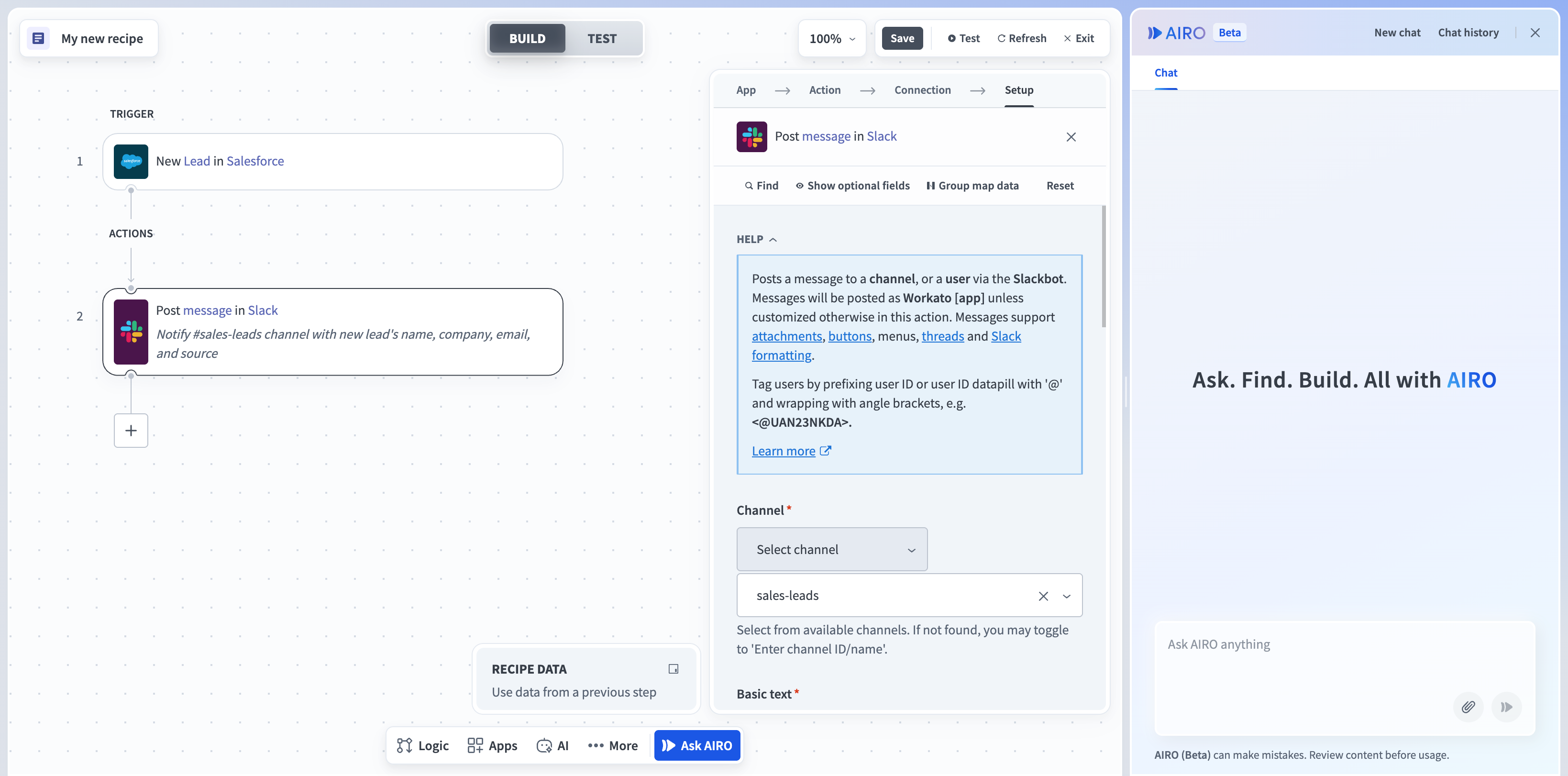 The step configuration panel
Input fields accept plain values in text mode by default. You can switch a field to formula mode to transform data with formulas. Optional settings, such as a trigger condition, are available through toggles in the panel. An inline help section explains the step, and controls let you search within the configuration or clear it.
You can also skip a step to exclude it from a run, which is useful for testing a recipe incrementally.
Use a step's more options (...) menu for additional actions, including adding a comment to leave notes for collaborators, copying the step, and applying data masking to hide sensitive values from job history.
Recipe data
The Recipe data panel provides the datapills you can map into step fields. It includes the output of earlier steps, along with a Properties datatree that contains default datapills, project properties, and environment properties. Drag a datapill from this panel into a field to use it in your recipe. Refer to Datapills for more information.
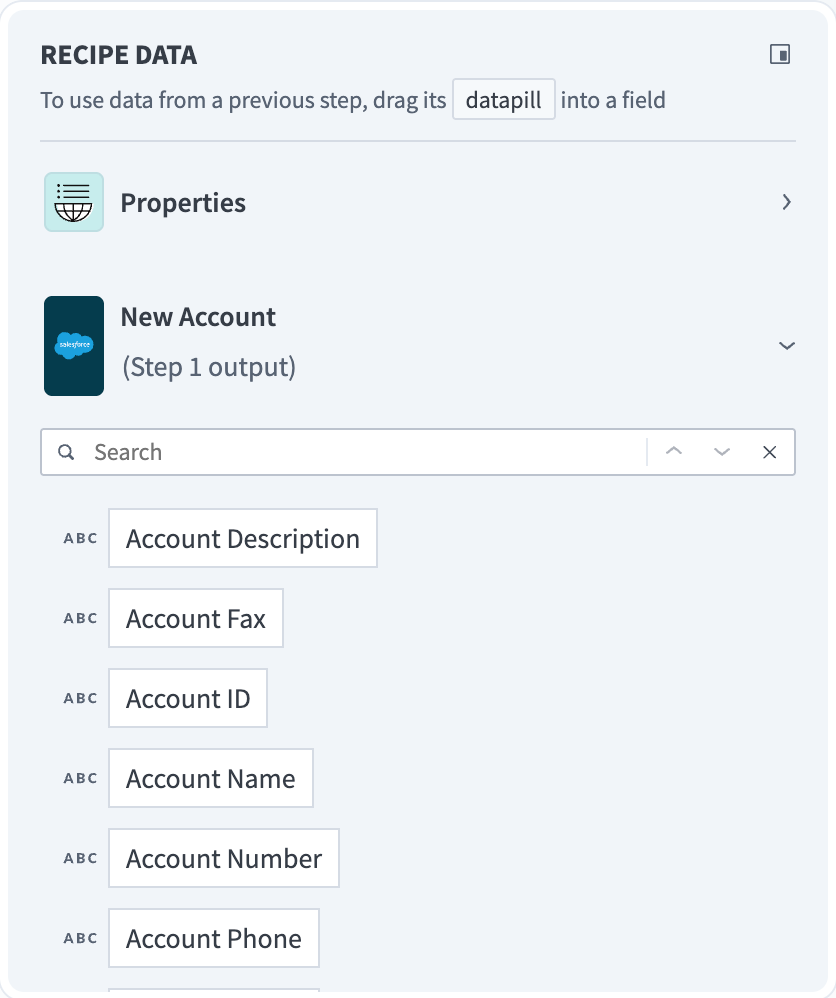 The Recipe data panel
Editor controls
The editor controls let you view, save, test, and maintain the recipe.
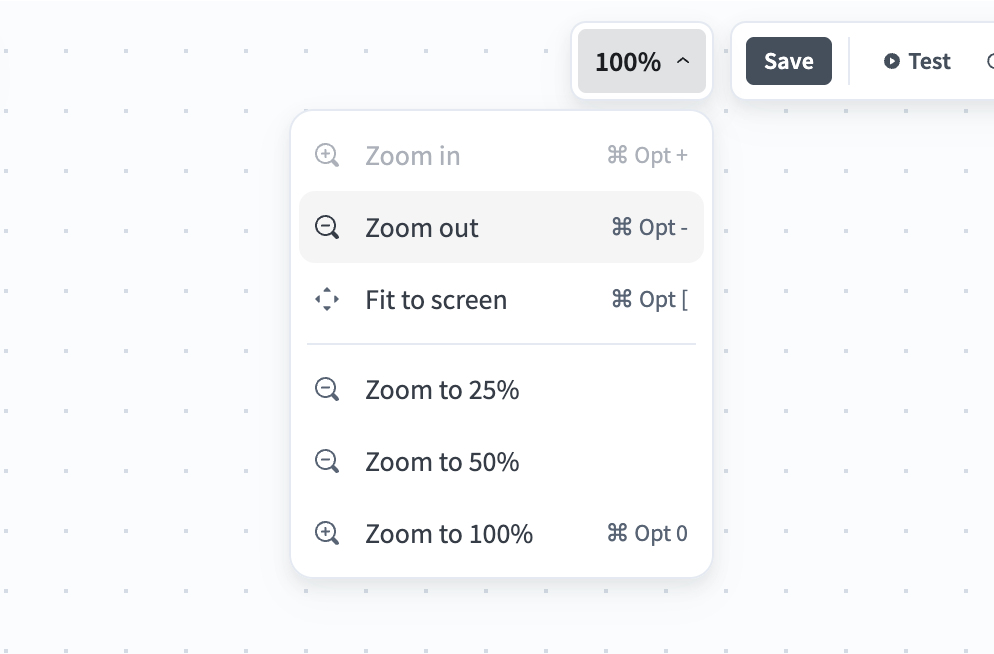 The zoom menu
Refresh schema
A recipe's schema is the set of fields Workato reads from your connected apps and makes available as datapills. The recipe editor doesn't automatically reflect fields you add, remove, or rename in an app. Click Refresh to pull the current field structure from your connected apps so the editor shows the fields that exist now.
The Refresh button appears after you add a trigger or an action to the recipe.
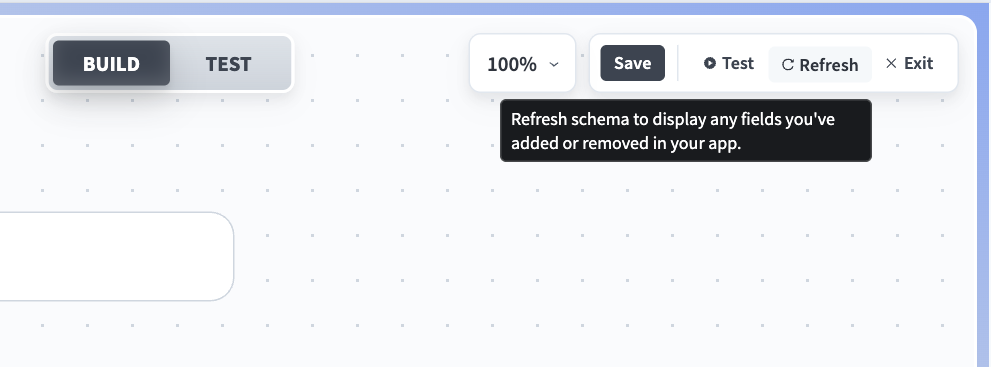 The Refresh button
When to refresh the schema
Refresh the schema when the fields in a connected app no longer match what the recipe editor displays. This commonly happens when you:
- Add, remove, or rename a field in an app that your recipe uses. For example, refresh after adding a Salesforce custom field so you can map it in your recipe.
- Need an output field or datapill that hasn't appeared yet, such as the File content datapill on the Snowflake Export query result action.
- See a design-time error for an unavailable field, a job error from a schema change, or a broken dependency after deploying a recipe to an environment.
Refresh the schema
Complete the following steps to refresh a recipe's schema:
Open the recipe in the recipe editor.
Click Refresh. This pulls the current field structure from the connected apps used in the recipe.
Review the trigger and action steps for newly available fields, and update any field mappings affected by fields that were removed or renamed.
Click Save to save the recipe.
A schema refresh creates a new version of the recipe. Refer to Recipe version management for more information.
Test your recipe
Switch to the Test view to run test jobs and review the results. If you haven't run a test yet, click Test to start one. Refer to Testing recipes for more information.
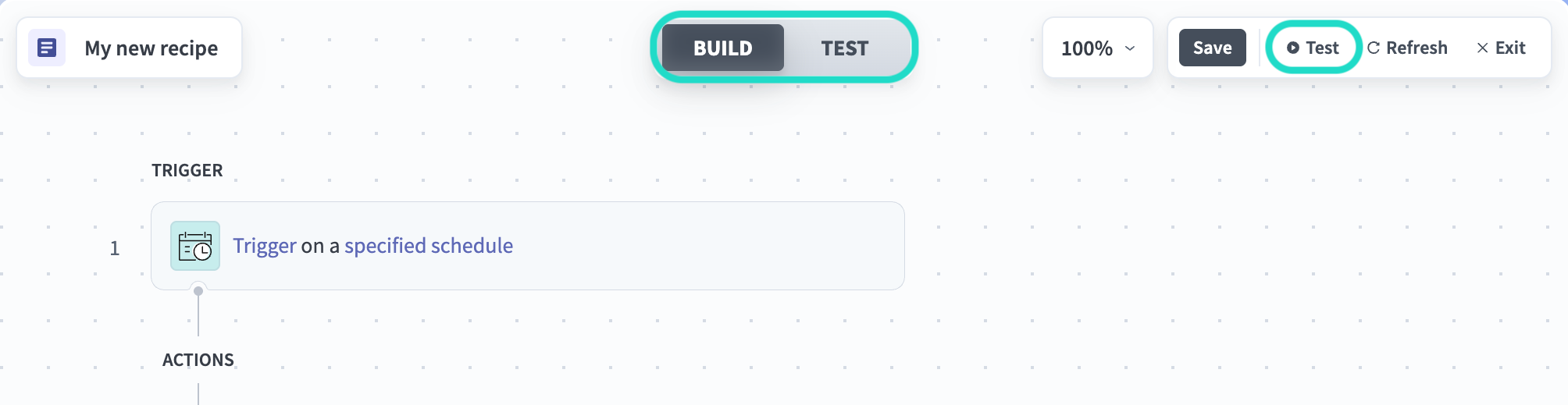 The Build and Test toggle and the Test button
Confirm the recipe works as expected before you exit the editor and start it to begin processing events.
Keyboard shortcuts
Speed up recipe building with keyboard shortcuts for common actions, such as save, undo and redo, zoom, and skip steps. Refer to Keyboard shortcuts for recipe design for the full list for Mac and Windows.
Last updated: