Connect Fireworks AI
Fireworks AI hosts open-weight models, such as Llama, DeepSeek, Qwen, Kimi, and GLM, behind an OpenAI-compatible API. Connect your Fireworks AI API key to Model Gateway to route requests to the open-weight models Fireworks AI serves.
Model Gateway stores your Fireworks AI API key in a provider connection. Applications authenticate with Model Gateway access keys instead of your Fireworks AI API key, and policies apply rate limits, token limits, and IP restrictions to Fireworks AI traffic the same way they apply to every other provider.
FEATURE AVAILABILITY
Model Gateway is available to select customers. Contact your Customer Success Representative to confirm whether it is available in your workspace.
Prerequisites
You must have the following to connect Fireworks AI to Model Gateway:
- A Fireworks AI account with available credits. Fireworks AI suspends accounts with no credits, and a suspended account can't create API keys or send requests. Add credits or a payment method in Billing.
- Access to Model Gateway in your Workato workspace
Fireworks AI API details
Model Gateway connects to Fireworks AI through the OpenAI Compatible provider type. Use the following values when you configure the connection:
| Setting | Value |
|---|---|
| API URL | https://api.fireworks.ai/inference/v1 |
| Authentication | Fireworks AI API key, sent as a bearer token |
| Model ID format | accounts/fireworks/models/<model-name>, for example accounts/fireworks/models/gpt-oss-120b |
Refer to the Fireworks AI OpenAI compatibility documentation for more information about the Fireworks AI API.
Create a Fireworks AI API key
Complete the following steps to create an API key in Fireworks AI:
Sign in to Fireworks AI and go to Settings > API Keys.
Click Create API Key, then select API Key.
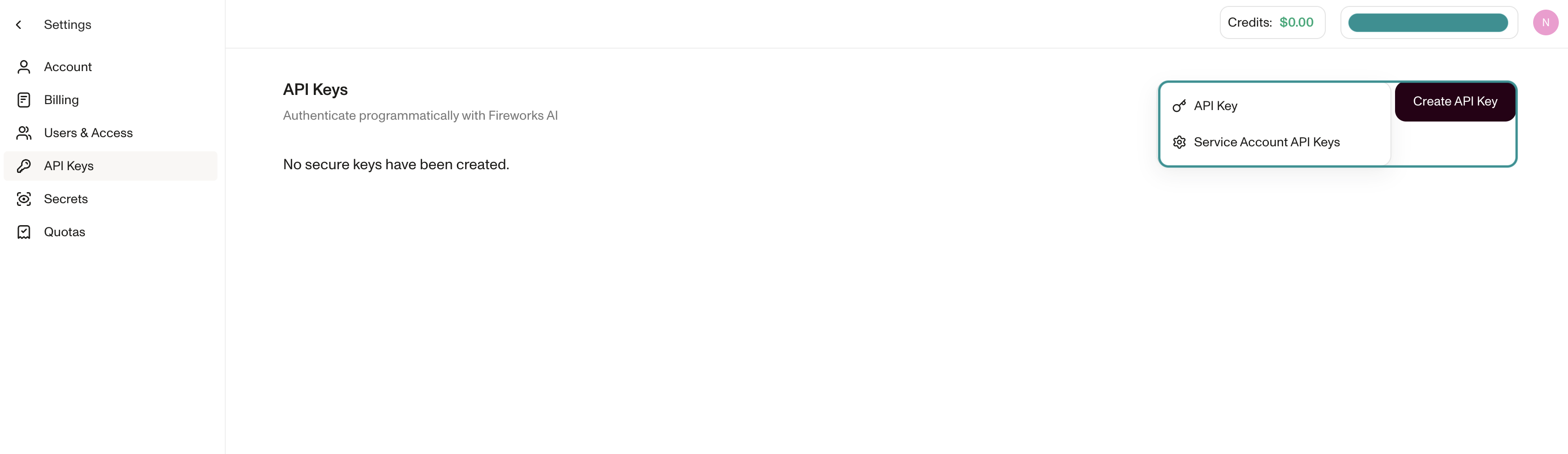 Select API Key
SERVICE ACCOUNT API KEYS
Consider Service Account API Keys for production use. Fireworks AI recommends service accounts for backend services and automated workflows, and its audit logs show service account activity separately from user activity. Refer to Service accounts in the Fireworks AI documentation.
Enter a name in the API Key Name field to identify the key later, for example Workato Model Gateway.
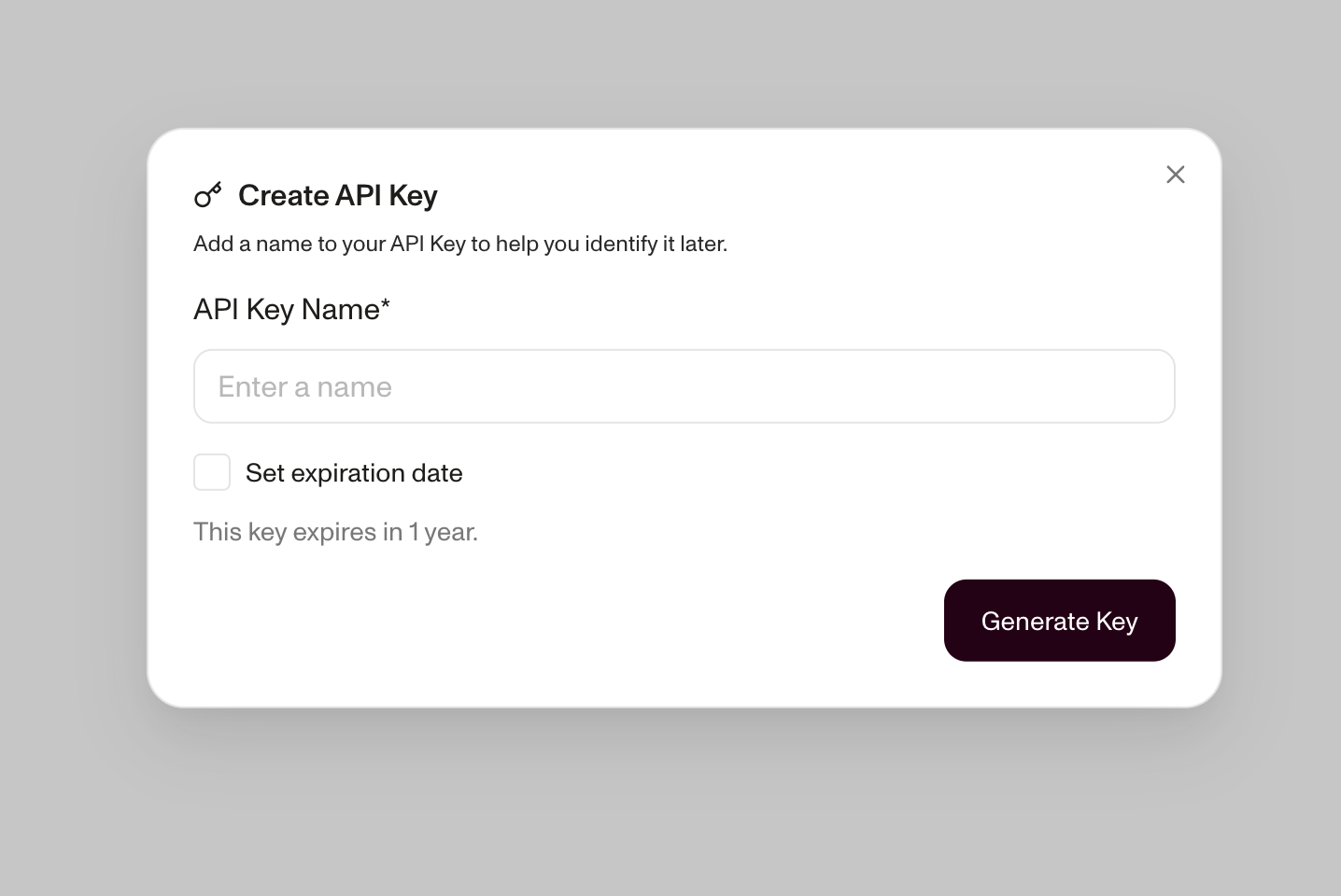 Create a Fireworks AI API key
Optional. Select Set expiration date to choose when the key expires. Keys expire in one year by default.
KEY EXPIRATION
Requests through Model Gateway fail after the Fireworks AI API key expires. Create a new key before the expiration date and edit the provider to enter it.
Click Generate Key.
Click the copy icon next to the API Key value in the Copy your API Key dialog, then store the key in a safe location. You need this key when you add the provider in Model Gateway.
KEY DISPLAYS ONCE
Fireworks AI displays the API key one time only. Copy the key before you click Close. Create a new key if you lose it.
Add Fireworks AI as a provider
Complete the following steps to add Fireworks AI as a provider in Model Gateway:
Go to Model Gateway > Providers.
Click + Add provider.
Enter a descriptive name in the Connection name field. For example, Fireworks AI.
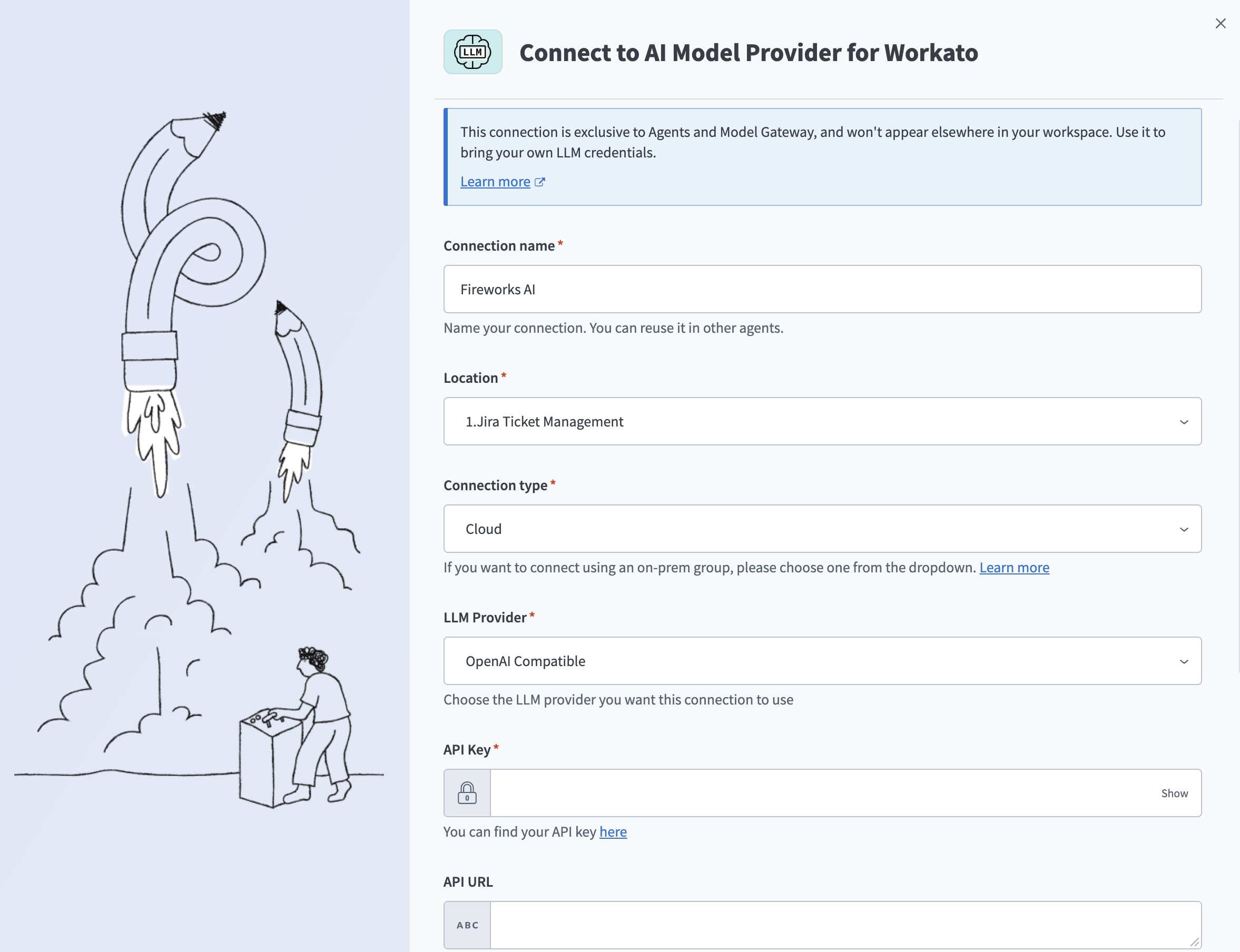 Configure your Fireworks AI provider
Use the Location drop-down menu to select the project or folder where you plan to store this provider.
Keep Cloud selected in the Connection type drop-down menu.
Use the LLM Provider drop-down menu to select OpenAI Compatible.
Enter your Fireworks AI API key in the API Key field.
Enter https://api.fireworks.ai/inference/v1 in the API URL field.
API URL REQUIRED FOR FIREWORKS AI
The API URL field defaults to https://api.openai.com/v1 when you leave it blank. You must enter the Fireworks AI URL to send requests to Fireworks AI.
Leave the Organization ID and Project ID fields blank. These fields apply to OpenAI accounts only.
Click Create.
The provider displays in the Providers list with a Connected status.
Find a Fireworks AI model ID
Each route sends requests to one Fireworks AI model, which you specify by its model ID in the route's Model field. The Model field suggests Fireworks AI models, and the model library shows each model's capabilities so you can choose one or find a model that isn't suggested. Fireworks AI identifies each model by its full path, not its display name.
Complete the following steps to find a model ID:
Go to the Fireworks AI model library and click the model you plan to use.
Copy the value labeled model path under the model name, for example accounts/fireworks/models/gpt-oss-120b. This value is the model ID.
Confirm Serverless is listed as Supported under Supporting Functionality. Serverless models are billed per token and don't require setup in Fireworks AI.
Fireworks AI model support varies by model. For example, only some models support function calling or image input. Check Supporting Functionality on the model's page before you route production traffic to it.
Create a route to a Fireworks AI model
A direct route sends every request to the same provider and model. Complete the following steps to create a direct route to a Fireworks AI model:
Go to Model Gateway > Routes and click + Create route.
Select Direct in the Select route type field.
Enter a name in the Route name field. Model Gateway generates the Route ID from the route name. Applications use the route ID as the model value in their requests.
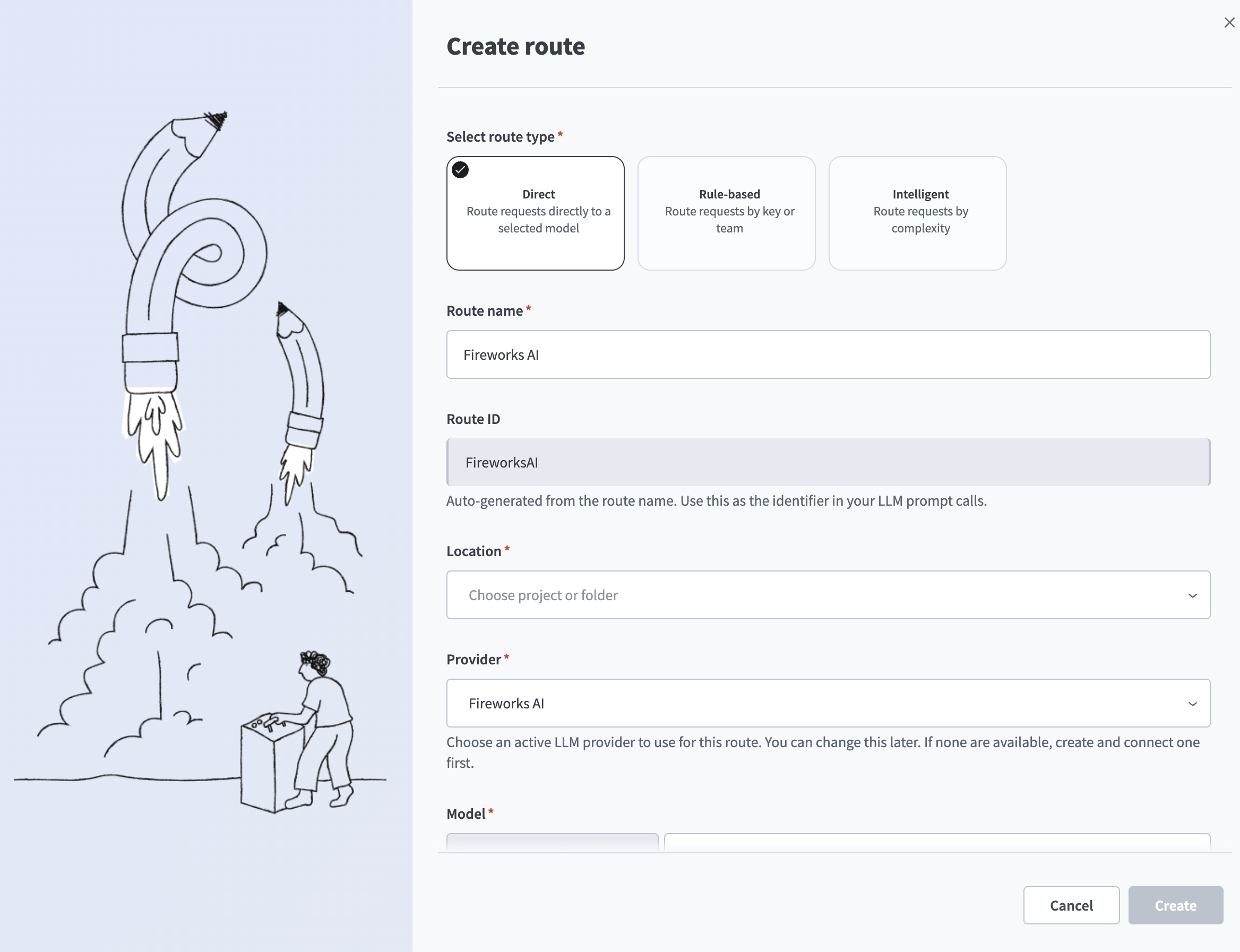 Configure your route
Use the Location drop-down menu to select the project or folder where you plan to store this route.
Use the Provider drop-down menu to select the Fireworks AI provider you created.
Select a model in the Model field, or enter a model ID manually, for example accounts/fireworks/models/gpt-oss-120b.
The list can include models that don't support chat requests, such as embedding and reranker models. Check a model's capabilities in the Fireworks AI model library before you select it. Refer to Find a Fireworks AI model ID.
Optional. Use the Policy drop-down menu to select a policy to govern the use of this route.
Click Create.
Refer to Routes to create rule-based and intelligent routes. For example, a rule-based route can send requests from one team to a Fireworks AI model and send all other requests to a different provider. Refer to Route builder to define the rules.
Create an access key
Create an access key that includes the Fireworks AI route. Applications use this key to authenticate with Model Gateway instead of your Fireworks AI API key. Refer to Create an access key.
Send a request to a Fireworks AI model
Authenticate with your Model Gateway access key and pass the route ID as the model value. Model Gateway resolves the route to your Fireworks AI provider and model, applies any assigned policy, and forwards the request to Fireworks AI with your Fireworks AI API key.
The model field in the response shows the Fireworks AI model that served the request, for example accounts/fireworks/models/gpt-oss-120b.
Model Gateway also accepts Anthropic-compatible requests for routes backed by Fireworks AI. Refer to Test a route for an Anthropic-compatible example, and Connect clients to configure Claude Code and the Anthropic SDKs.
Fireworks AI behavior
The following behavior applies to Fireworks AI requests you send through Model Gateway:
- Context length: Fireworks AI reduces
max_tokensby default when the prompt plusmax_tokensexceeds the model's context window. OpenAI returns an error instead. Setcontext_length_exceeded_behaviortoerrorin the request body to return an error. - Function calling: Fireworks AI supports OpenAI-compatible function calling on models that support it. Check the model's capabilities before you rely on function calling or parallel function calls.
- Reasoning models: Reasoning models, such as
gpt-oss-120b, return their reasoning in thereasoning_contentfield of the response message, in addition to the answer in thecontentfield. - Streaming: Fireworks AI supports streaming responses. Model Gateway supports Server-Sent Events (SSE) end to end, so streaming responses from Fireworks AI render incrementally.
Usage and billing for Fireworks AI models apply to your Fireworks AI account. Refer to the Fireworks AI documentation for model pricing and rate limits.
Troubleshooting
Use the following troubleshooting information to fix failed requests to a Fireworks AI route. Error responses that come from Fireworks AI include "error_from_provider": true, and the error.message field contains the Fireworks AI error message. Errors without this field come from Model Gateway, which means the request didn't reach Fireworks AI.
Access key rejected
Model Gateway returns 401 and the message can't authorize request: invalid credentials when it doesn't recognize the access key in the Authorization header. This error often occurs when the header contains extra characters, such as a line break or a key pasted more than once. Confirm the header uses the format Bearer <access-key> with the full access key, or create a new access key if you no longer have the original.
Provider unreachable
Model Gateway returns Error 503 when it can't reach the provider while you add or edit it. Confirm the API URL field is https://api.fireworks.ai/inference/v1, then click Create or Save again.
Fireworks AI API key rejected
Fireworks AI returns the message The API key you provided is invalid. when the Fireworks AI API key on the provider is invalid or expired. Confirm the key is active in Fireworks AI, then edit the provider to enter a new key if needed.
A blank API URL field causes a similar error. Model Gateway sends requests to OpenAI when the API URL field is blank, and OpenAI rejects the Fireworks AI API key with the message Incorrect API key provided. Edit the provider and enter https://api.fireworks.ai/inference/v1 in the API URL field to resolve this error.
Fireworks AI account suspended
Fireworks AI suspends accounts that have no credits and returns the message account is suspended due to CREDIT_DEPLETED. Add credits or a payment method in Fireworks AI Billing to reactivate the account.
Model not found
Fireworks AI returns the message Model not found, inaccessible, and/or not deployed when the route's Model field doesn't match a model it serves. This error occurs when the field contains a display name instead of a model ID, or when the model doesn't support serverless. Edit the route and confirm the Model field uses the full model path, for example accounts/fireworks/models/gpt-oss-120b. Refer to Find a Fireworks AI model ID to confirm the model supports serverless.
Route not found
Model Gateway returns 404 and the message model "<route-id>" not found when it can't find the route ID in the model value of the request. Confirm the model value matches the Route ID on the route. Then confirm the access key includes the route in its Route(s) list, and edit the access key to add the route if needed.
Last updated: