# AWS Glue
AWS Glue (opens new window) is a fully managed extract, transform, and load (ETL) service that enables you to prepare and transform data for analytics. It provides a serverless environment to run ETL jobs, automatically discovers and catalogs your data, and generates ETL code to transform your data from source to target. AWS Glue simplifies the process of building, running, and monitoring data pipelines at scale.
This connector has the following capabilities:
- Start AWS Glue ETL jobs with custom parameters and configurations
- Stop running Glue jobs
- Monitor job status and retrieve detailed execution information
- Get job details including configuration, scripts, and execution properties
- Trigger workflows when new files are added to S3 buckets
- Monitor job run status changes for automated pipeline management
# Prerequisites
Enable the following permissions for your user or IAM account to establish a connection to AWS Glue:
View permissions
glue:GetJobsglue:StartJobRunglue:BatchStopJobRunglue:GetJobRunglue:GetJobRunsglue:GetJob
Enable the following additional permissions for S3 trigger functionality:
View S3 trigger permissions
s3:ListBuckets3:GetObject
# Connection setup
Workato supports the following types of connections to AWS Glue:
IAM ROLE AUTHENTICATION
Workato recommends creating a dedicated integration role for this Workato connection. This helps maintain clear permission boundaries and control what actions Workato can access and perform in the application.
Refer to the following documentation for more information about IAM role authentication in Workato:
# IAM role authentication
For this authentication method, you must provide the IAM role ARN (opens new window).
Complete the steps in Use IAM role-based authentication for AWS Services to get the required IAM role Amazon Resource Name (ARN).
# Connect to AWS using IAM role authentication
Complete the following steps to set up an IAM role connection to AWS Glue in Workato:
Click Create > Connection or press C twice.
Search for and select AWS Glue as your connection on the New Connection page.
Provide a unique name for the connection in the Connection name field.
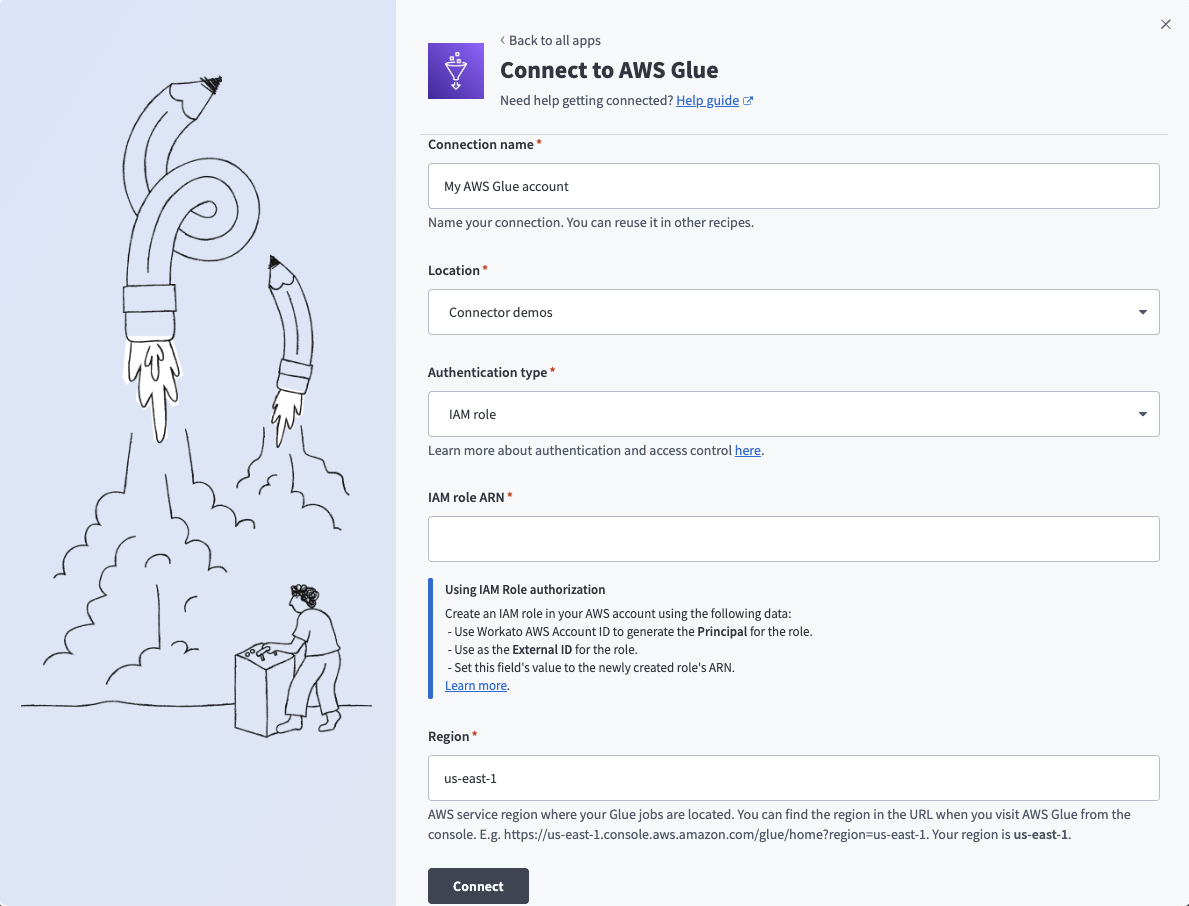 Create your connection
Use the Location drop-down menu to select the project where you plan to store the connection.
Use the Authentication type drop-down menu to select IAM role as the authentication type.
Enter your IAM role ARN.
Enter the Region where your AWS Glue jobs are located. The region is in your AWS Glue console URL. For example, if the console URL is https://us-east-1.console.aws.amazon.com/glue/home?region=us-east-1, your region is us-east-1.
Click Connect.
# Access key authentication
Access key authentication requires an access key ID.
# Retrieve an access key ID
Complete the following steps to obtain the access key information from AWS:
Go to your AWS account name.
Click Credentials > Users.
Copy your existing Access key ID or create a new access key. Refer to the AWS Glue (opens new window) documentation for detailed steps about creating and managing access keys.
# Connect to AWS Glue using access key authentication
Complete the following steps set up an access key connection to AWS Glue in Workato:
Click Create > Connection or press C twice.
Search for and select AWS Glue as your connection on the New Connection page.
Provide a unique name for the connection in the Connection name field.
Use the Location drop-down menu to select the project where you plan to store the connection.
Use the Authentication type drop-down menu to select Access key as the authentication type.
Enter your Access key ID.
Enter your Secret access key.
Enter the Region where your AWS Glue jobs are located. The region is in your AWS Glue console URL. For example, if the URL is https://us-east-1.console.aws.amazon.com/glue/home?region=us-east-1, your region is us-east-1.
Click Connect.
Last updated: 4/30/2026, 3:06:08 PM