Excel
Microsoft Excel is a spreadsheet software program and a powerful data visualization and analysis tool.
Workato's Excel connector enables you to read data from Excel workbooks stored in OneDrive for Business, SharePoint sites, or shared Group drives.
SQL TRANSFORMATIONS FOR EXCEL FILE SOURCES
The Excel connector only supports working with files stored in SharePoint and OneDrive. For processing or transforming large-volume Excel files from other sources, such as Google Drive or SFTP, use SQL Transformations.
API version
The Excel connector uses the Excel REST API v1.
Connection setup
The Excel connector supports the following authentication types:
- Authorization code grant authentication (OAuth 2.0)
- Client credentials-based authentication (OAuth 2.0): Only available for tenant-specific connections
MICROSOFT MFA ENFORCEMENT
Microsoft is rolling out mandatory multifactor authentication (MFA) gradually to different applications and accounts in phases. This enforcement continues throughout 2025 and beyond. Refer to the Microsoft Mandatory multifactor authentication for Azure and admin portals documentation for more information.
We strongly recommend enabling MFA now for all Microsoft accounts used with Workato to avoid service disruptions from short-notice enforcement changes.
Complete the following steps to maintain uninterrupted service:
Enable MFA for your Microsoft organization following the Microsoft MFA setup guide. Refer to Set up multifactor authentication for Microsoft 365 for more information.
Reconnect your Microsoft connection in Workato.
Complete the OAuth flow with MFA when prompted.
Test your recipes to ensure they work with the updated connection.
Authorization code grant authentication (OAuth 2.0)
This authentication method requires the following value for tenant-specific account types:
- Tenant ID/Domain
Minimum and default scopes
The Excel connector requests the following scopes for authorization code grant connections by default. These scopes are necessary to use all of this connector's triggers and actions. Additionally, you must assign these permissions to the Workato app as Delegated permissions in the Azure portal.
| Permission | Description | Relevant action or trigger |
|---|---|---|
Files.Read | Allows the app to read the signed-in user's files. | Get cells, Get rows, List tables, List worksheets, and Search workbooks |
Files.ReadWrite | Allows the app to read and write to the signed-in user's files. | All actions in Files.Read and Add a table, Add a worksheet, Add rows in batch, Delete row, and Update row. |
Group.Read.All | Allows the app to read files for all groups the signed-in user can access. | Get cells, Get rows, List tables, List worksheets, and Search workbooks |
Sites.Read.All | Allows the app to read documents in all SharePoint site collections on behalf of the signed-in user. | Get cells, Get rows, List tables, List worksheets, and Search workbooks |
Sites.ReadWrite.All | Allows the app to read and write to documents in all SharePoint site collections on behalf of the signed-in user. On the consent page, this scope appears as the Maintain access to data you have given it access to permission. | All actions in Sites.Read.All and Add a table, Add a worksheet, Add rows in batch, Delete row, and Update row. Add this permission for all actions to preserve the connection's validity. |
User.Read | Allows the app to sign in and read the profile of signed-in users. | Add this permission for all actions. |
offline_access | Allows the app to access Microsoft Graph data after the user has signed out or the session has expired. | You must add this permission to establish a connection. |
You must add the following minimum scopes to establish a connection to Excel with authorization code grant authentication:
Files.Readoffline_access
Excel setup for authorization code grant authentication
Complete the following steps to set up Excel for authorization code grant authentication:
- Register the Workato App in the Azure portal
- Assign permissions to your app
- Obtain the Directory (tenant) ID from the Azure portal
Register the Workato app in the Azure portal
View register the Workato app in the Azure portal steps
Complete the following steps to register the Workato app in the Azure portal:
Sign in to the Azure portal.
Select App registrations > + New registration.
Enter a unique name for the application.
Use the Supported account types drop-down menu to select an account type.
Select Web from the Select a platform drop-down menu.
Use the following URI for the Redirect URI:
https://www.workato.com/oauth/callbackSelect Register.
Assign permissions to your app
View assign permissions to your app steps
Complete the following steps to assign permissions to your app:
In the navigation sidebar, select Manage > API permissions.
Click + Add a permission and select Microsoft Graph APIs.
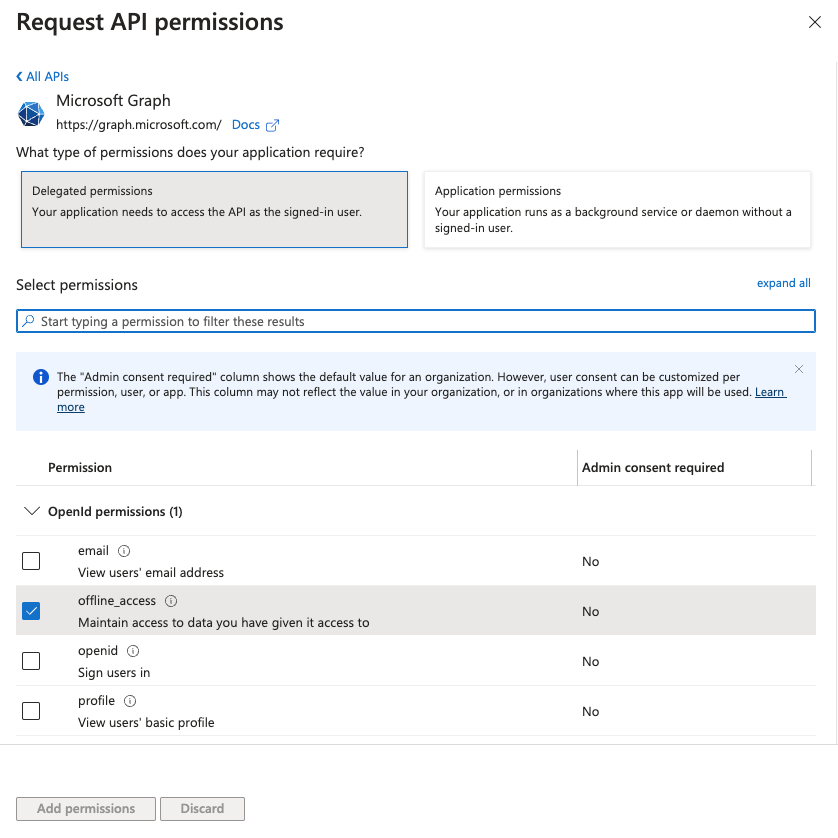 Add permissions
Add the required permissions. Depending on your connection type, you must assign Application or Delegated permissions.
Add permissions
Click Add permissions.
Admin consent is required for specific permissions. Refer to the Connect Microsoft Entra ID to the Excel connector to learn more.
Obtain the Directory (tenant) ID from the Azure portal
View obtain the Directory (tenant ID) from the Azure portal steps
Complete the following steps to obtain the Directory (tenant) ID from the Azure portal:
Go to the Overview > Essentials section.
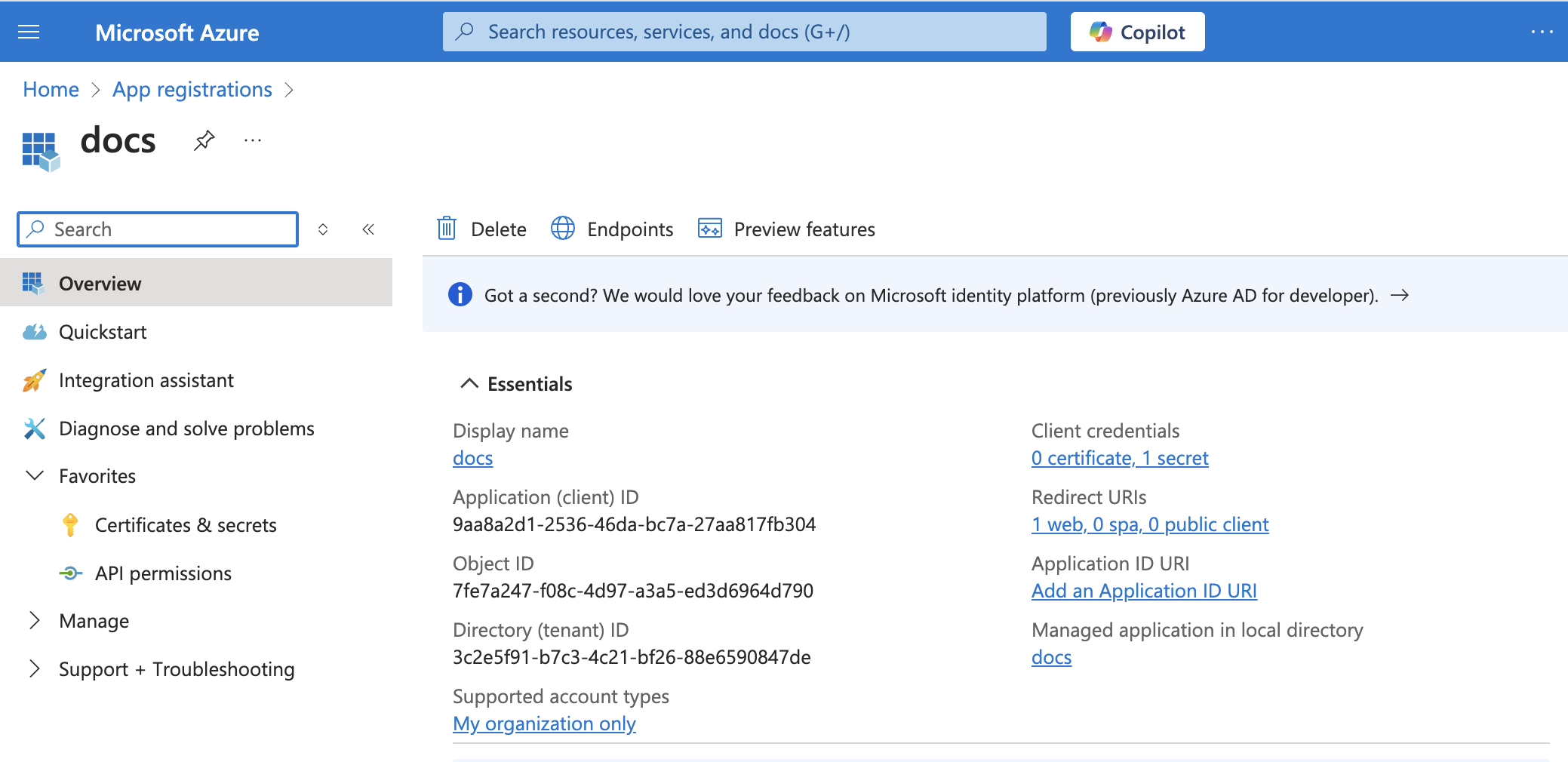 App details
Copy and save the Directory (tenant) ID for use in Workato.
Connect to Excel with authorization code grant authentication
View connect to Excel with authorization code grant authentication steps
Complete the following steps to set up an authorization code grant connection to Excel in Workato:
Click Create > Connection.
Search for Excel and select it as your app.
Enter a name for your connection in the Connection name field.
Use the Location drop-down menu to select the project where you plan to store the connection.
Use the Connection account type drop-down menu to select the type of account you plan to use. The available choices are Common and Tenant-specific.
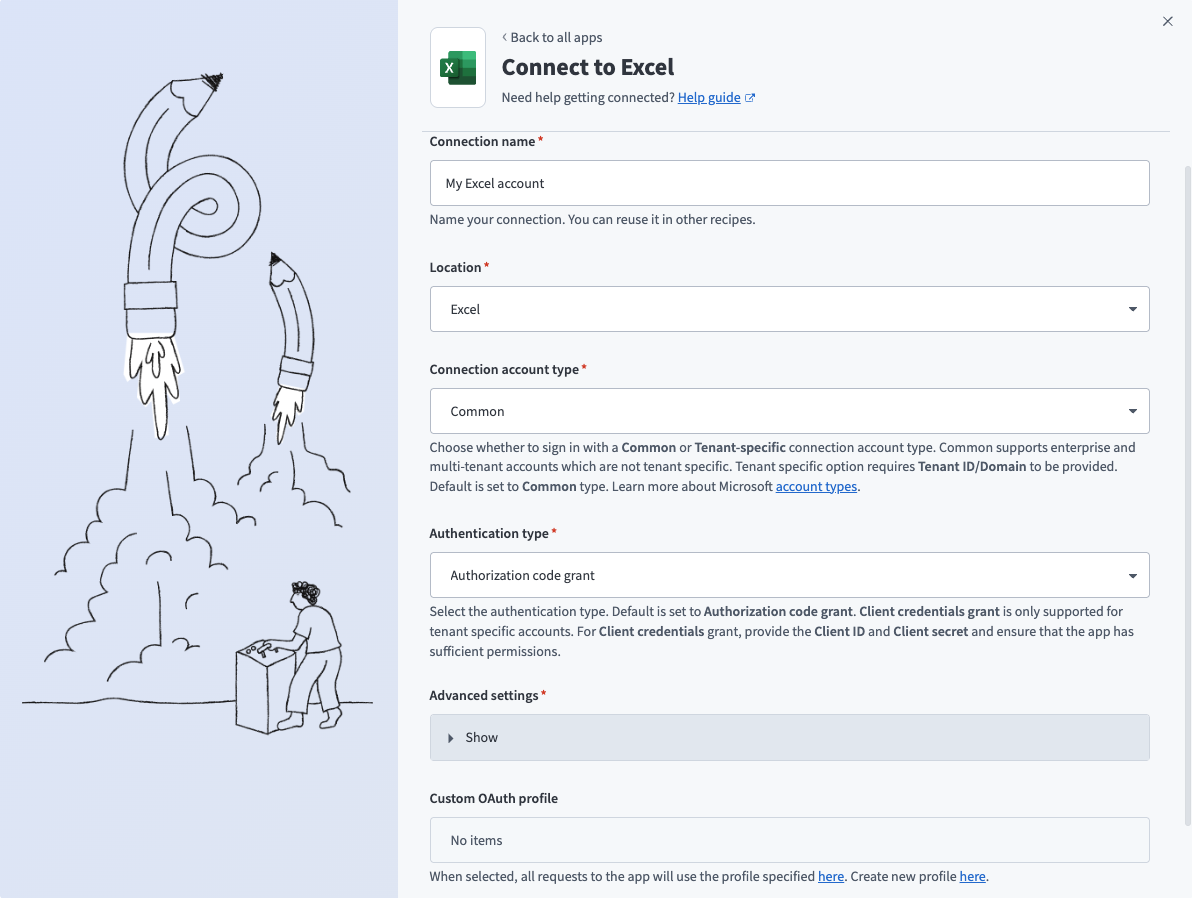 Common connections
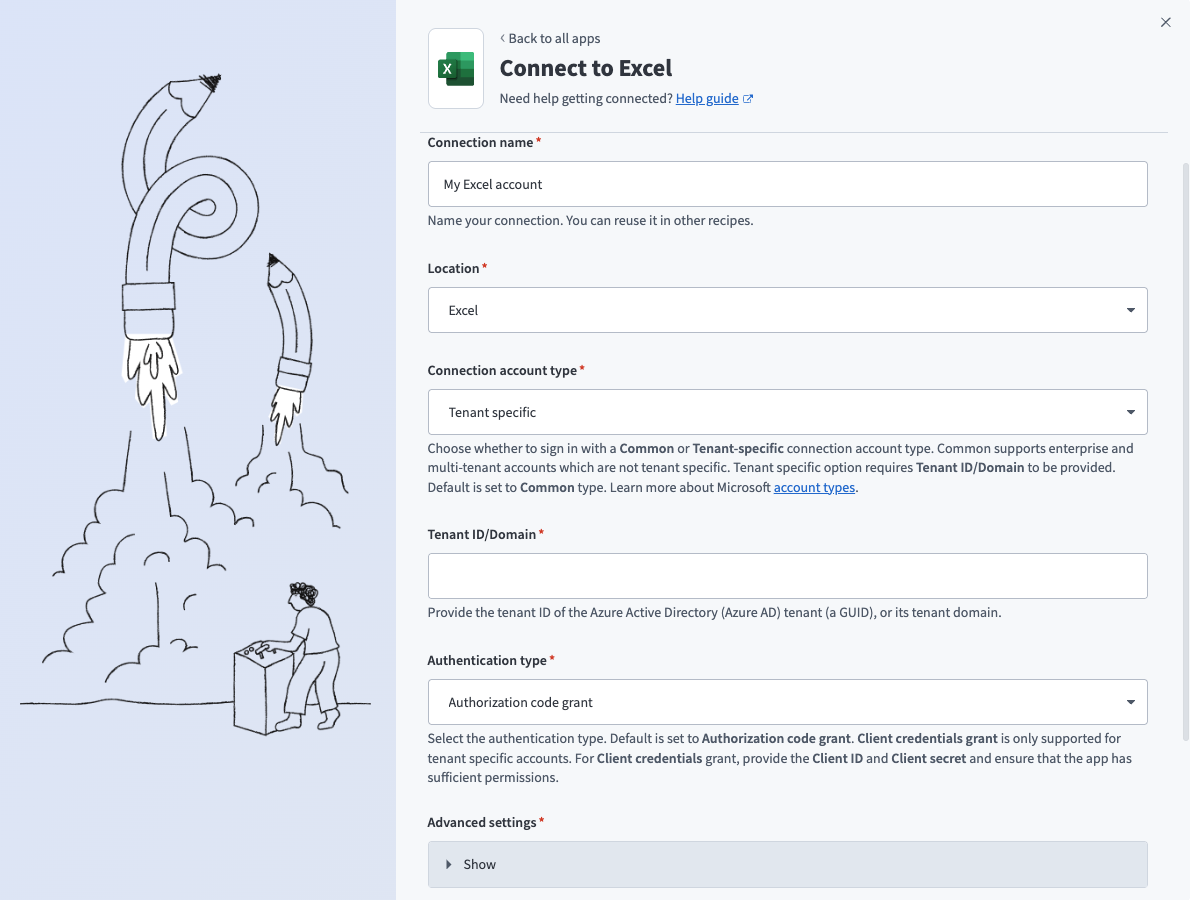 Tenant specific connections
Use the Authentication type drop-down menu to select Authorization code grant.
Optional. The connector requests a set of scopes necessary for all triggers and actions to function properly by default. Go to the Advanced settings section to manually select the permissions instead. The minimum permissions required to establish a connection are Files.Read and offline_access. Workato always requests these permissions regardless of the permissions you select. Refer to Minimum and default scopes for more information.
Optional. Use the Custom OAuth profile drop-down menu to select a custom OAuth profile for your connection.
Click Sign in with Microsoft.
Client credentials-based authentication (OAuth 2.0)
This method requires the following fields:
- Tenant ID/Domain
- User ID
- Client ID
- Client Secret
COMPATIBLE AUTHENTICATION
Client credentials-based authentication is only compatible with tenant-specific connections.
Minimum and default scopes
The Excel connector requests the following scopes for client credentials-based connections by default. These scopes are necessary to use all of this connector's triggers and actions. Additionally, you must assign these permissions to the Workato app as Application permissions in the Azure portal.
| Permission | Description | Relevant action or trigger |
|---|---|---|
Files.Read.All | Allows the app to read the signed-in user's files. | Get cells, Get rows, List tables, List worksheets, and Search workbooks |
Files.ReadWrite.All | Allows the app to read and write to the signed-in user's files. | All actions in Files.Read and Add a table, Add a worksheet, Add rows in batch, Delete row, and Update row. |
Sites.Read.All | Allows the app to read documents in all SharePoint site collections on behalf of the signed-in user. | Get cells, Get rows, List tables, List worksheets, and Search workbooks |
Sites.ReadWrite.All | Allows the app to read and write to documents in all SharePoint site collections on behalf of the signed-in user. On the consent page, this scope appears as the Maintain access to data you have given it access to permission. | All actions in Sites.Read.All and Add a table, Add a worksheet, Add rows in batch, Delete row, and Update row. This permission is recommended for all actions to preserve the connection's validity. |
User.Read.All | Allows the app to sign in and read the profile of signed-in users. | This permission is recommended for all actions. |
You must add the following minimum scopes to establish a connection to Excel with client credentials-based authentication:
Files.Read.AllUser.Read.All
Excel setup for client credentials-based authentication (OAuth 2.0)
Complete the following steps to set up Excel for client credentials-based authentication:
- Register the Workato App in the Azure portal
- Assign permissions to your app
- Obtain the Application (client) ID, Object ID, and Directory (tenant) ID from the Azure portal
- Obtain the User ID from the Azure portal
Register the Workato app in the Azure portal
View register the Workato app in the Azure portal steps
Complete the following steps to register the Workato app in the Azure portal:
Sign in to the Azure portal.
Select App registrations > + New registration.
Enter a unique name for the application.
Use the Supported account types drop-down menu to select an account type.
Select Web from the Select a platform drop-down menu.
Use the following URI for the Redirect URI:
https://www.workato.com/oauth/callbackSelect Register.
Assign permissions to your app
View assign permissions to your app steps
Complete the following steps to assign permissions to your app:
In the navigation sidebar, select Manage > API permissions.
Click + Add a permission and select Microsoft Graph APIs.
Add permissions
Add the required permissions. Depending on your connection type, you must assign Application or Delegated permissions.
Add permissions
Click Add permissions.
Admin consent is required for specific permissions. Refer to the Connect Microsoft Entra ID to the Excel connector to learn more.
Generate a client secret
View generate a client secret steps
Complete the following steps to generate a client secret:
Go to Manage > Certificates & Secrets > Client secrets.
Click + New client secret.
Provide a Description for the client secret and specify an Expires date.
Click Add.
Copy and save the client secret Value—not the Secret ID—for use in Workato.
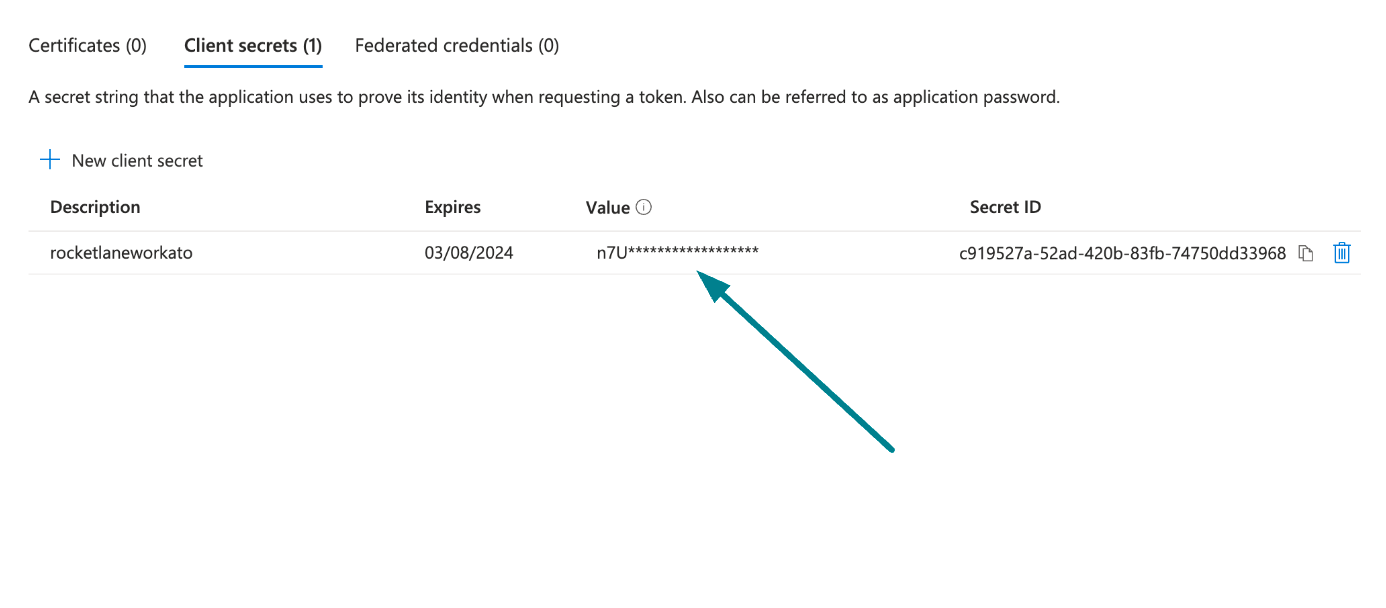 Copy and save the client secret value
Obtain the Application (client) ID, Object ID, and Directory (tenant) ID from the Azure portal
View obtain the Application (client) ID, Object ID, and Directory (tenant) ID from the Azure Portal steps
Complete the following steps to obtain the Application ID, Object ID, and Directory (tenant) ID from the Azure portal:
Go to the Overview > Essentials section.
App details
Copy and save the Application (client) ID, Object ID, and Directory (tenant) ID for use in Workato.
Obtain the User ID from the Azure portal
View obtain the User ID from the Azure portal steps
Complete the following steps to obtain the User ID from the Azure portal:
Go to Home > Users to obtain the User ID.
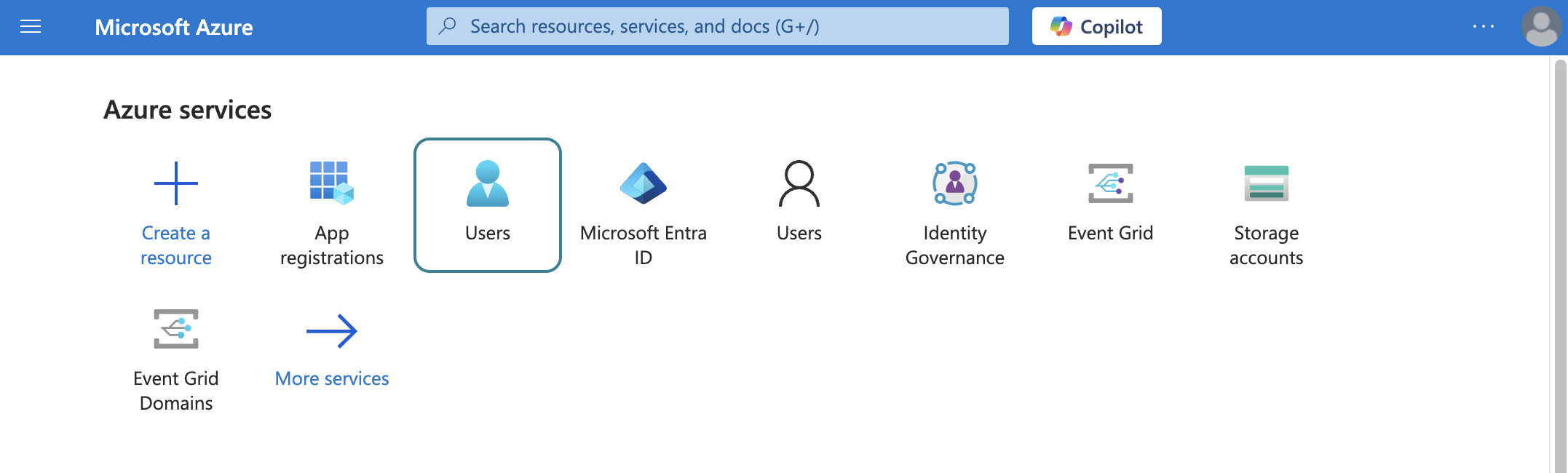 Select users
Search for and select the default user you plan to use to perform operations. This user doesn't establish the connection but is required for performing certain operations that an app can't perform. It's also required in picklists to pull user data. For example, the folder picklist populates folders belonging to the default user.
Copy and save the User principal name. Use this value as the User ID in Workato.
Connect to Excel with client credentials-based authentication
View connect to Excel with client credentials-based authentication steps
Complete the following steps to set up a client credentials-based connection to Excel in Workato:
Click Create > Connection.
Search for Excel and select it as your app.
Enter a name for your connection in the Connection name field.
Use the Location drop-down menu to select the project where you plan to store the connection.
Select Tenant specific as the Connection account type. This option is specifically designed for users who belong to a particular organization (tenant).
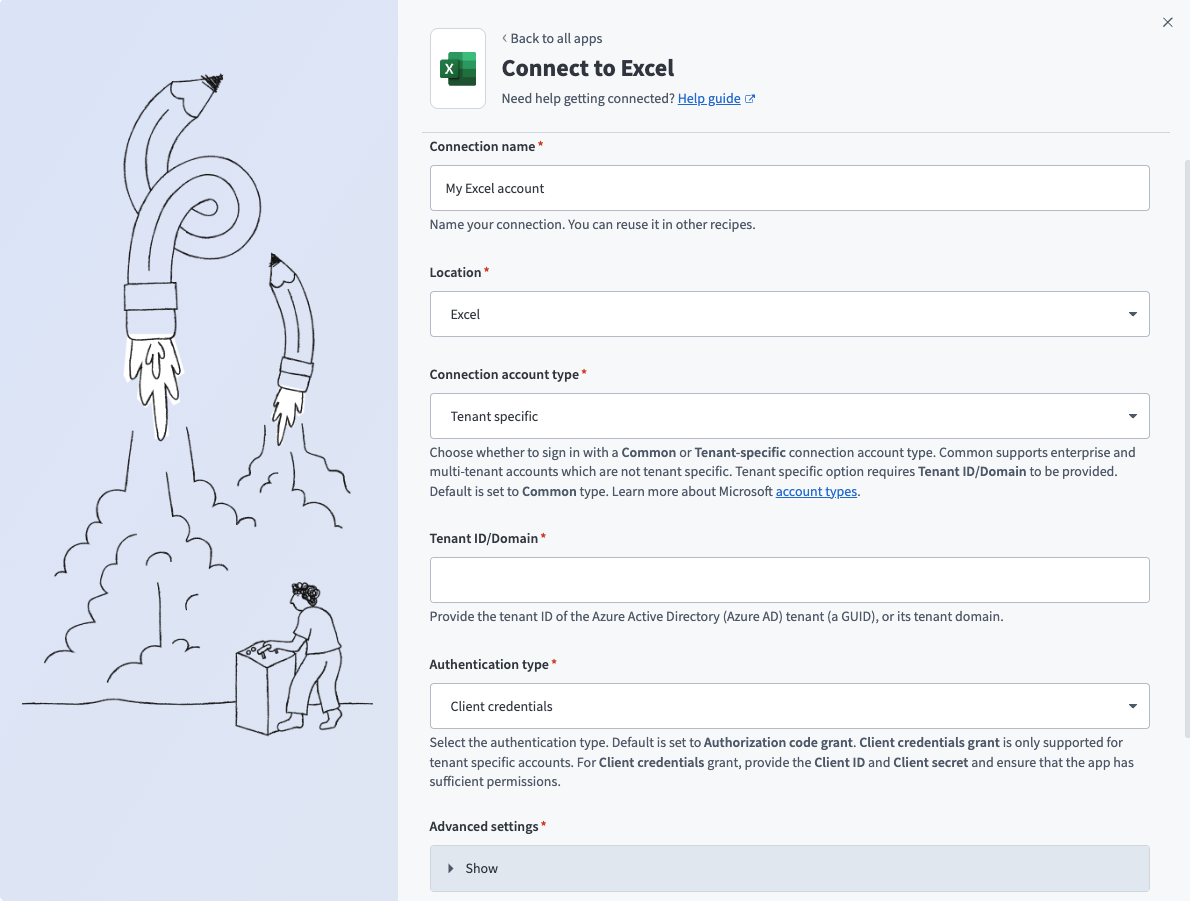 Tenant specific account connection type
Provide your Tenant ID/Domain. This is the Directory (tenant) ID for your app. Refer to Register an app in Azure for more information.
Use the Authentication type drop-down menu to select Client credentials.
Supply the User ID, Client ID, and Client secret for your app. Refer to Register an app in Azure for more information.
Optional. Use the Custom OAuth profile drop-down menu to select a custom OAuth profile for your connection.
Click Sign in with Microsoft.
Connect Microsoft Entra ID to the Excel connector
View connect Microsoft Entra ID to the Excel connector steps
To connect to the Excel connector using a Microsoft Entra ID account, ensure that all the consent requests are granted by admins.
Complete the following steps to grant admin consent using an admin account:
Sign in to your Azure portal and navigate to Enterprise Applications > Activity > Admin consent requests.
Approve the necessary consent requests.
Last updated: