# Files.com
Files.com (opens new window) is a cloud-based file sharing and storage platform that enables businesses to securely store, manage, and collaborate on files. This connector enables you to automate file and folder operations, including uploads, downloads, searching, and file organization across your workflows. This connector supports file and folder objects.
This connector has the following capabilities:
- Automatically upload files to Files.com when new documents are created in a document management system
- Download files from Files.com folders and process them in other applications
- Sync files between Files.com and other cloud storage platforms
- Create organized folder structures when new projects are initiated in a project management system
- Move or copy files between folders based on workflow events
- Extract ZIP files for further processing or distribution
- Create ZIP archives from multiple files for backup or distribution purposes
# Prerequisites
To connect to Files.com in Workato, ensure that you have the following:
- Your Files.com API key
- Your Files.com API key location
# Generate a Files.com API key
Complete the following steps to generate a Files.com API key:
Go to Files.com.
Log in to your Files.com account.
Navigate to your Files.com profile.
Go to My Account > Authentication > API Keys.
Click Create API key.
Save the newly generated API key to use when completing the connection in Workato.
# Download Files.com from the community library
Complete the following steps to install the Files.com connector from the community library (opens new window):
Open the recipe editor and search for a connector. Alternatively, you can search for a connector in the community library (opens new window).
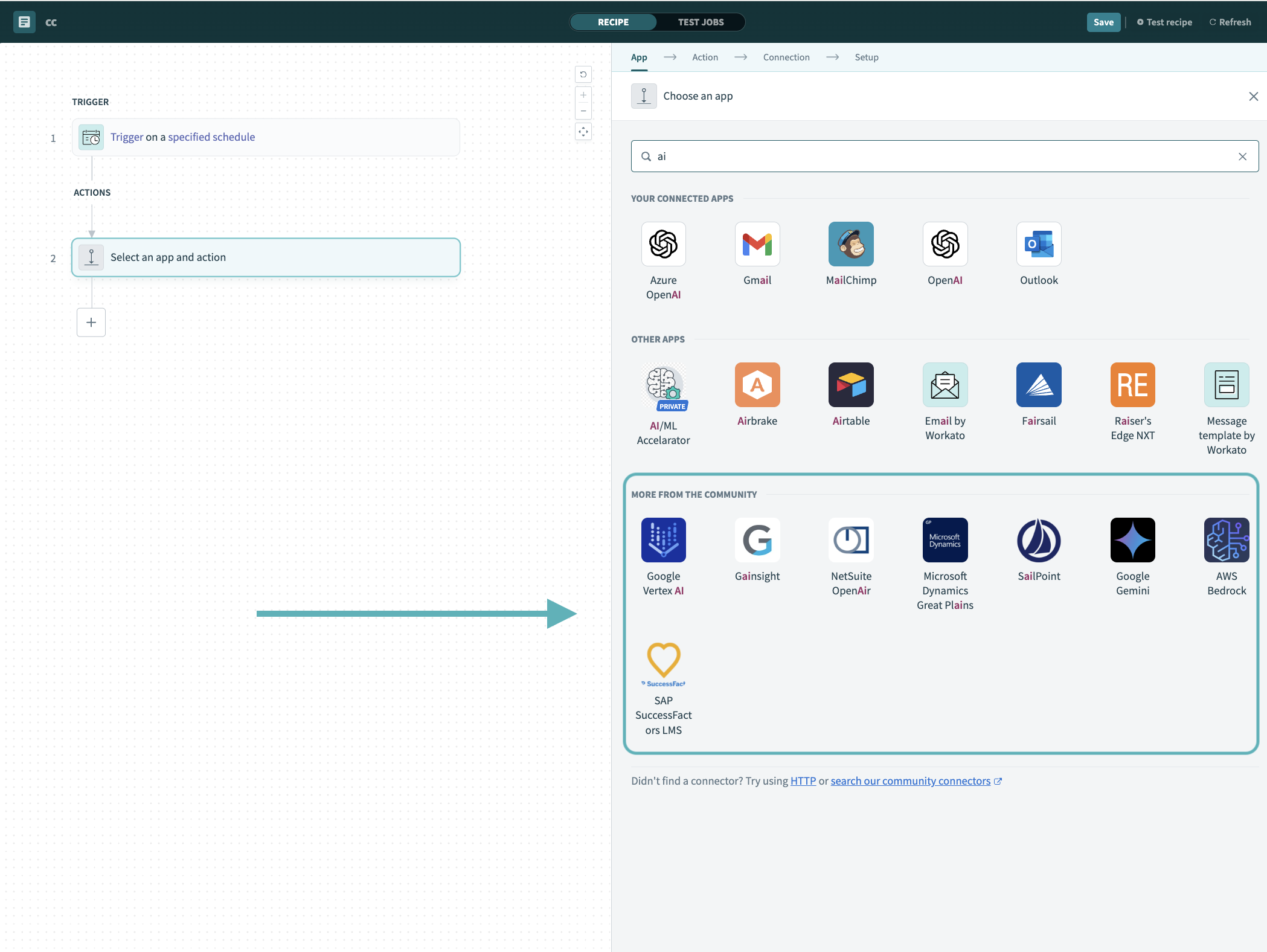 Search for community connectors in the recipe editor
Select the community connector you plan to install.
Click Install to install the connector from the community library.
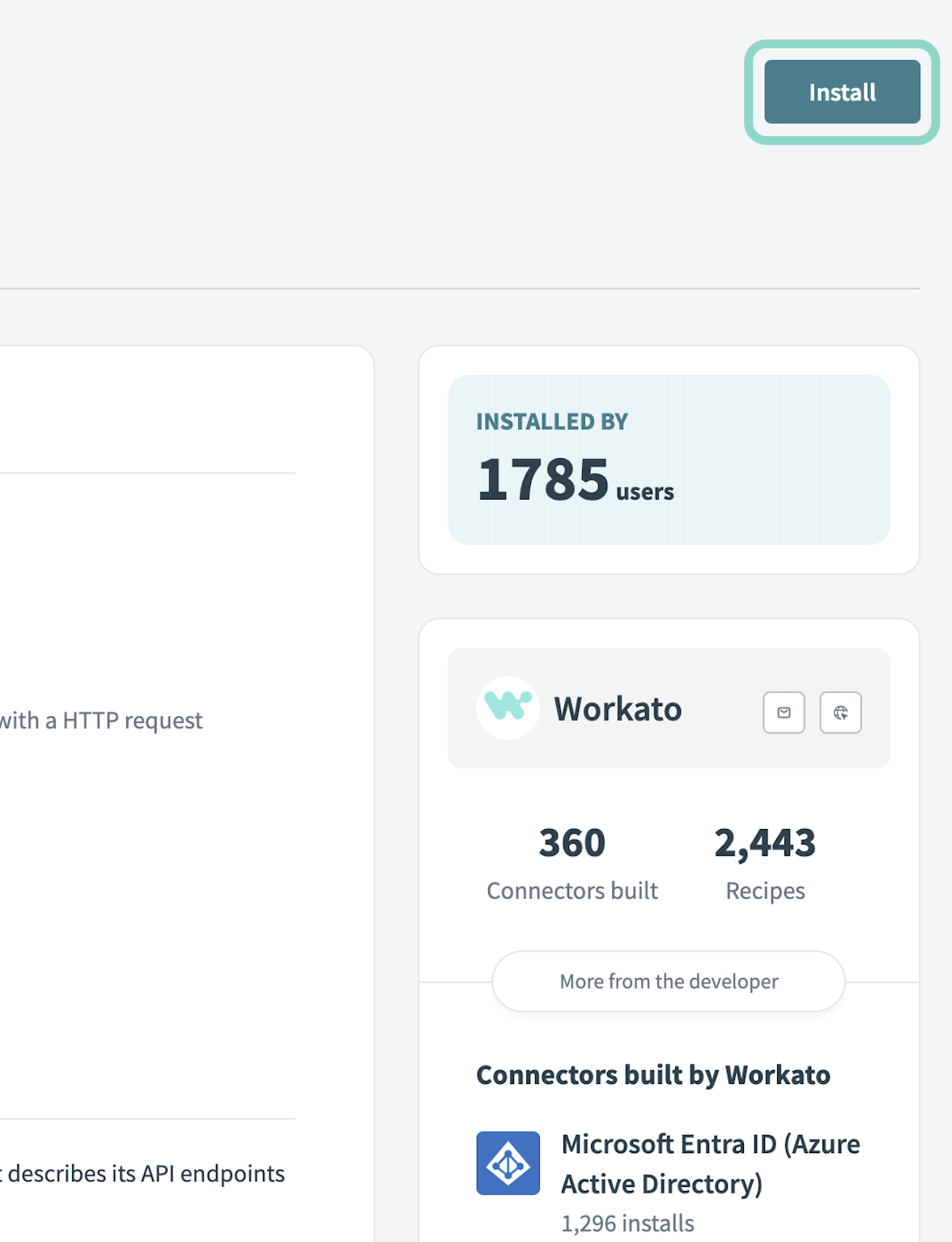 Click Install
Select Release connector. Alternatively, select Review code to review and modify the connector code before releasing it to the workspace.
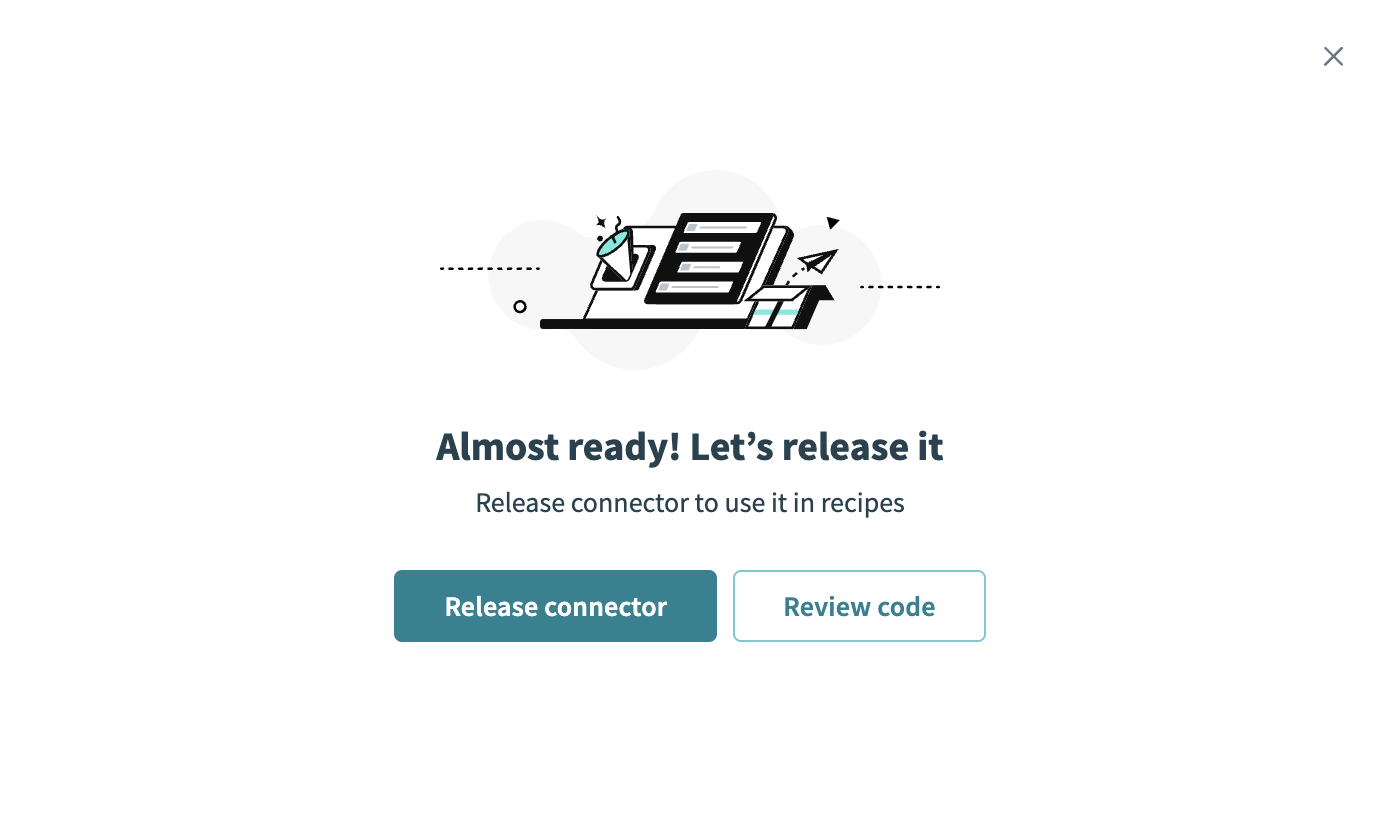 Release the connector
Summarize any changes you made to the connector, then click Release to allow workspace collaborators to use the connector in recipes.
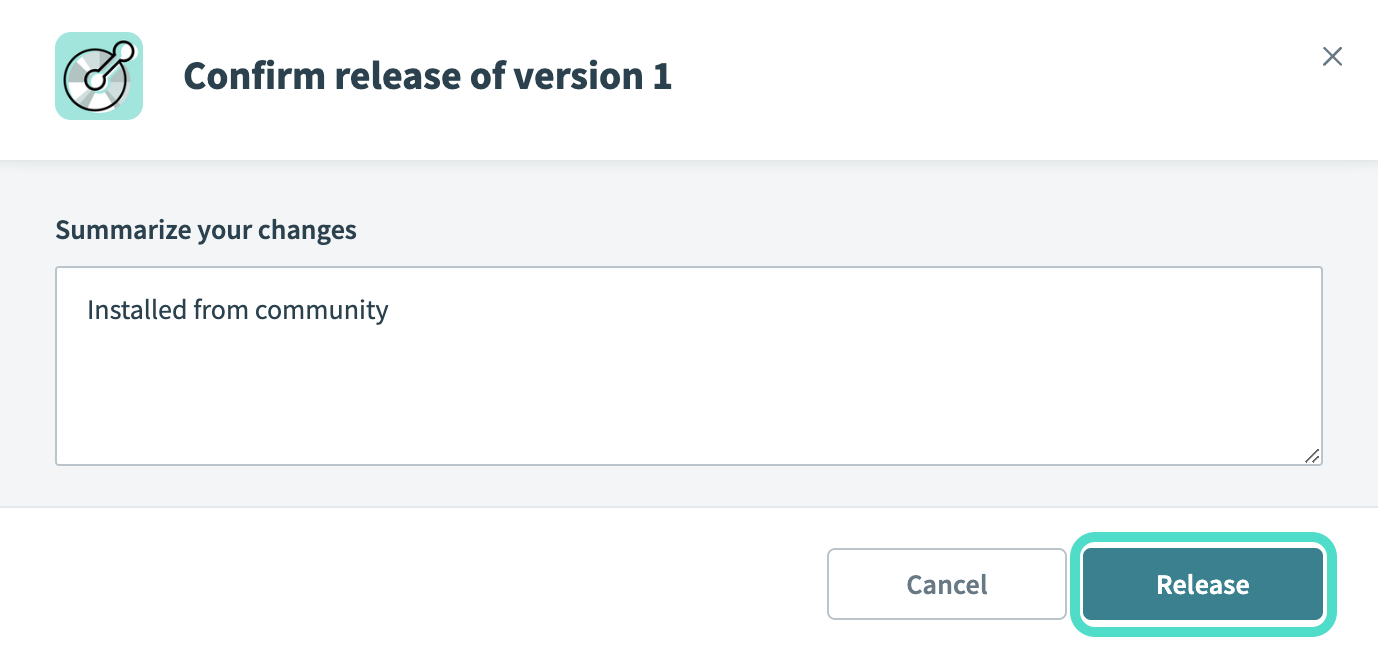 The Confirm release dialog
# Set up connection in Workato
Complete the following steps to establish a connection to Files.com in Workato:
Click Create > Connection.
Search for and select Files.com as your connection on the New Connection page.
Provide a unique name for the connection in the Connection name field.
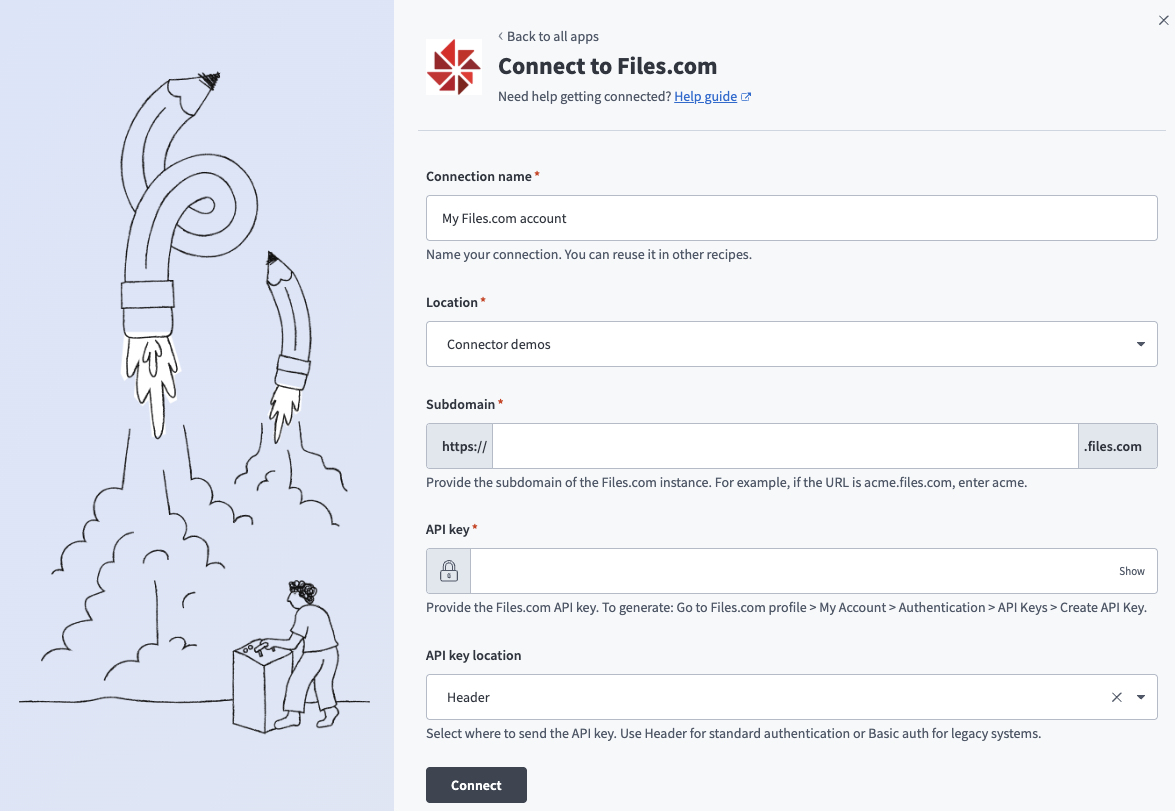 Create your Files.com
Use the Location drop-down menu to select the project where you plan to store the connection.
Enter the Subdomain of your Files.com instance. For example, if your Files.com instance URL is acme.files.com (opens new window), enter acme.
Enter your Files.com API key. Refer to the Prerequisites section to generate this value.
Use the API key location drop-down menu to select where to send the API key. Use Header for standard authentication or Basic auth for legacy systems.
Click Connect.
Last updated: 2/24/2026, 6:47:33 PM