Salesforce bulk operations
The Salesforce connector supports bulk data operations, allowing you to load large datasets into Salesforce efficiently. Workato uses both bulk API v1.0 and bulk API v2.0 to support loading data from CSV files into Salesforce.
Actions
The Salesforce connector supports the following bulk actions:
Create records in bulk from CSV file
The Create records in bulk from CSV file action creates Salesforce records in bulk from a CSV file.
Update records in bulk from CSV file
The Update objects in bulk from CSV file action updates Salesforce records in bulk from a CSV file.
Upsert records in bulk from CSV file
The Upsert objects in bulk from CSV file action upserts Salesforce records in bulk from a CSV file and a primary key. If matching records are found, they are updated. If matching records aren't found, they are created.
Retry bulk job for failed records from CSV file
The Retry bulk job for failed records from CSV file action retries failed Salesforce jobs in bulk from a CSV file. Use this action after another Salesforce bulk action to resubmit failed records as a new bulk job.
Search records in bulk using SOQL query
The Search records in bulk using SOQL query action retrieves a CSV stream of Salesforce records that match the SOQL query you provide.
Triggers
The Salesforce connector supports the following bulk triggers:
Export new/updated records
The Export new/updated records trigger monitors Salesforce for newly created or updated records that match the SOQL WHERE clause you provide and retrieves them as a CSV stream. There is an expected delay when this trigger creates a job. The job processes after a query is completed in Salesforce.
Export new records
The Export new records trigger monitors Salesforce for new records that match the SOQL WHERE clause you provide and retrieves them as a CSV stream. There is an expected delay when this trigger creates a job. The job processes after a query is completed in Salesforce.
Handle large files and scale effectively
Workato’s Salesforce connector enables you to manage large datasets and scale efficiently. When a CSV file exceeds 1 GB, Salesforce splits the file into 1 GB chunks. Workato stitches these chunks into a single stream for processing in your recipe, ensuring continuous data flow without requiring additional configuration.
You can use a single recipe to process datasets of varying sizes, such as 1 GB, 5 GB, or 10 GB, without any modifications. Workato provides pre-configured error handling, retries, and notifications, enabling you to manage bulk operations at any scale.
Scalability is built-in, allowing you to maintain consistent processing and reliable error handling as your datasets grow.
API VERSIONS
Bulk operations exists in both API v1.0 and API v2.0 versions. Workato recommends using the bulk API v2.0 for optimal performance. This version reduces the impact on Salesforce API limits by batching records more efficiently.
All Salesforce bulk operations are asynchronous by default. Workato polls for results every five minutes when a bulk job is sent to Salesforce. The recipe that contains the bulk action must be in a running state, not stopped or in test mode, for this polling interval to function as expected. Polling doesn't trigger until the recipe becomes active again if you re-run a job while the recipe is stopped or in test mode. This can cause bulk actions to appear as though they are processing for extended periods.
For synchronous operations, refer to the Salesforce connector batch operations documentation, which supports creating, updating, and upserting objects in batches, with a maximum batch size of 2,000. You can also set some bulk actions to run synchronously using the Wait for Salesforce to process all CSV rows? field in the Advanced configuration section.
Advanced configuration
Some bulk operations have an Advanced configuration section that controls how the operation behaves, such as whether it runs synchronously. Refer to the following table to see the available configuration options:
| Input fields (Advanced configuration) | Description |
|---|---|
| Wait for Salesforce to process all CSV rows? | Select whether to run the action synchronously. Select Yes to wait until Salesforce processes all rows in the CSV file before starting the next action. Select No to start the next action after the CSV file is uploaded to Salesforce. Bulk operations are asynchronous by default. |
| CSV chunk size for each Salesforce bulk job (in MB) | Enter the CSV chunk size in megabytes for each Salesforce bulk job. If the CSV file is larger than the chunk size, the action automatically creates multiple Salesforce bulk jobs. This field defaults to 100 MB. |
| Return success report without header line | Select whether to exclude header lines from returned success reports. This field is not available for the API V1.0 version of this action. |
| Return failed rows report without header line | Select whether to exclude header lines from returned failed rows reports. This field is not available for the API V1.0 version of this action. |
Permissions
The following Salesforce user permissions are required for bulk operations to work correctly:
Manage Data IntegrationsView Setup and ConfigurationAPI Enabled
System administrator privileges are required to enable these permissions for the connected Salesforce account. Refer to the Salesforce documentation for more details.
Example recipe
The following example recipe uploads CSV files to Salesforce whenever they are added to an S3 bucket and automatically retries failed uploads:
The New CSV file S3 trigger creates a new job whenever a CSV file is dropped into an S3 bucket.
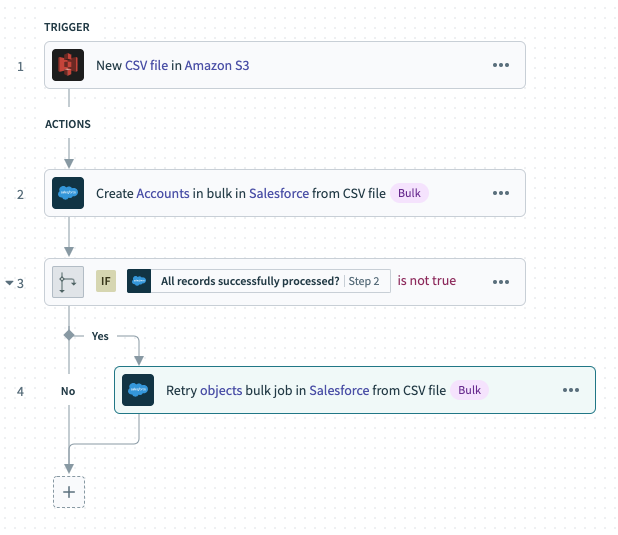 Sample recipe - Salesforce bulk upsert via CSV file.
The Create records in bulk from CSV file action streams the data from the CSV file into Salesforce.
The example recipe uses the following CSV file:
external_id,billing_country,phone,account_number
"a0K1h000003fXSS","United States of America","123 456 789","54"
"a0K1h000003fehx","Canada","650 894 345","12"
"a0K1h000003fjnv","Japan","103 948 414","28"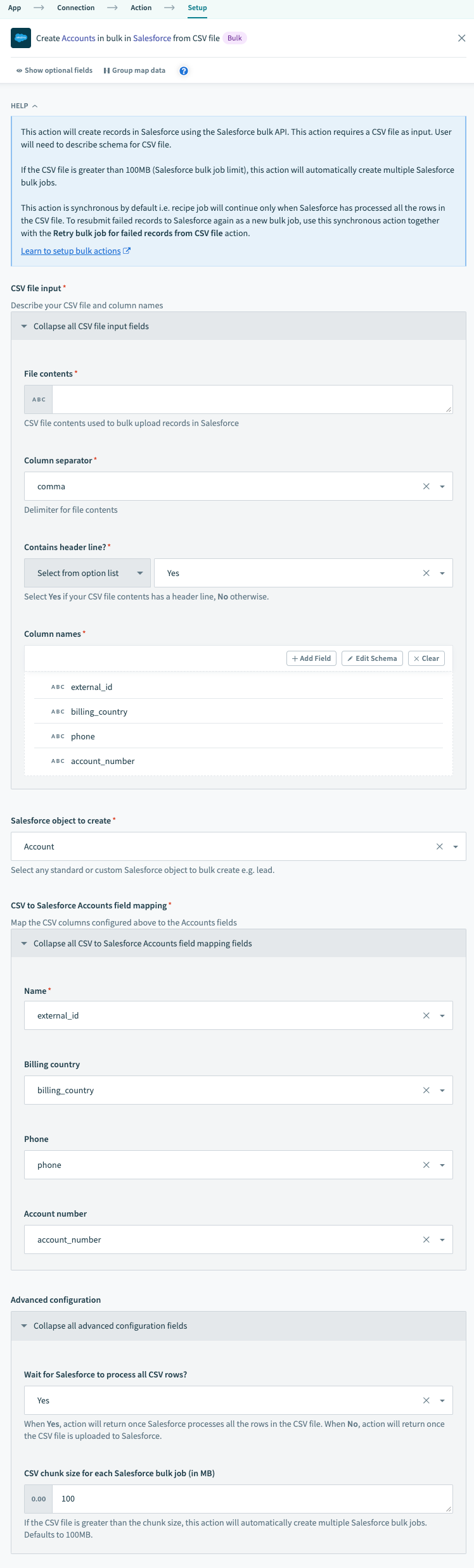 Configured Salesforce bulk upsert action
- The If statement checks whether All records successfully processed? is
false, which would indicate that some records failed processing in Salesforce.
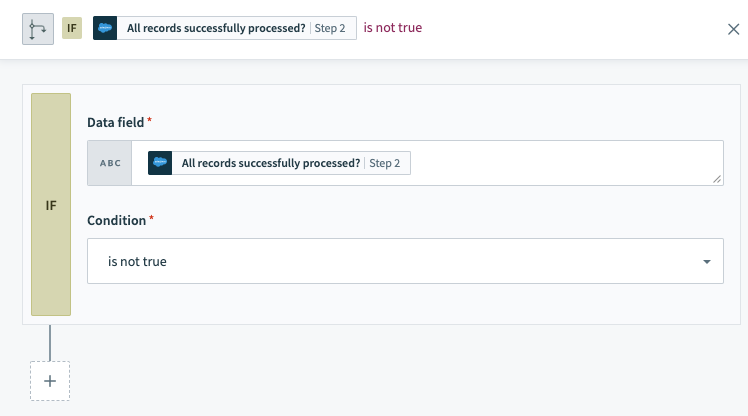 If condition checking for any failed records
- If records failed processing in Salesforce, the Retry objects bulk job in Salesforce via CSV file action attempts to write the failed CSV rows into Salesforce.
Records can fail to process for several reasons, including:
- Data errors
- The records locked because another process or user edited them
- Network issues
LARGE FILE MANAGEMENT
The Create objects in bulk via CSV file and Retry objects bulk job in Salesforce via CSV file Salesforce actions manage large files automatically. Workato chunks CSV files larger than a couple of GBs and creates multiple Salesforce bulk jobs to comply with Salesforce bulk API size limits.
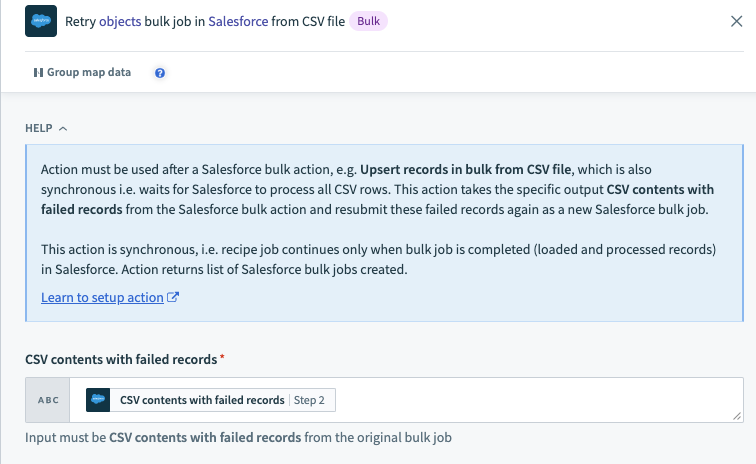 Configured retry bulk operation action
Last updated: