# Salesforce - New record trigger (real-time)
This trigger monitors Salesforce in real-time for newly created objects.
# Input
| Input fields | Description |
|---|---|
| Object | Select the object type to monitor. |
| Fields to retrieve | Select the fields to retrieve from the object. Workato retrieves all fields by default. Entering specific fields to retrieve improves recipe performance and mitigates schema errors. |
| When first started, this recipe should pick up events from | Set the date and time to start picking up trigger events. This enables your recipe to capture past events. Refer to Triggers to learn more about this input field. |
# Configuration in Salesforce
Complete the following steps to configure the trigger in Salesforce:
Refer to the Input section to configure the input fields for this trigger. Workato generates an endpoint URL in the collapsible HELP section based on the Object you select and the connected Salesforce organization.
Copy the endpoint URL. This URL tells Salesforce to send real-time events about relevant objects to this Workato recipe.
WARNING
This endpoint URL is unique to the selected object and connected Salesforce organization. You must regenerate this endpoint URL if the object or Salesforce connection changes.
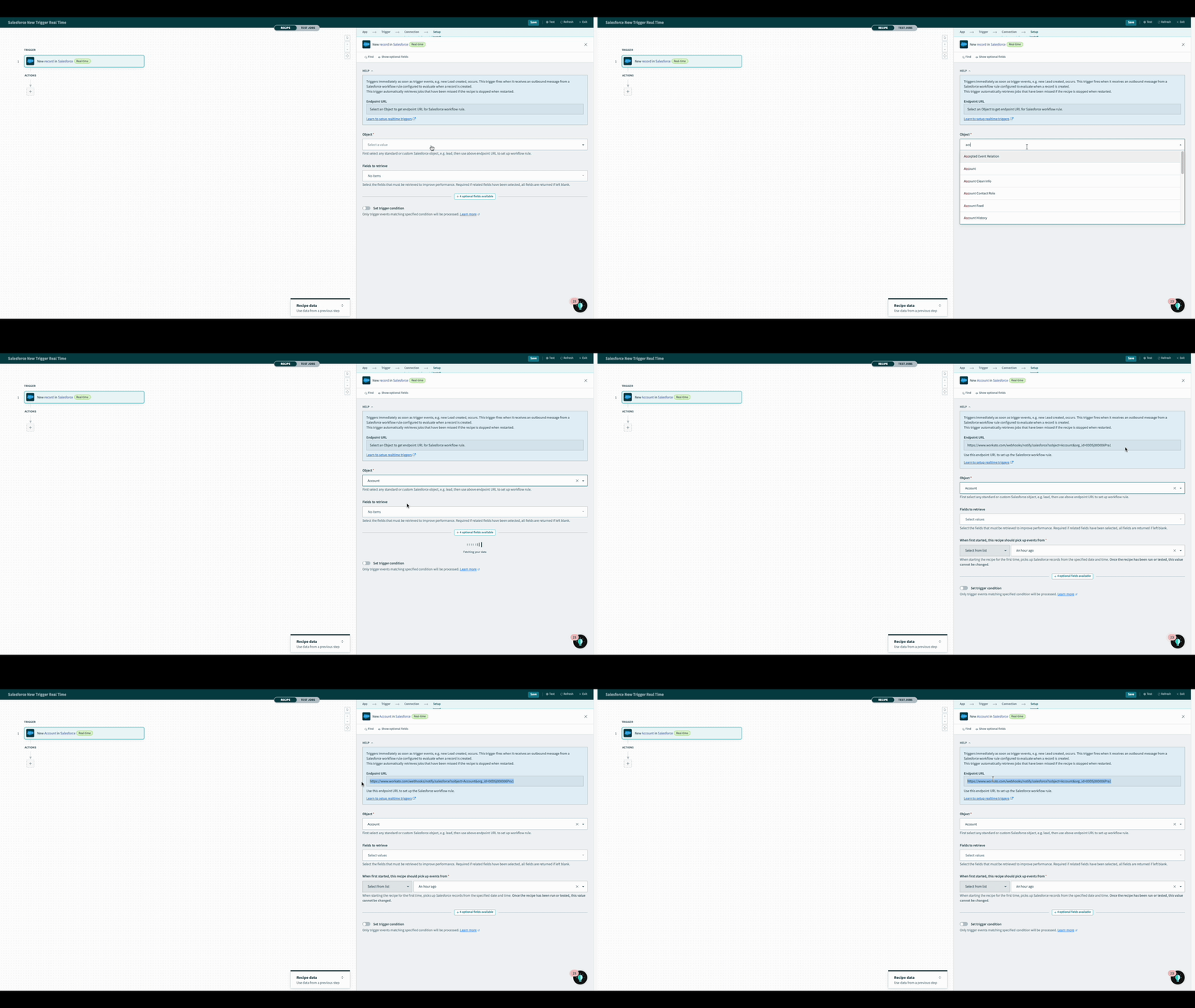 Workato generates endpoint URL for Salesforce flow
Use the endpoint URL to configure a new outbound message in Salesforce for the object type this trigger monitors.
Go to Setup > Process Automation > Flows in your Salesforce organization and click New Flow. The Salesforce flow setup wizard opens.
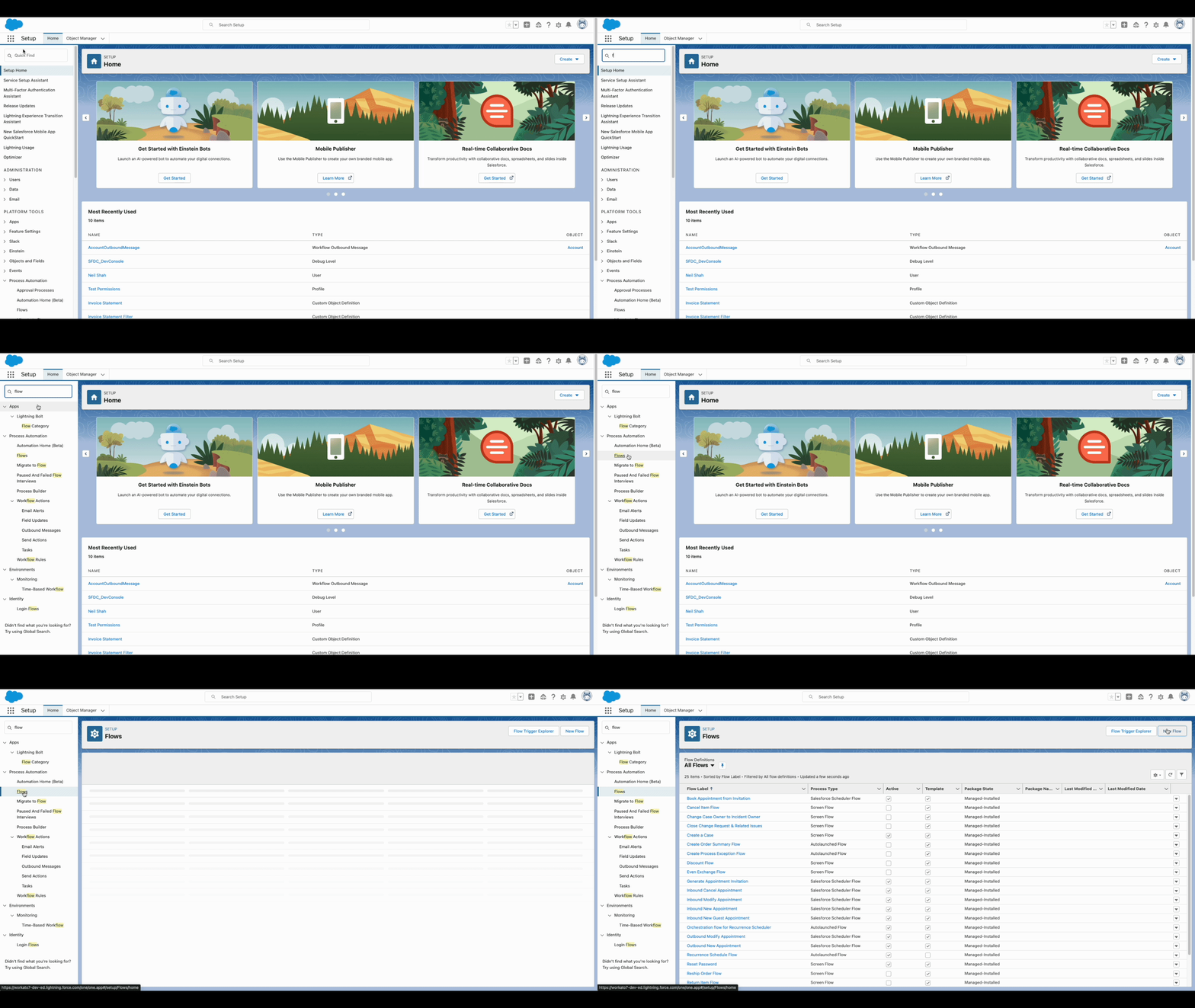 Open the Salesforce flow setup wizard
Select Record-Triggered Flow, then click Create.
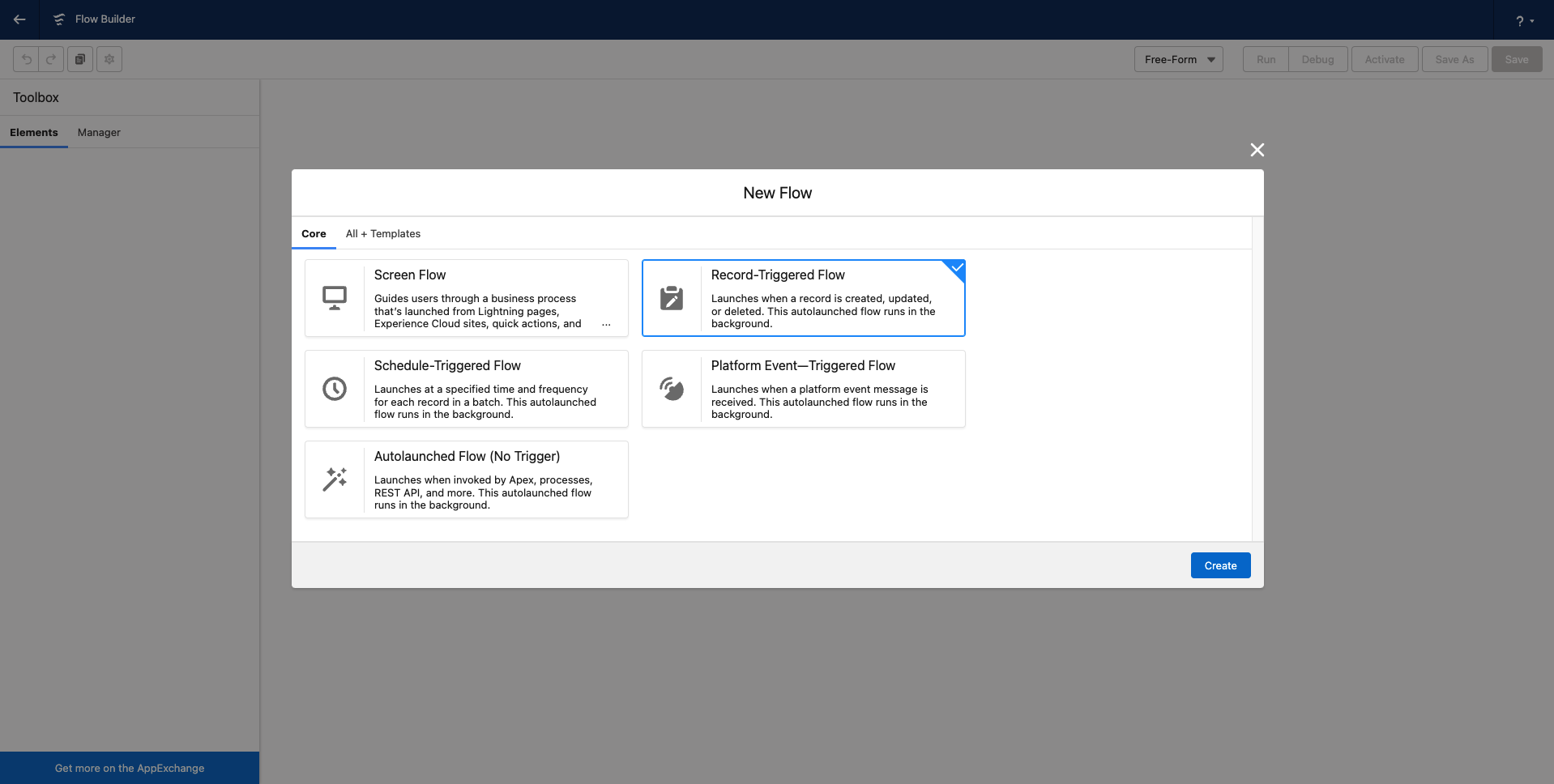 Select Record-Triggered Flow in Salesforce
Select the Salesforce object type to monitor. In Configure Trigger select A record is created. In Optimize the Flow for select Actions and Related Records.
WARNING
Do not set any entry conditions as this conflicts with the backup polling mechanism in place.
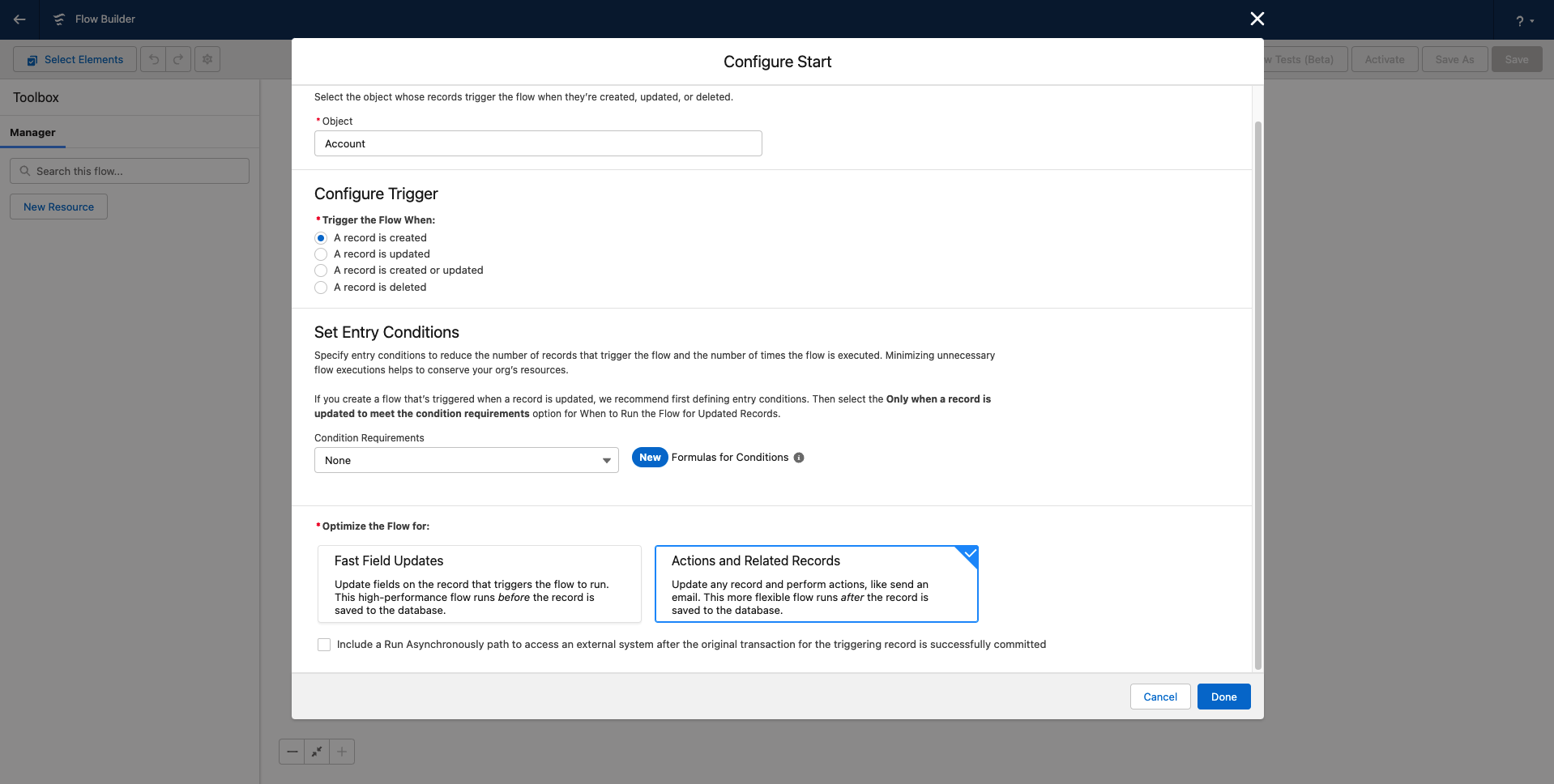 Set up the Salesforce flow to be triggered when record is created
In the Flow Builder view, click + (add element) and select Action.
Go to the Outbound Message tab.
Select the Outbound Message that you previously configured for this trigger.
Click Done, then Save.
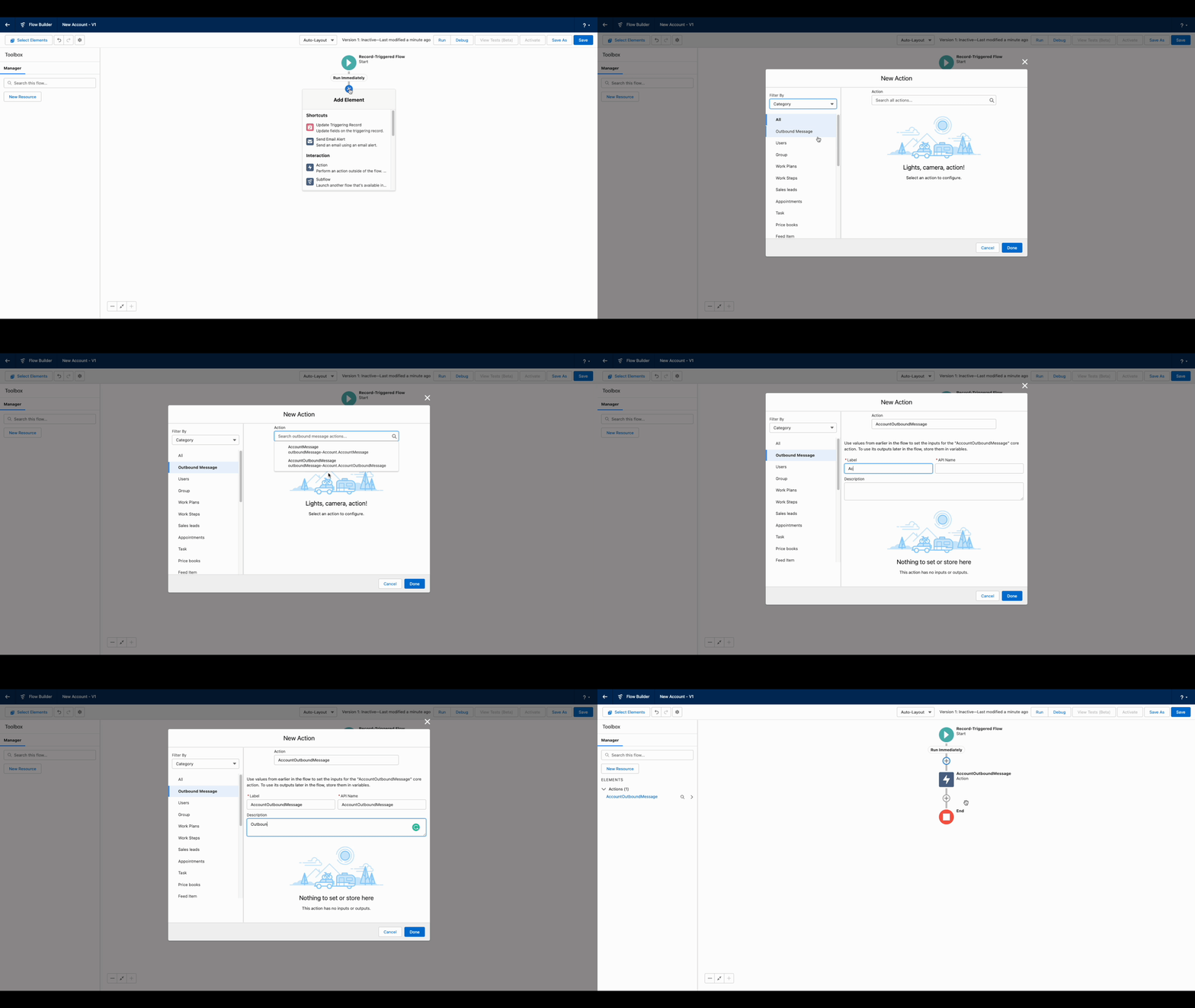 Add Outbound Message as action in Salesforce flow
Enter a label and an API Name for the flow, then click Save.
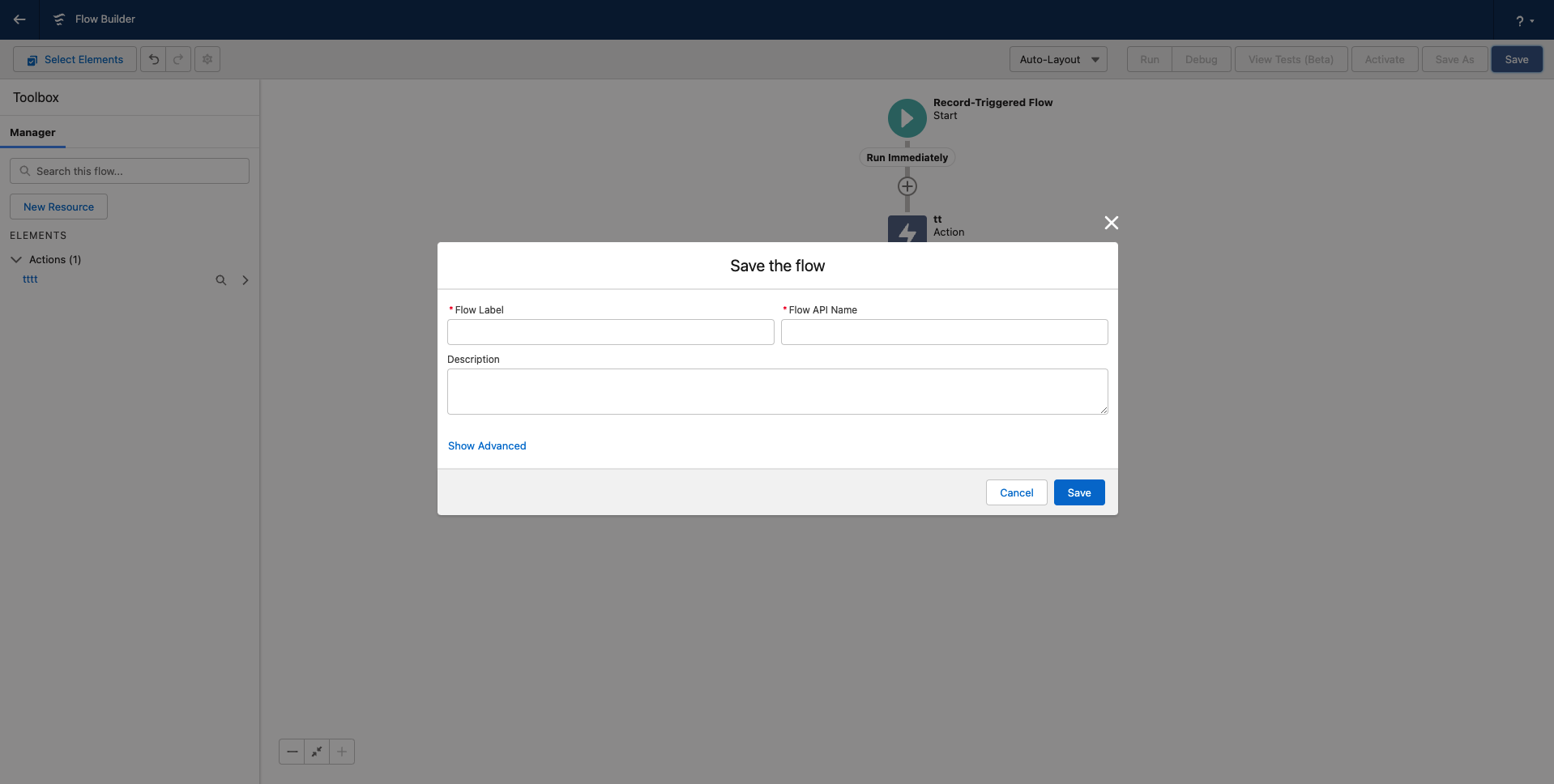 Save the Salesforce flow
Click Activate.
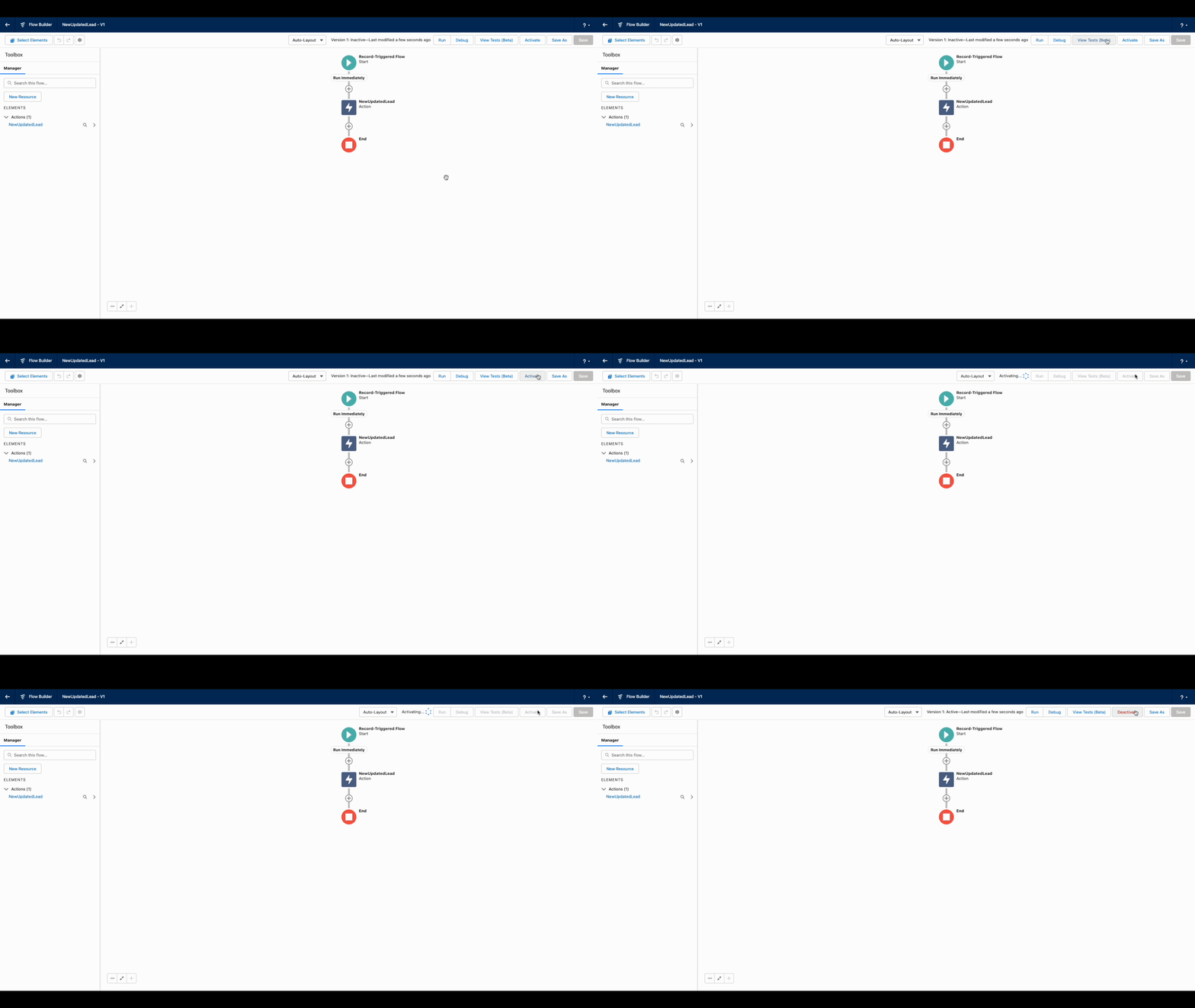 Activate the flow in Flow Builder
Return to Workato and start the recipe.
You can test that the recipe is working by causing a trigger event in Salesforce while the recipe is active. Workato creates a new job immediately if the Salesforce flow and Workato trigger are configured correctly.
# Output
The output of this trigger varies based on your selected Object and Fields to retrieve. Refer to Salesforce's Overview of Salesforce Objects and Fields (opens new window) guide for more information on available objects and fields.
Last updated: 3/3/2026, 7:41:27 PM