# MCP Developer API management
Workato Developer API MCP servers enable AI-powered developer environments like Claude Desktop and Cursor to programmatically access your Workato workspace. You can manage assets and projects programmatically with Workato Developer APIs exposed as a remote MCP server with standard Developer API token authentication. This enables you to inspect and modify assets, perform bulk operations, and interact with the Developer API platform from within your LLM-enhanced development tools.
Your MCP server respects all Developer API permissions and project scopes configured in your API client role. This means you can restrict access to specific projects or endpoints by configuring your API client settings in Workspace admin > API clients.
MCP URL AND API TOKEN INTEGRATION
You can manage Developer APIs with both remote and local MCP servers with the following configuration:
"YOUR_DEV-API-REMOTE-NAME": {
      "url": "https://app.workato.com/mcp?dev_api_token=<YOUR_API_TOKEN>"
    }
# Configure Developer APIs as an MCP server
Complete the following steps to use your Developer API endpoints as an MCP server with your LLM:
Sign in to Workato.
Go to Workspace admin > API clients to view your API client role that defines which tools you have access to or Create a client role with the tools you plan to use. For example, enable List folders, Create project or folder, and Update folder if these are tools you plan to use in your LLM.
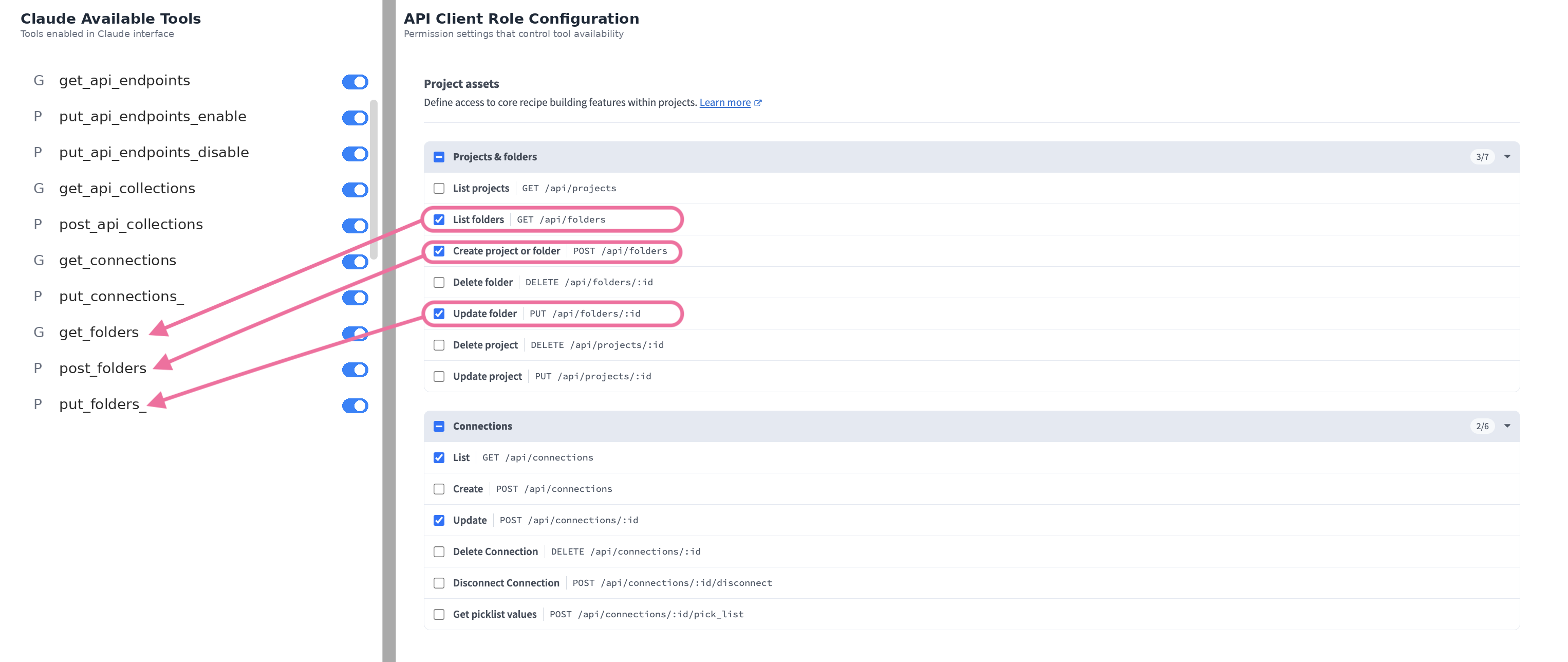 LLM tool availability is defined in the client role
Obtain your API client token or Create an API client and copy and store the generated API token.
Configure your LLM to use the endpoints defined in your API client role:
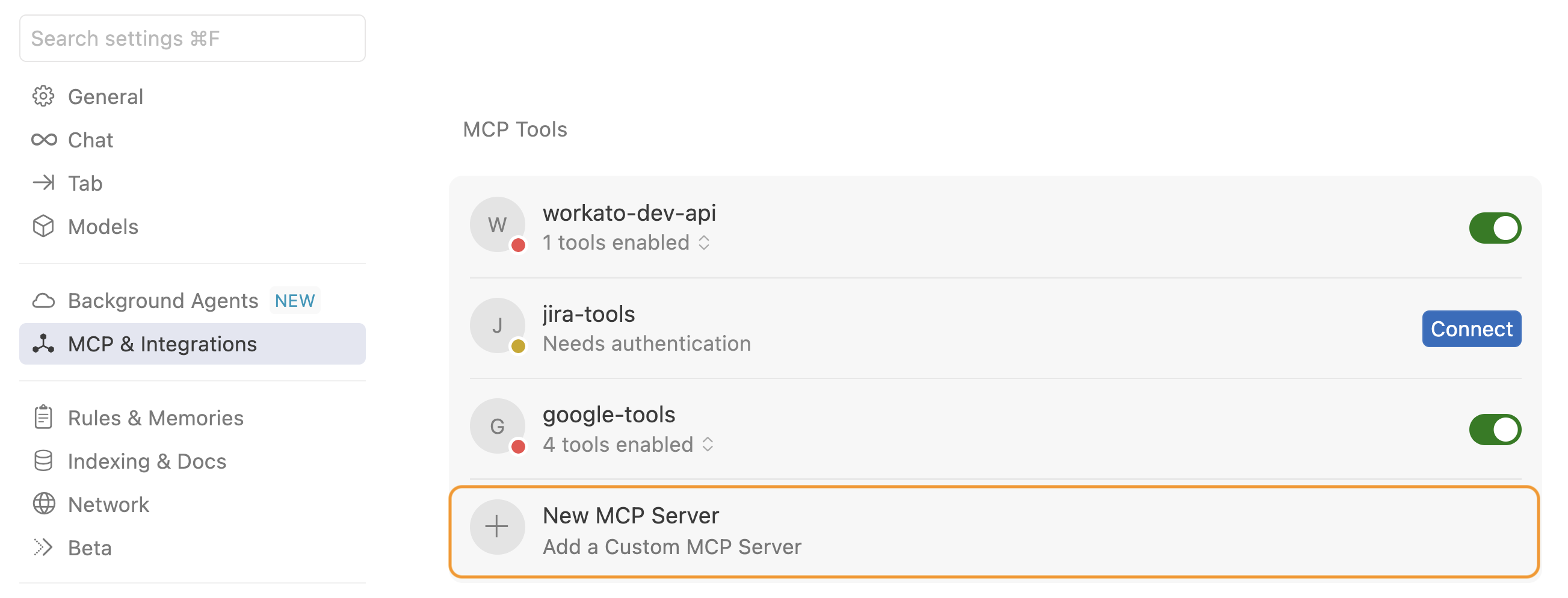 Click + New MCP Server
# Manage Developer APIs through your MCP
You can manage the Developer API endpoints enabled in your API client role after you configure your MCP JSON file.
Complete the following steps to manage your Developer API project and assets through your LLM:
Start a new chat with your LLM and enter a prompt.
Example prompt for project and asset management
Enter the following prompt:
Propose a maximum of 3 tags based on my workspace activity.
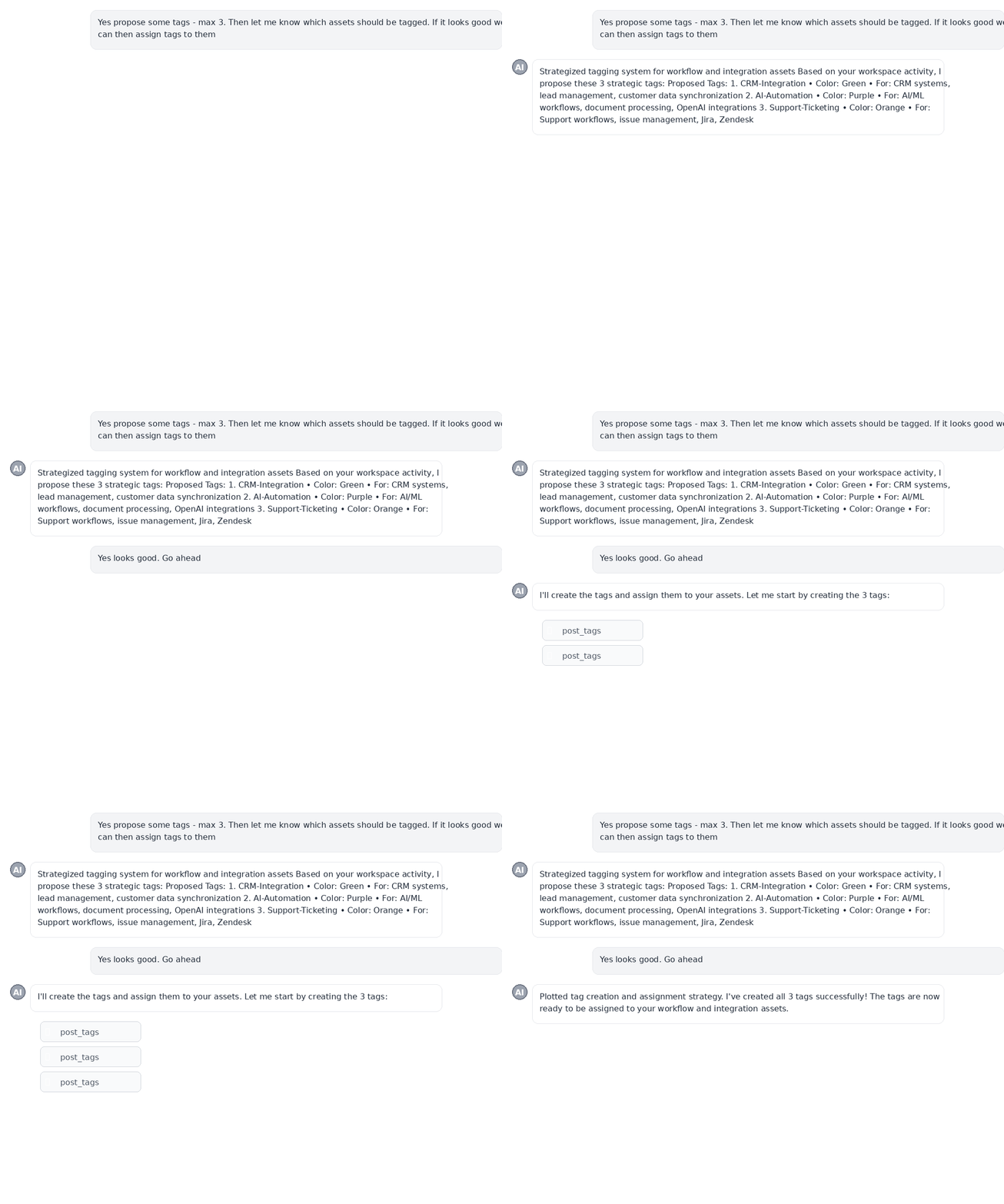 Create tags from your LLM
Review the suggestions and ask your LLM to create the proposed tags.
Go to Workspace admin > Settings > Tags and click Manage tags to view the tags created by your LLM.
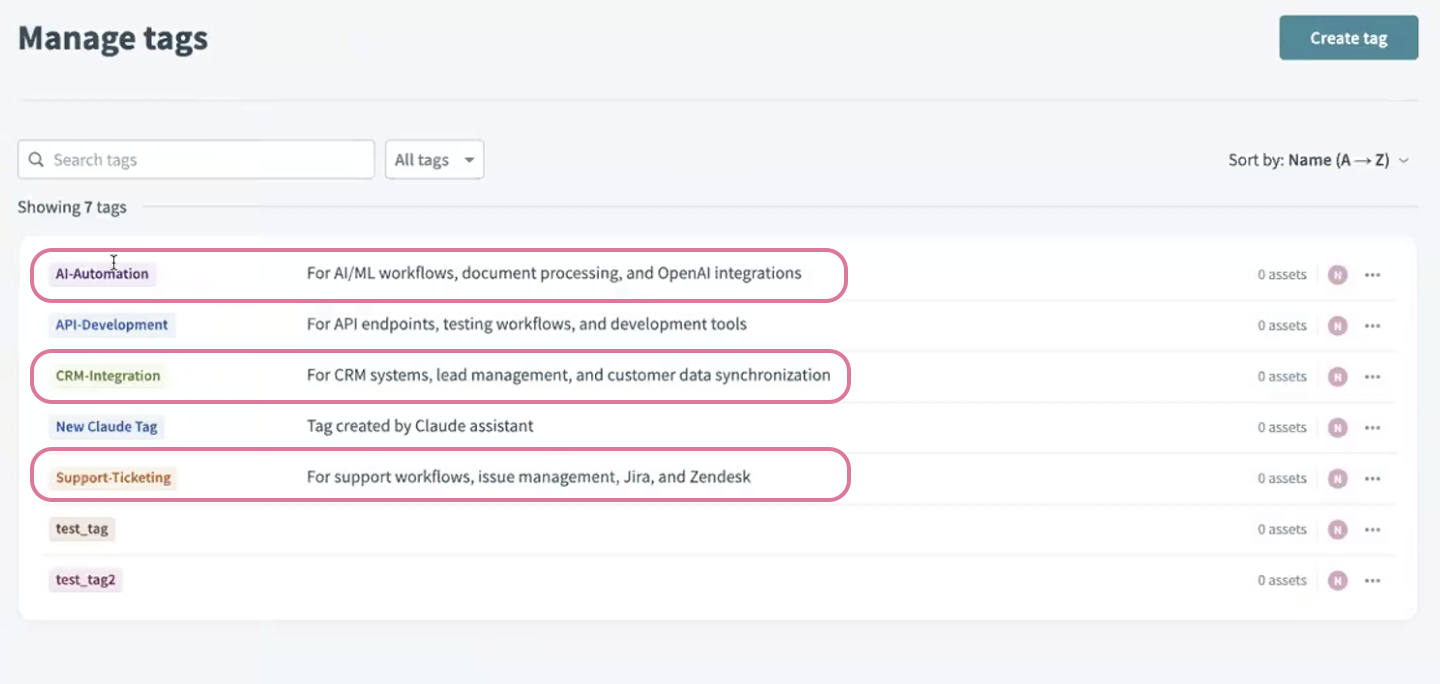 Tags created by your LLM
Use more natural language prompts to manage your projects and assets, for example:
Move folder 12345 to parent folder 67890.List all folders in my Acme test project.Start analyzing recipe health for recipe 68000123.List all connections and group by active and inactive status.List jobs from recipe 68000123.
Last updated: 12/18/2025, 8:41:15 PM