Manage MCP server tools
You can manage MCP tools within the MCP server Overview page. The Overview provides a list of tools in your MCP server, your Remote MCP URL, and authentication method. You can start, stop, add, and remove tools in the Overview page.
Edit LLM-facing MCP server description
Your MCP server description is automatically shared with your LLM when you connect the MCP server. You can update the description for your specific use cases and to include any tool customization you perform. An accurate MCP server description helps your LLM know when to use specific tools.
Complete the following steps to edit the MCP server description shared with your LLM:
Sign in to your Workato account.
Go to AI Hub > MCP servers.
Select the MCP server where you plan to edit the LLM-facing MCP server description.
Go to the Description section and click the edit icon.
Update the description.
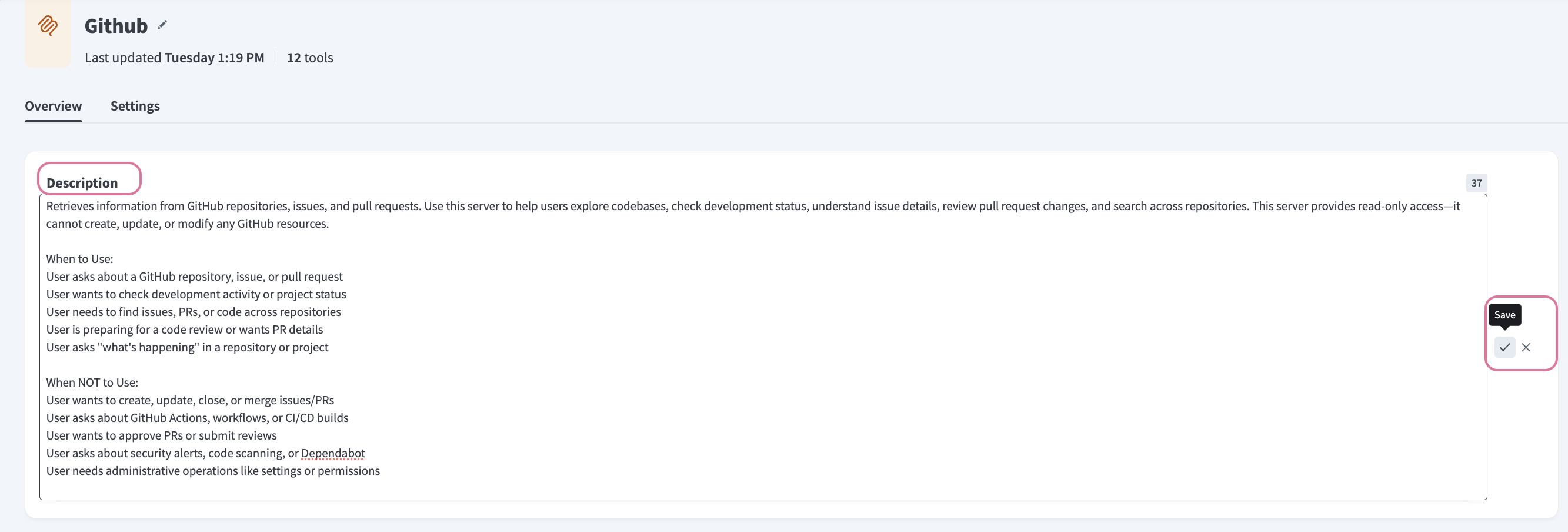 Update the LLM-facing description
Click the save icon.
Start tools
You must start MCP tools you plan to make available to AI models.
Complete the following steps to start tools:
Sign in to your Workato account.
Go to AI Hub > MCP servers.
Select the MCP server where you plan to start tools.
Go to the Tools section and select the checkboxes for the tools you plan to start.
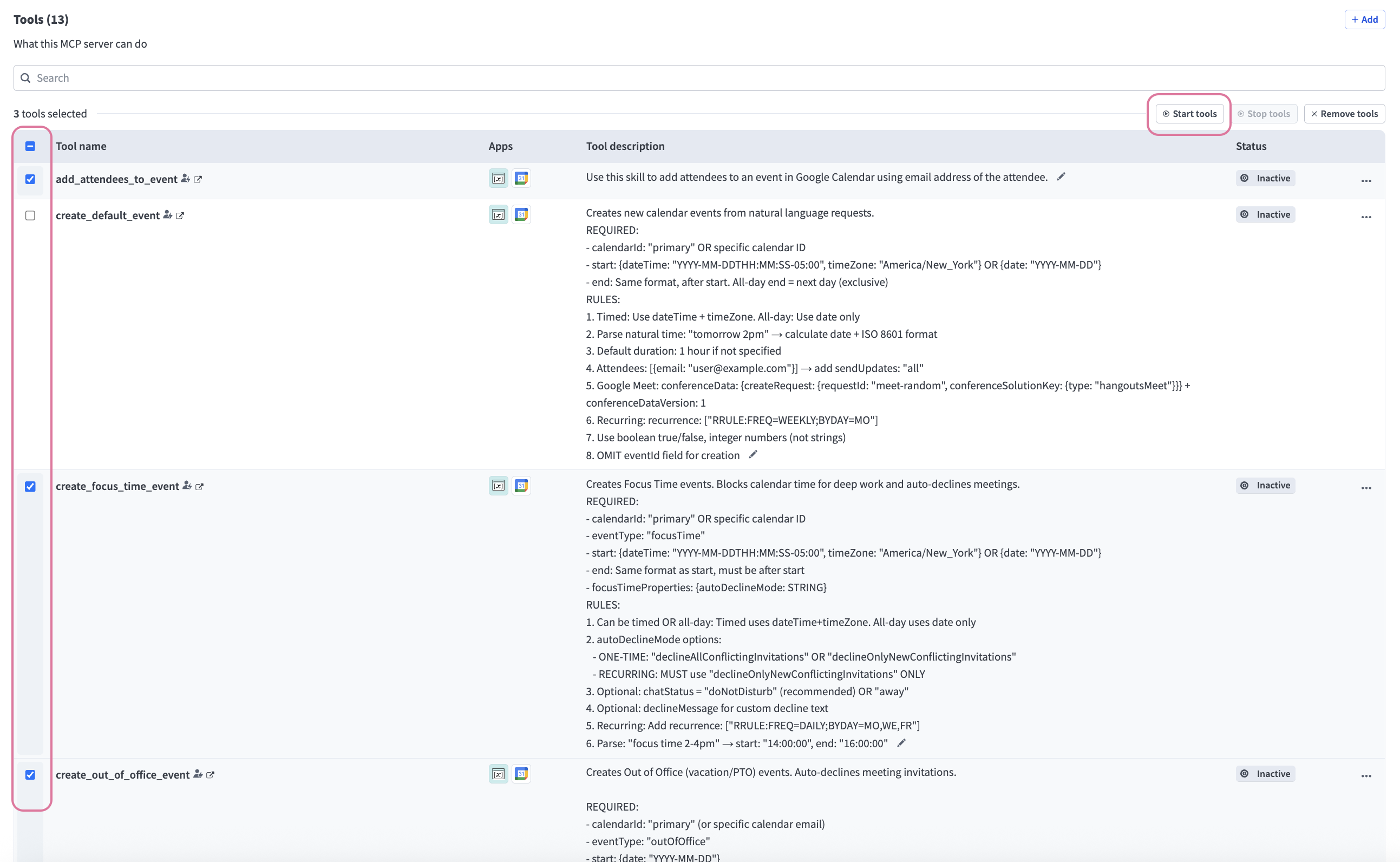 Select the checkboxes for the tools you plan to start
Click Start tools.
Remove tools
Complete the following steps to remove tools from an MCP server:
Sign in to your Workato account.
Go to AI Hub > MCP servers.
Select the MCP server where you plan to remove tools.
Go to the Tools section and select the checkboxes for the tools you plan to remove.
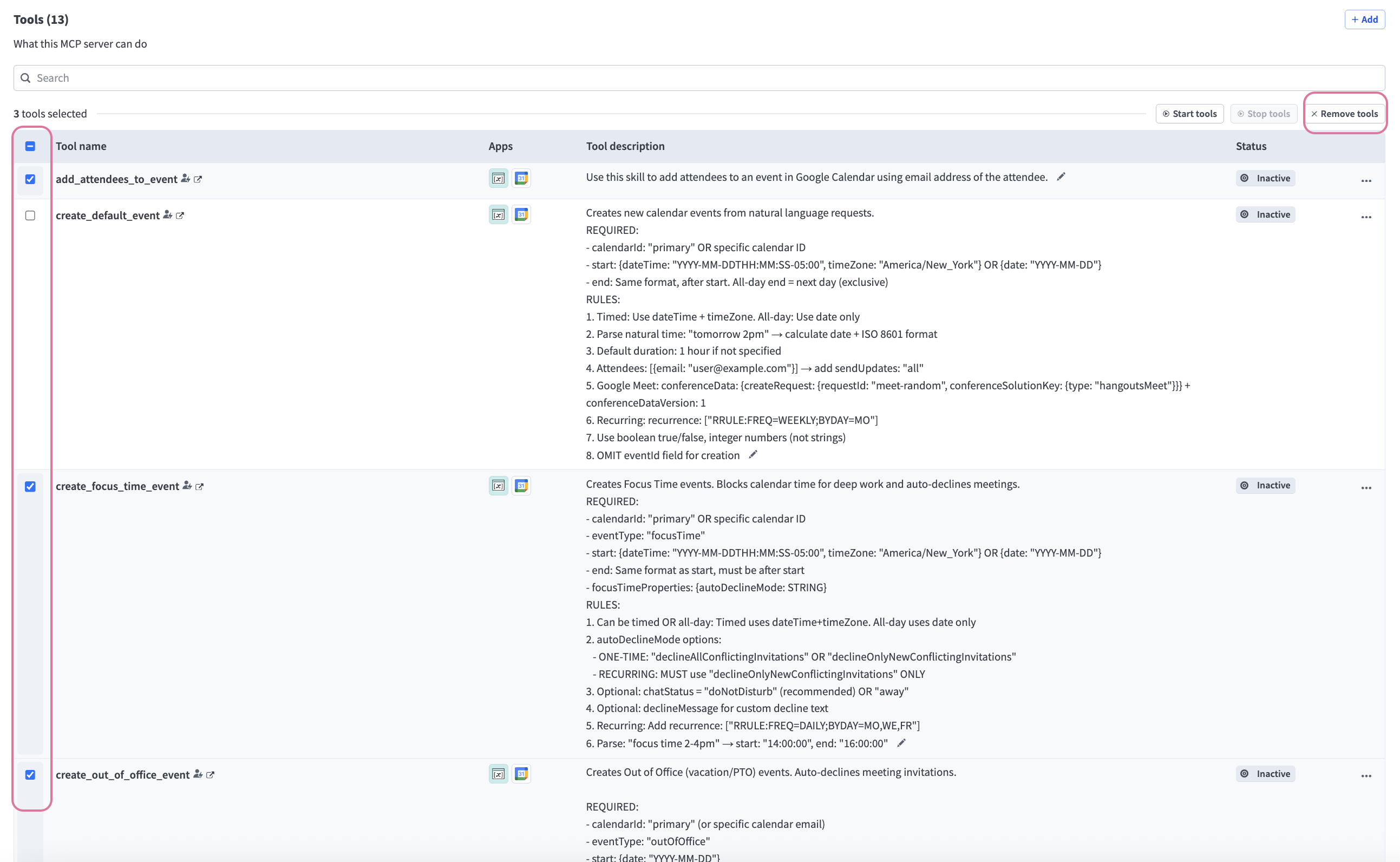 Select the checkboxes for the tools you plan to remove
Click Remove tools.
Edit tools
You can customize tools in your MCP server template within the recipe editor. You can add and edit actions, inputs, result schemas, error handling logic, and more. Refer to MCP server tool design and Recipe design for more information.
Complete the following steps to edit an MCP server template tool:
Sign in to your Workato account.
Go to AI Hub > MCP servers.
Select the MCP server where you plan to edit tools.
Go to the Tools section and click the tool name you plan to edit. The recipe editor opens with the configured recipe.
 Click the tool name you plan to edit
Click Edit.
Update the recipe and click Save.
Test the changes to your tool.
Add tools
You can add customized tools using existing skills in your project or build a new skill to add as a tool.
Add new tools
You can design and create new tools with skills.
Complete the following steps to create and add tools to the MCP server template:
Sign in to your Workato account.
Go to AI Hub > MCP servers.
Select the MCP server where you plan to add tools.
Go to the Tools section and click + Add. The Add new tools modal displays.
Click + Create new tool > Add tools.
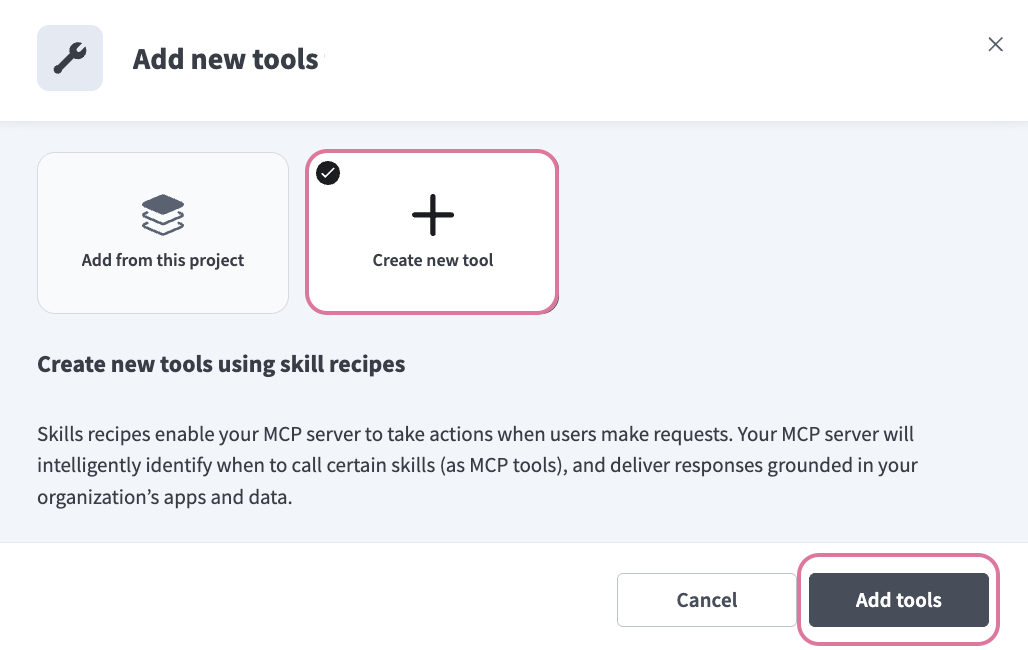 Click + Create new tool > Add tools
Provide a name for your skill in the Skill name field.
Use the Location drop-down menu to select a location for your skill.
Click Start building. The recipe editor opens with the Start workflow trigger and Return response action automatically selected.
Provide a description for your skill workflow in the When should your genie run this skill? field. The genie uses this description to decide when to trigger this workflow.
Go to the What inputs will your genie require to run this skill? section and click Use JSON or Add fields manually to provide a description of the schema recipe parameters.
Go to the Result schema section and click Use JSON or Add fields manually to provide a description for the recipe return value.
DEFINES THE RETURN RESPONSE GENIE STEP
The Result schema section defines the RETURN response for the genie step at the end of your recipe.
Click Select an app and action step in the recipe.
Search for and select the app you plan to use. A list of available actions for the app displays.
Select the action you plan to use.
Select the connection type you plan to use for the skill.
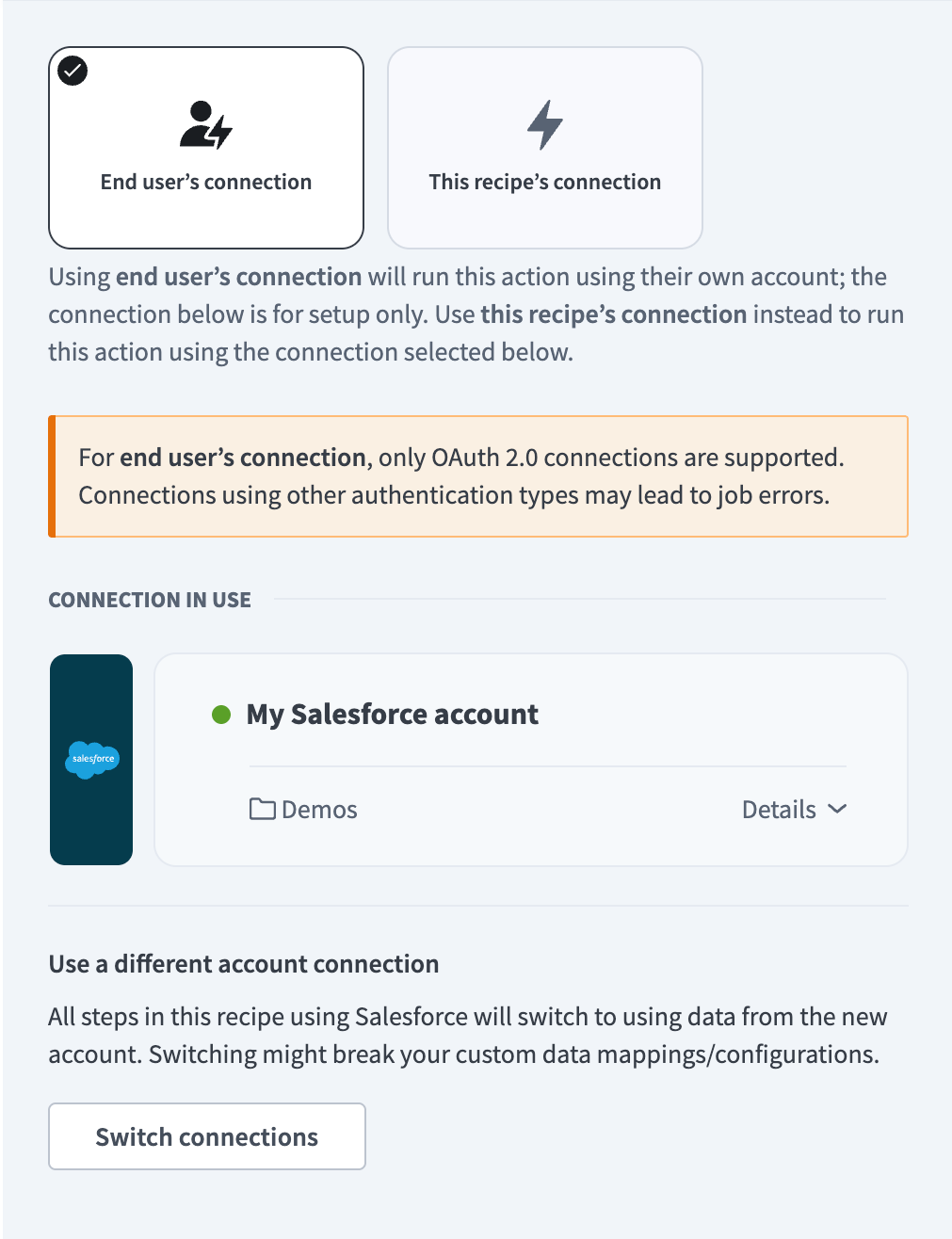 Choose a connection type
- End user's connection: Skills perform actions based on the identity and permissions of the user who connects to the application. Users authenticate with their own credentials to execute the skill.
- This recipe's connection: This option uses the connection established by the recipe builder and follows the same principles as normal app connections.
VERIFIED USER ACCESS AUTHENTICATION REQUIREMENTS
Only app connections that use OAuth 2.0 authorization code grant are available for user's connection. Refer to Verified user access for more information.
Provide a name for your connection in the Name field.
Use the Location drop-down menu to select the project where you plan to store the connection.
Provide information for all required app connection fields. Connection configuration fields vary based on the app you select.
Click Connect.
Test your recipe to ensure workflow compatibility with your genie.
Click Save.
Add existing project tools
Complete the following steps to add existing tools from your project to the MCP server template:
Sign in to your Workato account.
Go to AI Hub > MCP servers.
Select the MCP server where you plan to add tools.
Go to the Tools section and click + Add. The Add new tools modal displays.
Click Add from this project.
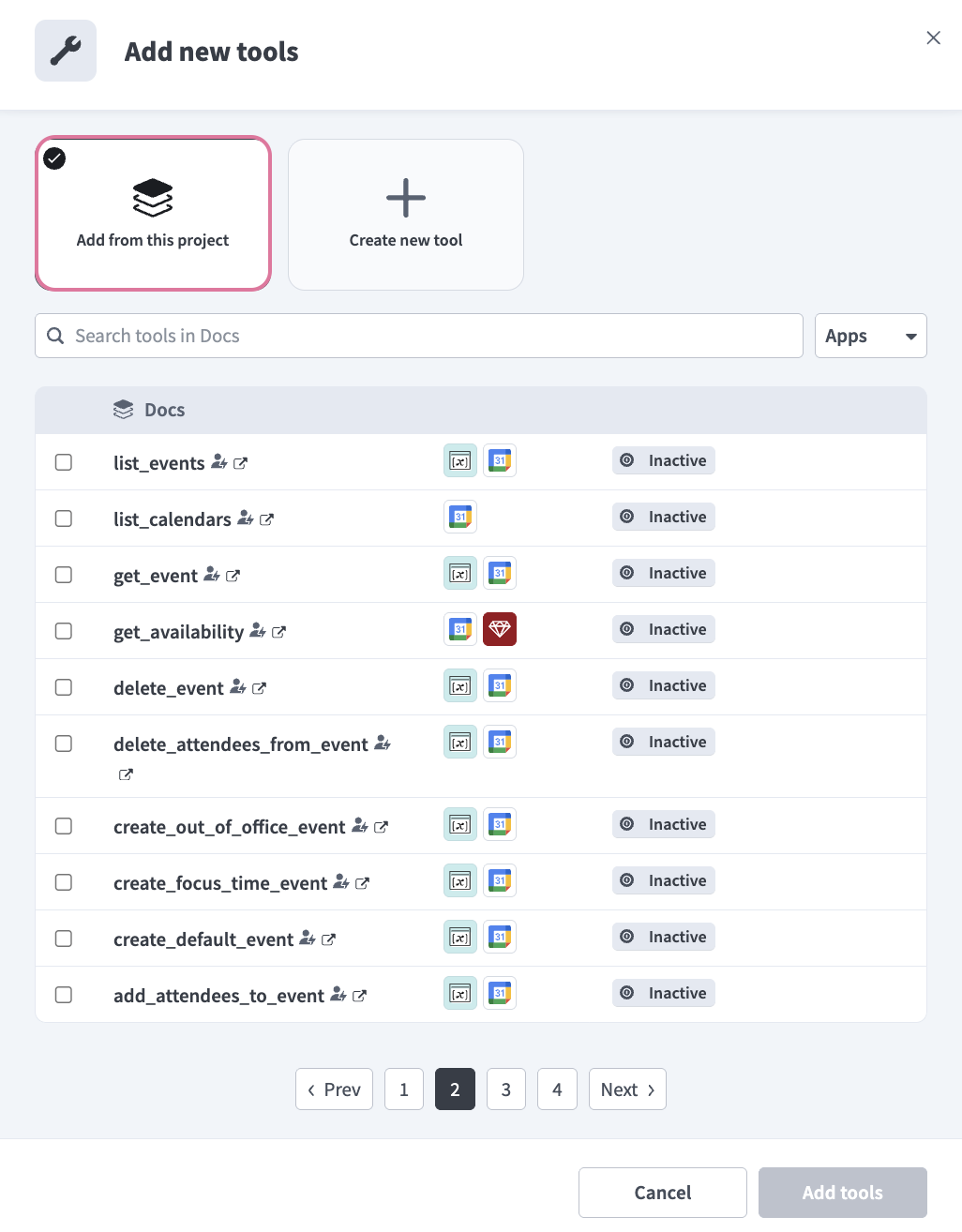 Click Add from this project
Select the checkboxes for the tools you plan to use.
Click Add tools.
Last updated: