App Events
App Events enable genies to act proactively by responding to triggers from external systems, such as Salesforce or Zoom, instead of waiting for a user to initiate a conversation. These events help embed genies directly into existing workflows and allow genies to anticipate user needs and offer assistance without being prompted.
App Events enable you to:
- Automate complex tasks that are difficult to define in recipes.
- Surface relevant tasks to users at the right time.
- Reduce user burden by helping organize, manage, and complete tasks.
- Increase genie effectiveness by giving it context earlier in the process.
Watch a quick video guide: Create an App Event in Agent Studio
For example, ITGenie receives a notification that a new request for NetSuite access was just approved for you by the IT team. ITGenie automatically processes this app event to determine if next steps are required.
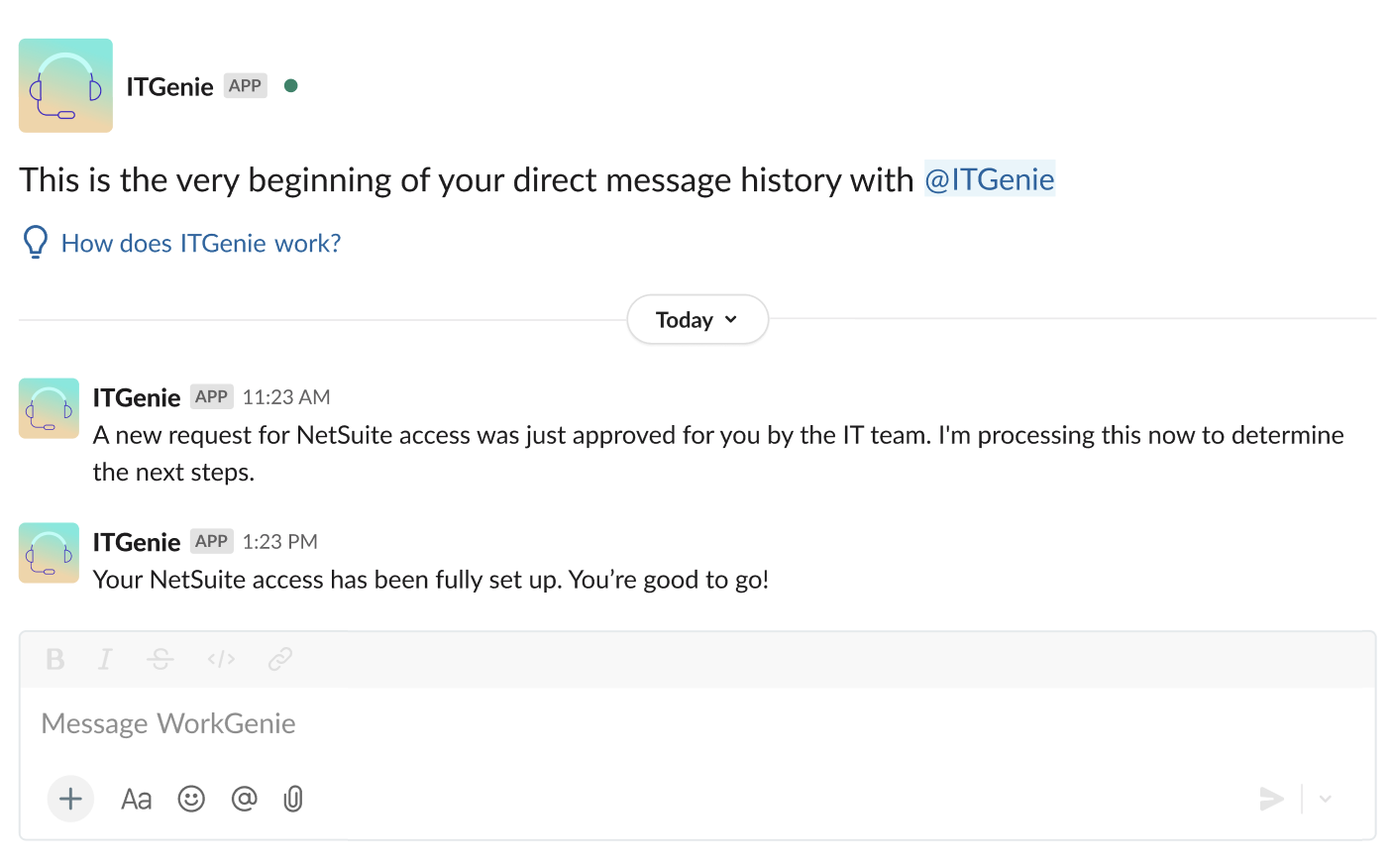 App event example
App Events conversations
App Events provides two modes. Continue Conversation mode lets users resume a conversation thread with a genie and New Conversation mode lets users start a fresh conversation with a genie.
Continue conversation
Continue conversation enables users to receive the new event information in the same thread where they originally interacted with the genie to maintain full conversational context. You must map the Conversation ID to a Data table with a skill that then passes the Conversation ID back to the genie to use this mode.
Use Continue conversation when:
- The event updates an item a user initiated through the genie, such as a ticket they created or a request they submitted.
- A user expects to receive updates in the same conversation window or thread where they started the interaction.
- Conversational context from the original session is relevant to how the user responds to the update.
Continue conversation with Conversation ID mapping
Create a Data table to store conversation IDs.
Create a Data table to store conversation IDs
This step creates a Data table to persist the genie's conversation ID against the third-party app identifier, such as a Jira ticket ID or a Telegram message ID. This allows the genie to retain context across multiple messages related to the event.
Go to the project where you plan to store your data table and click Create > Data table or press C+T.
Enter a name for your Data table in the Name field.
Use the Save in drop-down menu to select a location for your Data table.
Click Create > Data table or press C+T.
Add a column with a label to store the external business ID. For example: telegram-id
Add a second column with the label genie-conversation-id to store the genie's conversation ID.
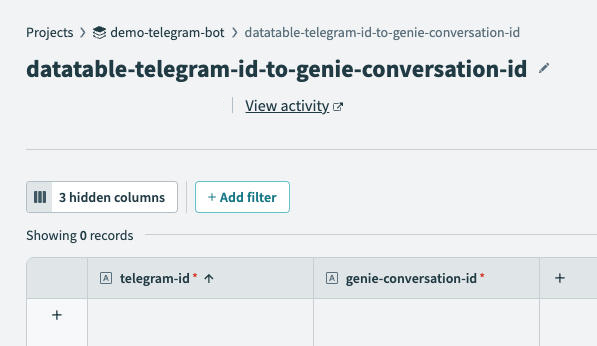 Add columns to your data table
Add a third column with the label email for the requester's email address.
Add a fourth column with the label Created at for the timestamp of the beginning of the conversation.
Click Save.
Add the Conversation ID to the recipe.
Add the Conversation ID to the recipe
This step adds a Workato Data tables Search records action that allows the recipe to refer to the Data table to determine if the external business ID, such as Telegram or Jira has a corresponding Conversation ID in the data table. An existing Conversation ID indicates that there's a previous conversation which the genie can refer to.
Return to the recipe editor and click + Add step.
Select Action in app, search for Workato Data Tables, and select it as your app.
Select the Search records action.
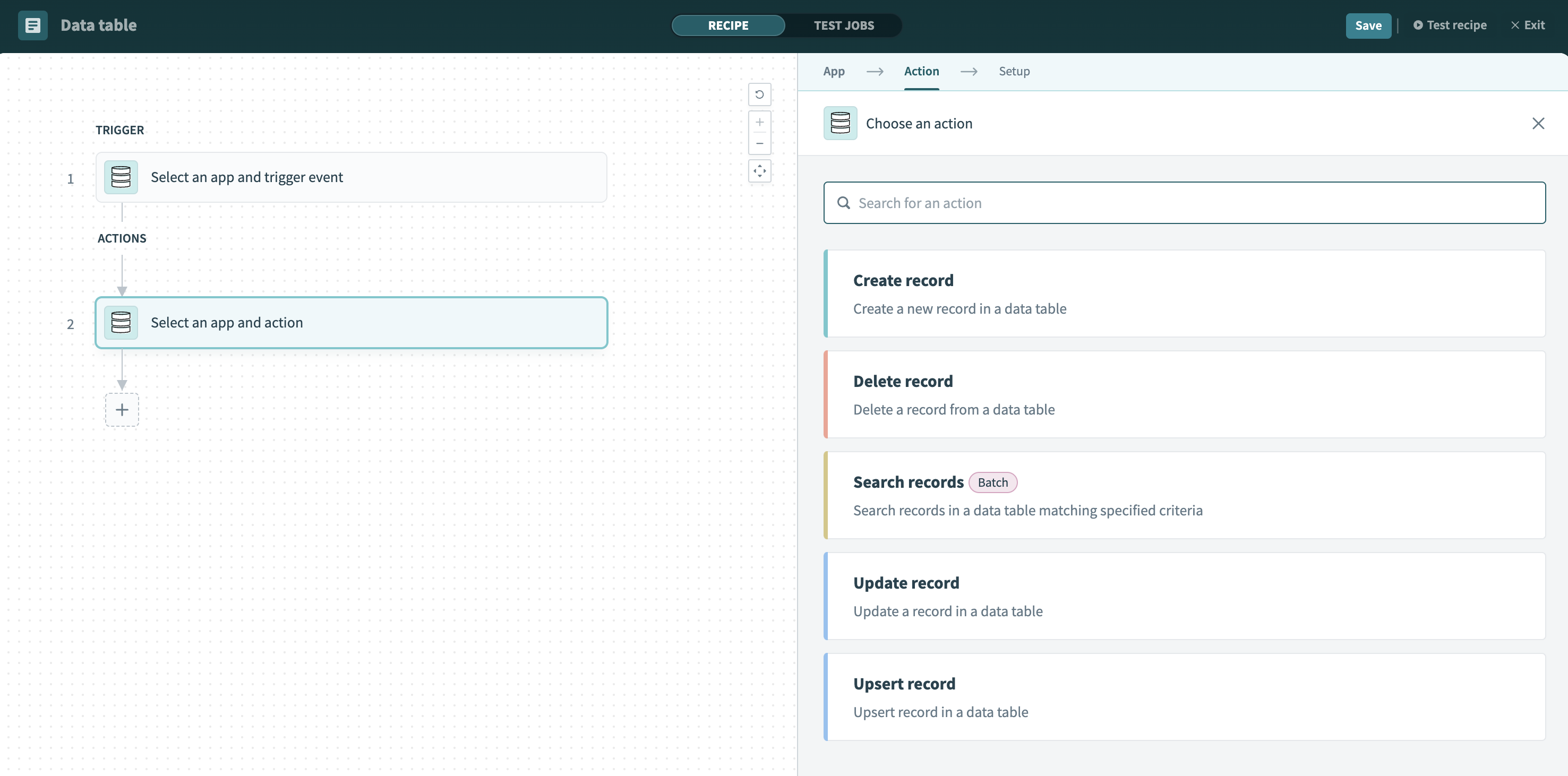 Select the Search records action
Use the Data table drop-down menu to select your newly created data table.
Go to the Filter section and click Add filter.
Use the Column name drop-down menu to select external business ID you configured in the preceding steps.
Use the Operand drop-down menu to select equals.
Map the IDStep 1 datapill to the Value field.
Click + Add step in the recipe editor.
Select Action in app, search for Workato Data Tables, and select it as your app.
Select the Upsert record action.
Use the Data table drop-down menu to select the data table you created in the preceding steps.
Use the Primary key drop-down menu to select the ID you configured in the preceding steps.
Go to the Record fields section and map the IDStep 1 datapill to the ID field you created in the preceding steps.
Map the Workato Genie Conversation IDStep 3 datapill to the genie-conversation-id field.
Click Save.
NO MATCHING CONVERSATION ID FOUND
Workato recommends that you design your recipe to either fall back to New Conversation mode or log and skip if no matching Conversation ID is found.
New conversation
New conversation starts a fresh genie conversation with a user receiving a new message in their chat interface with no prior context.
Use New conversation when:
- The event doesn't have a prior genie conversation associated with it.
- A user needs to be informed of an event that happened entirely outside of any prior interaction.
- The genie needs to initiate a new task with the user from scratch.
Create an app event
Complete the following steps to create an app event for your genie:
Sign in to Workato.
Go to AI Hub > Agent Studio. A list of your existing genies displays.
Select the genie where you plan to add an app event.
Go to App events and click + Add.
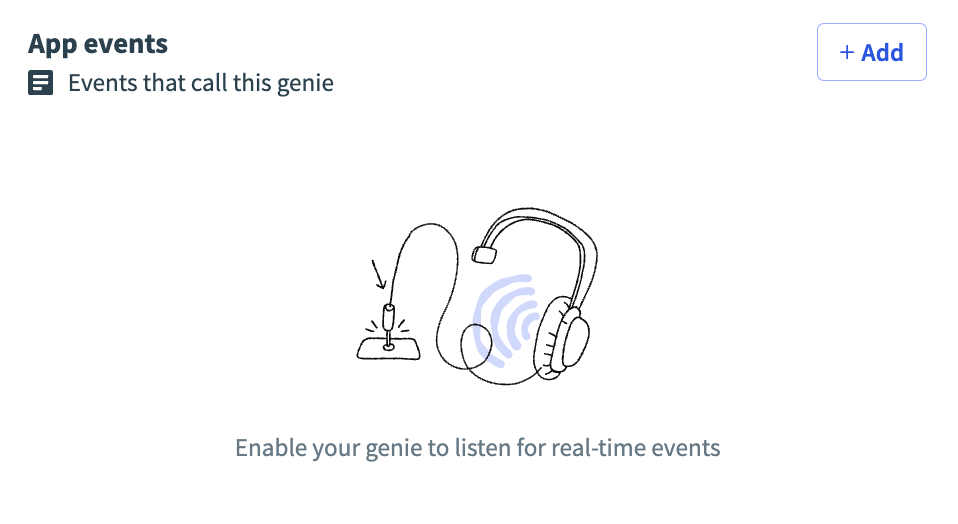 App events
Click Create app event.
Enter a name for your app event in the Name field.
Click Start building. The recipe editor opens with the Send business event action automatically selected. Refer to the Send business event action reference for a field-level description of inputs and outputs.
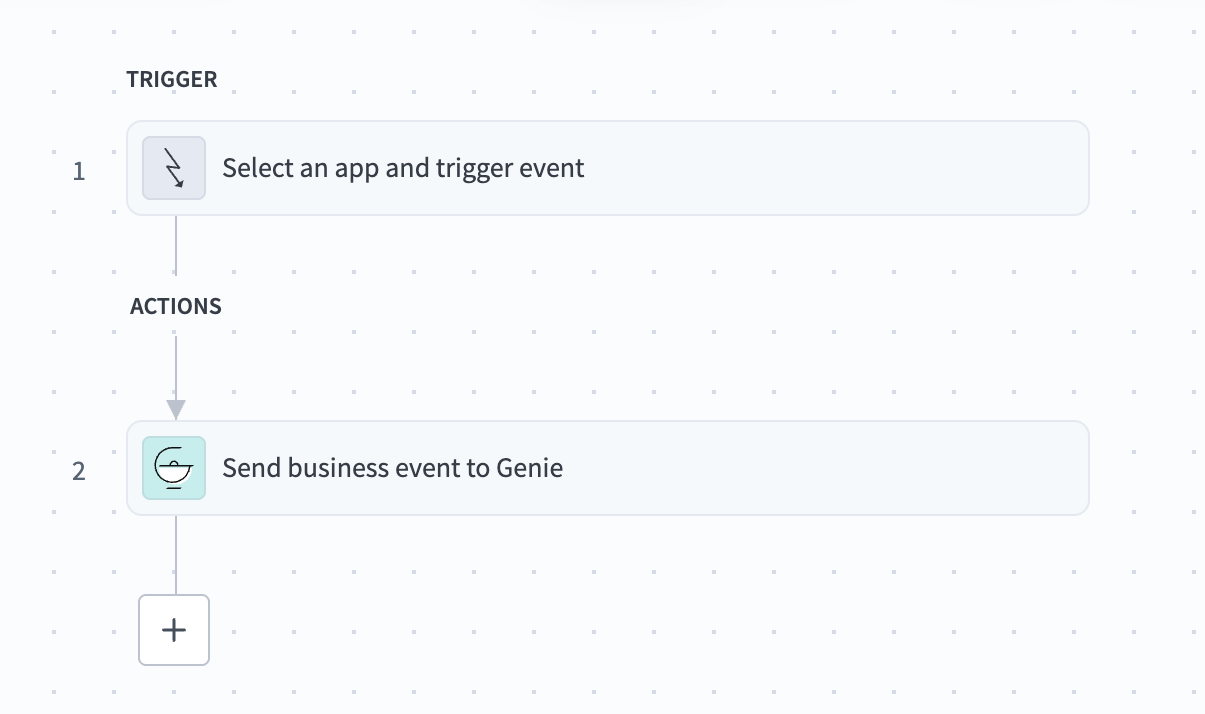 Send business event action in the recipe editor
Click the Send business event action.
Ensure that the correct genie is selected in the Genie field.
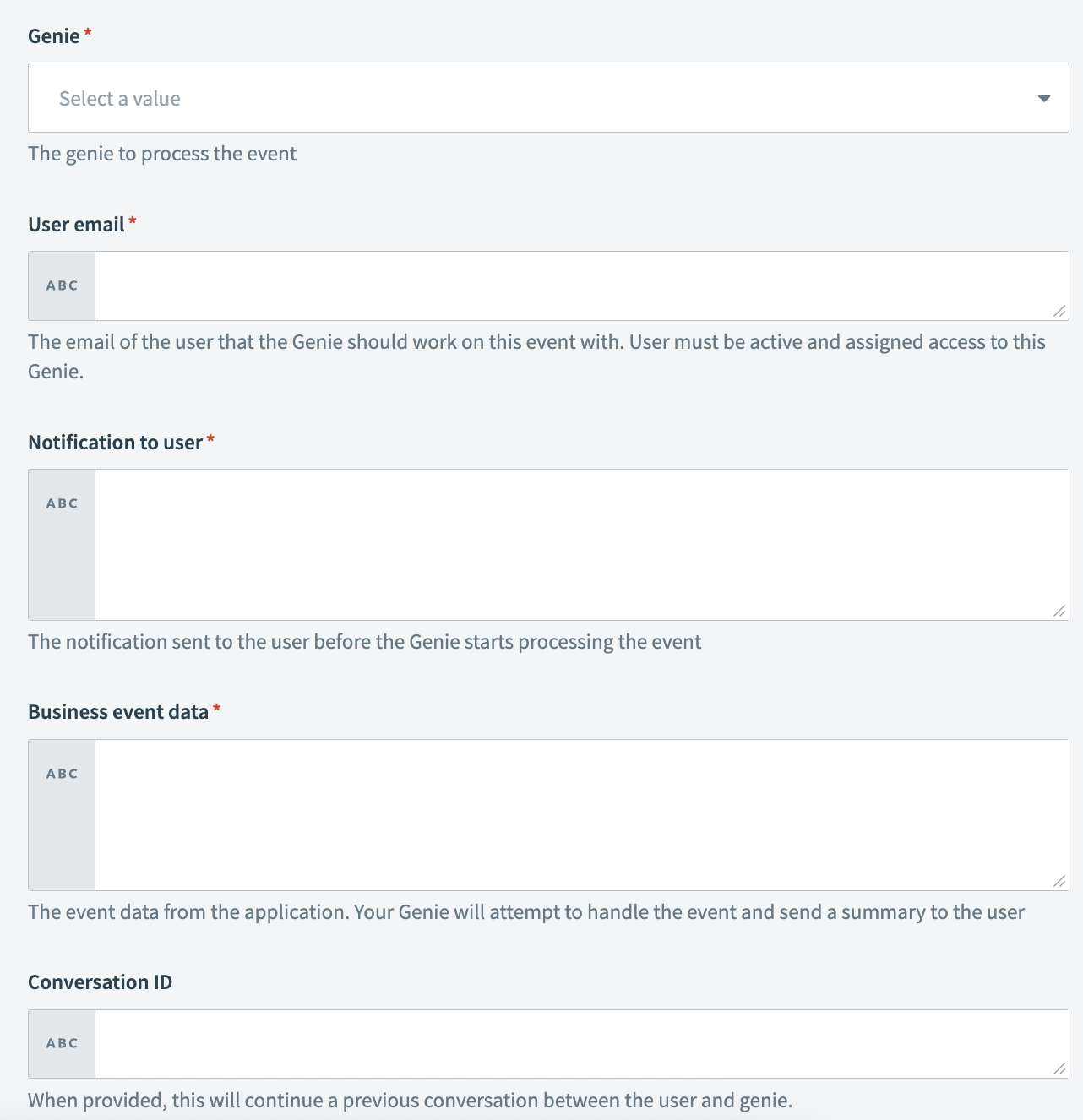 Send business event action setup
Enter the email of the user who should receive notification in the User email field.
USER ACCESS
The user you select must be active and have assigned access to this genie.
Go to the Notification to user field and enter the notification you plan to send before the genie starts processing the event.
Go to the Business event data field and enter a prompt to tell the genie what it should do. For example:
Complete the following steps to process this lead:

- Search Salesforce for leads and then create or update the lead.
- Search Salesforce for matching accounts. Create or update the account and attach the lead.
- Research the company and lead on the internet.
- Provide a summary for the SDR by adding it to the lead in Salesforce.
- Prepare an agenda for the prospective call for the SDR.Optional. Enter the conversation ID in the Conversation ID field if you plan to enable the genie to continue a previous conversation with the user.
Configure your trigger.
Test your recipe to ensure workflow compatibility with your genie.
Click Save.
App Events vs Assign task to genie
Use this section to determine whether App Events or the Assign task to genie action is the right tool for your use case.
Ask yourself: Does a user need to receive a message and potentially take action?
- Yes: Use App Events
- No: Use the Assign task to genie action
App Events require a user. The genie reaches out to a specific, identified user through the chat interface. The user receives the message, responds, and the conversation continues.
Assign task to genie doesn't require a user. The genie processes a task in the background by reasoning, calling skills, and returning a structured result to the recipe. No conversation thread is created.
When to use App Events
Use App Events when:
- A user needs to be informed and may need to take action. For example, a ticket they created was updated, or a renewal opportunity is approaching.
- User judgment is required mid-process. The genie presents context and options and the user decides.
- The downstream skill requires Verified User Access. Verified user access requires an active user session.
- The flow involves Business Approvals. Approval notifications surface in the user's chat interface and require user interaction.
- The genie needs to initiate a conversation proactively. For example, scheduled reminders or event-triggered alerts.
App Events can't return a structured value to a recipe. The recipe continues immediately after sending the event without waiting for the genie to finish.
When to use Assign task to genie
Use the Assign task to genie action when:
- Processing is automated and the result feeds back into the recipe. For example, classifying a ticket, summarizing a document, or extracting invoice data.
- No user is present or needed. For example, background jobs or system-to-system integrations.
- The genie's output is structured data, not a message to a user.
- Multiple genies need to collaborate in a pipeline. An orchestrating recipe can assign tasks to specialist genies in sequence, collecting structured outputs from each.
The Assign task to genie action can't be used with:
- Verified User Access because there's no user context in a headless invocation.
- Business Approvals because approval notifications are delivered through the user's chat interface.
- Permission-aware knowledge bases because knowledge bases ingested with user-scoped permissions don't enforce those permissions without a user context.
These are platform constraints, not configuration choices.
App Events and Assign task to genie comparison
Use the following comparison to determine which feature to use:
| App Events | Assign task to genie | |
|---|---|---|
| User required | Yes ✅ | No ❌ |
| Recipe pauses and waits | No ❌ | Yes ✅ |
| Structured output to recipe | No ❌ | Yes ✅ |
| Verified user access supported | Yes ✅ | No ❌ |
| Business Approvals | Yes ✅ | No ❌ |
| Conversational follow-up | Yes ✅ | No ❌ |
Combine both features
The most powerful architectures combine both features in sequence.
A recipe uses Assign task to genie for automated reasoning, such as classifying a ticket or evaluating escalation criteria. The structured result allows the recipe to use App Events to notify the relevant user and start a conversation. The reasoning is automated while the decision is determined by a user.
Common mistakes
Using App Events where Assign task to genie should be used: A builder needs to classify incoming support tickets automatically. The builder uses App Events to send each ticket to an agent and wait for a classification response. This creates a conversation thread for every ticket and fills agents' chat interfaces with genie messages. The Assign task to genie action, which doesn't require user involvement, should be used in this case.
Using Assign task to genie where App Events should be used: A builder needs to notify sales reps when a renewal opportunity approaches. The builder uses the Assign task to genie action to process the renewal event and return a summary as a datapill. The sales rep never receives the notification because the Assign task to genie action doesn't start a conversation in the chat interface the way App Events do.
Use case recommendations
Refer to the following use case recommendations to help you choose the correct feature for your workflow:
| Use case | Feature | Reason |
|---|---|---|
| Categorize tickets from an email webhook | Assign task to genie | Automated output with no user interaction required |
| Notify a sales rep of a renewal 30 days out | App Events | Rep needs to receive the message and may act |
| Summarize a contract and extract key clauses | Assign task to genie | Automated output feeds downstream recipe |
| Alert an IT engineer about a P1 incident | App Events | Engineer decides whether to escalate |
| Evaluate whether a ticket meets escalation criteria | Assign task to genie | Automated reasoning with output that feeds conditional logic |
| Notify a user their ticket was updated | App Events | Specific user needs to receive a message |
| Generate a weekly pipeline summary per rep | App Events | Each rep receives a personalized message in the chat interface |
| Extract structured data from an invoice PDF | Assign task to genie | Automated extraction with structured output to recipe |
Best practices
Workato recommends the following best practices to ensure that genie workflows are tuned to meet your goals:
Use Event streams for high-volume processing
Synchronous App Events are appropriate for most use cases where events arrive at a manageable rate and each event triggers a recipe that runs a Send App Event action directly.
Synchronous processing can create performance and cost risks for high-volume scenarios. You can decouple event intake from event processing using Event streams to improve performance.
Create an Event intake recipe.
Create an Event intake recipe in your project and name it using the following convention: Agentic | [Descriptive Name]. For example, Agentic | Jira Escalations. This recipe receives events from the external system rather than calling Send App Event directly.
Replace the Send App Event action with a Publish to Event Stream action.
This enables the recipe to receive events from the external system and publish each event to the Event streams topic without waiting for the event to be processed.
The Event streams topic stores published events in a persistent queue until consumed. Events queue in the topic rather than being lost if the processing recipe is slow or temporarily unavailable.
Create an Event processing subscriber recipe.
Create a second recipe in your project. Set the trigger to New event in Event stream and select the topic. This recipe subscribes to the Event streams topic in the first recipe, reads each event from the queue, and calls Send App Event with the appropriate genie and user.
Last updated: