# Troubleshoot Agent Studio errors
Use this document to troubleshoot Agent Studio errors you may encounter.
# Arithmetic errors
Genies sometimes produce unreliable results when performing mathematical calculations, particularly in the following scenarios:
- Multi-step arithmetic operations
- Calculations involving multiple numbers
- Financial computations requiring precision
- Expense validations and comparisons
For example, your genie evaluates expense compliance and incorrectly flags meal expenses as exceeding a $100 daily limit:
- October 28 = $13.69 total: Incorrectly flagged as exceeding $100 limit
- October 30 = $16.58 total: Incorrectly flagged as exceeding $100 limit
- October 31 = $29.74 total: Incorrectly flagged as exceeding $100 limit
This occurs because LLMs can struggle with precise arithmetic, especially when multiple calculations are required.
# Arithmetic error solution
Provide your genie with a Python code execution skill to handle mathematical operations reliably. This solution uses the following workflow:
- Genie identifies when mathematical calculations are needed
- Genie calls the Python execution skill
- Python performs the calculation with precision
- Genie receives and uses the accurate result
Complete the following steps to use a Python code execution skill:
Import and enable the prebuilt Python execution skill (opens new window) for your genie.
Test the skill to ensure it performs as expected with your workflow.
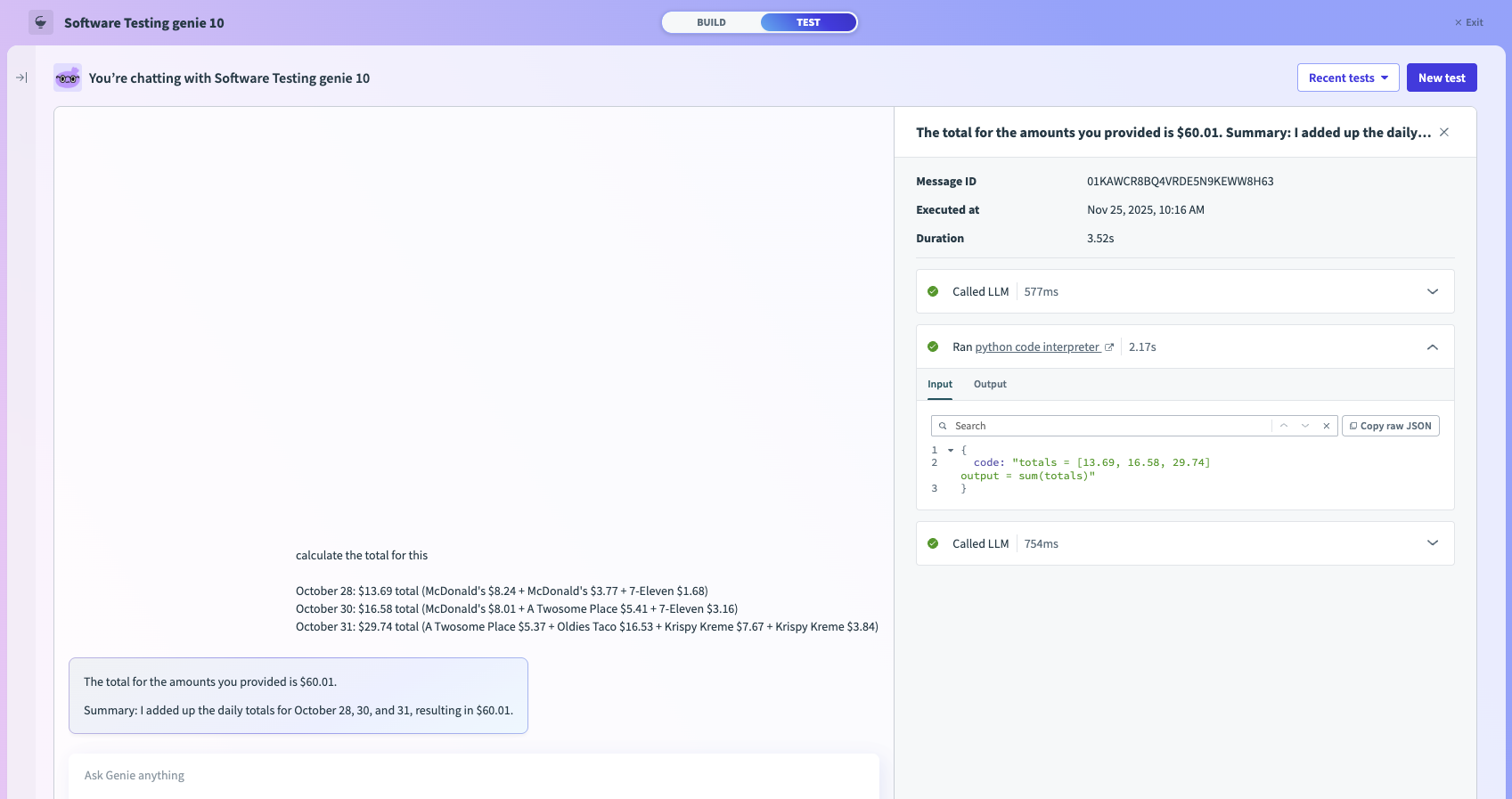 Python code interpreter
Adjust the prompt for your genie and skill as needed.
Alternatively, you can create a new Python execution skill with Python Snippets by Workato and refer to the prebuilt Python execution skill (opens new window) as a template.
# Genie is unresponsive in Microsoft Teams
Genies sometimes fail to respond or behave unexpectedly when deployed through Microsoft Teams, particularly in the following scenarios:
- The user who set up the Microsoft Teams connection doesn't receive a response from the genie
- A newly created Microsoft Teams app fails intermittently or stops working after initial setup
- The genie is unresponsive for some users even though other users can interact with it successfully
NOT COMPATIBLE WITH DEVELOPER PORTAL
Don't use the updated Developer Portal when setting up Microsoft Teams Bot connections. Using the Developer Portal can cause the issues described in this section. Use the earlier Developer Console to set up your connections instead.
# Genie doesn't respond to the user who set up the connection
This behavior is caused by a Microsoft Teams admin portal issue. The Microsoft Teams app must be fully configured and propagated before it's installed into the end user client app.
If the app is installed before setup is complete, it remains unresponsive for the user who set it up. This behavior persists after the app is published and other users can interact with it successfully. You must fully reinstall your app to resolve this issue.
This problem occurs because the bot creator added the Teams app before the proper personal-scope installation flow was complete. Microsoft Teams never created a valid 1:1 conversation between the creator and the bot as a result. This prevents the bot from sending welcome messages, OAuth cards, and responses to messages.
MICROSOFT TEAMS BOT INSTALLATION
This issue is caused by how Microsoft Teams handles bot installation, not by Workato code. Users are viewed identically in the Notification Service. This means there isn't a way to distinguish the bot creator from other users.
# Genie doesn't respond to builder solution
Complete the following steps to reinstall the Microsoft Teams app and resolve this issue:
Confirm the app is fully configured and propagated in the Microsoft Teams admin portal.
Remove the existing Microsoft Teams app from the end user client app.
Reinstall the app through the proper personal-scope installation flow.
Test the genie to confirm it responds as expected.
# New Microsoft Teams app fails intermittently
A newly created Microsoft Teams app may fail or become unresponsive intermittently. These failures can have multiple root causes and may vary from case to case.
# Microsoft Teams intermittent failures solution
There are two general approaches to resolve intermittent failures:
- Repair the Microsoft Teams genie: Use this approach as the less disruptive option.
- Perform a full reinstall of the Microsoft Teams genie: Use this approach if a repair doesn't resolve the issue.
Complete the following steps to repair or reinstall the Microsoft Teams genie:
Attempt to repair the Microsoft Teams genie using the repair option in your genie settings.
Test the genie after the repair to confirm whether the issue is resolved.
Reinstall the Microsoft Teams genie if the repair doesn't resolve the issue.
Test the genie again to confirm it responds as expected.
You can switch to the earlier Developer Console to create a new bot and attach it to your existing app if neither the repair nor the reinstall steps resolve the issue.
# Genie invocation errors
Your genie may not perform as expected in your workflow. Read the conversation where the failure occurred before you make changes. Test mode and the Conversations page both show you the full thread, including which skills were called, what inputs were passed to them, and what the knowledge base returned. This is your primary diagnostic tool.
Work through the conversation turn by turn and review:
- The point where things went wrong
- What knowledge did the genie have access to
- What did it decide to do
- What happened when it executed a skill or searched a knowledge base
A failure in production may not be reproducible in Test mode. Go to AI Hub > Conversations, locate the conversation, and read it in full. The skill invocations and knowledge base queries include the same information as Test mode.
# Genie doesn't call a skill
You ask to do something the genie has a skill to perform, such as submit a leave request, create a ticket, or fetch an account, and the genie responds with a text answer instead of taking action, or says it can't help with that request.
This occurs because the genie doesn't recognize that the request maps to the available skill. This happens for one of three reasons:
Skill description is too vague: The genie won't make the association to the skill if the When to Use section of the skill prompt doesn't clearly connect the skill to the types of requests users actually make.
Job description doesn't mention the skill's use case: The genie won't call anything if the Job description categorizes the request differently from how the skill is described. The Job description's use case categories and the skill's When to Use section must be consistent and describe the same trigger condition in compatible language.
Skill hasn't been assigned to the genie: Check the Skills tab in your genie configuration. The genie has no knowledge the skill exists if the skill isn't listed in your genie configuration.
# Skill not called solution
Start with the Skill description. Make the When to Use section more specific and more directly connected to end-user intent. Then check that the Job description's instructions for the relevant use case category explicitly reference what the genie should do, including invoking the skill by intent, not by name.
| ❌ Not recommended | ✅ Recommended |
|---|---|
Use this skill to process HR requests. | Use this skill when the user confirms they want to submit a leave request and all required fields — leave type, start date, and end date — have been collected. |
Handle leave-related requests. When to use: when the user asks about leave. | Job description: When the user wants to submit a leave request, collect the required fields and invoke the Submit Leave Request skill. When to Use (skill): Use this skill when the user confirms they want to submit a leave request and all required fields have been collected. |
# Genie calls the wrong skill
Your genie may invoke the wrong skill, such as calling a read skill instead of a write skill. Alternatively, your genie may call a skill when another skill would be more appropriate for the request.
This occurs because the genie is making a best-guess decision between skills whose descriptions overlap or don't have a clear distinction. Your genie chooses between skills that could plausibly apply to the same request, and may pick the wrong skill. This is one of the most common failures when a genie has more than two or three skills that don't have differentiated descriptions.
# Wrong skill called solution
The When NOT to Use section of each skill's description is what distinguishes skills from each other. Add explicit When NOT to Use clauses that reference the other skill directly if two Skills are being confused by your genie. Making the boundary between skills explicit in both directions prevents the genie from guessing.
You should also check whether the job description's use case categorization is working as expected. Verify the category instructions are specific enough to route correctly to help the genie identify the request category before deciding which skill to use.
| ❌ Not recommended | ✅ Recommended |
|---|---|
Use this skill to handle leave requests. | Use this skill when the user wants to check their leave balance or view existing requests. Do not use this skill if the user is asking to submit a new leave request — use the Submit Leave Request skill instead. |
Do not use this skill for read requests. | Do not use this skill if the user is asking to view, check, or retrieve information — use the Get Leave Balance skill instead. Use this skill only when the user has confirmed they want to submit a new leave request and all required fields have been collected. |
# Genie calls the right skill but passes wrong inputs
The skill is invoked correctly but the inputs are wrong, such as a date in the wrong format, a leave type value that doesn't match the HR system's expected values, or an email address taken from the conversation rather than from the authenticated user context.
This occurs because the field hints on the skill inputs aren't specific enough. The LLM populates input fields based on the hint you've written. A vague hint forces the LLM to make a reasonable guess, and reasonable guesses are often wrong in ways that matter. Common examples:
- A date field hint that says
the start datewithout specifying the format produces dates in whatever format the LLM thinks is sensible, which may not match what your API expects. - A user identifier field that doesn't specify
use the authenticated user context, not what the user typed in chatsometimes pulls the email from the conversation instead of from SSO.
# Wrong inputs solution
Rewrite the field hints to be more prescriptive. Specify the exact format for dates. Specify valid values for enumerated fields. Explicitly state the source for identity fields. Values that come from a previous skill's output, such as a leave type ID returned by a Get Leave Balance skill, must include a hint that specifies this explicitly.
| ❌ Not recommended | ✅ Recommended |
|---|---|
The start date of the leave request. | The start date of the leave request. Use the format YYYY-MM-DD, for example 2025-11-04. Do not use any other date format. |
The user's email address. | Use the user email from the authenticated user context passed in the skill trigger. Do not use any email address mentioned in the conversation. |
The leave type ID. | Use the leave type ID returned by the Get Leave Balance skill, not the leave type name the user provided. |
# Knowledge base returns irrelevant results
Your genie searches a knowledge base and retrieves content that isn't relevant to your question, then uses that content to produce an inaccurate or unhelpful answer. Or your genie retrieves nothing at all and tells you it doesn't have the information even though the information is in the knowledge base.
Complete the following steps to ensure your genie returns the correct results:
Review your knowledge base description to determine if it's too broad or vague.
Your genie may not search a knowledge base if the description doesn't clearly communicate what information it contains. Provide clear guidance to help the genie understand what information the knowledge base contains. Or your genie may search a knowledge base that doesn't contain the information it's searching for.
| ❌ Not recommended | ✅ Recommended |
|---|---|
company documents | HR leave policies, eligibility criteria, leave type definitions, and accrual rules - use for questions about leave policy and entitlements |
Check your content chunk sizes.
Your content chunks may be too large. Ingesting large documents as single entries can cause the genie to retrieve a fragment that contains the answer buried within a large block of text, or it may not contain the answer at all because the vector search matched on adjacent content. Re-ingest the content with smaller chunking, such as one policy section per entry, and one FAQ item per entry. Refer to Knowledge base document preparation for more information.
Check your knowledge base for missing content.
Confirm that the content is in the knowledge base before assuming you have a retrieval problem. Check the knowledge base entries and search for the specific terms from your query. Missing content means the ingestion recipe may have missed it. Check the recipe job history for errors.
# Knowledge base results solution
Review and update the knowledge base description. This often has the most impact on improving information retrieval. Then check the ingestion if the updated description doesn't fix the problem and re-chunk the content. This requires re-running the ingestion recipe, which takes time but produces significantly better retrieval for large sets of documents.
# Genie ignores instructions in the Job description
This occurs because the instruction is either too vague, key information is buried in a section the LLM doesn't prioritize, or the description contains conflicts with overlapping instructions. LLMs don't treat all instructions equally. Don't use weak phrasing. You should phrase this as a rule, such as always confirm before submitting Instructions buried in the middle of a long, dense Job description are also less reliably followed than instructions in clearly labeled sections. The LLM resolves conflicting instructions in its own way, which may not be the one you intended.
# Ignored instructions solution
Strengthen the language of important instructions. Use always and never rather than try to and avoid. Move critical rules to clearly labeled sections at the top of the relevant use case category. Check for conflicting instructions and resolve rules and instructions. An instruction should be reinforced in the relevant skill description.
| ❌ Not recommended | ✅ Recommended |
|---|---|
try to confirm before submitting | always confirm before submitting |
avoid submitting without user confirmation | never submit without user confirmation |
# Genie provides correct answers with poor formatting
The content is correct but the presentation is wrong, such as walls of text when you requested a bullet list, missing line breaks, inconsistent formatting between responses, or responses that are much longer or shorter than expected.
This occurs because the response style section of the Job description is either missing, too vague, or not specific enough about the expected format for different types of response.
# Formatting solution
Add or expand the response style section of the Job description. Be specific about format expectations for each response type and include an example if the format is complex so the LLM can follow an example more reliably than a description.
| ❌ Not recommended | ✅ Recommended |
|---|---|
For policy answers, respond clearly. For leave request summaries, list the fields. | For policy answers, respond in two to three sentences with the key point first, followed by a citation of the source document. For leave request summaries, use a bullet list with one line per field, for example: Leave type: Annual leave / Start date: November 4 / End date: November 8 / Total days: 5. |
# Genie works in Test mode but not in production
Everything works correctly with your genie in Test mode but fails or behaves differently when end users interact with the genie in Slack, Microsoft Teams, or Workato GO.
# Test mode to production solution
Complete the following steps to check your configuration:
Check the Identity settings and permissions.
Test mode uses your builder identity. Production identity depends on whether skills use Verified User Access or not. This means that a skill that fetches data filtered to the requesting user, such as leave balances, open tickets, returns your data in Test mode and the end-user's data in production. The skill may return nothing or return an error if the real user's identity isn't passed correctly.
Check that Connections are configured correctly.
The skill recipe may be pointing at a sandbox environment in Test mode and a production system in production. Verify that the connections used by each skill recipe are pointing at the right environment for each context.
Verify that User group access is configured correctly.
The end user may not be in the user group assigned to the genie. Users receive no response or an access error when trying to interact with a genie they don't have access to. Check the End User Access tab and confirm the user's group is assigned.
Verify your Slack app permissions.
A genie deployed to Slack that can be invoked in some but not all channels may not have the correct channel permissions. Check the Slack app's channel permissions and confirm the bot has been added to the relevant channels.
# Genie doesn't work after you've tried everything
Two techniques tend to surface remaining issues if you have worked through the troubleshooting steps in the preceding sections and the genie is still behaving unexpectedly.
- Add explicit negative examples to the Job description: Sometimes the LLM needs to see a concrete example of what not to do rather than just an instruction. If the genie keeps doing something you have told it not to do, add a note in the Job description.
| ❌ Not recommended | ✅ Recommended |
|---|---|
Don't provide payroll information. | Don't respond to requests about payroll. If a user asks about salary, respond with: I can only help with leave-related queries. For payroll questions, please contact HR directly. Don't respond with information on salaries, bonuses, pay increases or other information related to compensation or payroll. |
- Simplify and rebuild: A long and complex Job description may contain conflicting instructions, redundant sections, and unclear priorities. Sometimes the fastest path forward is to strip the Job description back to the minimum, such as name, role, use case categories, and one instruction per category to confirm that the basics work. Add complexity back incrementally. Each addition tells you exactly what changed and whether it helped or broke something in your genie workflow.
Last updated: 3/31/2026, 3:48:21 PM