# Add a Google Calendar data source to Workato GO
You must configure Google Calendar to allow Workato GO to search for information.
# Prerequisites
The following prerequisites are required to add a Google Calendar data source to Workato GO:
- Enable APIs
- Create a custom admin role
- Create a service account in Google Cloud Console
- Add API scopes
# Enable APIs
Complete the following steps to enable your Google Calendar API:
Search for and select Admin SDK API and then click Enable.
REQUIRED FOR INDEX CRAWLING
You must enable the Admin SDK to allow index crawling.
Search for and select Google Calendar and then click Enable.
# Create a custom admin role
Complete the following steps to create a custom Super Admin role for your service account:
Go to the Google admin roles page (opens new window).
Click Create new role and name the role Workato AI.
Click Continue.
Go to Admin Console Privileges and select the following permissions:
- Users > Read
- Services > Drive and Docs > Settings
Go to Admin API Privileges and select the following permissions:
- Organizational Units > Read
- Users > Read
- Groups > Read
- Reports
Click Continue > Create Role. Google redirects you to a page where you can assign users to the Workato AI role you created in the preceding steps.
Click Assign members and then add a Google Workspace user. This user must have logged in at least once to the Google Workspace and accepted the Terms of Service.
Click Assign role.
Go to Data Source and enter the email of the user in the Directory admin email field.
Go to Advanced Settings and copy the Client ID.
# Create a service account in Google Cloud Console
Complete the following steps to create a service account:
Go to Google Service Accounts (opens new window) in Google Cloud Console and select an existing project or create a new project if one doesn't already exist.
USE THE SAME SERVICE ACCOUNT FOR YOUR GOOGLE APPS
You can use the same service account for the Gmail, Google Calendar, and Google Drive Workato GO data sources.
Click Create Service account and skip the optional steps.
Go to Advanced Settings.
Copy and store the OAuth 2.0 Client ID in a secure location. This value is required to complete your data source configuration.
Go to the Actions column for the service account and click the manage menu (three dots).
Click Manage keys. The Keys page automatically displays.
Click Add key > Create new key. The Create private key modal opens.
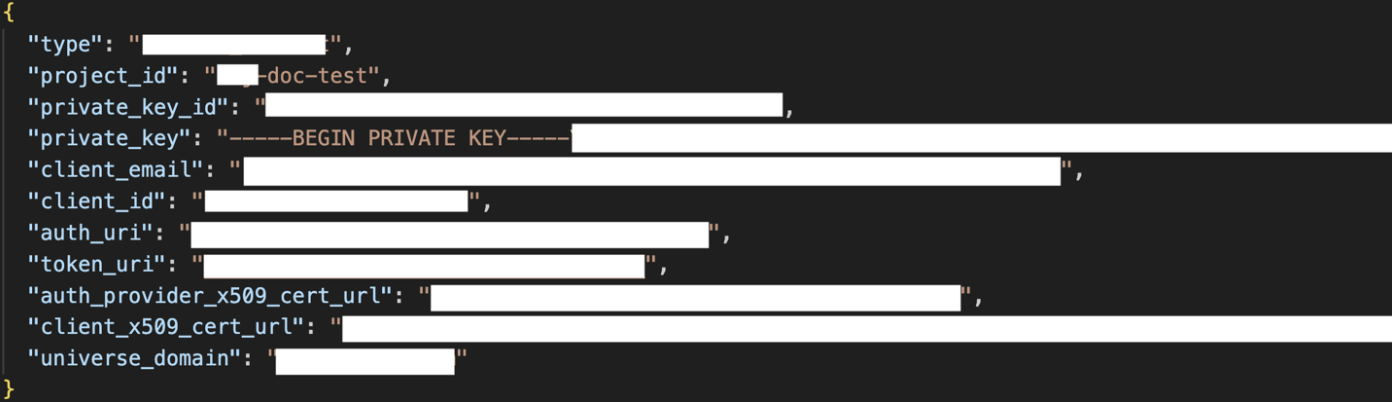
Select JSON and click Create. A JSON file automatically downloads to your computer. Store the file safely as its contents are required for the Service Account JSON section in the Workato GO platform.
# Add API scopes
Complete the following steps to add API scopes to your service account:
Go to Google Admin Console and sign in as an admin.
Go Menu > Security > Access and data control > API controls > Manage Domain Wide Delegation.
Click Add new and paste your client ID into the Client ID field.
Copy and paste the following values into the OAuth scopes (comma-delimited) field:
| Scope | Product | Description | Documentation |
|---|---|---|---|
| https:// www. googleapis. com/auth/ admin.directory .group.readonly | Admin SDK | View groups on your domain. | Admin SDK API Scopes (opens new window) documentation |
| https:// www. googleapis. com/auth/ admin.directory .user.readonly | Admin SDK | View information about users on your domain. | Admin SDK API Scopes (opens new window) documentation |
| https:// www .googleapis. com/ auth/admin.reports .audit.readonly | Admin SDK | View audit reports for your Google Workspace domain. | Admin SDK API Scopes (opens new window) documentation |
| https:// www .googleapis. com/ auth/calendar .readonly | Google Calendar API | View and download calendars you've been granted access to with Calendar. | Google Calendar API Scopes (opens new window) documentation |
Click Authorize.
# Add Google Calendar as a data source
Complete the following steps to add Google Calendar as a data source in Workato GO:
Sign in to your Workato GO account.
Expand the Admin menu in the sidebar and click Data sources.
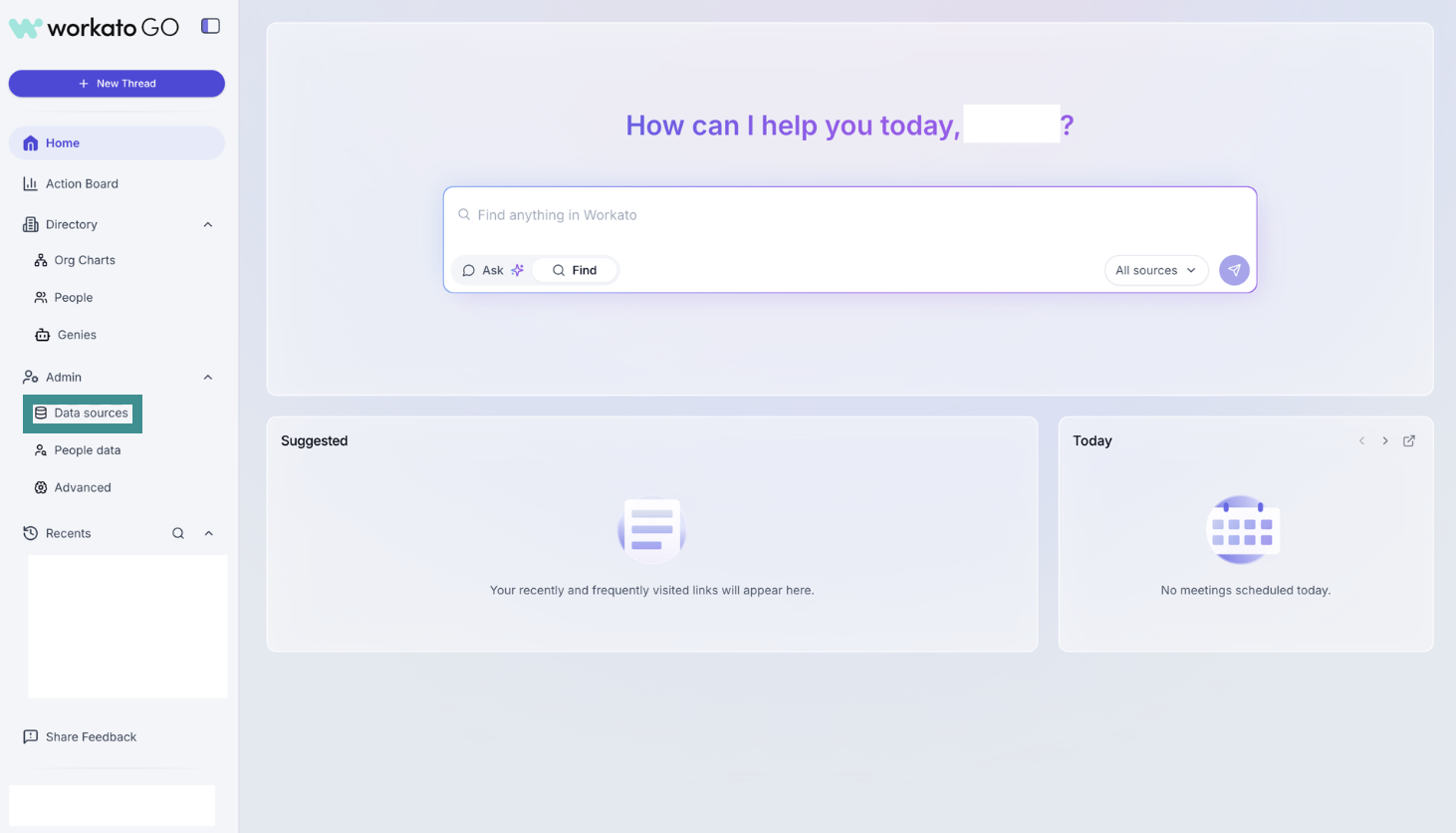
Go to Admin > Data sources
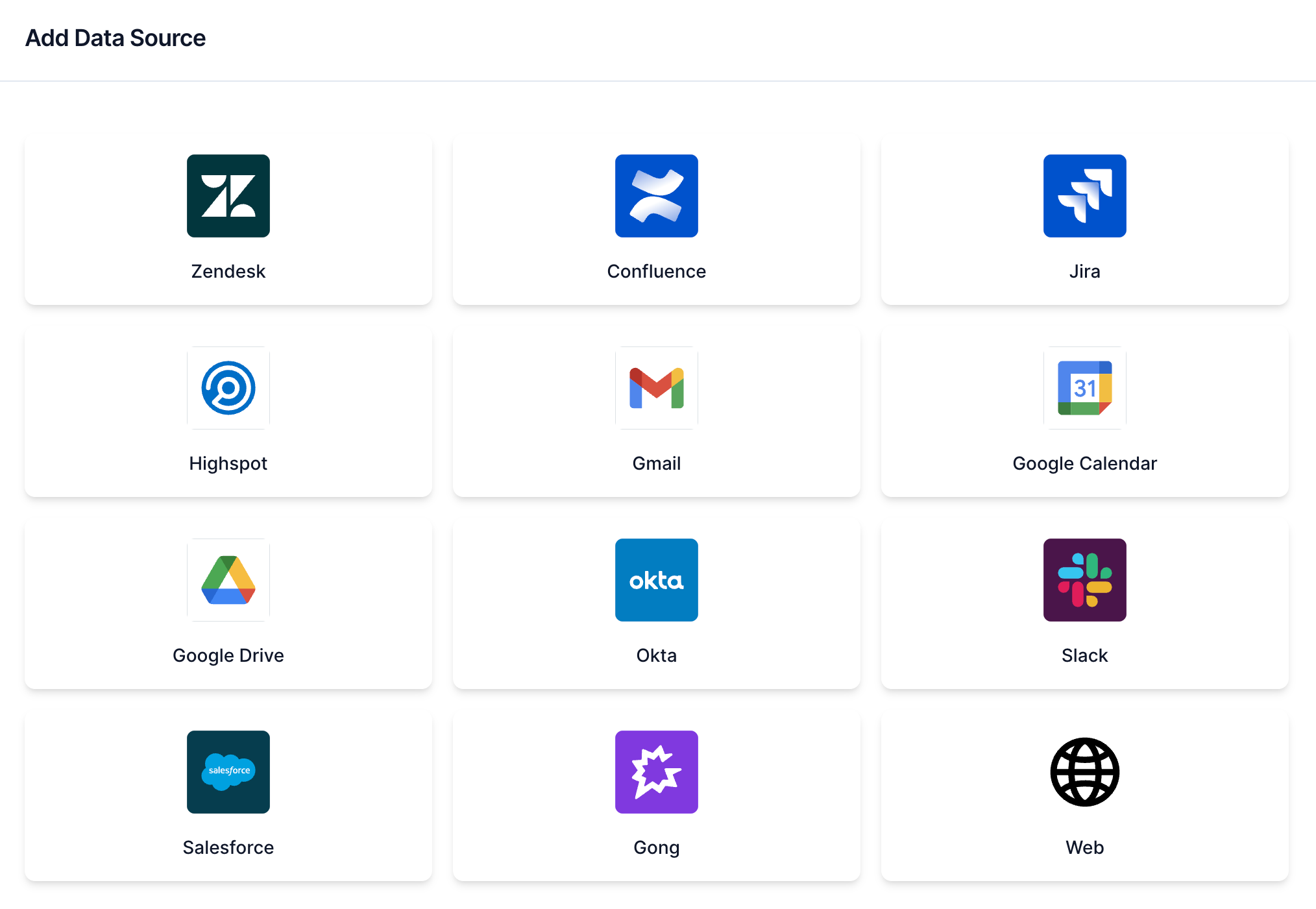
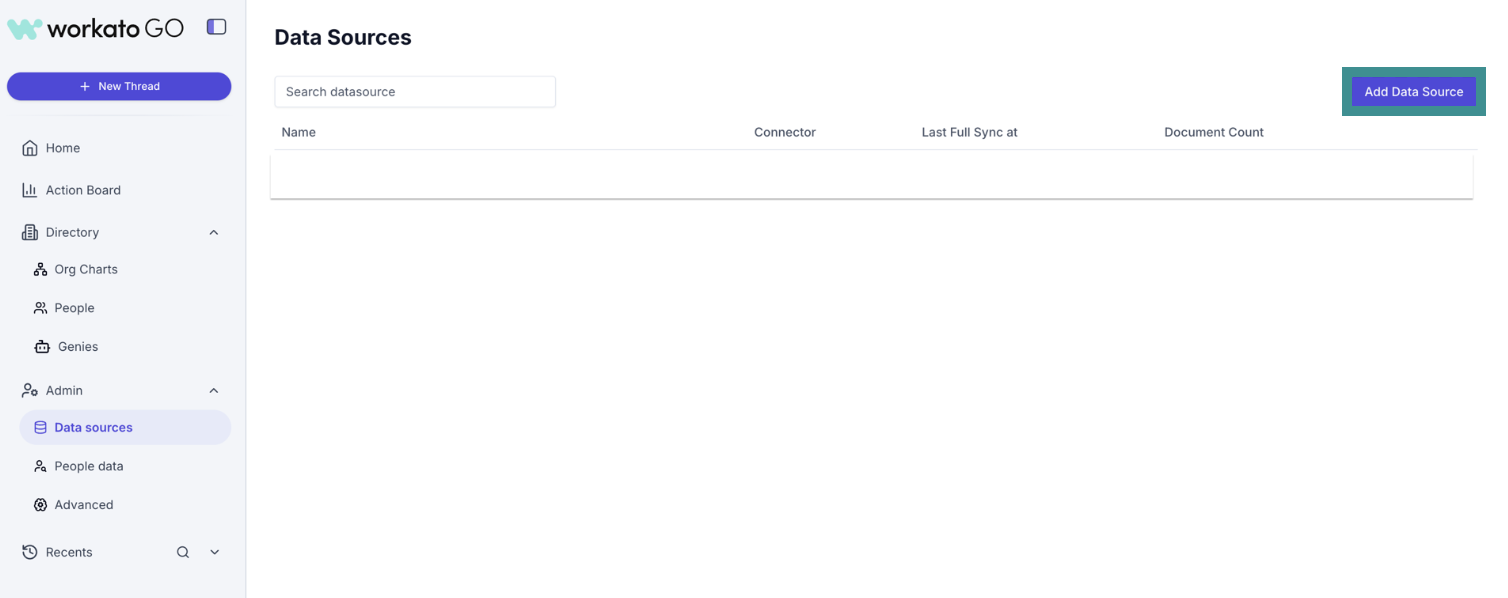
Click Add Data Source. The Add Data Source page displays.
Select the Google Calendar app.
Select Google Calendar
Enter a name for your data source in the Name field.
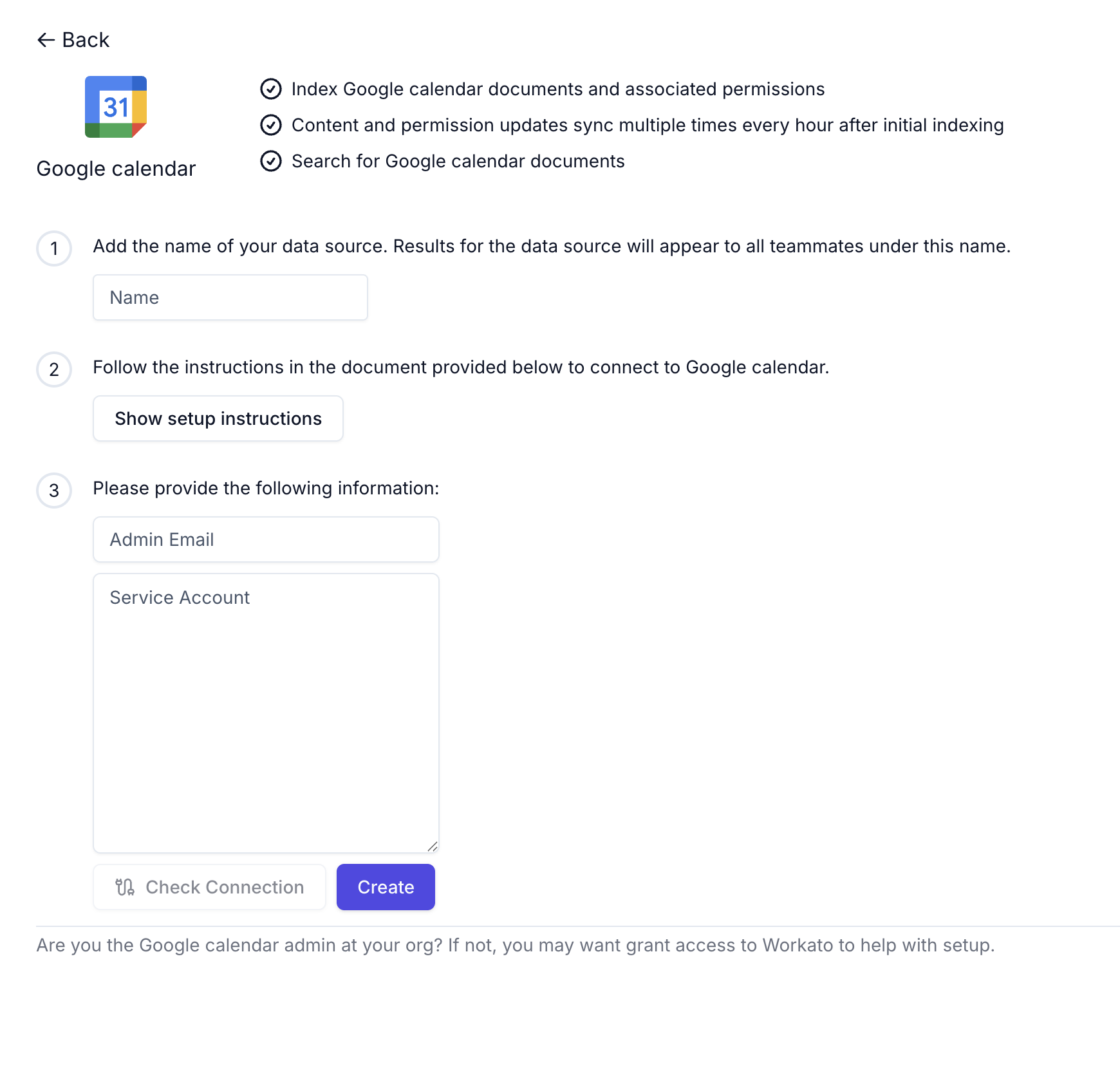
Enter the admin email associated with your account in the Admin Email field.
Go to the Service Account JSON field and paste your service account custom role JSON configuration.
Click Create. Your data source is now listed on the Data Sources page.
Last updated: 12/1/2025, 6:09:01 PM