# SAP Table Reader troubleshooting guide
Use this guide to troubleshoot issues when configuring or running pipelines with SAP Table Reader extraction.
# Authorization errors
This section describes issues related to missing or insufficient SAP user authorizations during extraction.
# Not authorized to access table/view
You may see the following error during extraction:
Not authorized to access table/view: <table/view name>
# Why it happens
This error occurs when the SAP technical user running the extraction lacks sufficient authorization to the specified table or view.
The required role or authorization object is missing or incorrectly assigned.
# How to troubleshoot
Complete the following steps to resolve the issue:
Execute transaction SU53 immediately after the failure to capture the missing authorization object.
Verify that the user has the SAP Table Reader role assigned.
Check role assignment in transaction PFCG.
Confirm the user assignment in transaction SU01.
Re-run the extraction.
# Logging and monitoring errors
This section describes issues related to SAP application logs and monitoring visibility during pipeline execution.
# SLG1 log not found
You may not see expected application logs in SLG1 after a pipeline run.
# Why it happens
This can occur when:
- The incorrect log object or subobject is used
- The log retention period has expired
# How to troubleshoot
Complete the following steps to resolve the issue:
Execute transaction SLG1 and verify that you are using the correct object and subobject.
Validate the log retention period.
# Error capturing input payload in logs
You may notice that the input payload or request parameters are not visible in SAP logs.
# Why it happens
This can occur when:
- Logging configuration is incomplete
- The user lacks logging authorization
- Application log tables don't contain expected entries
# How to troubleshoot
Complete the following steps to resolve the issue:
Validate the log object configuration in transaction SLG0.
Ensure the technical user has logging authorization.
Check tables BALHDR and BALDAT for log entries.
# Advanced log tracking
Use advanced logging when standard SAP logs don't provide sufficient detail to diagnose extraction failures.
# Extraction fails without clear error details
The pipeline fails, but logs don't provide sufficient diagnostic detail.
# Why it happens
Standard logging captures high-level error messages but may not include detailed runtime parameters.
Background job logs in SM37 may also lack the internal context required to identify the root cause.
Advanced logging provides deeper execution insight for troubleshooting complex or unclear failures.
# When to use advanced logging
Use advanced logging during the following scenarios:
- The job fails without a clear root cause
- Background job logs in
SM37do not provide sufficient detail - Input payload validation appears correct, but extraction still fails
- You need visibility into filter criteria, field lists, or internal processing state
# How to troubleshoot
Complete the following steps to enable advanced logging for deeper analysis:
Execute transaction /WKTO/ADV_LOG.
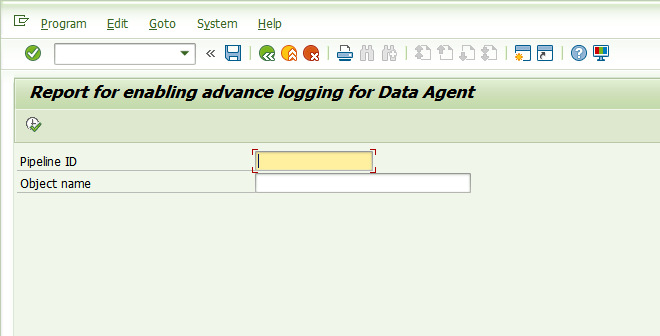 Execute transaction
Enable advanced logging for the affected Pipeline ID.
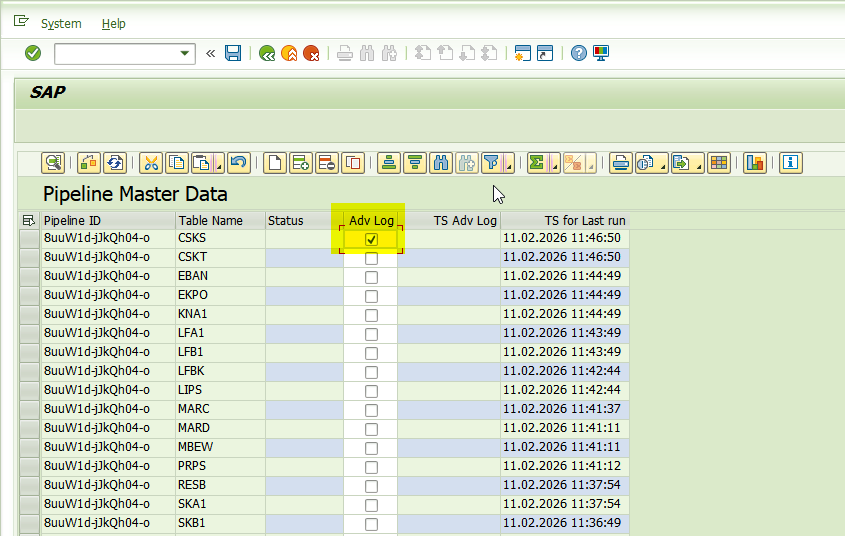 Enable advanced logging
Refresh the pipeline view.
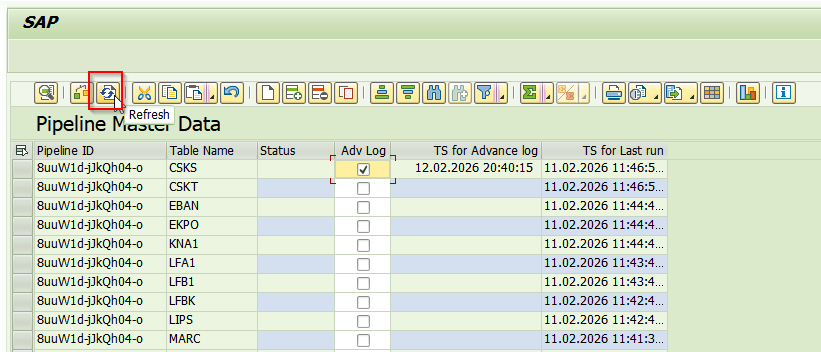 Refresh the pipeline view
Re-run the failed extraction.
After you enable advanced logging, review logs in /WKTO/ERR_LOG and /WKTO/DA_LOG_SRV:
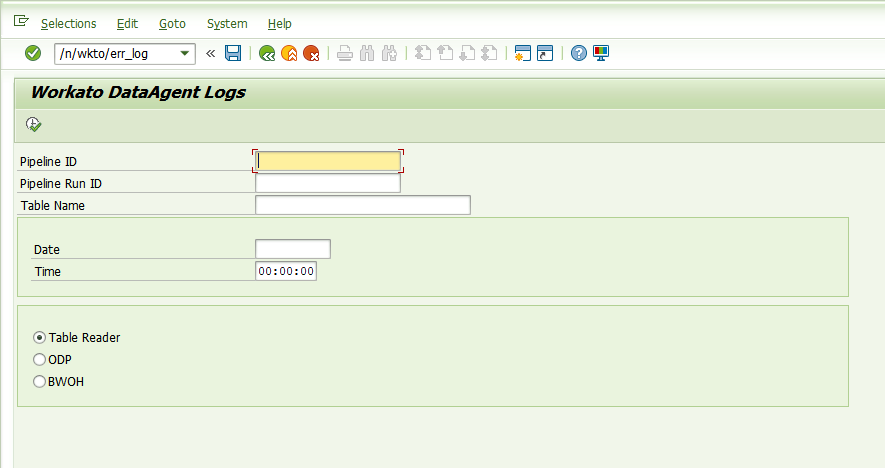 Access logs
These logs include the following:
- Input payload parameters
- Filter criteria
- Field lists
- Job metadata
- Internal processing status
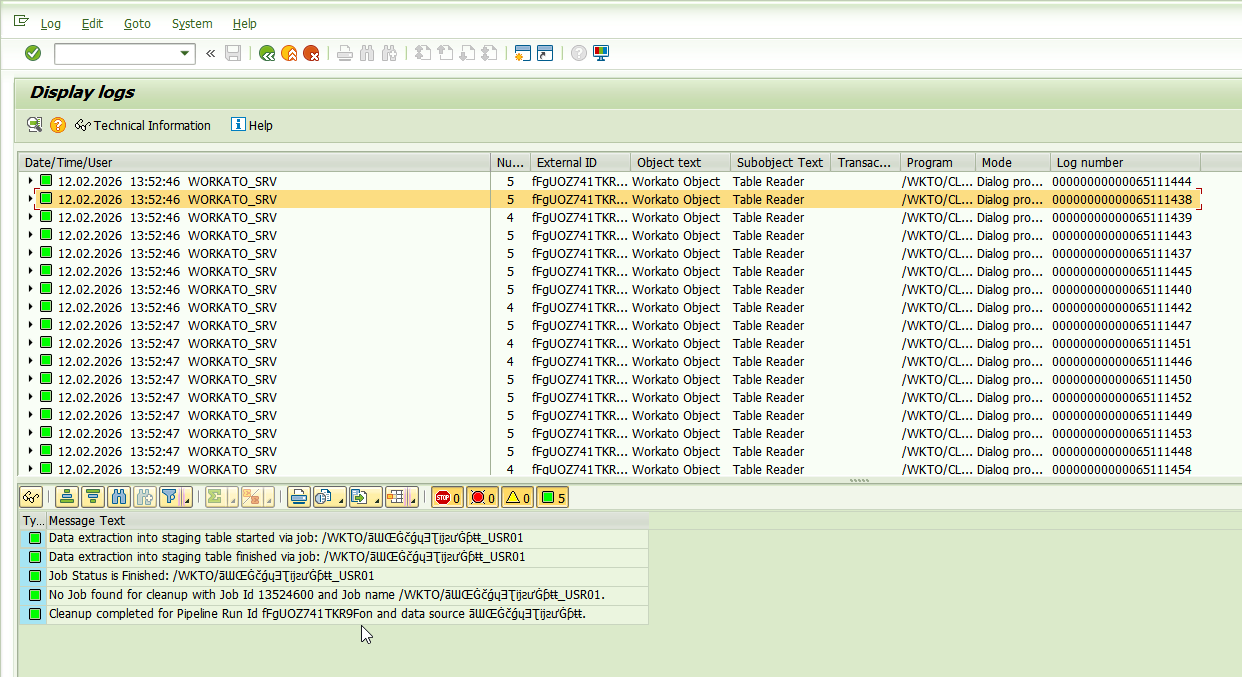 Display logs
DISABLE ADVANCED LOGGING AFTER DEBUGGING
Disable advanced logging after troubleshooting to prevent excessive log growth and performance impact.
# Pipeline and cleanup issues
This section describes issues related to pipeline state, runtime cleanup, and background job availability.
# Pipeline details not found
You may see the following error during extraction:
Pipeline details not found
# Why it happens
This can occur due to the following scenarios:
- The pipeline ID is invalid
- Pipeline runtime details were cleaned from memory
- The SAP system is under a high background job load
# How to troubleshoot
Complete the following steps to resolve the issue:
Verify the pipeline ID used for the extraction.
Ensure cleanup isn't executed prematurely.
# Adjust package size for large tables
Large SAP tables that contain variable-length fields may require a smaller extraction package size to ensure stable processing.
# Why this is recommended
Some SAP tables contain large data types, such as the following:
STRINGRAWSTRINGLRAWSSTRING
The cumulative payload size may approach SAP's internal string size limits if too many large records are included in a single extraction package. This can lead to runtime instability or job termination.
Reducing the package size helps improve reliability for large or text-heavy tables.
# How to adjust the package size
Complete the following steps to adjust the package size:
Execute transaction /WKTO/PACK.
Maintain a reduced package size for the affected table or view.
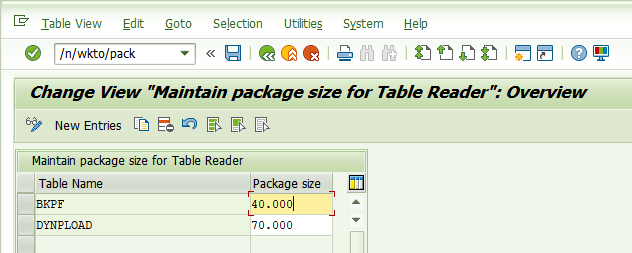 Maintain package size for Table Reader
Start with 10,000 records, or 1,000 records for tables with very large text or blob fields.
Re-run the extraction.
Monitor the background job in transaction SM37.
Updated package sizes apply only to new runs. Existing running jobs aren't affected.
# Concurrency and system overload
This section explains how to troubleshoot extraction failures caused by background job resource constraints in the SAP system.
# Job failure due to system overload
Extraction jobs remain in a released state or fail intermittently.
# Why it happens
The SAP system may not have sufficient background work processes available. When multiple pipelines or scheduled jobs run concurrently, available processes may be exhausted.
# How to troubleshoot
Review available background work processes in the SAP system using the following transactions:
SM50RZ12RZ04
Update the Concurrency limit in the pipeline configuration.
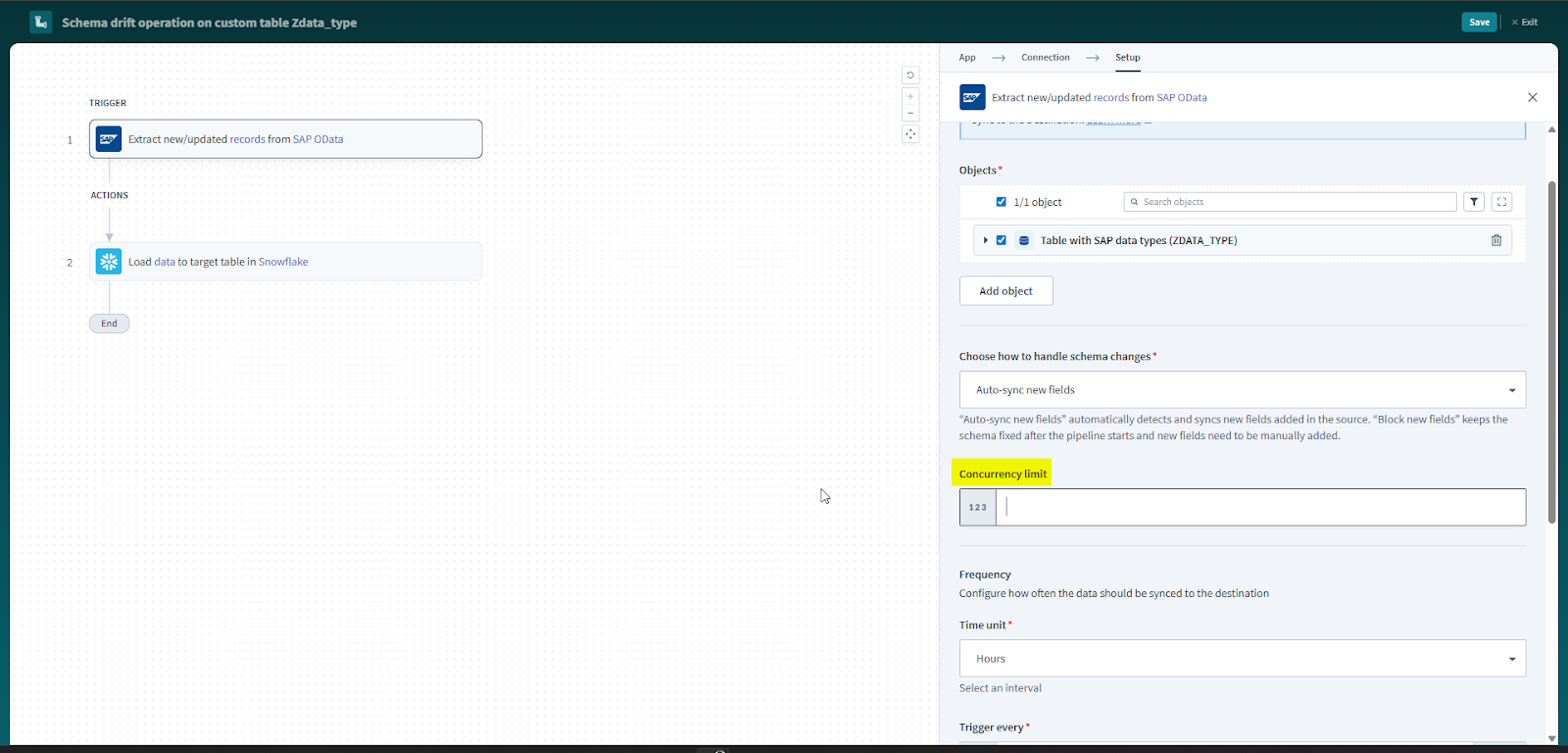 Update concurrency limit
Set concurrency to approximately 50% of the total available background work processes.
Re-run the extraction.
This helps ensure system stability, reduce contention with other scheduled jobs, and improve extraction reliability.
# SAP transaction reference
The following SAP transactions and services are referenced throughout this guide:
| Transaction/Service | Purpose |
|---|---|
SE11 | Validate table structure and fields |
SE16N | Test table data selection |
SU53 | Display last authorization check |
PFCG | Maintain roles |
SM37 | Monitor background jobs |
SM21 | View system log |
ST22 | Analyze ABAP dumps |
SLG1 | View application logs |
SLG0 | Maintain log objects |
AL11 | Browse application server directories |
SM50 | Monitor work processes |
SM13 | Monitor update failures |
/WKTO/ADV_LOG | Enable advanced logging |
/WKTO/PACK | Maintain custom extraction package size |
/WKTO/ERR_LOG | Retrieve detailed extraction logs |
/WKTO/DA_LOG_SRV | OData service for log retrieval |
Last updated: 3/2/2026, 4:56:57 PM