Knowledge bases
Knowledge bases serve as the genie's memory. They support long-term memory, such as persistent reference content like policies, documentation, and product information, and short-term memory, such as conversation history that grounds responses within an active session.
Knowledge bases receive all data and associated metadata from returned documents. You can provide the knowledge base with relevant context on your company's policies or access to historical data that grounds the behavior of the genie. The genie's behavior is further tailored by information it gleans from the knowledge bases you provide it access to and your conversation history.
Knowledge bases provide the following capabilities:
- Stores and organizes company-specific information and conversation history
- Provides quick access to relevant data for informed decision-making
- Can be updated in real-time to ensure the genie always has the most current information
- Helps maintain consistency in genie responses and actions across the organization
- Can access metadata to filter by attributes such as created date, source, or knowledge base ID
KNOWLEDGE BASE DESCRIPTION
It's important to provide a detailed description of each knowledge base you create. Precise descriptions enable your genie to understand the scope and relevance of each knowledge base. This ensures that genie responses are as accurate and contextually grounded as possible.
How knowledge bases work
Your genie searches a knowledge base using semantic similarity when a user asks the genie a question that requires reference knowledge. It finds the content fragments most relevant to the question and uses them to construct a response.
Watch a quick video guide: Reference a knowledge base
This is different from a database query or a skill call. The genie isn't retrieving a specific record by ID. It's finding the most semantically similar content from everything that has been ingested.
The quality of retrieval depends on the quality of the ingested content. A knowledge base populated with well-prepared, logically chunked, context-rich documents retrieves accurately. Knowledge bases populated with raw exports, large unsplit files, or formatting-heavy PDFs retrieves fragments that are technically relevant but incomplete, or miss key information.
Getting a knowledge base right requires good decisions at every stage: what to include, how to prepare it, how to ingest it, and how to tell the genie when to search it.
Workato recommends performing thorough document preparation before uploading content to your knowledge base. Refer to document preparation best practices for more information.
Knowledge base management
Knowledge base management gives you a centralized view to monitor and manage the content stored across your knowledge bases. You can search, view, organize, and remove documents, track storage footprints, and manage file uploads to ensure your genie always has access to accurate, up-to-date information. Refer to Knowledge base management for more information.
Getting started with knowledge bases
You should plan your knowledge base configuration before you start building. Use the following guidelines to help you plan your knowledge base:
- Identify the exact knowledge you plan to use.
- Determine which data source the knowledge is stored in.
- Select a knowledge ingestion option:
- Knowledge recipes: Populate a knowledge base through Workato recipes to connect and extract data from Workato-supported apps.
- Workato GO data sources: Add knowledge to your knowledge base from Workato GO. Use this option if you have plan to use the same data for both your genie and Workato GO.
- Prepare your knowledge documents for ingestion.
Watch a quick video guide: Create a knowledge recipe in Agent Studio
NEED AN EXAMPLE?
Refer to the Connect your knowledge base to Confluence use case for a step-by-step guide on how to create and connect your knowledge base to Confluence with a knowledge recipe.
Refer to Create your first genie for complete steps on how to create a genie with a job description, AI model, chat interface, knowledge base, knowledge base recipe, and skills.
Complete the following steps to create a knowledge base:
Go to Projects.
Click Create > Knowledge base or press C+K.
Provide a name for your knowledge base in the Knowledge base name field.
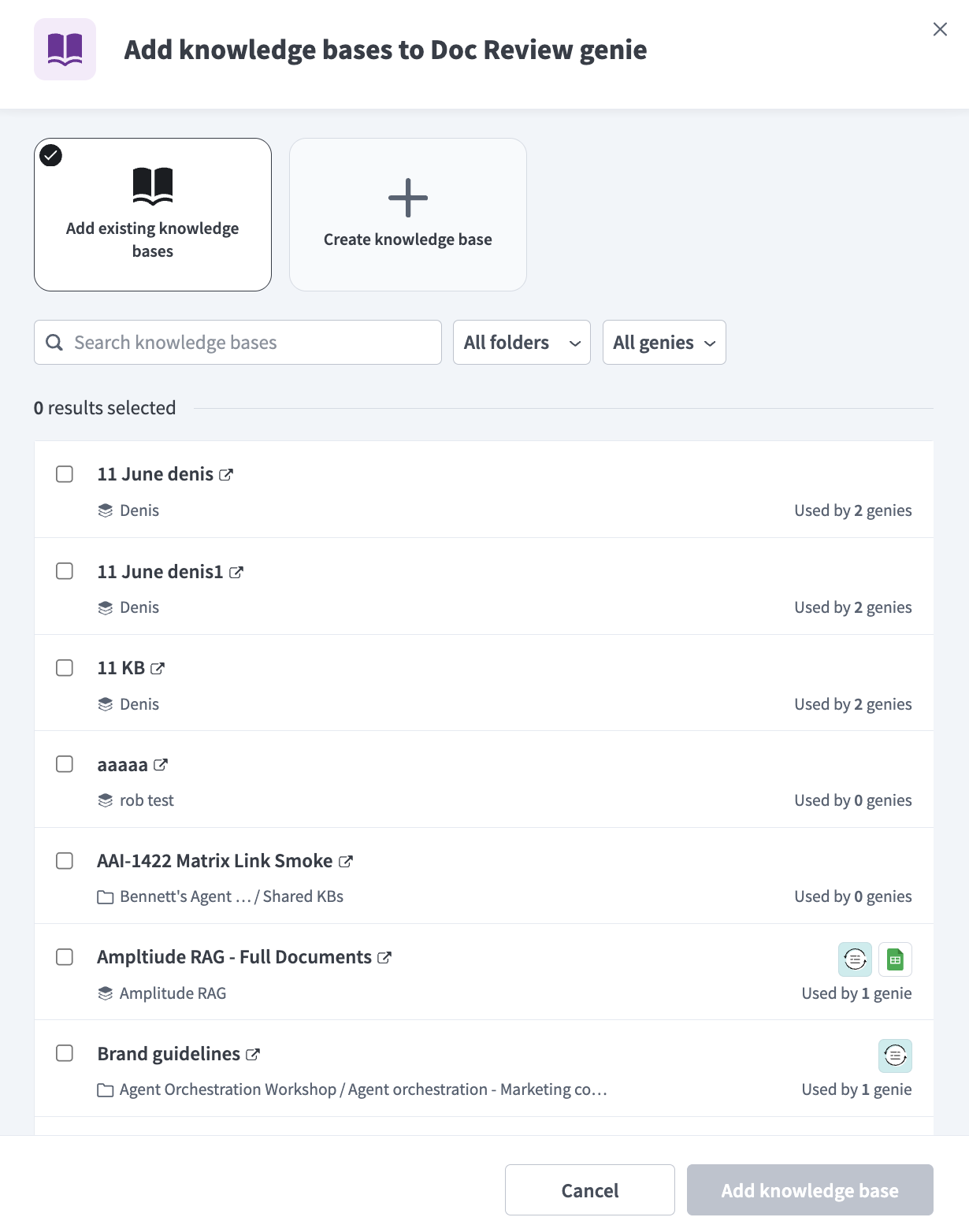 Create a knowledge base
Use the Location drop-down menu to select a location for your knowledge base.
Optional. Enter a description for your knowledge base in the Description field. Genies use descriptions to understand the context and purpose of the knowledge base to determine when to use it.
Go to the How will you add data? section and select the data source you plan to use to sync the information in your knowledge base.
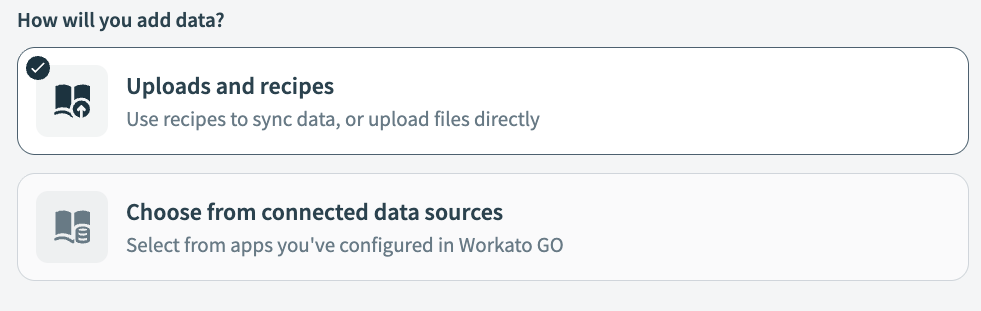 Uploads and recipes
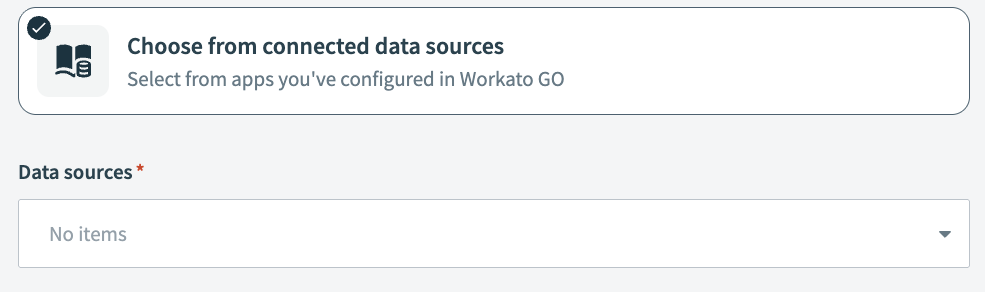 Click Choose from connected data sources
Click Start building.
Your knowledge base is ready for a knowledge recipe. Refer to Create a knowledge recipe to add a knowledge recipe that syncs and updates information from your applications to your knowledge base.
More resources
Last updated: