Add a Confluence data source in Workato GO
Confluence provides a comprehensive collaboration environment designed to enhance team interaction and knowledge exchange.
You must enable Confluence API functionality and provide credentials to allow Workato GO to search your Confluence content.
Prerequisites
The following prerequisites are required to add a Confluence data source to Workato GO:
- A Confluence Cloud account. This is the only account type supported.
- A Confluence account that is configured for managed users.
- The ability to retrieve Confluence user access groups.
Enable API access in Confluence
You must enable API access to allow Workato GO to access your Confluence instance. You must have permissions for Confluence spaces, pages, users, and groups to create an API token that can retrieve these data sources.
Complete the following steps to enable API access within Confluence:
Sign in to your Atlassian account.
Click the profile icon and select Account settings.
Click the Security tab.
Click Create and manage API tokens > Create API token.
Enter a name for your API token in the Name field.
Click the Expires on field and use the calendar modal to select an expiration date for your token. Tokens can't last longer than a year.
Click Create.
Click the Copy button to copy your API token for use in Workato GO.
Add Confluence as a data source
Complete the following steps to add Confluence as a data source in Workato GO:
Sign in to your Workato GO account.
Expand the Admin menu in the sidebar and click Data sources.
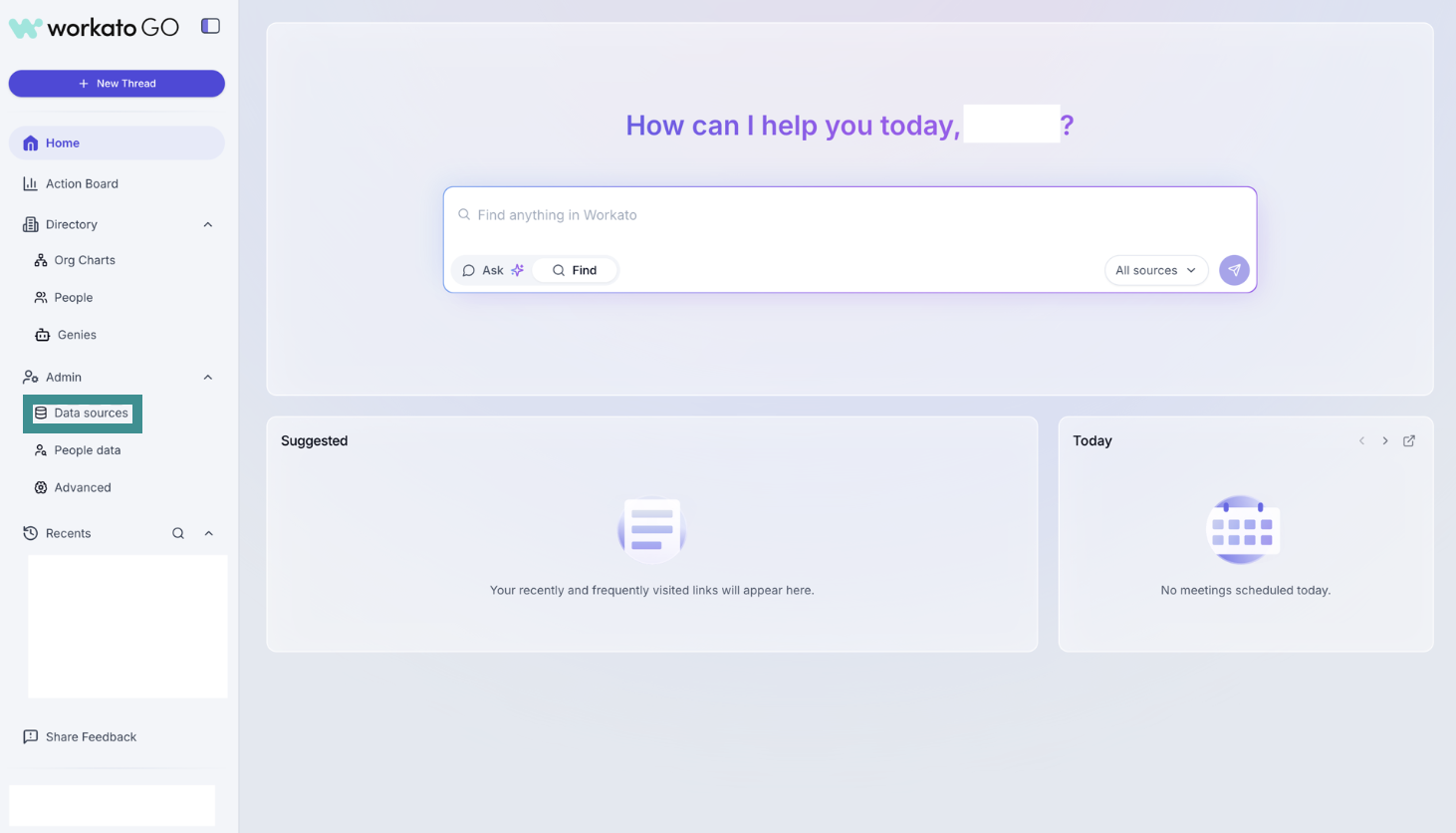 Go to Admin > Data sources
Click Add Data Source. The Add Data Source page displays.
Select the Confluence app.
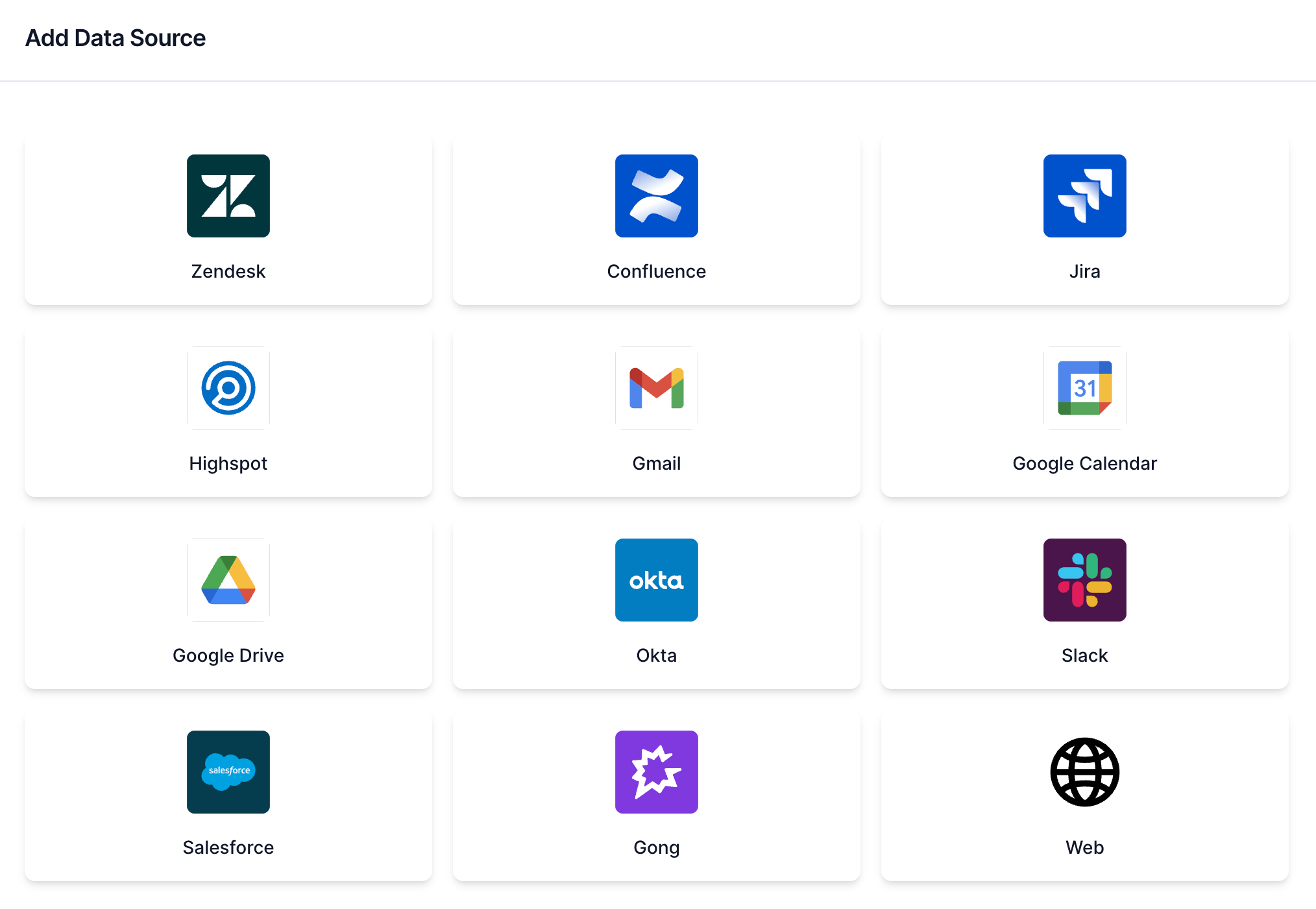 Select Confluence
Enter a name for your data source in the Name field.
Enter the domain for your data source in the Domain field. For example: https://acme.atlassian.net.
Enter the groups you plan to provide with default access in the Default Access Groups field. Separate groups with a comma. For example: confluence-users-sales,confluence-admins. Refer to Retrieve default access groups for more information.
Enter the API token from your Atlassian account in the API Token field.
Enter the user name associated with the data source in the Username field. For example: [email protected].
Click Next. The Crawl configuration page displays.
Locate the Would you like to start the crawl for Confluence? field and select Crawl Now or Do it later.
CRAWLING IS NECESSARY TO BUILD A SEARCH INDEX
Workato builds a search index by crawling your data source and parsing its contents, metadata, and permissions.
Click Create. Your data source is now listed on the Data Sources page.
Retrieve default access groups
Default access groups define who can view and access Confluence resources in Workato GO. You must have admin privileges in Confluence to retrieve default access group names. Only members in listed groups can interact with the Confluence data source in Workato GO.
Complete the following steps to retrieve default access group names:
Go to https://admin.atlassian.com/ and sign in as an admin.
Click Directory > Groups.
Copy the group names you plan to add to Workato GO.
Add the group names as a comma-separated list into the Default Access Groups field in Workato GO. For example: confluence-users, confluence-admins
Crawler limitations
The Confluence crawler has the following limitations:
Crawling is only supported for documents created in a Confluence workspace. Attachments in Confluence, such as PDFs or images, aren't crawled.
The Confluence crawler only works with managed accounts connected to SSO because Workato GO uses admin tokens and APIs without a marketplace app.
Last updated: