# FTP/FTPS
The FTP/FTPS connector enables Workato to perform file operations on an FTP or FTPS server, such as downloading, uploading, renaming, and removing files. You can use this connector to build workflows that sync files between systems, process incoming data files, or archive completed reports.
# Prerequisites
You must complete the following prerequisites before you use the FTP/FTPS connector:
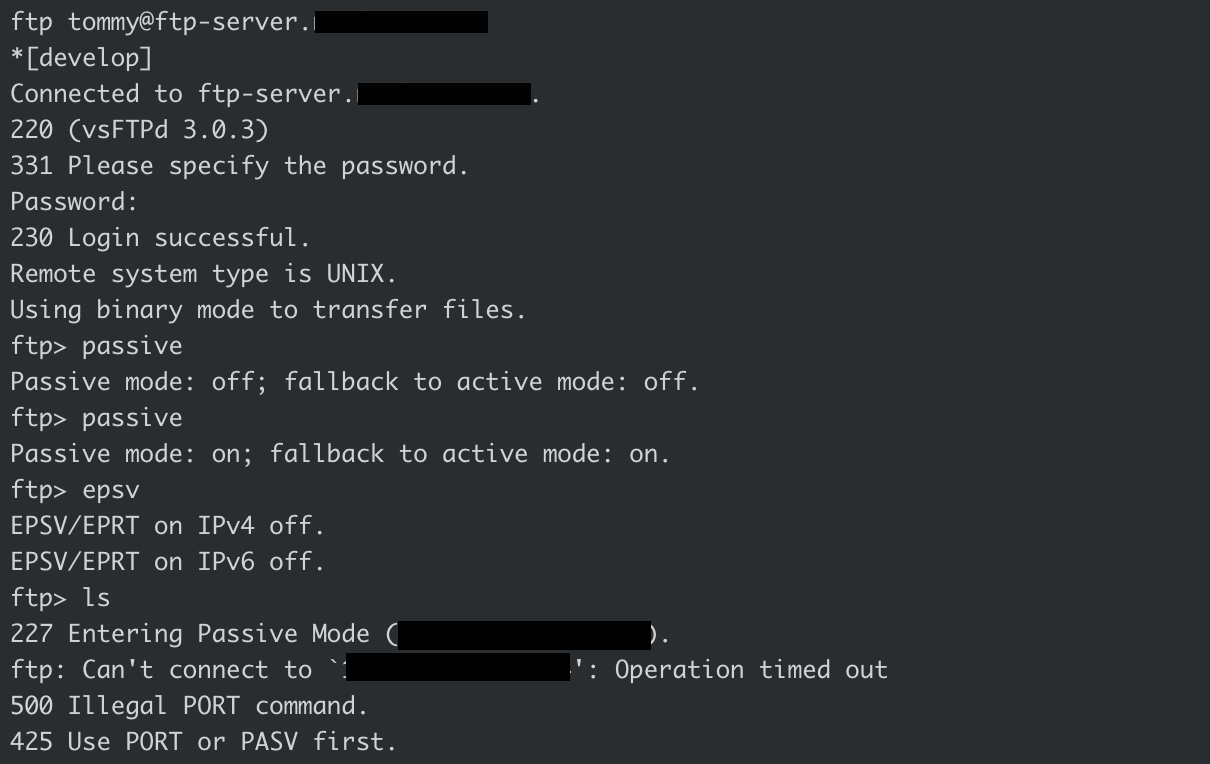
Configure passive mode: Ensure your server is in standard passive mode, not extended passive mode (EPSV). The process for enabling standard passive mode varies depending on your server implementation. Refer to your server’s documentation for specific instructions.
Verify external accessibility: Ensure your server’s IP address is accessible from outside your network. Workato throws an error if you attempt to connect using an internal IP address that isn't visible on the internet.
The following example shows how to test FTP server connectivity and passive mode configuration on a Linux-based FTP server:
# How to connect to an FTP server from Workato
Workato supports the following connection types:
- Cloud (direct) connections: Connect directly to your FTP or FTPS server
- On-prem connections: Connect through an on-prem agent
# Create an FTP server connection
Complete the following steps to create a cloud (direct) connection to your FTP server in Workato:
Click Create > Connection.
Search for and select FTP/FTPS as your connection on the New Connection page.
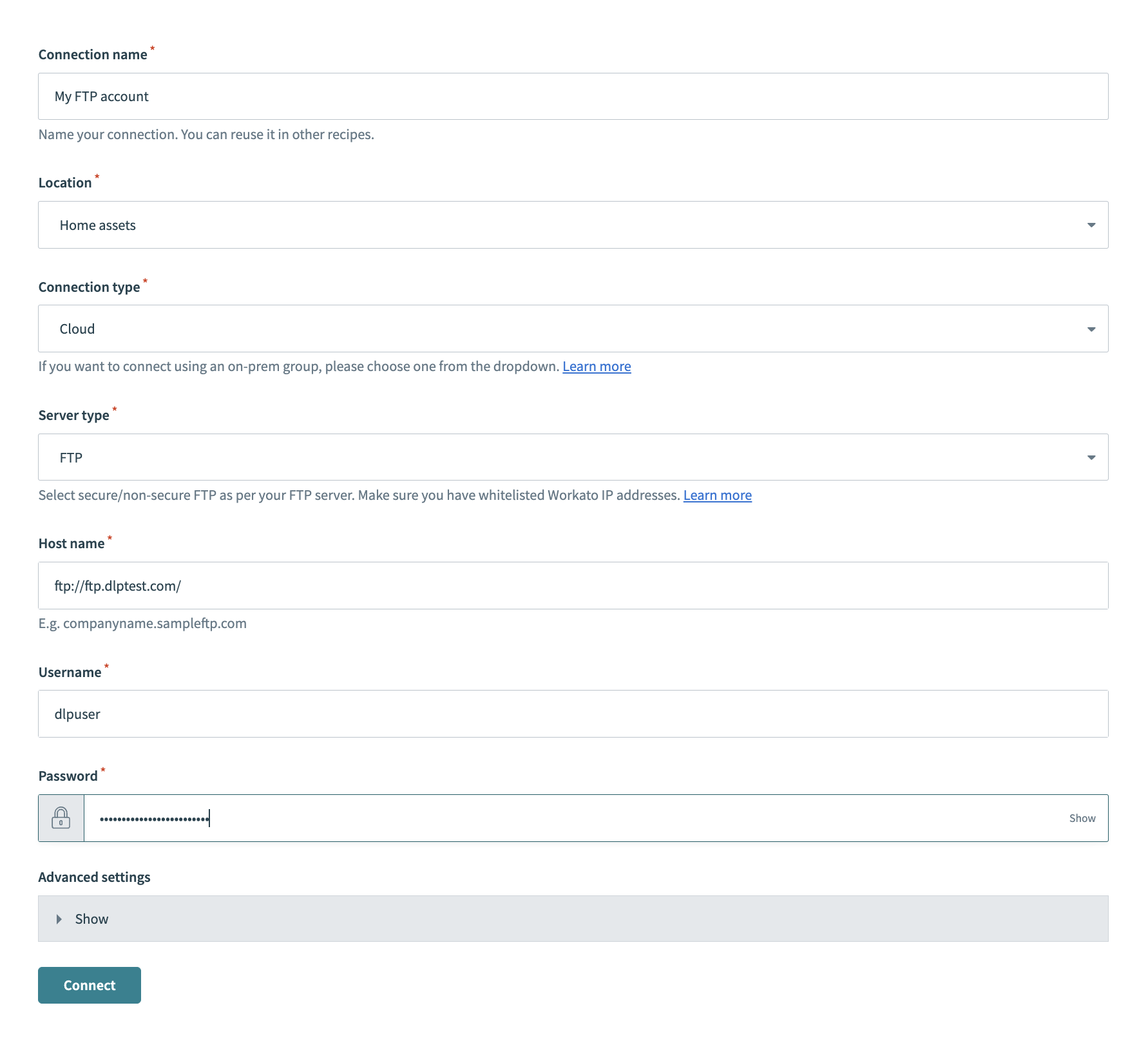
Provide a name for your connection in the Connection name field.
 Connect to FTP server
Use the Location drop-down menu to select the project where you plan to store the connection.
Use the Connection type drop-down menu to select Cloud. This option creates a direct connection to your server. Refer to Create an on-prem connection to connect using an on-prem agent instead.
Use the Server type drop-down menu to select FTP.
Enter the server's Host name. For example: companyname.sampleftp.com
Enter the Username and Password to authenticate with the FTP server. The connection inherits provisions and scopes from this user.
Expand the Advanced settings section and specify the Port number if your FTP server uses a port other than the default (21).
Optional. In the Advanced settings section, use the Login before send buffer size drop-down menu to select whether to send PASS before any other FTP command.
Click Connect.
# Create an FTPS server connection
FTPS (File Transfer Protocol Secure) is a secure extension of FTP that adds support for encrypted data transfer using SSL and TLS. FTPS is ideal for handling sensitive data and complying with security policies.
Complete the following steps to create a cloud (direct) connection to your FTPS server in Workato:
Click Create > Connection.
Search for and select FTP/FTPS as your connection on the New Connection page.
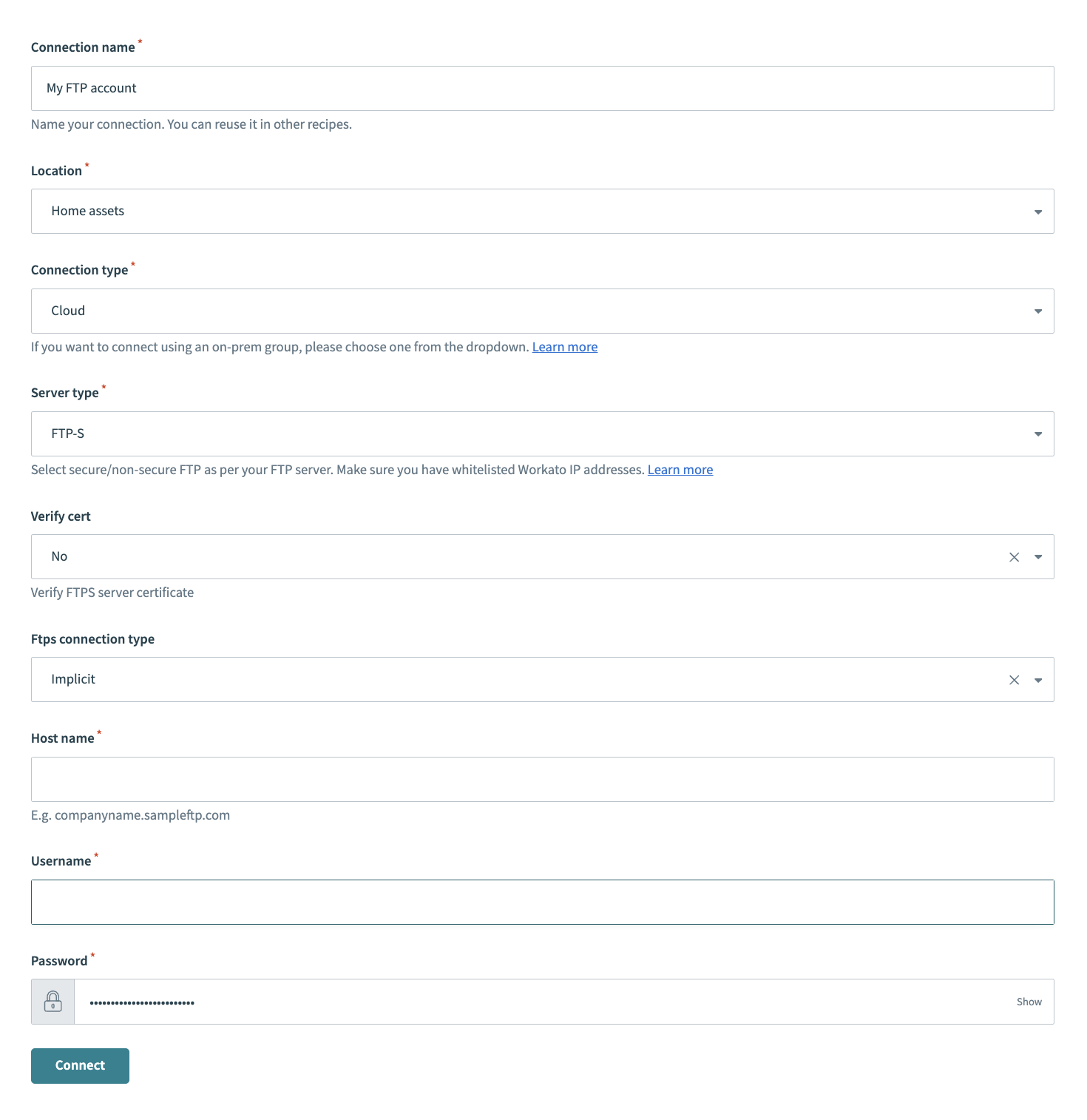
Provide a name for your connection in the Connection name field.
 FTPS server setup
Use the Location drop-down menu to select the project where you plan to store the connection.
Use the Connection type drop-down menu to select Cloud. This option creates a direct connection to your server. Refer to Create an on-prem connection to connect using an on-prem agent instead.
Use the Server type drop-down menu to select FTP-S.
ALLOW TRAFFIC TO WORKATO
Ensure traffic to Workato is allowed from your server. Refer to the IP allowlists guide to add Workato to your allowlist.
Use the Verify cert drop-down menu to select whether to verify FTPS server certificates.
Select an Ftps connection type. Set the connection type to Explicit if your FTPS server uses a port number other than the default (21).
Enter the server's Host name. For example: companyname.sampleftp.com
Enter the Username and Password to authenticate with the FTPS server. The connection inherits provisions and scopes from this user.
Expand the Advanced settings section and specify the Port number if your FTPS server uses a port other than the default (21).
Optional. In the Advanced settings section, use the Login before send buffer size drop-down menu to select whether to send PASS before any other FTP command.
Click Connect.
# Create an on-prem connection
Complete the following steps to create an on-prem connection to an FTP/FTPS server in Workato:
OPA REQUIREMENTS
OPA version 25.0 or higher is required to create an on-prem connection to an FTP/FTPS server.
Refer to the connection profiles documentation if your on-premise group connections use config.yml. Alternatively, you can configure the FTP connection directly in Workato using a cloud profile. Some properties may not be supported for on-premise connections.
Click Create > Connection.
Search for and select FTP/FTPS as your connection on the New Connection page.
Provide a name for your connection in the Connection name field.
Use the Location drop-down menu to select the project where you plan to store the connection.
Use the Connection type drop-down to select an on-prem group.
Enter the server's Host name. For example: companyname.sampleftp.com
Specify the Port number if your server uses a port other than the default (21).
Enter the Username and Password to authenticate with the server. The connection inherits provisions and scopes from this user.
Expand the SSL settings section and select Explicit or Implicit as the Ftps connection type.
Enter an X.509 Server certificate in .pem format.
Optional. Use the Trust all drop-down menu to select whether to force the client to trust any certificate chain. Workato supports self-signed server certificates. Defaults to No.
Optional. Expand the Connection encoding settings section and enter an encoding type for the connection in the Control encoding field. For example: UTF-8 or US-ASCII
:: warning OPA REQUIREMENTS The Connection encoding settings section is only available for OPA version 28.0 or higher. :::
Click Connect.
Last updated: 2/24/2026, 6:51:16 PM