Workday - Get report action
The Get report action retrieves data from a Workday custom report (Report-as-a-Service). This action runs the report and returns the results as an array of records. You can use this data in a recipe like any other action output. Refer to the Workday RaaS documentation to set up a custom report.
Input
| Input field | Description |
|---|---|
| Report URL | Enter the full Workday report URL. You can find this on the View URLs Web Service page in Workday. Workato uses this to fetch the report output. You must define URL query parameters separately. |
| Format | Select the output format of the report. Options include CSV (default) or JSON. |
| Detect report schema automatically | Select Yes or leave blank to automatically detect the report's input and output schema. This only works if the Report URL is a static string. Schema detection doesn't run if the URL uses a datapill. |
| Remove empty fields | Select Yes to exclude fields with null values. Defaults to Yes. |
| Additional fields | Add report fields that don't appear in the output schema automatically. You can input fields using JSON format or define them manually. |
| Replace report fields | Select Yes to replace existing fields with the manually added ones in Additional fields if the names match. |
| Response timeout (seconds) | Set the maximum time the action waits for a report to complete. Defaults to 600. Maximum value is 1800. Applies to cloud Workday connections only. |
REFRESH THE ACTION SCHEMA
The Response timeout field doesn't appear automatically in existing recipes. You must stop the recipe, open the Get report action in edit mode, and click Refresh on the action to access this field. New recipes display the field by default.
Configure report parameters and columns
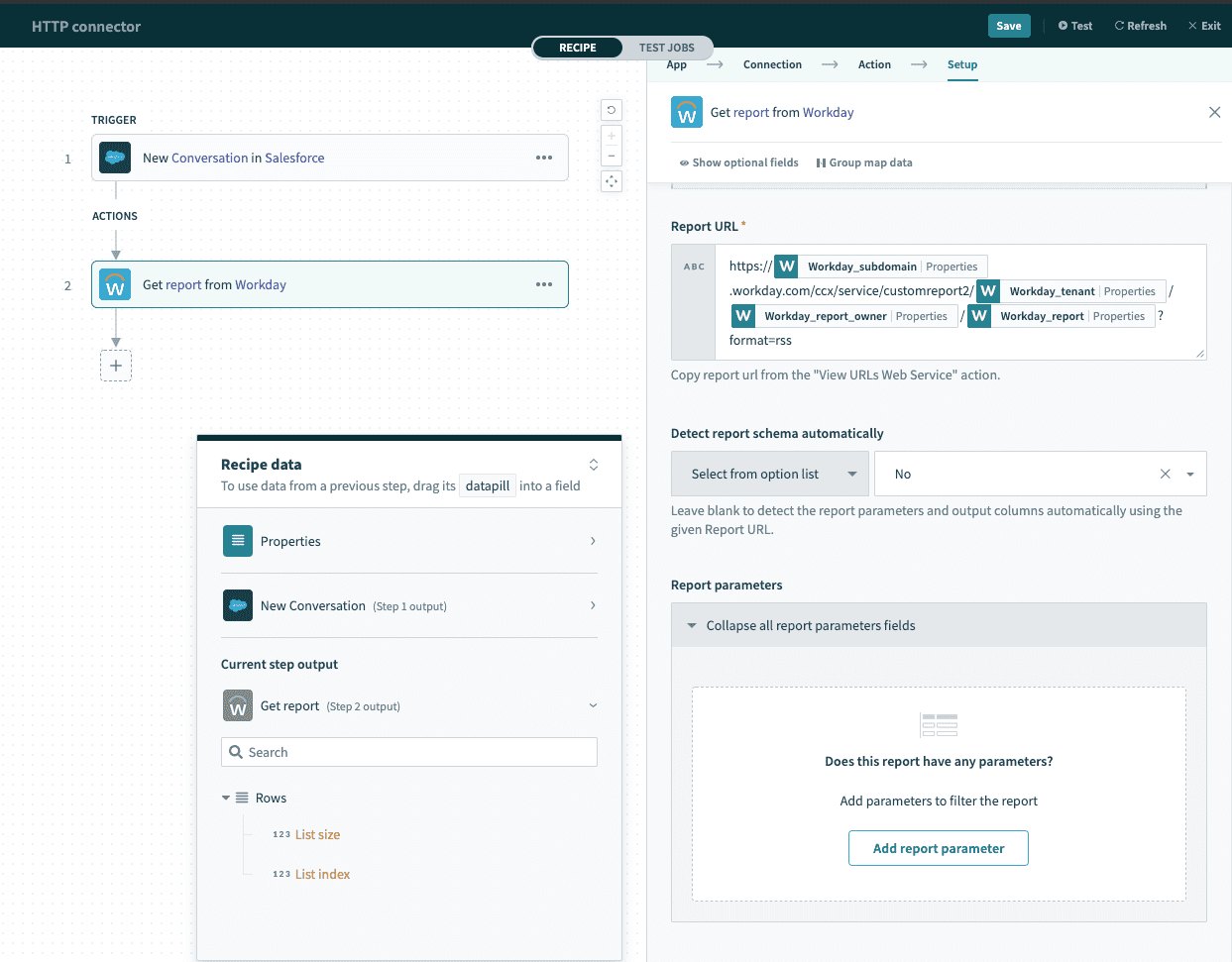 Configure report parameters and columns manually
Sometimes, you need to use a dynamic value for the report URL. A common reason is to maintain recipes across multiple Workday environments (dev and production). Even though reports in both environments have the same schema, they will have different report URLs. To reduce the work needed to maintain the recipes, you can manage and reuse the same recipe by using an environment properties datapill to assign it the appropriate report URL. In this case, select No in the Detect report schema automatically drop-down menu.
Consequently, Workato will not be able to generate the report schema automatically. This is because the actual report url is only evaluated when a recipe job is processed. When you are building the recipe, the report URL is still unknown, so there will not be any information about the report schema.
When you do that, additional input fields will appear for you to manually define your report parameters and columns.
| Additional input fields | Description |
|---|---|
| Report Parameters | The filter parameters for your custom report. Input the parameter alias and the value according to how your custom report is configured. |
| Report columns | The output of your report. List the columns of your workday custom report. This schema will be converted into usable datapills for subsequently recipe actions on Workato. |
Outputs
The output of this action is presented as an array. Each element in this array corresponds to a row in the report. Similarly, each column in your report will be rendered as a field in the report output array.
If you configured a custom schema in Report column, the custom report columns will be reflected as datapills.
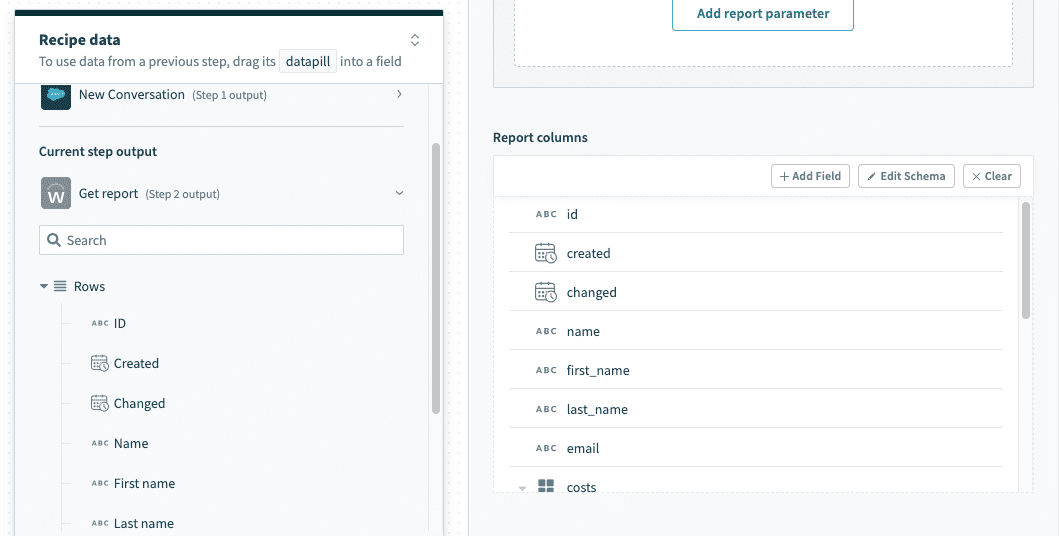 Outputs from Get report action
Use cases
Generate a custom CSV file
A very simple use case for running and retrieving custom report data from Workday is to create a CSV file from the report. This can be done using the CSV by Workato.
Filter rows using custom logic
Workday provides a comprehensive feature to add filters and validation logic to report results. However, it is limited to data available in Workday. Workato allows you to extract report data out of Workday, and execute validation logic against data from multiple sources.
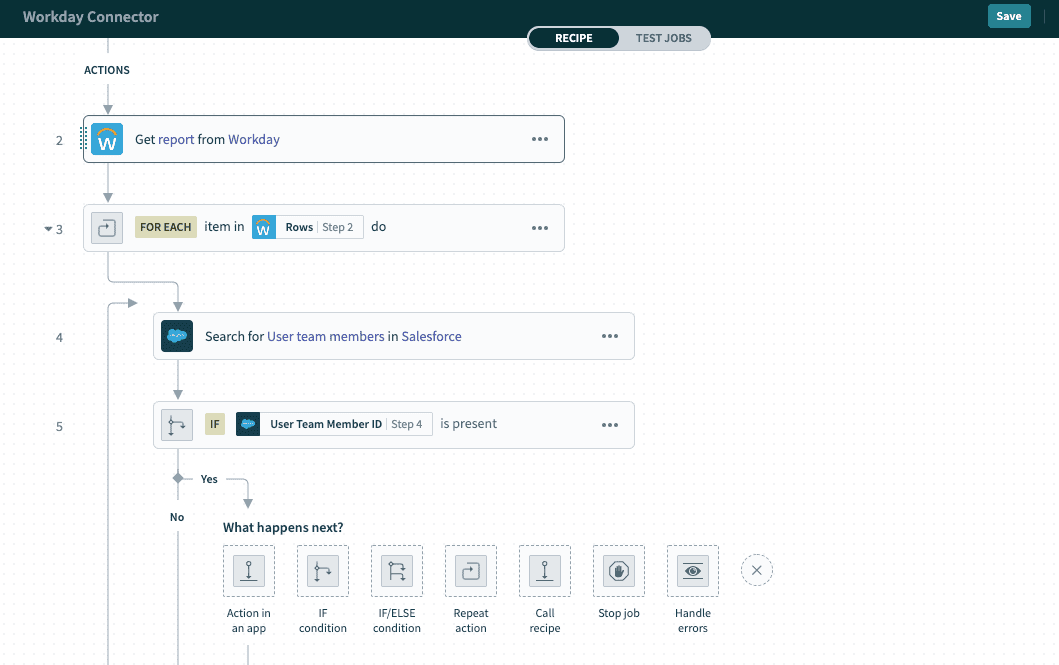 Custom filter logic using data from external applications
This example shows how to filter out rows in a report against data from Salesforce but checking for the presence of a corresponding Salesforce User account. The resulting report will contain only employees from Workday that are active Salesforce Users.
Limitations
Based on the Workday documentation, there is a quota of 2GB for advanced custom report enabled for web services and exposed for integrations.
Last updated: