Airtable MCP server
The Airtable MCP server enables LLMs to access Airtable bases used as operational systems of record through natural conversation. It provides tools to retrieve, create, update, and delete records within existing Airtable structures without requiring direct interaction with the Airtable interface.
Uses
Use the Airtable MCP server to perform the following actions:
- Discover which Airtable bases and tables you have access to
- Retrieve records from tables with optional filtering and view constraints
- Find specific records by identifier for review or updates
- Create new records to track projects, customers, or operational entries
- Update existing records to reflect status changes or new information
- Perform batch updates across multiple records efficiently
- Delete records when explicitly requested for cleanup or archiving
Example prompts
Use the following example prompts to invoke Airtable MCP server tools:
What Airtable bases do I have access to?Show me all tables in the Project Tracker base.List all high-priority customers from the CRM base.Get the record for the Q4 Planning milestone.Add a new blocker to the Issues table.Update the status to 'Complete' for the authentication task.Mark all overdue items as 'At Risk' in the Active Projects view.Delete the archived records from last quarter.
Airtable MCP server tools
The Airtable MCP server provides the following tools:
| Tool | Description |
|---|---|
| list_bases | Returns the Airtable bases accessible to the authenticated user. |
| list_tables | Returns the tables within a specified Airtable base. |
| list_records | Retrieves records from a table, optionally constrained to a specific view and/or filtered by criteria. |
| get_record | Retrieves a single record by record identifier. |
| create_record | Creates a new record in an existing table and returns the created record identifier. |
| update_record | Updates an existing record by record identifier. |
| batch_update_records | Updates multiple records using explicit record identifiers. |
| delete_record | Deletes one or more records using explicit record identifiers. |
Install the Airtable MCP server
Complete the following steps to install a prebuilt MCP server to your project:
Sign in to your Workato account.
Go to AI Hub > MCP servers.
Click + Create MCP server.
Go to the Start with pre-built MCP Servers using your connected apps section and select the prebuilt MCP server you plan to use.
Click Use this server.
Provide a name for your MCP server in the Server name field.
Use the Location drop-down menu to select the project for the MCP server.
Go to the Connections section and connect to your app account.
Select the connection type you plan to use for the MCP server template.
- User's connection: MCP server tools perform actions based on the identity and permissions of the user who connects to the application. Users authenticate with their own credentials to execute the skill.
- Your connection: This option uses the connection established by the recipe builder and follows the same principles as normal app connections.
 Select your connection type
VERIFIED USER ACCESS AUTHENTICATION REQUIREMENTS
Only app connections that use OAuth 2.0 authorization code grant are available for user's connection. Refer to Verified user access for more information.
Complete the app-specific connection setup steps in the following section.
Airtable connection setup
View Airtable connection setup steps
The Airtable connector supports the following authentication types:
Personal access token
Use personal access token authentication to connect to Airtable with a token generated from your Airtable account.
API KEY DEPRECATION
Airtable deprecated API keys for authentication at the end of January 2024. API keys no longer work on the platform. Migrate to personal access tokens to maintain API access to Airtable. Personal access tokens provide granular, secure API access to your Airtable data.
Create a personal access token
Refer to Creating personal access tokens in the Airtable documentation.
Connect to Airtable using personal access token
Complete the following steps to set up a personal access token connection to Airtable in Workato:
Click Create > Connection or press C twice.
Search for and select Airtable on the New connection page.
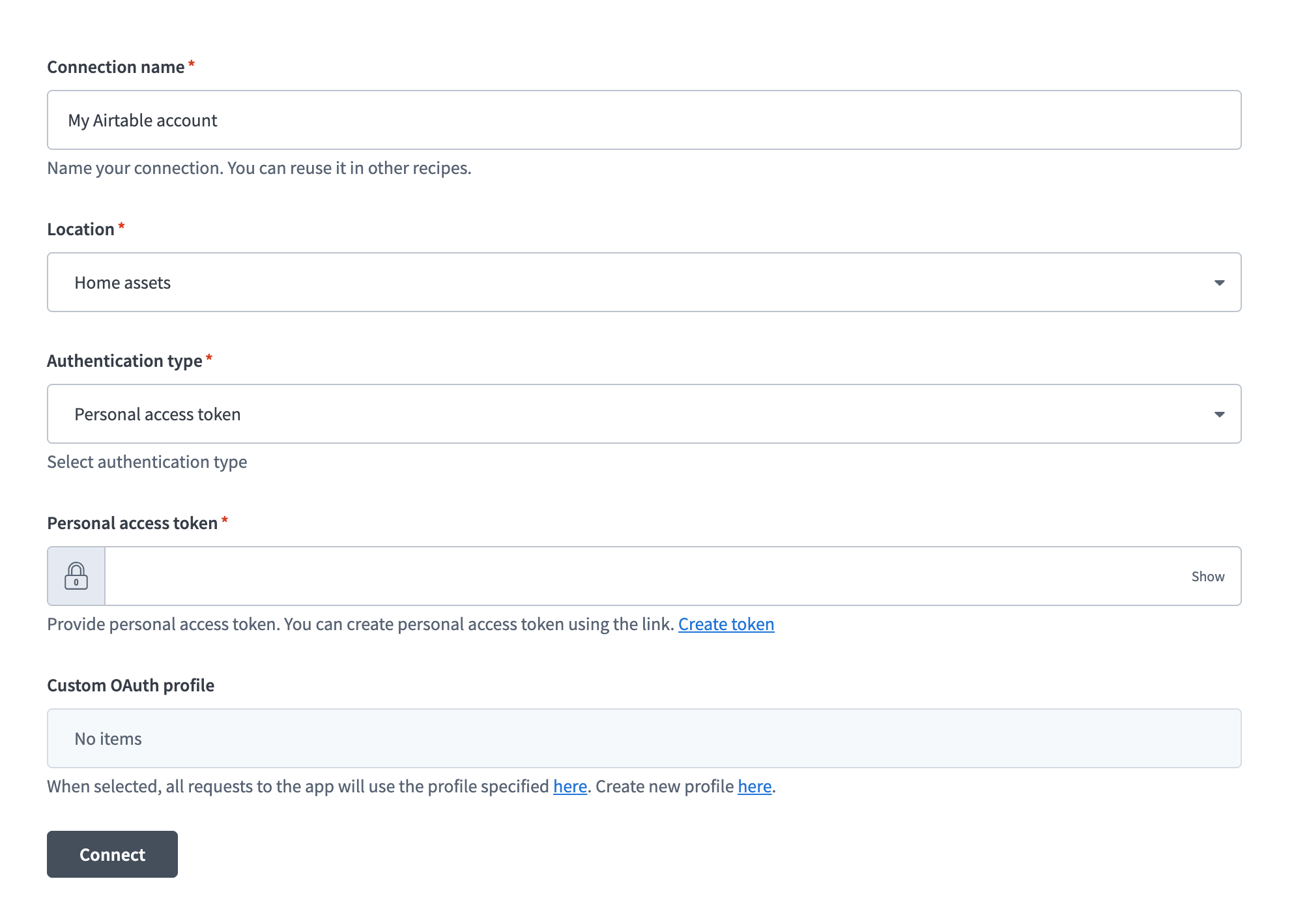
Enter a name for your connection in the Connection name field.
 Airtable connection setup
Use the Location drop-down menu to select the project where you plan to store the connection.
Use the Authentication type drop-down menu to select Personal access token.
Enter your personal access token in the Personal access token field.
Optional. Use the Custom OAuth profile drop-down menu to select a custom OAuth profile for your connection.
Click Connect.
OAuth 2.0
Use OAuth 2.0 to connect to Airtable by signing in and granting access through Airtable's authorization flow.
Minimum and default scopes
The scopes data.records:read and schema.bases:read are always requested. The connection defaults to data.records:read, schema.bases:read, data.records:write, and schema.bases:write if no additional scopes are selected.
Ensure that any additional scopes you select are supported by your Airtable plan. Selecting unsupported scopes may result in a connection error. For example, the scope View metadata about workspaces, bases, and views including collaborators corresponds to workspacesAndBases:read, which is available only on the Business and Enterprise Scale plans.
Refer to the Airtable documentation for more information on Airtable OAuth scopes and associated plans.
Connect to Airtable using OAuth 2.0
Complete the following steps to set up an OAuth 2.0 connection to Airtable in Workato:
Click Create > Connection or press C twice.
Search for and select Airtable on the New connection page.
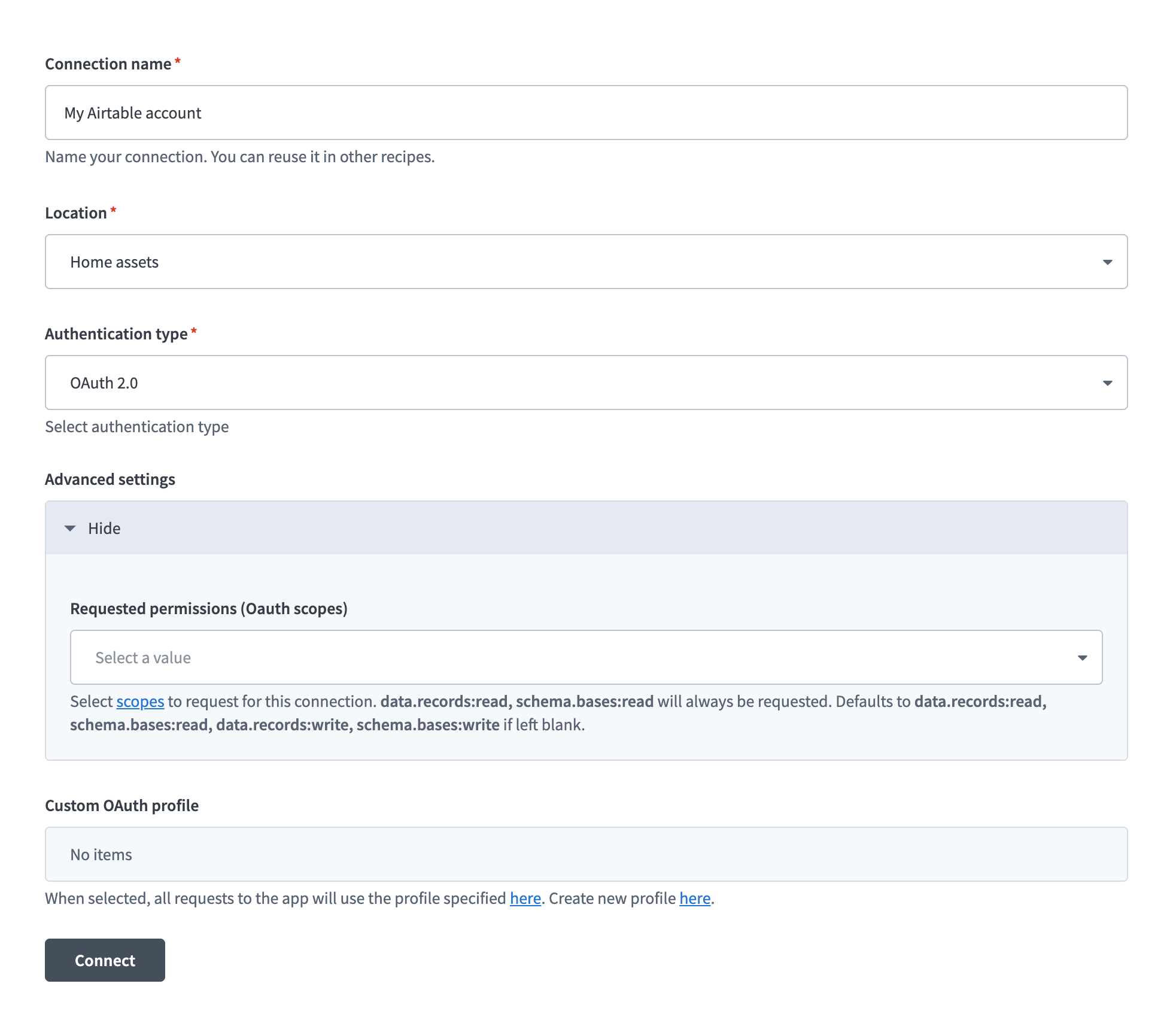
Enter a name for your connection in the Connection name field.
 Airtable connection setup
Use the Location drop-down menu to select the project where you plan to store the connection.
Use the Authentication type drop-down menu to select OAuth 2.0.
Expand Advanced settings and use the Requested permissions (OAuth scopes) drop-down menu to select the scopes for this connection.
Optional. Use the Custom OAuth profile drop-down menu to select a custom OAuth profile for your connection.
Click Connect.
Sign in to Airtable when prompted and click Allow to grant Workato access.
How to use Airtable MCP server tools
Refer to the following sections for detailed information on available tools:
list_bases tool
The list_bases tool retrieves a list of Airtable bases you can access. Your LLM uses this tool to discover what bases are available or when the base is unknown.
Try asking:
What Airtable bases do I have access to?Show me all my Airtable bases.List the bases available in my account.Which Airtable bases can I work with?
list_tables tool
The list_tables tool retrieves tables within an Airtable base you specify. Your LLM uses this tool to retrieve existing tables in a base.
Try asking:
What tables are in the Project Tracker base?Show me all tables in the CRM base.List the tables available in the Inventory Management base.What data tables exist in this base?
list_records tool
The list_records tool retrieves records from a table using criteria you specify. Your LLM uses this tool to retrieve records from Airtable, whether viewing all entries, filtering by criteria you specify, or accessing records from a particular view.
Try asking:
Show me all customers in the CRM base.Find high-priority items in the Issues table.What's in the Q1 Roadmap view?Show overdue items from the Active Projects view with priority 'High'.
get_record tool
The get_record tool retrieves a single record by record identifier. Your LLM uses this tool to access a specific record that's been referenced or before updating or deleting a record.
Try asking:
Get the details for record rec123456 in the Projects table.Show me the customer record for Acme Corp.Retrieve the milestone record with ID rec789012.Get the full information for the authentication task record.
create_record tool
The create_record tool creates a new record in an existing table and returns the created record identifier. Your LLM uses this tool to add new operational entries such as blockers, milestones, customers, or tasks.
Try asking:
Add a new blocker to the Issues table with title 'API timeout' and priority 'High'.Create a new customer record for Acme Corp in the CRM base.Add a milestone to the Q4 Roadmap for product launch.Create a new task in the Sprint Planning table.
update_record tool
The update_record tool updates an existing record by record identifier. Your LLM uses this tool to update a single record's status, priority, or other fields.
Try asking:
Update the status to 'Complete' for the authentication task.Change the priority to 'Critical' for the API timeout blocker.Mark the Q4 launch milestone as 'In Progress'.Update the customer record for Acme Corp with the new contact email.
batch_update_records tool
The batch_update_records tool updates multiple records using explicit record identifiers. Your LLM uses this tool to update multiple records at once.
Try asking:
Mark all overdue items in the Active Projects view as 'At Risk'.Update all high-priority bugs to assign them to the engineering team.Change the status to 'Archived' for all completed Q3 projects.Set all customer records from last year to 'Inactive' status.
delete_record tool
The delete_record tool deletes one or more records using explicit record identifiers. Your LLM uses this tool only when you explicitly ask to delete records.
Try asking:
Delete the archived records from Q3 in the Projects table.Remove the duplicate customer entries.Delete the test records from the Issues table.Remove all records marked as 'Spam' from the Contacts table.
Getting started
View and manage your MCP server tools in the Overview page Tools section. Tool management provides the following capabilities:
TOOLS MUST BE STARTED
Your LLM can only access active tools in your MCP server connector.
Last updated: