Google Sheets MCP server
The Google Sheets MCP server enables LLMs to read, update, and structurally modify Google Sheets spreadsheets in a reliable, permission-respecting manner. It provides tools to access tabular data, append and update rows, manage sheets, and perform multi-step updates through natural conversation.
Uses
Use the Google Sheets MCP server when you plan to perform the following actions:
- Create new spreadsheets, trackers, or reports
- Read values, formulas, and structure from existing spreadsheets
- Append new rows to operational trackers or data tables
- Update specific cell values or formulas in targeted ranges
- Add, rename, or delete sheets (tabs) within a spreadsheet
- Perform multi-step updates that must succeed or fail together
- Retrieve spreadsheet metadata for navigation and planning
Example prompts
Use the following example prompts to invoke Google Sheets MCP server tools:
Add these three deals to my Sales Pipeline sheet.Update the status to 'Closed Won' for the Acme Corp deal.Show me all the data in the Q1 Revenue sheet.Add a new tab called 'January 2026' to my monthly tracker.Rename Sheet1 to 'Pipeline Overview'.What sheets are in my Q4 Planning spreadsheet?
Google Sheets MCP server tools
The Google Sheets MCP server provides the following tools:
| Tool | Description |
|---|---|
| create_spreadsheet | Creates a new Google Sheets spreadsheet. |
| get_spreadsheet_info | Retrieves metadata about a spreadsheet needed for navigation, sheet selection, and write preconditions. |
| get_sheet_info | Retrieves metadata about a specific sheet needed for navigation, row selection, and write preconditions. |
| get_spreadsheet_content | Retrieves spreadsheet content including sheet structure and cell-level data. |
| append_rows | Appends one or more rows of structured data to an existing sheet or table. |
| update_range_values | Updates values and/or formulas in a range you specify. |
| batch_update | Applies multiple spreadsheet updates as a single change. |
| add_sheet | Adds a new sheet (tab) to an existing spreadsheet. |
| rename_sheet | Renames an existing sheet (tab) in a spreadsheet. |
| delete_sheet | Deletes an existing sheet (tab) from a spreadsheet. |
Install the Google Sheets MCP server
Complete the following steps to install a prebuilt MCP server to your project:
Sign in to your Workato account.
Go to AI Hub > MCP servers.
Click + Create MCP server.
Go to the Start with pre-built MCP Servers using your connected apps section and select the prebuilt MCP server you plan to use.
Click Use this server.
Provide a name for your MCP server in the Server name field.
Use the Location drop-down menu to select the project for the MCP server.
Go to the Connections section and connect to your app account.
Select the connection type you plan to use for the MCP server template.
- User's connection: MCP server tools perform actions based on the identity and permissions of the user who connects to the application. Users authenticate with their own credentials to execute the skill.
- Your connection: This option uses the connection established by the recipe builder and follows the same principles as normal app connections.
 Select your connection type
VERIFIED USER ACCESS AUTHENTICATION REQUIREMENTS
Only app connections that use OAuth 2.0 authorization code grant are available for user's connection. Refer to Verified user access for more information.
Complete the app-specific connection setup steps in the following section.
Google Sheets connection setup
View Google Sheets connection setup steps
The Google Sheets connector supports the following authentication methods:
SERVICE ACCOUNT AUTHENTICATION
You can use a service account to authenticate without a personal user account. For consistent use, Workato recommends service account authentication.
Service account
The email associated with your service account must have access to the Google Sheets you plan to use in recipes. You can share specific sheets from within Google Sheets.
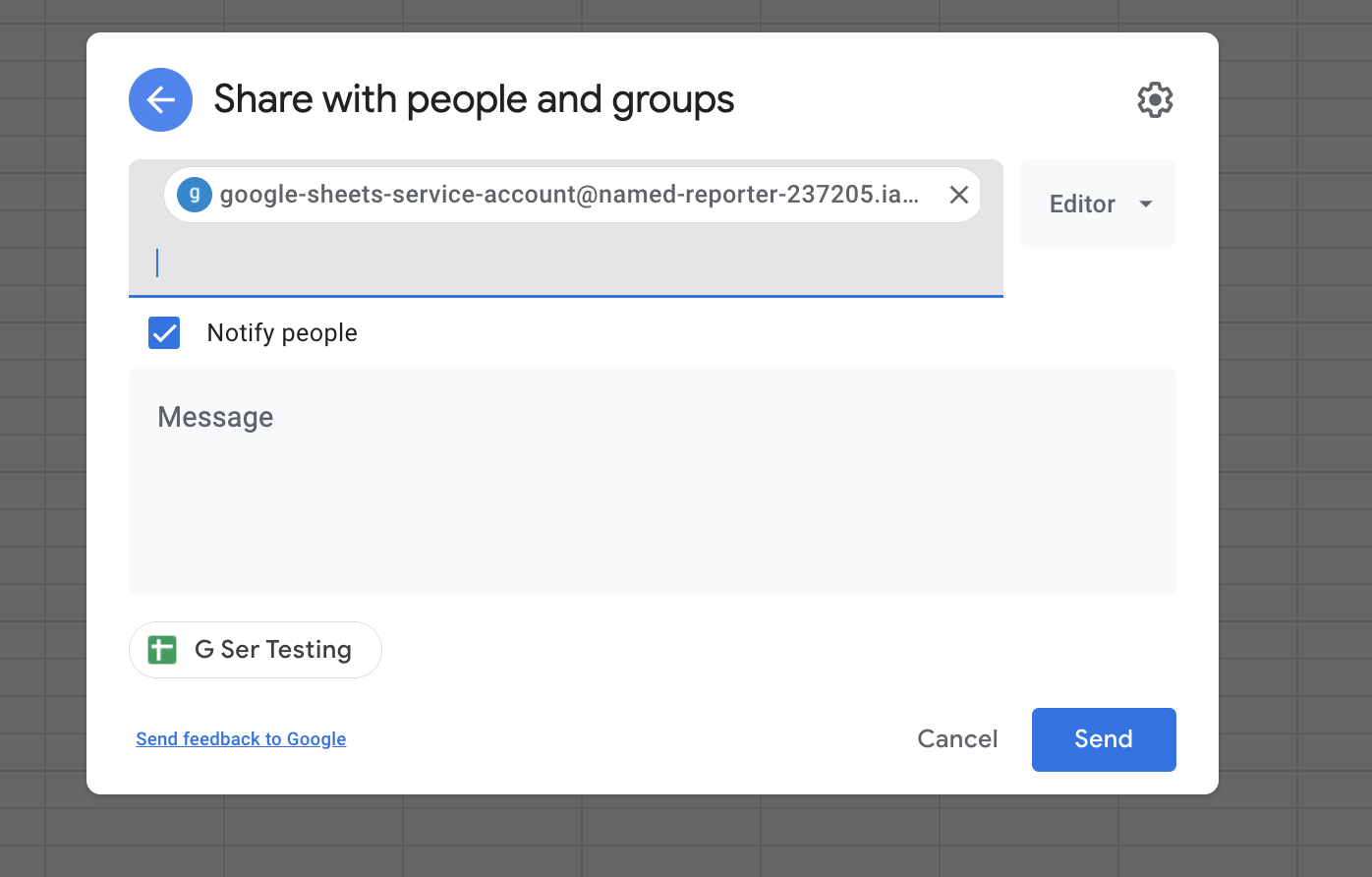 Share Google Sheets spreadsheets with your service account email
Set up a Google service account
Service account authentication requires the following prerequisites:
View Service account setup steps
Complete the following steps to set up a Google service account:
Create a service account in your GCP project.
Go to IAM & Admin > Service accounts. Ensure your dashboard is scoped to the project that contains your service account. 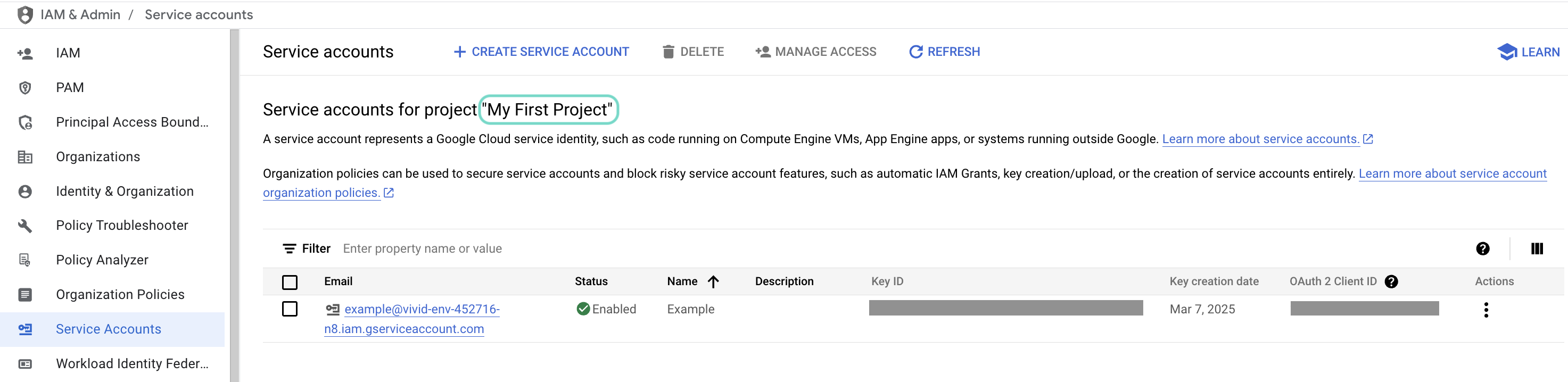 Check the scope of your dashboard.
Click the Email of the service account you intend to use. 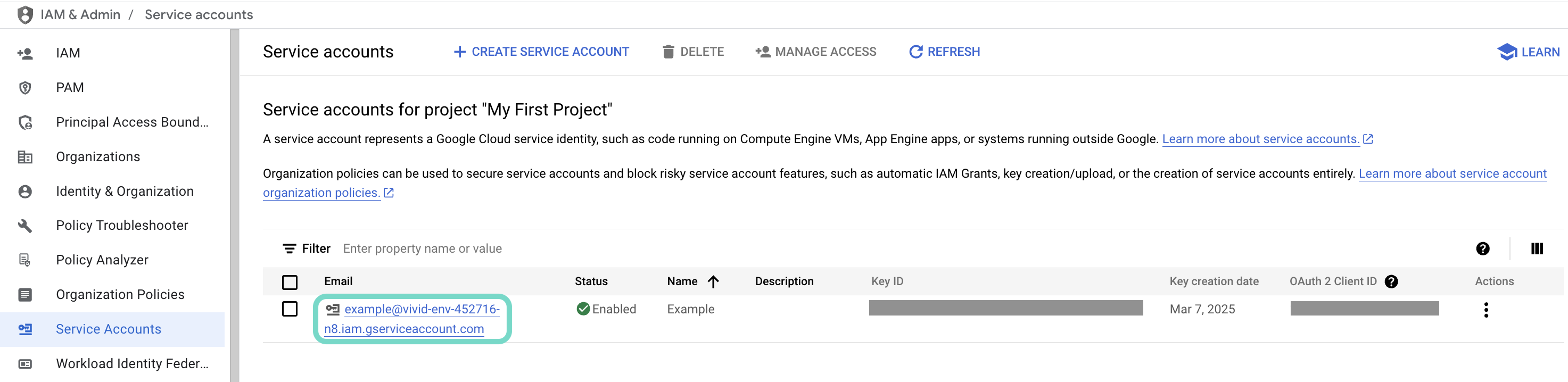 Click the Email of the service account you intend to use.
Copy the service account's Email and save it to configure your connection later. 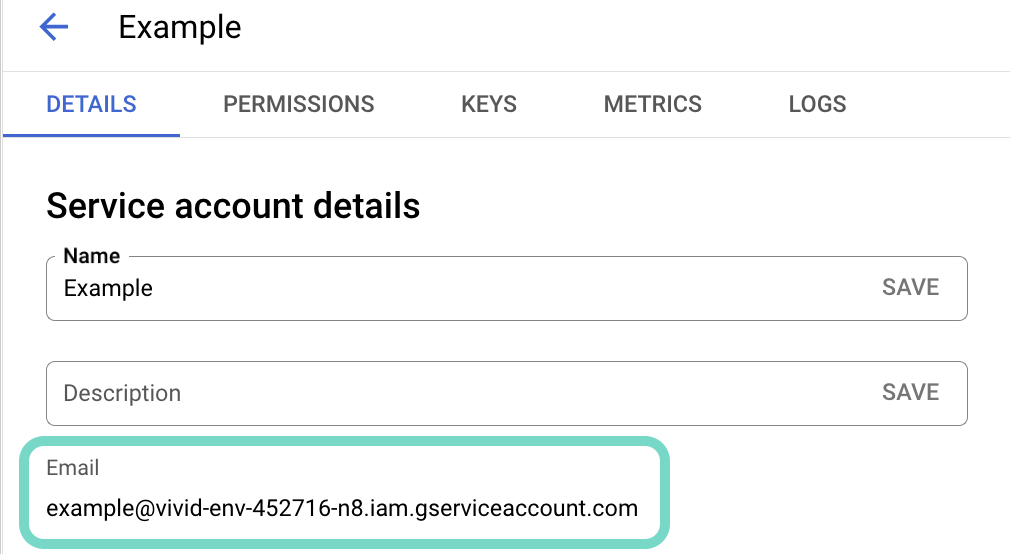 Copy the account's Email.
Go to the KEYS tab.
Generate a private key and download it in JSON format. You can only download the key once.
Open the JSON file, then copy the entire private key from -----BEGIN PRIVATE KEY----- to -----END PRIVATE KEY-----\n (inclusive) and save it to configure your connection later.
Create a service account in your GCP project.
Go to IAM & Admin > Service accounts. Ensure your dashboard is scoped to the project that contains your service account. Check the scope of your dashboard.
Click the Email of the service account you intend to use. Click the Email of the service account you intend to use.
Copy the service account's Email and save it to configure your connection later. Copy the account's Email.
Go to the KEYS tab.
Generate a private key and download it in JSON format. You can only download the key once.
Open the JSON file, then copy the entire private key from -----BEGIN PRIVATE KEY----- to -----END PRIVATE KEY-----\n (inclusive) and save it to configure your connection later.
Connect your service account to Workato
View Connect your service account to Workato steps
Complete the following steps to set up a service account connection:
Click Create > Connection or press C twice.
Search for and select Google Sheets as your connection.
Provide a name for your connection in the Connection name field.
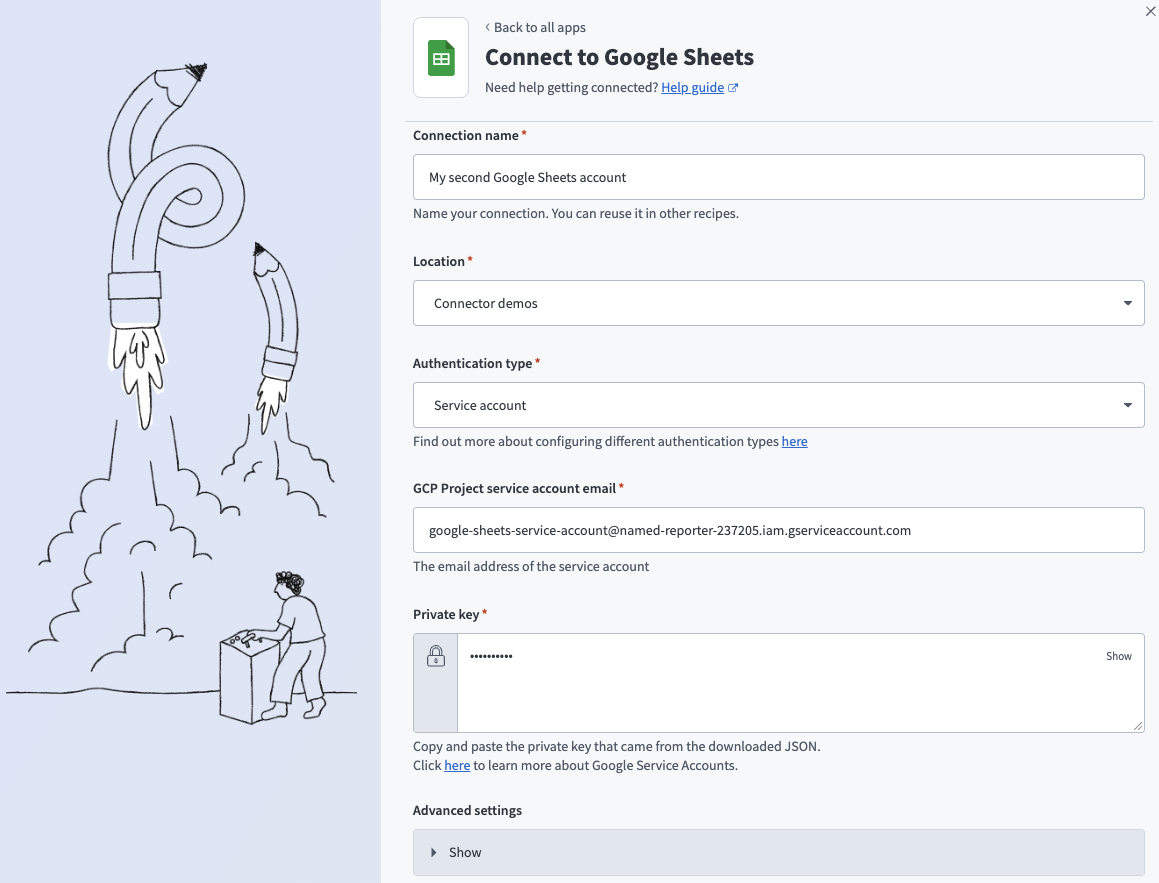 Google Sheets service account connection fields
Use the Location drop-down menu to select the project where you plan to store the connection.
Use the Authentication type drop-down menu to select Service account.
Enter your service account email in the GCP Project service account email field.
Enter the entire Private key for your service account, including -----BEGIN PRIVATE KEY----- and -----END PRIVATE KEY-----\n.
Optional. Go to Advanced settings and use the Requested permissions (Service auth scopes) drop-down menu to adjust the scopes for your connection. Workato requests the See and download all your Google Drive files and See, edit, create, and delete all your Google Sheets spreadsheets permissions by default. The permissions you select from the drop-down menu overwrite the default permissions.
Optional. Use the Disable formula drop-down menu to select whether to disable adding and updating rows with formulas.
Optional. Use the Custom OAuth profiles drop-down menu to select a custom OAuth profile for this connection.
Click Sign in with Google.
Sign in with your Google account.
Click Allow to enable Workato to access your Google account.
Click Create > Connection or press C twice.
Search for and select Google Sheets as your connection.
Provide a name for your connection in the Connection name field.
Google Sheets service account connection fields
Use the Location drop-down menu to select the project where you plan to store the connection.
Use the Authentication type drop-down menu to select Service account.
Enter your service account email in the GCP Project service account email field.
Enter the entire Private key for your service account, including -----BEGIN PRIVATE KEY----- and -----END PRIVATE KEY-----\n.
Optional. Go to Advanced settings and use the Requested permissions (Service auth scopes) drop-down menu to adjust the scopes for your connection. Workato requests the See and download all your Google Drive files and See, edit, create, and delete all your Google Sheets spreadsheets permissions by default. The permissions you select from the drop-down menu overwrite the default permissions.
Optional. Use the Disable formula drop-down menu to select whether to disable adding and updating rows with formulas.
Optional. Use the Custom OAuth profiles drop-down menu to select a custom OAuth profile for this connection.
Click Sign in with Google.
Sign in with your Google account.
Click Allow to enable Workato to access your Google account.
OAuth 2.0
View OAuth 2.0 setup steps
Complete the following steps to set up an OAuth 2.0 connection:
Click Create > Connection or press C twice.
Provide a name for your connection in the Connection name field.
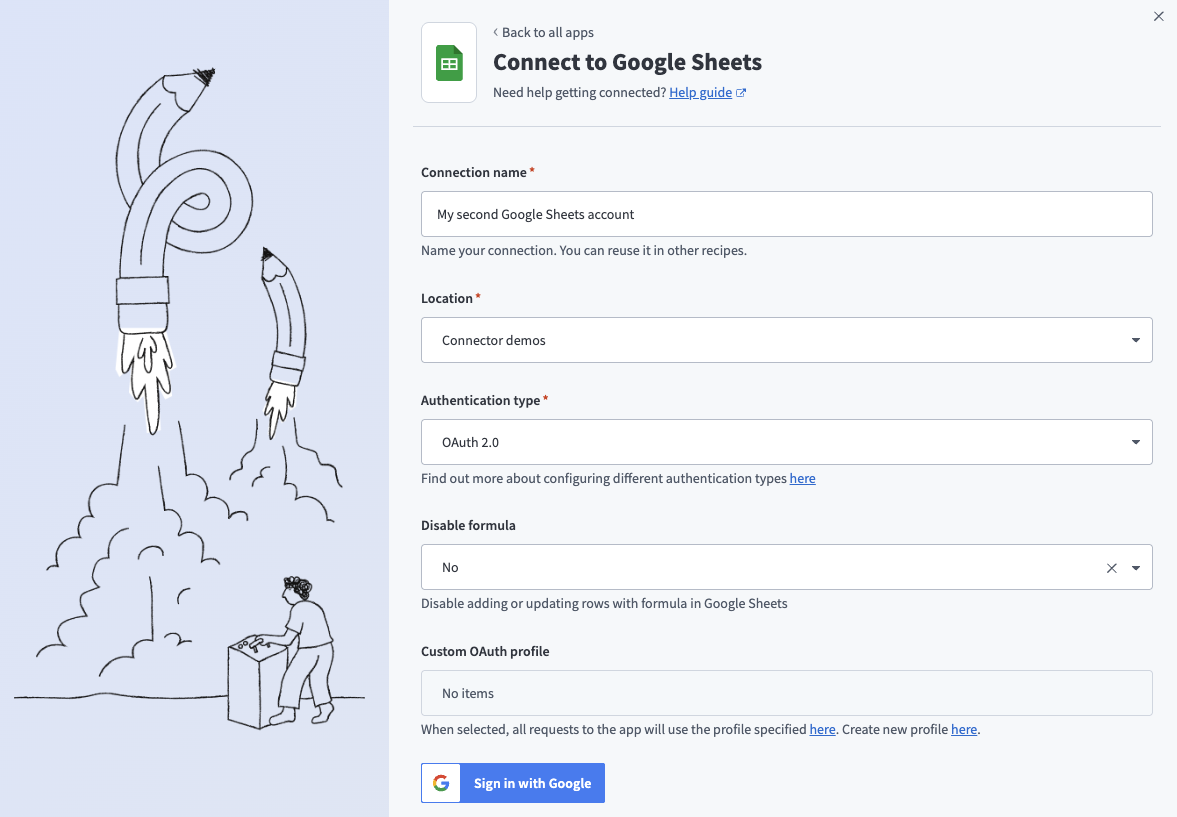 OAuth 2.0 connection fields
Use the Location drop-down menu to select the project where you plan to store the connection.
Search for and select Google Sheets as your connection on the New connection page.
Use the Authentication type drop-down menu to select OAuth 2.0.
Optional. Use the Disable formula drop-down menu to select whether to disable adding and updating rows with formulas.
Optional. Use the Custom OAuth profiles drop-down menu to select a custom OAuth profile for this connection.
Click Sign in with Google.
Sign in with your Google account.
Click Allow to enable Workato to access your Google account.
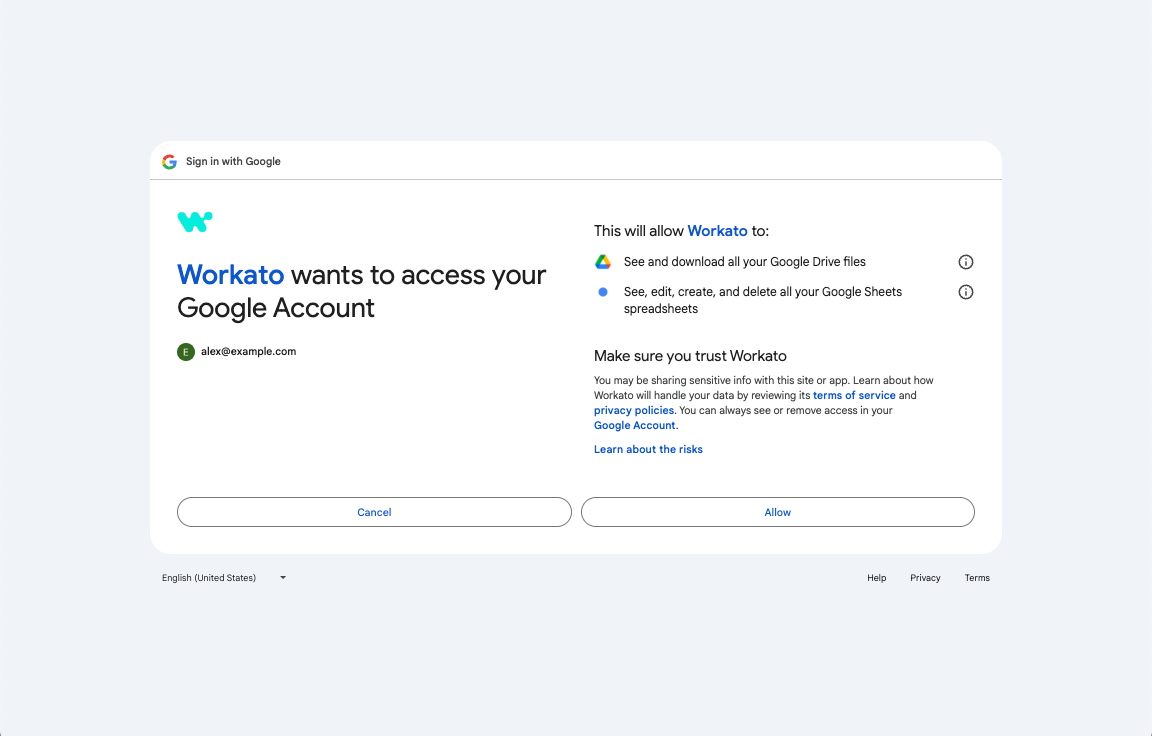 Click Allow to enable Workato to access your Google account
How to use Google Sheets MCP server tools
Refer to the following sections for detailed information on available tools:
create_spreadsheet tool
The create_spreadsheet tool creates a new Google Sheets spreadsheet. Your LLM uses this tool to start new operational spreadsheets, create trackers or reports from scratch, or initialize a spreadsheet before populating it with data. The spreadsheet can be created empty or initialized with a basic structure such as one or more sheets and optional header rows.
Try asking:
Create a new spreadsheet called 'Q1 Sales Pipeline' with columns for Deal Name, Stage, Amount, and Close Date.Start a new project tracker with tabs for Tasks, Timeline, and Resources.Make a new expense report spreadsheet with headers for Date, Category, Amount, and Notes.Create an empty spreadsheet called 'Monthly Metrics Dashboard'.
get_spreadsheet_info tool
The get_spreadsheet_info tool retrieves metadata about a Google Sheets spreadsheet needed for safe navigation, sheet selection, and write preconditions, without returning cell-level content. Your LLM uses this tool to understand spreadsheet structure, get sheet names before performing operations, retrieve the current revision ID before writes, or check for protected areas.
Try asking:
What sheets are in my Q4 Planning spreadsheet?Show me the structure of the 'Sales Dashboard' spreadsheet.Check if the Pipeline tracker has any protected sheets.Get the metadata for my team's quarterly report before I update it.
get_sheet_info tool
The get_sheet_info tool retrieves metadata about a specific sheet needed for navigation, row selection, and write preconditions, without returning cell-level content. Your LLM uses this tool to verify sheet properties, check for protection constraints, or understand the current structure before making updates.
Try asking:
Get information about the 'January 2026' sheet in my tracker.Check if the Pipeline sheet is protected or locked.Show me the metadata for the Q1 Revenue tab.What's the current row count in the Deals sheet?
get_spreadsheet_content tool
The get_spreadsheet_content tool retrieves spreadsheet content including sheet structure and cell-level data. Your LLM uses this tool to read values or formulas, understand spreadsheet contents for summarization, retrieve tables for analysis, or get current values before applying updates.
Try asking:
Show me all the data in the Sales Pipeline sheet.Read the values from the Q1 Revenue tab.Get the contents of cells A1 through E10 in the Dashboard sheet.What's currently in my expense tracker for January?
append_rows tool
The append_rows tool appends one or more rows of structured data to an existing sheet or table. Your LLM uses this tool for operational workflows such as pipeline tracking and ongoing data collection, where new entries are added over time without overwriting existing data.
Try asking:
Add these three deals to my Sales Pipeline sheet.Append today's incident reports to the tracking log.Add a new row to the expense tracker with Date: 1/15/2026, Category: Travel, Amount: $250.Log these customer support tickets in the Issues sheet.
update_range_values tool
The update_range_values tool updates values and/or formulas in a range you specify. Your LLM uses this tool for user-directed edits to existing spreadsheet content, including updating specific values, correcting data, replacing formulas, or populating previously appended empty rows.
Try asking:
Update the Stage column to 'Closed Won' for the Acme Corp deal.Change the Q4 revenue forecast in cell B12 to $450,000.Set the status to 'Complete' for all tasks in rows 5 through 8.Update the formula in cell D2 to calculate the quarterly average.
batch_update tool
The batch_update tool applies multiple spreadsheet updates as a single atomic change, ensuring all requested updates succeed or none are applied. Your LLM uses this tool when atomicity matters, such as appending rows and populating formulas in one operation, updating multiple ranges that represent a single logical edit, or creating and initializing a new sheet simultaneously.
Try asking:
Add a new deal row and calculate its projected revenue in one update.Create a 'February 2026' tab and initialize it with the same headers as January.Update the pipeline stages and recalculate all forecast formulas together.Append these entries and update the summary totals at the same time.
add_sheet tool
The add_sheet tool adds a new sheet (tab) to an existing spreadsheet. Your LLM uses this tool for structural organization workflows such as creating new time-period tabs or adding tracking tabs.
Try asking:
Add a new tab called 'January 2026' to my monthly tracker.Create a new sheet named 'Archive' in the Q4 Planning spreadsheet.Add a 'Completed Tasks' tab to the project tracker.Insert a new sheet for Q2 metrics in the dashboard.
rename_sheet tool
The rename_sheet tool renames an existing sheet (tab) in a spreadsheet. Your LLM uses this tool for structural cleanup and reorganization.
Try asking:
Rename Sheet1 to 'Sales Pipeline'.Change the 'January' tab name to 'January 2026'.Rename the 'Temp' sheet to 'Archive'.Update the sheet name from 'Data' to 'Q1 Revenue'.
delete_sheet tool
The delete_sheet tool deletes an existing sheet (tab) from a spreadsheet. This is a destructive operation that removes the sheet and its contents. Your LLM uses this tool to delete a sheet when you ask.
Try asking:
Delete the 'Archive' tab from my tracker.Remove the 'Old Data' sheet from the Q4 Planning spreadsheet.Delete Sheet2 since we don't need it anymore.Remove the 'Scratch' tab from the project dashboard.
Getting started
View and manage your MCP server tools in the Overview page Tools section. Tool management provides the following capabilities:
TOOLS MUST BE STARTED
Your LLM can only access active tools in your MCP server connector.
Last updated: