Google Drive MCP server
The Google Drive MCP server enables LLMs to work with files and folders stored in Google Drive in a reliable, permission-respecting manner through natural conversation. It provides tools to discover files, retrieve metadata and content, organize folders, manage sharing and access, and handle the lifecycle of Drive artifacts without requiring direct interaction with the Google Drive interface.
Uses
Use the Google Drive MCP server when you plan to perform the following actions:
- Search for files and folders based on name, type, owner, or content
- List contents of specific folders or Shared Drives
- Retrieve file metadata and content for review or summarization
- Create new folders for organization and project structure
- Upload files and documents to Google Drive
- Copy files to create duplicates or use templates
- Move, rename, or reorganize files and folders
- Trash and restore items for cleanup and recovery
- View and manage sharing permissions and access levels
- Share files and folders with specific people or groups
- Update or remove access for collaborators
Example prompts
Use the following example prompts to invoke Google Drive MCP server tools:
Find all documents related to the Q4 planning project.Show me what's in the Project Apollo folder.What Shared Drives do I have access to?Read the contents of the contract proposal document.Create a new folder called 'Client Deliverables' in the Sales folder.Upload this PDF to my Google Drive.Move the budget spreadsheet to the Finance folder.Who has access to the quarterly report document?Share the presentation with Sarah and give her edit access.Remove Jordan's access to the archived project folder.
Google Drive MCP server tools
The Google Drive MCP server provides the following tools:
| Tool | Description |
|---|---|
| find_files | Finds files and folders in Google Drive. |
| list_folder_items | Lists the immediate contents of a Google Drive folder you specify. |
| list_shared_drives | Retrieves the list of Shared Drives. |
| get_file_metadata | Retrieves the complete metadata for a single file or folder identified by its unique identifier. |
| get_file_content | Retrieves a portion of the contents of a single file for review or information extraction. |
| create_folder | Creates a new folder in Google Drive under a parent location that you specify. |
| upload_file | Uploads externally produced content as a new file into Google Drive. |
| copy_file | Creates a copy of an existing file in Google Drive. |
| move_item | Moves a file or folder to a new parent folder in Google Drive. |
| rename_item | Renames a file or folder in Google Drive. |
| trash_item | Moves a file or folder to the user's Trash in Google Drive. |
| restore_item | Restores a previously trashed file or folder to its non-trashed state. |
| get_permissions | Retrieves the current sharing and access information for a file or folder. |
| share_item | Grants access to a file or folder for one or more users or groups. |
| update_permission | Updates the access role for an existing principal on a file or folder. |
| remove_permission | Removes an existing principal's access to a file or folder. |
Install the Google Drive MCP server
Complete the following steps to install a prebuilt MCP server to your project:
Sign in to your Workato account.
Go to AI Hub > MCP servers.
Click + Create MCP server.
Go to the Start with pre-built MCP Servers using your connected apps section and select the prebuilt MCP server you plan to use.
Click Use this server.
Provide a name for your MCP server in the Server name field.
Use the Location drop-down menu to select the project for the MCP server.
Go to the Connections section and connect to your app account.
Select the connection type you plan to use for the MCP server template.
- User's connection: MCP server tools perform actions based on the identity and permissions of the user who connects to the application. Users authenticate with their own credentials to execute the skill.
- Your connection: This option uses the connection established by the recipe builder and follows the same principles as normal app connections.
 Select your connection type
VERIFIED USER ACCESS AUTHENTICATION REQUIREMENTS
Only app connections that use OAuth 2.0 authorization code grant are available for user's connection. Refer to Verified user access for more information.
Complete the app-specific connection setup steps in the following section.
Google Drive connection setup
The Google Drive connector supports the following authentication types:
OAuth 2.0 authentication
OAuth 2.0 authentication requires specific permissions and scopes.
View Google Drive OAuth 2.0 connection setup steps
Minimum and default scopes
Workato requests the following scopes by default in addition to the scopes you select:
drive: See, edit, create, and delete all your Google Drive filesdrive.readonly: See and download all your Google Drive files
Additionally, your Google account must have the Edit permission for all files and folders that you plan to use in Workato recipes.
Connect to Google Drive using OAuth 2.0
Complete the following steps to set up an OAuth 2.0 connection to in Workato:
Click Create > Connection or press C twice.
Search for and select Google Drive as your connection on the New Connection page.
Enter a name for your connection in the Connection name field.
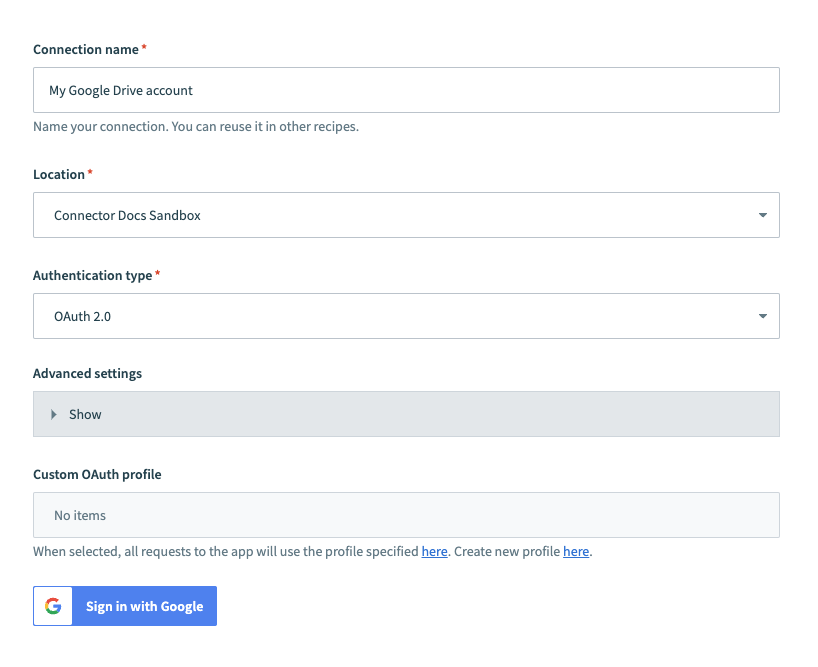 Google Drive connection setup
Use the Location drop-down menu to select the project where you plan to store the connection.
Use the Authentication type drop-down menu to select OAuth 2.0.
Optional. Expand the Advanced settings section and use the Requested permissions drop-down menu to specify OAuth scopes to request for your connection.
Optional. Use the Custom OAuth profile drop-down menu to select a custom OAuth profile to use for the connection.
Click Sign in with Google.
Click Allow to authorize Workato to access your Google Drive.
Service account authentication
Service account authentication requires a Google service account and an enabled Google Workspace API.
View service account connection setup instructions
A Google service account is a specialized Google account associated with a Google Cloud Project (GCP) that can run API requests on your behalf.
Service accounts provide the following benefits:
- Continuous operation: Service accounts ensure that operations continue even if individual user permissions change.
- Dedicated permissions: Service accounts can only access projects that you share with them.
- Dedicated API quotas: You can manage a service account's API quotas through GCP and request quota increases directly from Google.
Refer to the Google service account documentation to learn more about service accounts.
Set up a Google service account
Complete the following steps to set up a Google service account:
Create a service account in your GCP project.
Go to IAM & Admin > Service accounts. Ensure your dashboard is scoped to the project that contains your service account. 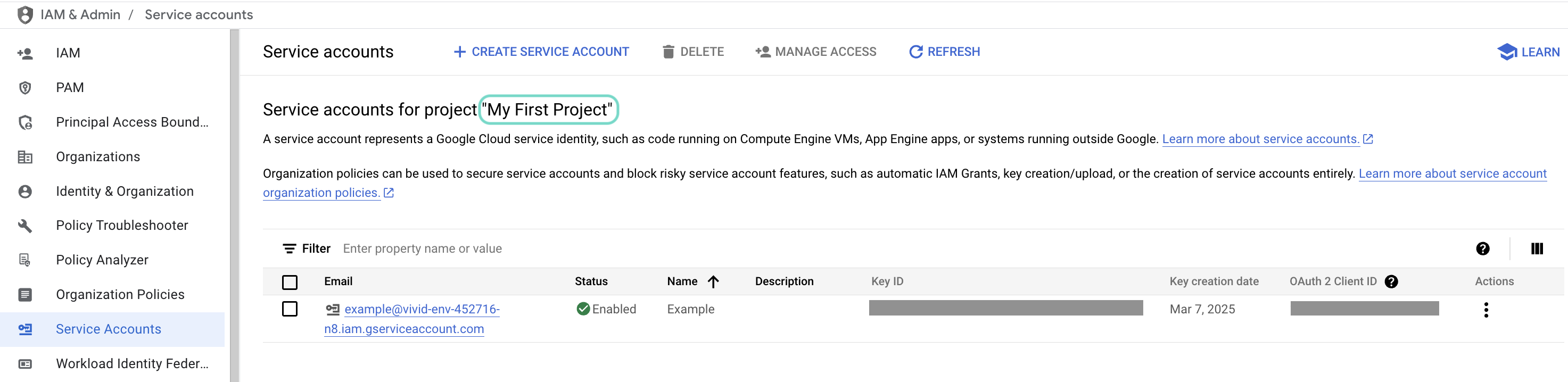 Check the scope of your dashboard.
Click the Email of the service account you intend to use. 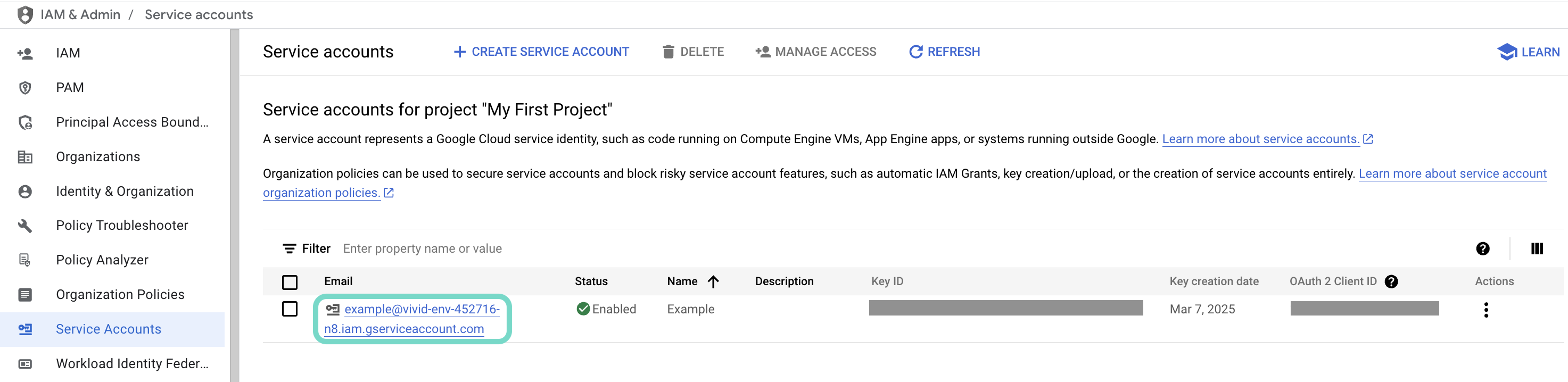 Click the Email of the service account you intend to use.
Copy the service account's Email and save it to configure your connection later. 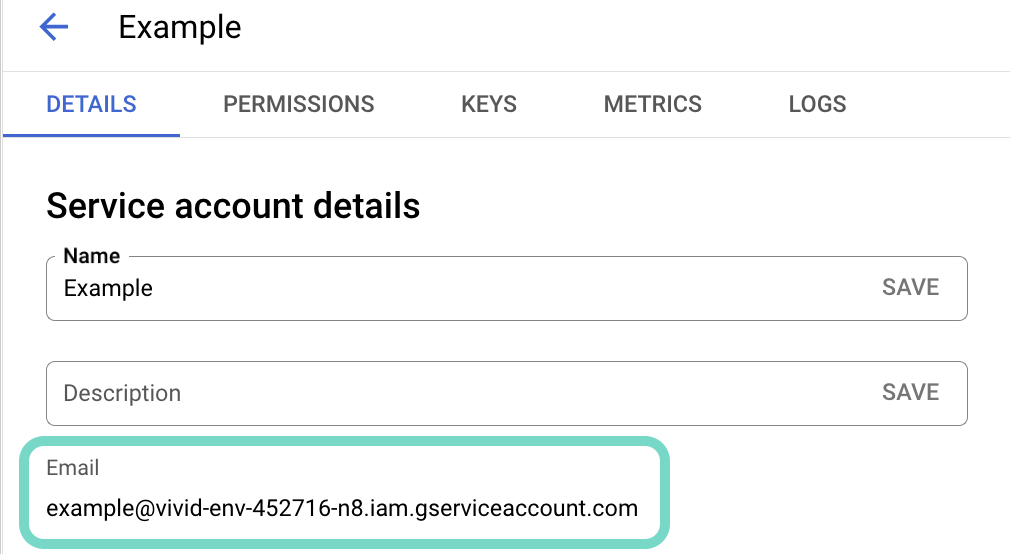 Copy the account's Email.
Go to the KEYS tab.
Generate a private key and download it in JSON format. You can only download the key once.
Open the JSON file, then copy the entire private key from -----BEGIN PRIVATE KEY----- to -----END PRIVATE KEY-----\n (inclusive) and save it to configure your connection later.
Connect to Google Drive using service account authentication
Service account authentication requires the following prerequisites:
Complete the following steps to set up a service account connection to Google Drive in Workato:
Click Create > Connection or press C twice.
Search for Google Drive and select it as your app.
Enter a name for your connection in the Connection name field.
Use the Location drop-down menu to select the project where you plan to store the connection.
Use the Authentication type drop-down menu to select Service account.
Enter the service account's email address in the GCP project service account email field.
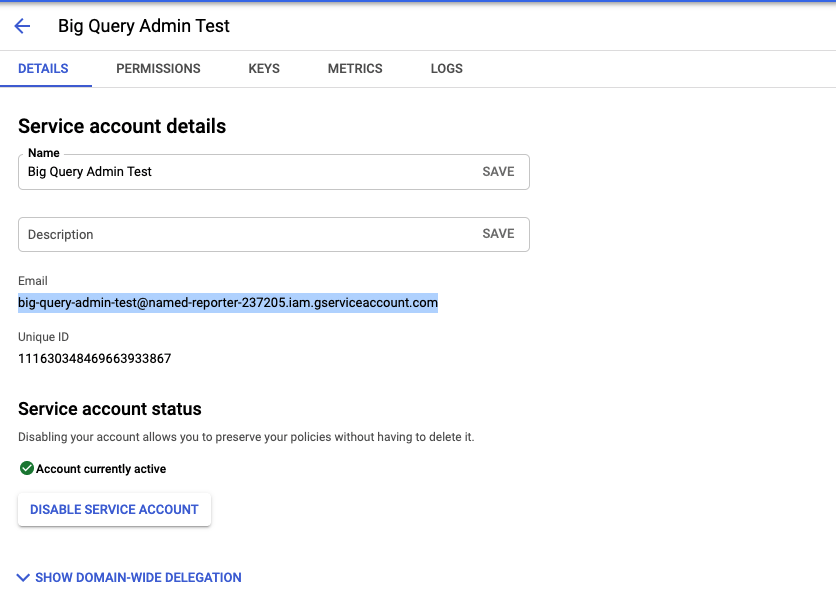 Retrieve your GCP Project service account email
Enter the Private key. Retrieve the private key from the downloadable JSON. Include both -----BEGIN PRIVATE KEY----- and -----END PRIVATE KEY-----\n.
Optional. Enter the User email of the account to impersonate. If left blank, Workato accesses the service account's Drive.
User impersonation lets the service account act on behalf of a designated user, accessing and managing events in their Google Drive. Impersonating a user ensures data accuracy and enforces the permissions and access controls set for that user in Google Drive. Refer to Google's Service account impersonation guide for more information.
Optional. Expand the Advanced settings section and use the Requested permissions drop-down menu to specify OAuth scopes to request for your connection.
Click Sign in with Google.
How to use Google Drive MCP server tools
Refer to the following sections for detailed information on available tools:
find_files tool
The find_files tool searches Google Drive for files and folders that match the criteria you specify, such as keywords, file type, or ownership. Your LLM uses this tool to locate files when you don't know the exact folder location or when discovery requires filtering or searching.
Try asking:
Find all documents related to the Acme Corp project.Search for spreadsheets created by Sarah in the last month.Locate the file that mentions 'SOC 2 compliance' in its contents.Find all PDFs shared with me this week.
list_folder_items tool
The list_folder_items tool lists the immediate contents of a Google Drive folder that you can access. Your LLM uses this tool when you want to browse a known location to select files for further actions.
Try asking:
Show me the files in the Project Apollo folder.List what's in the client deliverables folder.What documents are in my Q4 Planning folder?Browse the contents of the Sales folder.
list_shared_drives tool
The list_shared_drives tool retrieves the list of Shared Drives you have access to in Google Drive. Your LLM uses this tool when you refer to a Shared Drive by name, want to see what Shared Drives are available, or need to search within a specific Shared Drive.
Try asking:
What Shared Drives do I have access to?Show me all the team Shared Drives.List the Shared Drives for our organization.Find the Sales Shared Drive.
get_file_metadata tool
The get_file_metadata tool retrieves the complete metadata for a single file or folder identified by its unique identifier. Your LLM uses this tool to inspect a specific file before taking action, verify access, confirm ownership, or check parent folders.
Try asking:
Show me the details for the quarterly report document.Who owns the budget spreadsheet?When was the contract proposal last modified?What folder is the presentation file in?
get_file_content tool
The get_file_content tool retrieves a portion of the contents of a single file so the content can be used as input for review, summarization, or information extraction. Your LLM uses this tool when you ask to read, review, or extract information from a specific file.
CONTENT LIMITATIONS
The get_file_content tool doesn't support binary file content.
Try asking:
Read the contents of the project requirements document.Summarize the quarterly report in Google Drive.What does the contract proposal say about payment terms?Extract the key points from the meeting notes document.
create_folder tool
The create_folder tool creates a new folder in Google Drive under a parent location you specify. Your LLM uses this tool when you want to set up a folder structure for projects or prepare a location to store files.
Try asking:
Create a new folder called 'Q1 2026 Planning'.Make a folder for client deliverables in the Sales folder.Set up a new project folder named 'Product Launch'.Create an Archive folder in my root Drive.
upload_file tool
The upload_file tool uploads externally produced content as a new file into Google Drive under your identity. Your LLM uses this tool when you want to save attachments, downloads, or generated artifacts into Drive.
Try asking:
Upload this PDF to my Google Drive.Save the contract document to the Legal folder.Upload the exported spreadsheet to the Finance folder.Store this image in the Marketing Assets folder.
copy_file tool
The copy_file tool creates a copy of an existing file in Google Drive. Your LLM uses this tool when you plan to duplicate files, create new documents from templates, or reuse existing files as starting points.
Try asking:
Make a copy of the quarterly report template.Duplicate the project plan document.Copy the presentation to use as a starting point for next quarter.Create a copy of the budget spreadsheet for Q2.
move_item tool
The move_item tool moves a file or folder to a new parent folder in Google Drive. Your LLM uses this tool when you need to reorganize content, file documents into project folders, or archive items.
Try asking:
Move the budget spreadsheet to the Finance folder.File the contract into the Legal Documents folder.Move all Q3 reports to the Archive folder.Reorganize the project files by moving them to the new folder.
rename_item tool
The rename_item tool renames a file or folder in Google Drive. Your LLM uses this tool when you need to apply naming conventions, correct file names, or update item names for clarity.
Try asking:
Rename the document to 'Q4 2025 Final Report'.Change the folder name to 'Client Deliverables - Acme Corp'.Update the file name to include 'FINAL_' at the beginning.Correct the spelling in the presentation file name.
trash_item tool
The trash_item tool moves a file or folder to your Trash in Google Drive. Your LLM uses this tool when you need to delete items with the ability to restore them later.
Try asking:
Delete the old draft document.Move the outdated project folder to trash.Remove the duplicate files from last quarter.Trash all the scratch documents in this folder.
restore_item tool
The restore_item tool restores a previously trashed file or folder. Your LLM uses this tool when you need to undo a prior deletion or recover accidentally deleted items.
Try asking:
Restore the quarterly report from trash.Undo the deletion of the project folder.Recover the contract document I deleted yesterday.Bring back the presentation file from trash.
get_permissions tool
The get_permissions tool retrieves the current sharing and access information for a specific file or folder. Your LLM uses this tool when you need to see who has access, confirm stakeholder permissions, or troubleshoot access issues.
Try asking:
Who has access to the quarterly report?Show me the sharing settings for the budget spreadsheet.Does Sarah have access to the project folder?List everyone who can view the presentation.
share_item tool
The share_item tool grants access to a file or folder for one or more users or groups. Your LLM uses this tool when you need to share files with collaborators, grant review or edit access, or ensure stakeholders can access documents.
Try asking:
Share the quarterly report with Sarah and give her edit access.Grant comment access to the marketing team for the presentation.Share the project folder with [email protected] as a viewer.Give the legal team access to review the contract document.
update_permission tool
The update_permission tool updates the access role for an existing principal on a specific file or folder. Your LLM uses this tool when you need to change someone's access level, convert review access to edit access, or correct permission levels.
Try asking:
Change Sarah's access to editor on the budget spreadsheet.Upgrade Jordan from viewer to commenter on the project plan.Make Alex an editor instead of a viewer for this document.Downgrade the external consultant's access to view-only.
remove_permission tool
The remove_permission tool removes an existing principal's access to a specific file or folder. Your LLM uses this tool when you need to revoke access for people who no longer need it, remove collaborators who left a project, or restrict access after completion.
Try asking:
Remove Jordan's access to the archived project folder.Revoke the external consultant's access to the contract.Take away Sarah's access to the old quarterly reports.Remove all external collaborators from the sensitive document.
Getting started
View and manage your MCP server tools in the Overview page Tools section. Tool management provides the following capabilities:
TOOLS MUST BE STARTED
Your LLM can only access active tools in your MCP server connector.
Last updated: