Namely End User MCP server
The Namely End User MCP server provides self-service, identity-scoped access to HR and directory information for individual employees and managers through natural conversation. It enables LLMs to view your HR data, access team information if you're a manager, and navigate basic organizational context without requiring HR administrator privileges or exposing sensitive workforce-wide data.
The Namely End User MCP server provides tools to check PTO balances, look up a colleague's contact information, review your own profile, or check on your team's time-off status if you're a manager. All operations are strictly scoped to your identity and permitted visibility, making the server safe for broad deployment across your organization.
Uses
Use the Namely End User MCP server when you plan to perform the following actions:
- View your own employment profile, job title, and department
- Check your benefits enrollment status and coverage
- Look up colleague contact information and organizational details
- View your direct reports if you're a manager
- Understand reporting relationships within your visibility
- Update your first name, last name, or personal email
- Retrieve all job titles in the organization
Example prompts
Use the following example prompts to invoke Namely End User MCP server tools:
What's my job title and department?When did I start at the company?What health plan am I enrolled in?Who is Sarah Chen and what's her contact information?Show me my direct reports.Who does Alex report to?Update my personal email to [email protected].What are all the job titles in our organization?
Namely End User MCP server tools
The Namely End User MCP server provides the following tools:
| Tool | Description |
|---|---|
| get_my_profile | View your employment profile information. |
| get_my_benefits | View your benefits enrollment status. |
| lookup_employee | Look up employee information. |
| get_my_team | View your direct reports. |
| get_reporting_relationship | View reporting relationships. |
| update_my_profile | Update your first name, last name, or personal email. |
| get_all_job_titles | Retrieve all job titles in the organization. |
Install the Namely End User MCP server
Complete the following steps to install a prebuilt MCP server to your project:
Sign in to your Workato account.
Go to AI Hub > MCP servers.
Click + Create MCP server.
Go to the Start with pre-built MCP Servers using your connected apps section and select the prebuilt MCP server you plan to use.
Click Use this server.
Provide a name for your MCP server in the Server name field.
Use the Location drop-down menu to select the project for the MCP server.
Go to the Connections section and connect to your app account.
Select the connection type you plan to use for the MCP server template.
- User's connection: MCP server tools perform actions based on the identity and permissions of the user who connects to the application. Users authenticate with their own credentials to execute the skill.
- Your connection: This option uses the connection established by the recipe builder and follows the same principles as normal app connections.
 Select your connection type
VERIFIED USER ACCESS AUTHENTICATION REQUIREMENTS
Only app connections that use OAuth 2.0 authorization code grant are available for user's connection. Refer to Verified user access for more information.
Complete the app-specific connection setup steps in the following section.
Namely End User connection setup
View Namely End User connection setup steps
The Namely connector supports OAuth 2.0 authentication.
Complete the following steps to connect to Namely in Workato:
Click Create > Connection or press C twice.
Search for Namely and select it as your app.
Enter a name for your connection in the Connection name field.
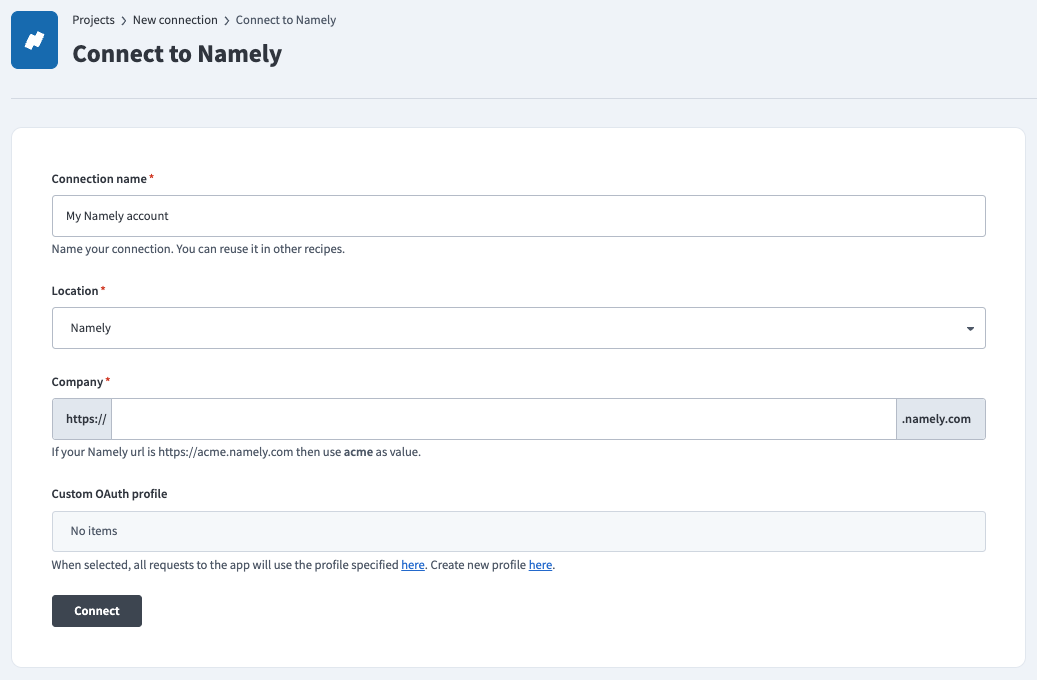 Namely connection setup
Use the Location drop-down menu to select the project where you plan to store the connection.
Enter the company account name you plan to connect to your Workato account in the Company field. You can find this name in your Namely URL. For example, if your URL is http://acme.namely.com, enter acme in this field.
Optional. Use the Custom OAuth profile drop-down menu to select a custom OAuth profile for your connection.
Click Connect.
Click Allow when prompted to authorize Workato to access your Namely account.
Project property configuration
You must configure the default timezone for your Namely End User MCP server at the project level.
View Project property configuration steps
Complete the following steps to configure your timezone:
Sign in to your Workato account and go to Projects.
Go to the project that contains your MCP server.
Click the Settings tab.
 Click the Settings tab.
Select Project properties.
Go to the MCP_DEFAULT_TIMEZONE property and click the Edit (pencil) icon.
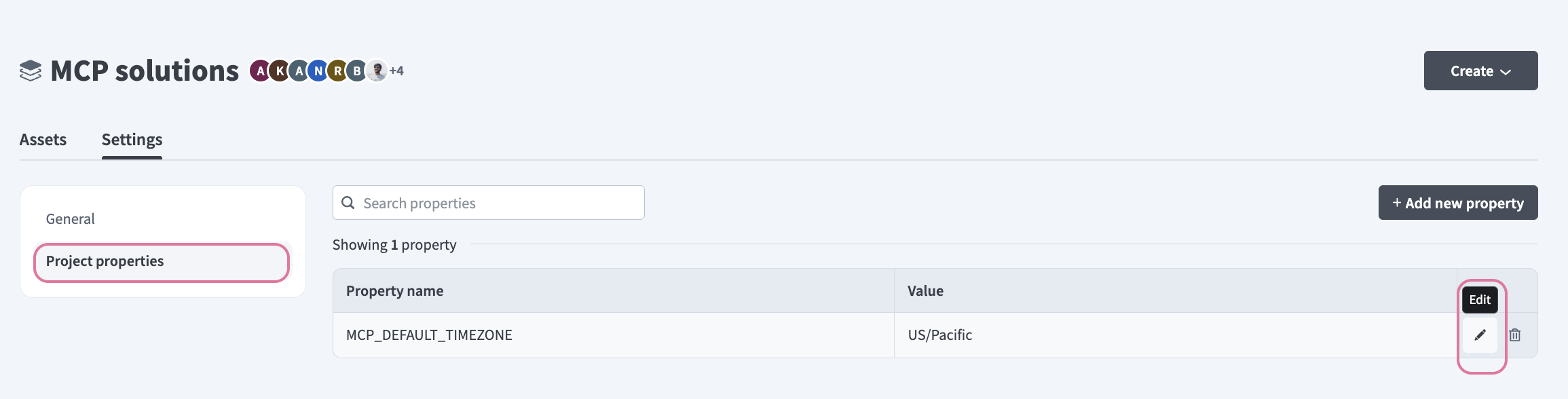 Click the Edit (pencil) icon.
Go to the Value field and enter your timezone. For example: US/Pacific, Australia/Sydney, Asia/Kolkata, or Europe/London.
How to use Namely End User MCP server tools
Refer to the following sections for detailed information on available tools:
get_my_profile tool
The get_my_profile tool retrieves your employment profile information including job title, department, start date, and other personal HR data. Your LLM uses this tool as the default for any self-referential HR question about your own employment information.
SELF-SERVICE ONLY
This tool only retrieves your own profile information. For specific domains like PTO or benefits, consider using domain-specific tools to access comprehensive information.
Try asking:
What's my job title?When did I start working here?What department am I in?Show me my employment profile.
get_my_benefits tool
The get_my_benefits tool retrieves your benefits enrollment status including health insurance, dental, vision, and other benefit plans. Your LLM uses this tool to show your enrollment status and high-level coverage descriptors.
Try asking:
What health plan am I enrolled in?Do I have dental insurance?Show me my benefits enrollment.What coverage do I have for vision?
lookup_employee tool
The lookup_employee tool retrieves information about a specific colleague, including their title, department, manager, and contact information. Your LLM uses this tool when you ask about someone within your visibility set. This tool doesn't support search or name enumeration— it only works when a specific person is referenced.
VISIBILITY REQUIRED
This tool only returns information for people within your permitted visibility set. It can't be used to search or enumerate all employees.
Try asking:
Who is Sarah Chen?What's Jordan's job title?How do I contact Alex?What department does Maria work in?
get_my_team tool
The get_my_team tool retrieves your direct reports if you're a manager. Your LLM uses this tool to show your team structure and can optionally include indirect reports (full reporting tree). This tool only returns results for users who are managers.
MANAGERS ONLY
This tool only works if you have direct reports. It returns no results for individual contributors.
Try asking:
Who are my direct reports?Show me my team.Who reports to me?Get my full reporting tree including indirect reports.
get_reporting_relationship tool
The get_reporting_relationship tool retrieves reporting relationships for people within your visibility. Your LLM uses this tool when you ask who someone reports to or who reports to someone else.
Try asking:
Who does Alex report to?Who reports to Jordan?What's Sarah's reporting chain?Show me the reporting relationship for the engineering team.
update_my_profile tool
The update_my_profile tool updates your first name, last name, or personal email address. Your LLM uses this tool to update the name and email address attached to your profile.
Try asking:
Update my first name from 'Alexandra' to 'Alex'.Change my last name to 'Johnson-Smith'.Update my email to [email protected].
get_all_job_titles tool
The get_all_job_titles tool retrieves all job titles in the organization. Your LLM uses this tool to understand the full range of roles across your company or help you explore organizational structure.
Try asking:
What are all the job titles in our organization?Show me the different roles we have company-wide.List all engineering job titles.What positions exist in the product department?
Getting started
View and manage your MCP server tools in the Overview page Tools section. Tool management provides the following capabilities:
TOOLS MUST BE STARTED
Your LLM can only access active tools in your MCP server connector.
Last updated: