Configuring Google Secret Manager for on-prem agent
In this guide, we demonstrate how to use Google Secret Manager with Workato's on-prem agent (OPA) to store database credentials.
Google Secret Manager support for OPA connection types
Google Secret Manager supports both cloud profiles and connection profiles, with a different setup process for each:
| On-prem system connection type | Google Secret Manager setup | Secret reference |
|---|---|---|
| Cloud profile (recommended) | Google Secret Manager connector in Workato | Enter the secret name as defined in Google Secret Manager |
| Connection profile | secrets section in config.yml | { secret: '<secret_name>' } |
CONNECTION TYPES
- Cloud profiles are set up directly in Workato, so you don't need to access the machine where the on-prem agent is installed.
- Connection profiles are set up manually in a
config.ymlfile on the machine where the on-prem agent is installed.
Using Google Secret Manager with cloud profiles
Complete the following steps to set up and use Google Secret Manager to store credentials for an on-prem system configured as a cloud profile:
Set up a Google Cloud service account. This enables Workato to retrieve secrets from Secret Manager.
Set up Google Secret Manager at the workspace level or project level. Select the name of the on-prem group that you set up as a cloud profile in the Connection type field of the connection setup.
Using Google Secret Manager with connection profiles
Note: In this tutorial, the focus in on using secrets to encrypt passwords. However, you can use secrets to encrypt any connection value, including usernames, database names, and so on.
Prerequisites
To configure Google Secret Manager to work with OPA, you must have:
- The On-prem groups privilege in Workato
- Privilege to set environment variable
- The permissions in Google Secret Manager to:
- Create secrets
- Create a service account
Step 1: Create the secret in Google
Sign into the Google Secret Manager.
Click + CREATE SECRET
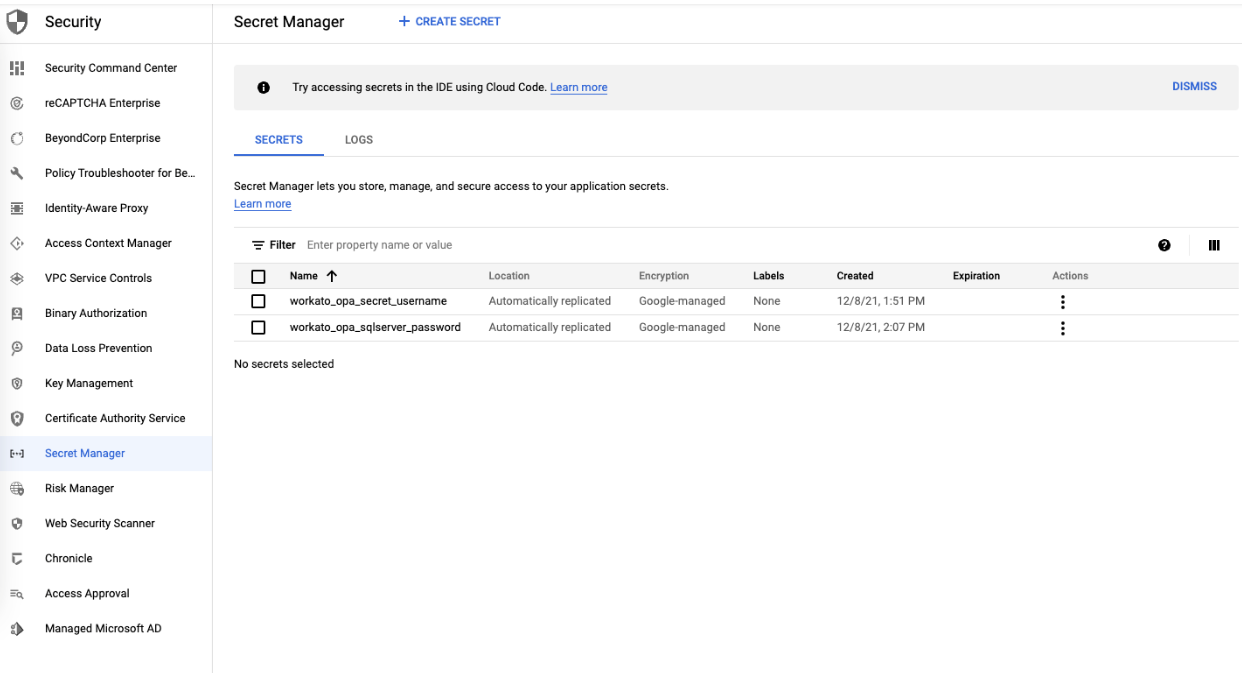
Assign a name to the secret; this name is used in your OPA config file to look up the correct password. In this example, the name is workato-sqlserver-password.
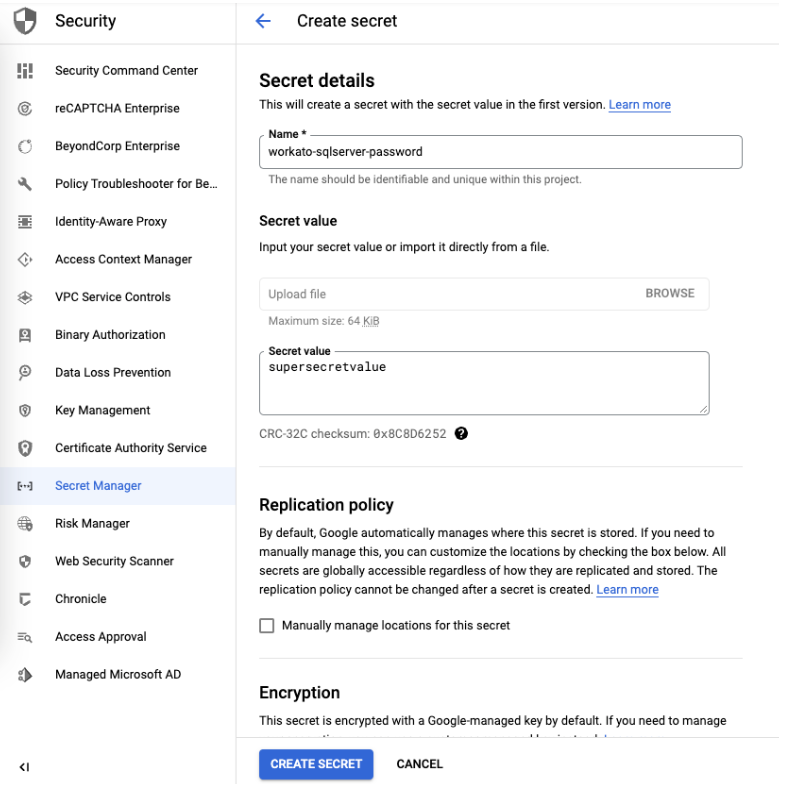
After creating the secret, note the project, secret name, and version. Use these to format the Secret Version and place it inside the OPA.
In this example:
- the project is
558965260687, - secret name is
workato-sqlserver-password, - version is
1.
That means that the composite value used in the OPA config file is projects/558965260687/secrets/workato-sqlserver-password/versions/1
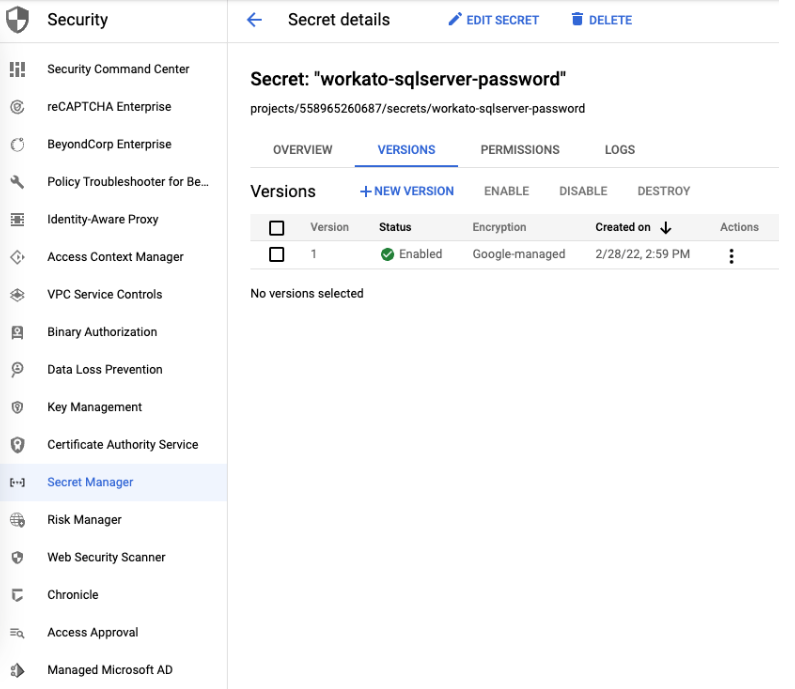
Using latest version for secret
projects/558965260687/secrets/workato-sqlserver-password/versions/latest can also be used to reference the latest version of the secret.
Step 2: Configure the OPA config file and connection to Google Secret Manager
Here, add the information about the secret provider to OPA configuration file, and set up the Google Secret Manager connection.
In your OPA config file, add a secrets section with provider key:
secrets:
provider: googleFor provider, enter google.
Save the file.
Storing Google connection credentials
You do not have to store your Google connection credentials in the OPA config file. The OPA uses Application Default Credentials to authenticate its requests to Google. Create a service account with read access to your secrets, and store the service account key in your environment variable.
Step 3: Configure The Database Profile
To wrap things up, specify which secret to use in the database profile.
In the config file, navigate to the database profile.
In your password key, specify the secret value that you created in Step 1:
database:
  sql:
    adapter: sqlserver
    host: localhost
    port: 1433
    database: test
    username: db_user
password: { secret: 'projects/558965260687/secrets/workato_opa_sqlserver_password/versions/latest' }Save the file.
Last updated: