Profile settings
Personal profile settings allow you to customize your individual account preferences, security options, and workspace memberships. You can access your profile settings by clicking your user icon and selecting Profile settings from the drop-down menu.
Profile
Customize your personal profile information and theme preferences.
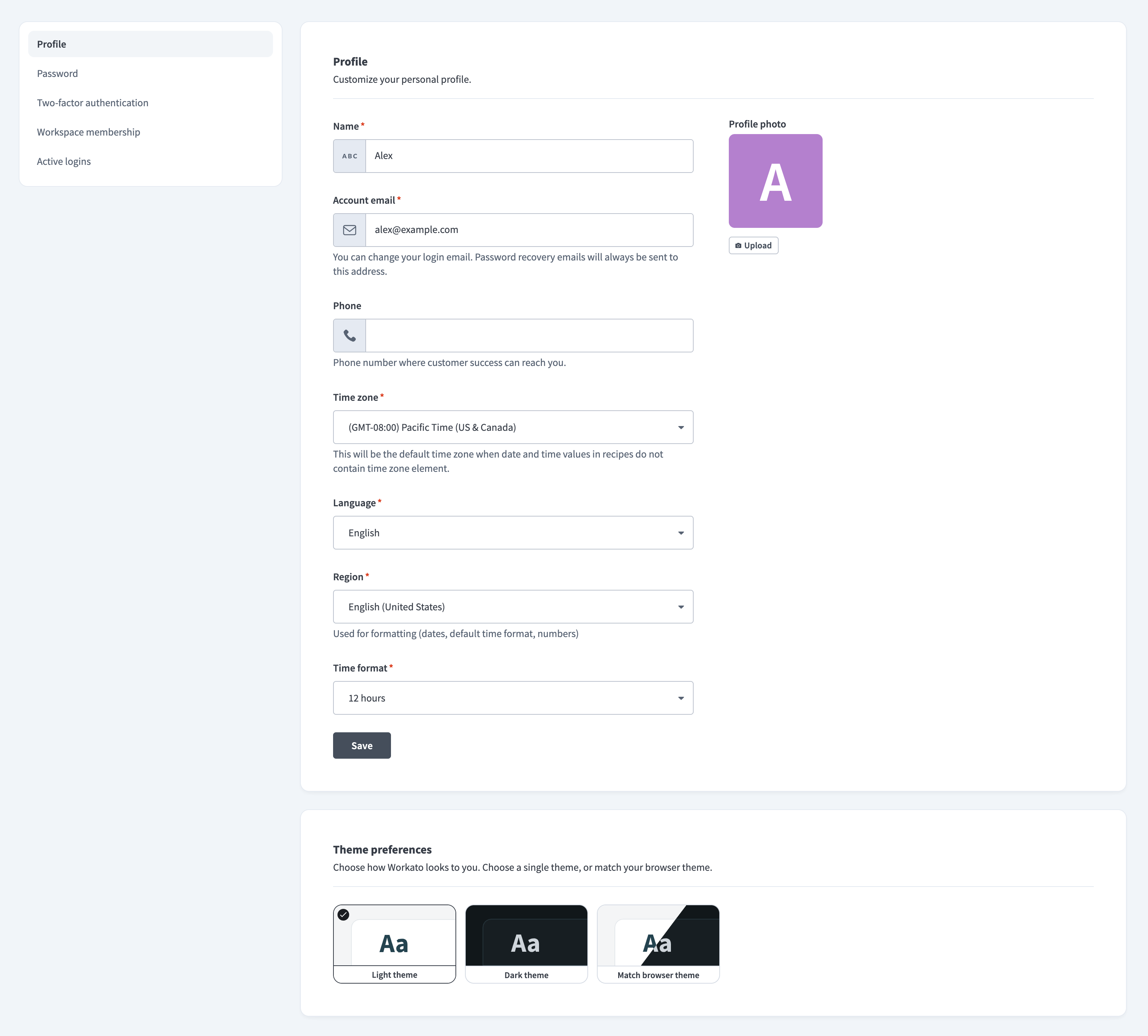 Profile settings page
| Setting | Description |
|---|---|
| Name | Update your first name and last name as displayed across Workato. |
| Account email | Set your login email address. Password recovery emails are always sent to this address. Refer to the Update account email guide for more information. |
| Phone | Enter a phone number where Customer Success can reach you. |
| Time zone | Set your default time zone, used when date and time values in recipes don't specify one. |
| Language | Select your preferred language for the Workato interface. Supported languages include:
|
| Region | Select your region to control how dates, numbers, and times are formatted. This setting only affects your view and doesn't change the format for other workspace members. |
| Time format | Select your preferred time format. Options include:
|
| Profile photo | Upload a profile photo that represents you across Workato. |
| Theme preferences | Choose how Workato looks to you. You can select light theme, dark theme, or match your browser theme. |
Password
Change your account password.
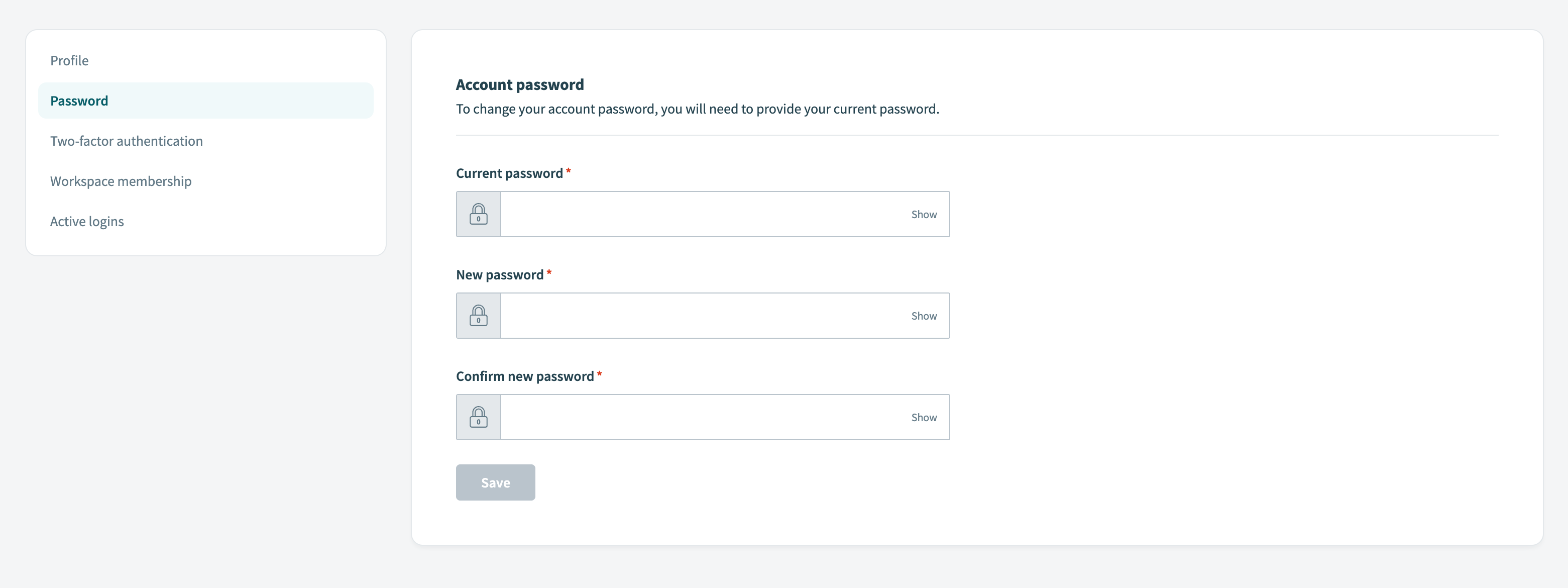 Password settings page
Two-factor authentication
Set up two-factor authentication for your individual account. When enabled, you'll need to provide a single-use code each time you sign in.
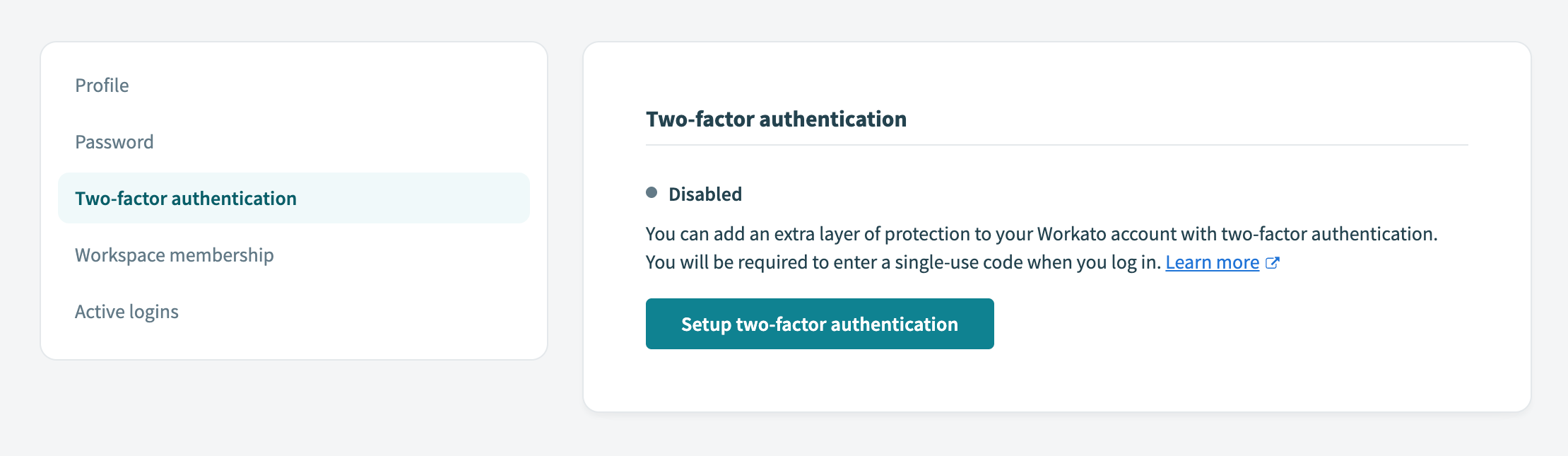 Two-factor authentication settings
Learn more about two-factor authentication. If you're a workspace admin, you can also require two-factor authentication for all members of your workspace.
Workspace membership
Manage the workspaces you belong to. Shows all workspaces where you are a collaborator, along with your role and join date.
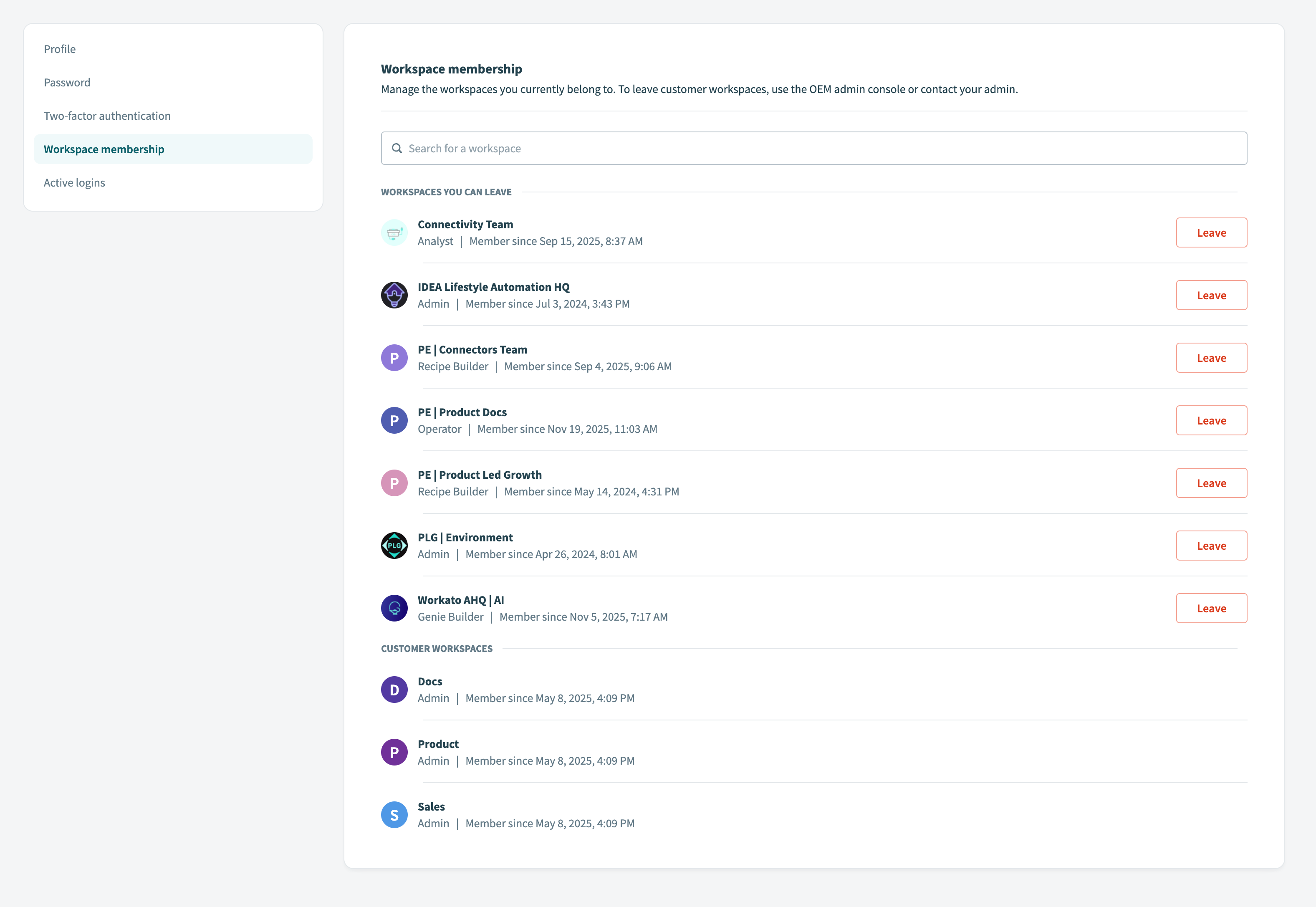 Workspace membership page
You can leave a workspace by clicking the Leave button next to the workspace name.
LEAVING EMBEDDED CUSTOMER WORKSPACES
To leave Embedded customer workspaces, use the Embedded admin console or contact your workspace admin.
Active logins
View and manage devices signed in to your account.
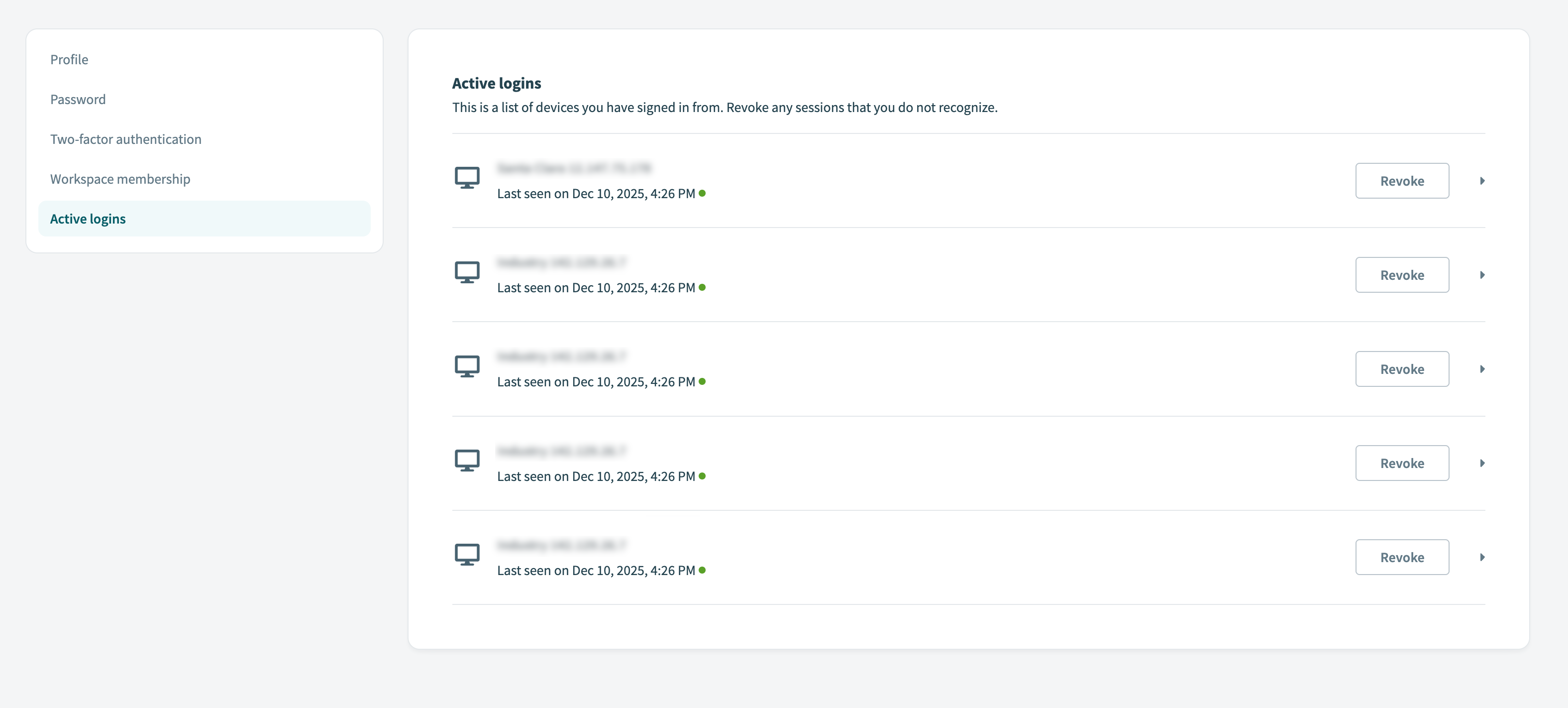 Active logins page
Each session displays:
- IP address
- Current session indicator
- Browser and operating system information
- Last sign-in date and time
You can revoke a session by clicking the Revoke button. Your current session can't be revoked from this view.
Last updated: