# Agent orchestration
Agent orchestration enables your genies to work autonomously within recipes. Recipes assign tasks to genies without user input. Genies process tasks while the recipe job pauses, then return responses and metadata to the recipe. The recipe resumes with the returned data.
You can track Agent orchestration workflows on the Conversations page. Each task assigned to a genie appears as a new conversation.
Agent orchestration uses the Assign task to genie action.
The Assign task to genie action lets you assign a task to your genie. You must provide a clear task description to ensure that your genie understands how to handle the task.
VERIFIED USER ACCESS and USER CONFIRMATION CONNECTIONS AREN'T SUPPORTED
The Assign task to genie action can't be used with genies that have verified user access skills or that require user confirmations with Business approvals.
# Assign task to genie action
You can use the Assign task to genie action to assign a task to a genie. This enables your genie to trigger a recipe autonomously, perform the assigned task, and return a response.
GENIES MUST BE WITHIN THE SAME PROJECT
Genies can only assign tasks to other genies in the same project.
Complete the following steps to configure the Assign task to genie action:
Go to the skill recipe where you plan to assign a task to a genie.
Click the Select an app and action step in the recipe.
Search for and select Workato Genie.
Select the Assign task to genie action.
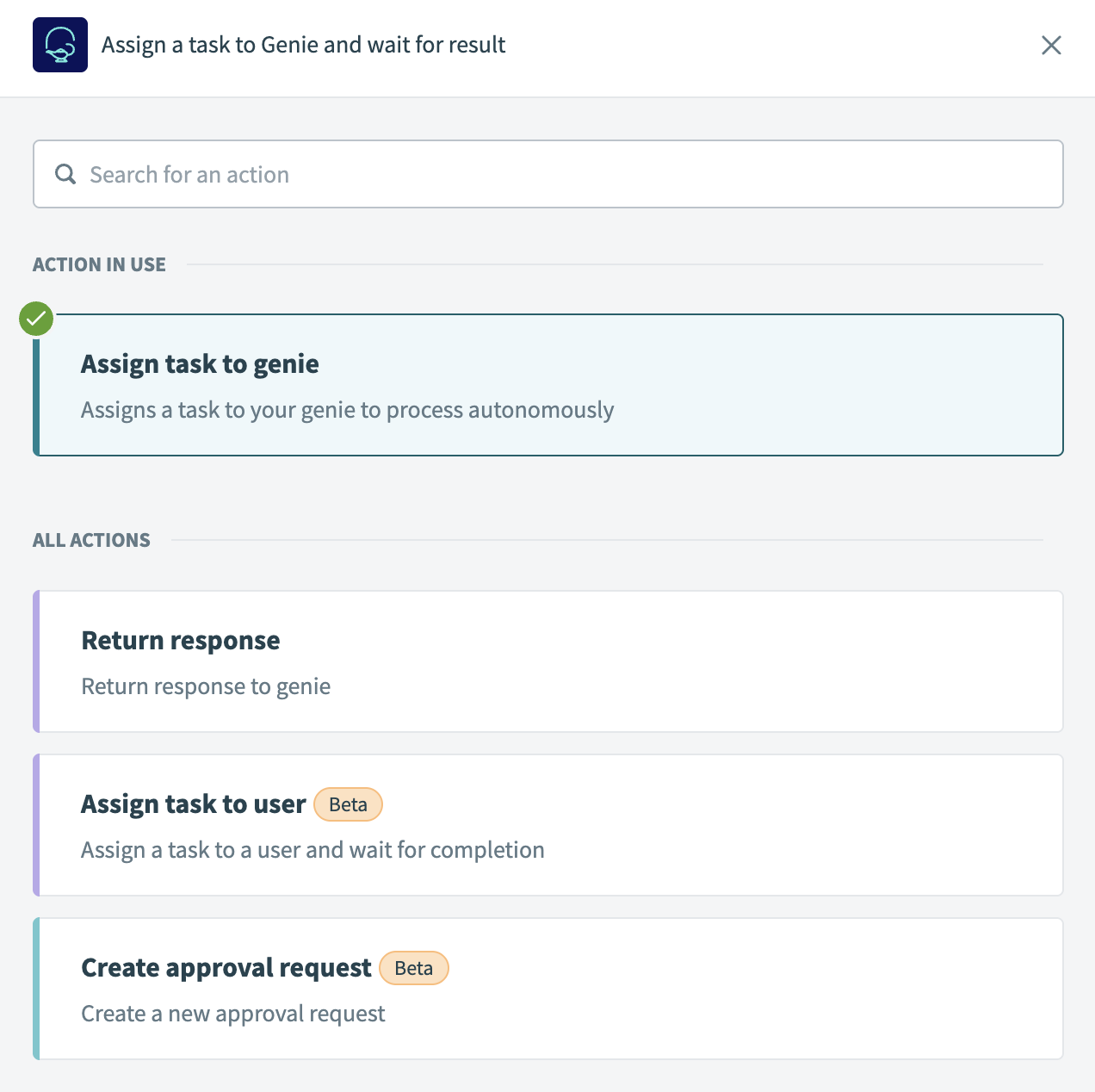 Assign task to genie action
Use the Genie drop-down menu to select the genie you plan to use.
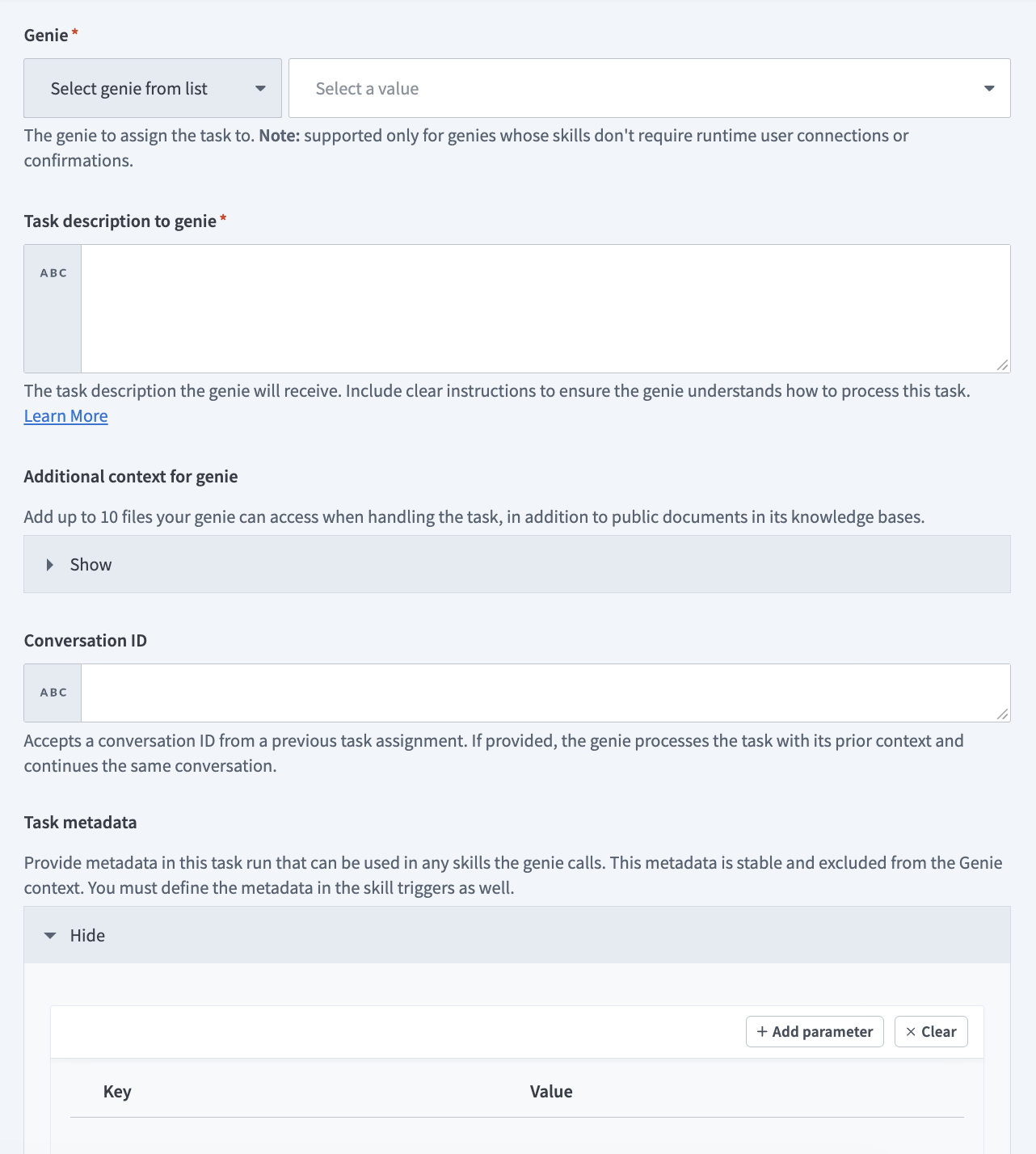 Set up the Assign task to genie action
Enter detailed instructions in the Task description to genie field. Write clear, self-contained tasks to ensure your genie handles them correctly. Include all required data.
BEST PRACTICES FOR TASK DATA
Write clear task instructions and include all required data you plan for your genie to process to design reliable and autonomous orchestration workflows.
- Keep tasks self-contained and use Conversation ID for continuity.
- Use structured output for downstream mapping with predictable fields, such as status, result, and URLs.
- Delegate across genies by splitting large or multi-domain tasks.
- Monitor and evaluate by reviewing tasks on the Conversations page.
For example:
Review the customer onboarding form and extract the following:
- Company name and size
- Industry category
- Required integrations

Also retrieve their enterprise compliance requirements from Salesforce if the company size is over 500 employees. Return all data in JSON format with fields: company_name, company_size, industry, integrations (array), enterprise_requirements (object or null).
Alternatively, you can provide a structured description format to improve outcomes. For example:
<instructions>
Perform the following steps for the following task data
- [Step 1]
- [Step 2]

If you hit errors or need clarification
- [Error handling instructions]
</instructions>

Use the following context to handle the task
<data>
[Map any datapills or provide the task data so your genie can handle it]
</data>
Optional. Expand the Additional context for genie section and provide up to ten files as context for the task.
Optional. Provide the conversation ID in the Conversation ID field to pass context from a previous task. This allows a task to build on the earlier conversation.
Optional. Expand the Task metadata section and click Add parameter to provide custom key and value pairs for your metadata, such as invoice_id for an invoice processing genie or user_email for an IT reset password genie. Any skill your genie uses can access the metadata you add here.
METADATA MUST BE CONFIGURED IN SKILL TRIGGER
You must define matching metadata in your skill trigger for the skill to access the metadata.
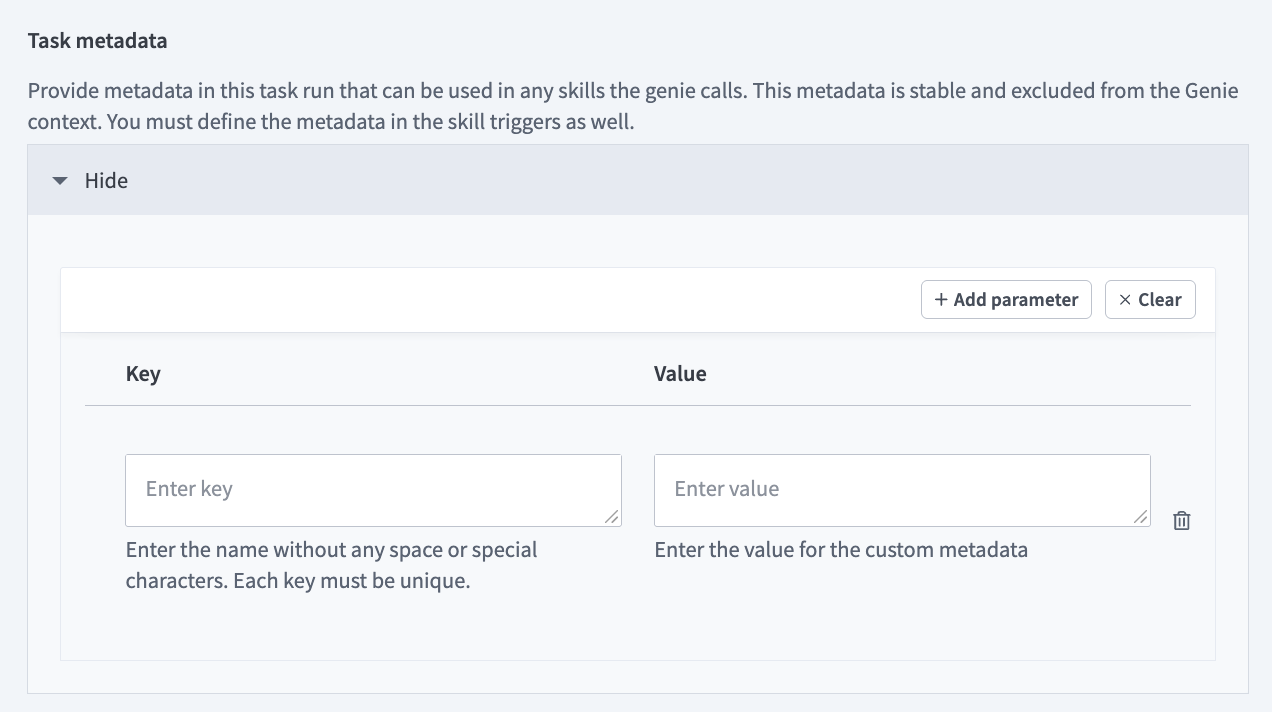 Define custom metadata
Optional. Go to the Configure genie output for usage in this recipe section and provide custom output fields to enable your genie to respond with a structured output rather than a plain text response. This allows you to use the output datapills in downstream steps in your recipe.
Click Save.
# Agent orchestration example use cases
Agent orchestration lets genies run multi-step tasks autonomously within recipes. This enables workflows that require decision-making, data gathering, or document handling to run without user input. Refer to the following example use cases to determine how Agent orchestration can be applied to your workflows:
- Autonomous task processing: Genies perform complete tasks while the recipe job is suspended. For example:
- Invoice reconciliation: Compare invoices and POs, and then return JSON summary of matches and discrepancies.
- Contract summarization: Extract key clauses, such as termination, renewal, and payment from contracts.
- Support triage: Categorize tickets and suggest priority level or assignee.
- Knowledge-based decision-making: Genies use internal knowledge bases to guide deterministic workflows. For example:
- Policy Q&A: Genies answer questions within a recipe using internal SOPs or wikis.
- Documentation lookup: A support genie retrieves relevant product documents and URLs.
- File and data processing: Genies parse, validate, or enrich structured and unstructured data.
For example:
- Document classification: Identify document type and metadata.
- Data extraction: Parse spreadsheets or CSVs and enrich data through API interaction.
- Evidence upload: Collect and upload audit files to Google Drive or SharePoint.
- Testing and evaluation: Genies autonomously test workflows or other genies. For example:
- Response testing: Compare genie outputs against expected answers.
- Genies in channels: Genies process background tasks while keeping conversational context in combination with Workbot for Slack or Teams. For example:
- Persistent Conversation ID: Maintains multi-turn conversations using the same Conversation ID.
- Cross-agent collaboration: Genies delegate subtasks to each other with the Assign task to genie action to form multi-agent workflows. For example:
- Compliance audit: Audit Genie delegates evidence collection to another genie to compile results.
- Procurement: Finance genie validates a budget, and then Procurement genie proceeds to onboarding.
- Project updates: Product Manager genie summarizes Jira issues, and then Communications genie drafts updates.
# Defined task metadata example use cases
The following example use cases provide an overview of how to define and use metadata in the Assign task to genie action:
# Invoice processing
An invoice is automatically created in your accounting system, and the Finance Genie autonomously processes it for approval. Your scheduled trigger runs and detects new pending invoices. The trigger retrieves the invoice details from the accounting system and assigns the task to the Finance Genie with the invoice_id metadata defined. This method is stable and allows the genie to process the request without directly handling the metadata, which eliminates the chance of a hallucination.
The Finance Genie autonomously determines the appropriate action, such as approve invoice, request additional documentation, or flag for review, and executes the invoice approval in your accounting system using the verified invoice_id metadata to ensure that the request can't be spoofed.
Workflow outline
- Scheduled trigger: The recipe runs on a schedule to check for new pending invoices in your accounting system.
- Get invoice context: The recipe retrieves the invoice details and extracts the invoice ID from the accounting system.
Assign task to genie: The recipe uses the Assign task to genie action to send the invoice processing task to the Finance Genie with
invoice_idmetadata, for example,INV-2026-001234, and suspends the recipe job. - Autonomous task processing: The Finance Genie references the task instructions and available skills to determine the appropriate action, such as approve invoice, request additional documentation, or flag for review.
- Execute action: The genie uses the approve invoice skill to approve the invoice in your accounting system for the invoice specified in the
invoice_idmetadata. - Complete workflow: The genie confirms the invoice approval was successful and returns the completion status to the original recipe.
The following diagram illustrates this workflow:
# Password reset
A user requests a password reset in Slack, and the ITSM Genie autonomously processes the request. Your Workbot trigger detects a new message in a Slack thread and runs. It retrieves the user's email and assigns the task to the ITSM Genie with the user_email metadata. This method is stable and allows the genie to process the request without directly handling the metadata, which eliminates the chance of a hallucination.
The ITSM Genie autonomously determines the appropriate action, such as reset password, link with policy, or unlock account, and executes the password reset in Okta using the verified user_email metadata to ensure that the request can't be spoofed.
Workflow outline
- Workbot connector trigger: Workbot detects a new message in a Slack thread requesting a password reset.
- Get user context: The recipe retrieves the user's email address from Slack using their Slack ID.
- Assign task to genie: The recipe uses the Assign task to genie action to send the password reset task to the ITSM Genie with
user_emailmetadata, for example,[email protected], and suspends the recipe job. - Autonomous task processing: The ITSM Genie references the task instructions and available skills to determine the appropriate action, such as reset password, unlock account, or link with policy.
- Execute action: The genie uses the reset password skill to reset the password in Okta for the user specified in the
user_emailmetadata. - Complete workflow: The genie confirms the password reset was successful and returns the completion status to the original recipe.
# Compliance audit example use case
A compliance audit triggers on a schedule and the Audit genie autonomously initiates evidence collection. The Audit genie uses an API endpoint skill to call a recipe that assigns the evidence collection task to the Evidence Collection genie.
The Evidence Collection genie autonomously collects required compliance documentation from multiple systems and uploads the files to Google Drive and returns the file URLs to the Audit genie, which then uploads the evidence to the governance, risk, and compliance tool.
Workflow outline
Trigger: Scheduled recipe triggers the Audit genie to begin compliance evidence collection.
API call: The Audit genie uses a skill to call an API endpoint recipe.
Assign task to genie: The API endpoint recipe uses the Assign task to genie action to send the evidence collection task to the Evidence Collection genie and suspends the recipe job.
Autonomous task processing: The genie references the task instructions to understand how to process the task.
Sends response: The genie sends the response and metadata back to the recipe when the task is complete.
Resume recipe: The API endpoint recipe resumes and returns the genie's response to the Audit genie.
Complete workflow: The Audit genie uses the Google Drive URLs to access and upload the files to the governance, risk, and compliance tool using another skill.
# App Events vs Assign task to genie
Use this section to determine whether App Events or the Assign task to genie action is the right tool for your use case.
Ask yourself: Does a user need to receive a message and potentially take action?
- Yes: Use App Events
- No: Use the Assign task to genie action
App Events require a user. The genie reaches out to a specific, identified user through the chat interface. The user receives the message, responds, and the conversation continues.
Assign task to genie doesn't require a user. The genie processes a task in the background by reasoning, calling skills, and returning a structured result to the recipe. No conversation thread is created.
# When to use App Events
Use App Events when:
- A user needs to be informed and may need to take action. For example, a ticket they created was updated, or a renewal opportunity is approaching.
- User judgment is required mid-process. The genie presents context and options and the user decides.
- The downstream skill requires Verified User Access. Verified user access requires an active user session.
- The flow involves Business Approvals. Approval notifications surface in the user's chat interface and require user interaction.
- The genie needs to initiate a conversation proactively. For example, scheduled reminders or event-triggered alerts.
App Events can't return a structured value to a recipe. The recipe continues immediately after sending the event without waiting for the genie to finish.
# When to use Assign task to genie
Use the Assign task to genie action when:
- Processing is automated and the result feeds back into the recipe. For example, classifying a ticket, summarizing a document, or extracting invoice data.
- No user is present or needed. For example, background jobs or system-to-system integrations.
- The genie's output is structured data, not a message to a user.
- Multiple genies need to collaborate in a pipeline. An orchestrating recipe can assign tasks to specialist genies in sequence, collecting structured outputs from each.
The Assign task to genie action can't be used with:
- Verified User Access because there's no user context in a headless invocation.
- Business Approvals because approval notifications are delivered through the user's chat interface.
- Permission-aware knowledge bases because knowledge bases ingested with user-scoped permissions don't enforce those permissions without a user context.
These are platform constraints, not configuration choices.
# App Events and Assign task to genie comparison
Use the following comparison to determine which feature to use:
| App Events | Assign task to genie | |
|---|---|---|
| User required | Yes ✅ | No ❌ |
| Recipe pauses and waits | No ❌ | Yes ✅ |
| Structured output to recipe | No ❌ | Yes ✅ |
| Verified user access supported | Yes ✅ | No ❌ |
| Business Approvals | Yes ✅ | No ❌ |
| Conversational follow-up | Yes ✅ | No ❌ |
# Combine both features
The most powerful architectures combine both features in sequence.
A recipe uses Assign task to genie for automated reasoning, such as classifying a ticket or evaluating escalation criteria. The structured result allows the recipe to use App Events to notify the relevant user and start a conversation. The reasoning is automated while the decision is determined by a user.
# Common mistakes
Using App Events where Assign task to genie should be used: A builder needs to classify incoming support tickets automatically. The builder uses App Events to send each ticket to an agent and wait for a classification response. This creates a conversation thread for every ticket and fills agents' chat interfaces with genie messages. The Assign task to genie action, which doesn't require user involvement, should be used in this case.
Using Assign task to genie where App Events should be used: A builder needs to notify sales reps when a renewal opportunity approaches. The builder uses the Assign task to genie action to process the renewal event and return a summary as a datapill. The sales rep never receives the notification because the Assign task to genie action doesn't start a conversation in the chat interface the way App Events do.
# Use case recommendations
Refer to the following use case recommendations to help you choose the correct feature for your workflow:
| Use case | Feature | Reason |
|---|---|---|
| Categorize tickets from an email webhook | Assign task to genie | Automated output with no user interaction required |
| Notify a sales rep of a renewal 30 days out | App Events | Rep needs to receive the message and may act |
| Summarize a contract and extract key clauses | Assign task to genie | Automated output feeds downstream recipe |
| Alert an IT engineer about a P1 incident | App Events | Engineer decides whether to escalate |
| Evaluate whether a ticket meets escalation criteria | Assign task to genie | Automated reasoning with output that feeds conditional logic |
| Notify a user their ticket was updated | App Events | Specific user needs to receive a message |
| Generate a weekly pipeline summary per rep | App Events | Each rep receives a personalized message in the chat interface |
| Extract structured data from an invoice PDF | Assign task to genie | Automated extraction with structured output to recipe |
Last updated: 4/23/2026, 6:26:55 PM