Gmail MCP server
The Gmail MCP server enables AI assistants to read, organize, draft, and send emails through Gmail using natural conversation. The Gmail MCP server provides tools to discover messages and threads, retrieve full email content and attachments, compose and revise drafts, send emails, and manage inbox state without requiring direct interaction with the Gmail interface.
Uses
Use the Gmail MCP server when you plan to perform the following actions:
- Search for conversations with specific people, customers, or groups
- Find ongoing or historical discussions about topics or projects
- Read and review complete email threads and individual messages
- Compose, draft, and send new emails or replies
- Manage attachments including viewing and retrieving files
- Organize inbox with labels, starring, and archiving
- Mark messages as read or unread for inbox management
- Triage and clean up email conversations
Example prompts
Use the following example prompts to invoke Gmail MCP server tools:
Find all email threads with Acme Corp from the last month.Show me the conversation about the Q4 product launch.Draft a follow-up email to Sarah about the meeting yesterday.What attachments were included in the contract email from the legal team?Send the draft email I created earlier.Archive all threads labeled 'Old Projects'.Mark all unread messages from this week as read.Star the email from Jordan about the budget approval.
Gmail MCP server tools
Use the following example prompts to invoke Gmail MCP server tools:
The Gmail MCP server provides the following tools:
| Tool | Description |
|---|---|
| search_threads | Searches for email conversation threads that match the criteria you provide and returns matching thread identifiers with summary metadata. |
| search_messages | Searches for individual email messages that match the provided criteria and returns message identifiers with summary metadata. |
| list_labels | Retrieves the list of system and user-defined labels available to you. |
| get_thread | Retrieves the complete contents of a single email thread identified by its thread ID. |
| get_message | Retrieves the complete contents of a single email message identified by its message ID. |
| list_attachments | Retrieves the list of attachments associated with a specific email message. |
| get_attachment | Retrieves the raw contents of a specific attachment identified by its attachment ID and parent message. |
| add_attachment | Adds an attachment to your email draft. Total upload size for attachments must be 10 MB or less. |
| remove_attachment | Removes an attachment from your email. |
| create_draft | Creates a new email draft. |
| update_draft | Updates the contents or metadata of an existing email draft. |
| get_draft | Retrieves the complete contents of an existing email draft. |
| send_draft | Sends an existing email draft. |
| mark_message_read_state | Updates the read or unread state of one or more email messages. |
| add_labels | Applies one or more labels to email messages or threads you specify. |
| remove_labels | Removes one or more labels from email messages or threads you specify. |
| archive_threads | Archives one or more email threads. |
| unarchive_threads | Moves one or more archived email threads back to the inbox. |
| star_messages | Marks one or more email messages as starred. |
| unstar_messages | Removes the star marker from one or more email messages. |
Install the Gmail MCP server
Complete the following steps to install a prebuilt MCP server to your project:
Sign in to your Workato account.
Go to AI Hub > MCP servers.
Click + Create MCP server.
Go to the Start with pre-built MCP Servers using your connected apps section and select the prebuilt MCP server you plan to use.
Click Use this server.
Provide a name for your MCP server in the Server name field.
Use the Location drop-down menu to select the project for the MCP server.
Go to the Connections section and connect to your app account.
Select the connection type you plan to use for the MCP server template.
- User's connection: MCP server tools perform actions based on the identity and permissions of the user who connects to the application. Users authenticate with their own credentials to execute the skill.
- Your connection: This option uses the connection established by the recipe builder and follows the same principles as normal app connections.
 Select your connection type
VERIFIED USER ACCESS AUTHENTICATION REQUIREMENTS
Only app connections that use OAuth 2.0 authorization code grant are available for user's connection. Refer to Verified user access for more information.
Complete the app-specific connection setup steps in the following section.
Gmail connection setup
View Gmail connection setup steps
Workato supports OAuth 2.0 authentication and Service account authentication for Gmail.
Minimum and default scopes
The See your primary Google Account email address scope is required to establish a connection at a minimum.
Workato requests the following scopes by default if you don't request specific scopes:
- See your primary Google Account email address
- See and edit your email labels
- Send email on your behalf
- View your email messages and settings
- Read, compose, and send emails from your Gmail account
Ensure your Google Workspace Admin grants domain-wide authority delegation to your service account if you plan to use a service account to connect to Gmail. This allows it to impersonate the user email entered during connection setup, with the necessary scopes and permissions.
OAuth 2.0 authentication
View OAuth 2.0 authentication steps
Complete the following steps to set up an OAuth 2.0 connection:
Sign in to your Workato account and navigate to the project where you plan to add your Gmail connection.
Click Create > Connection (or press C twice), then select Gmail as your connection.
Provide a Connection name that uniquely identifies the Gmail connection instance.
Click the Authentication type menu and select OAuth 2.0.
Optional. Click Advanced settings and select additional OAuth 2.0 scopes. If left blank, the following scopes are requested:
- See your primary Google Account email address
- See and edit your email labels
- Send email on your behalf
- View your email messages and settings
- Read, compose, and send emails from your Gmail account
Optional. Use the Custom OAuth profile drop-down menu to select a custom OAuth profile for your connection.
Click Sign in with Google and sign in to your Google account to complete the setup.
Service account authentication
View Service account authentication steps
A Google service account is a specialized Google account associated with a Google Cloud Project (GCP) that can run API requests on your behalf.
Service accounts provide the following benefits:
- Continuous operation: Service accounts ensure that operations continue even if individual user permissions change.
- Dedicated permissions: Service accounts can only access projects that you share with them.
- Dedicated API quotas: You can manage a service account's API quotas through GCP and request quota increases directly from Google.
Refer to the Google service account documentation to learn more about service accounts.
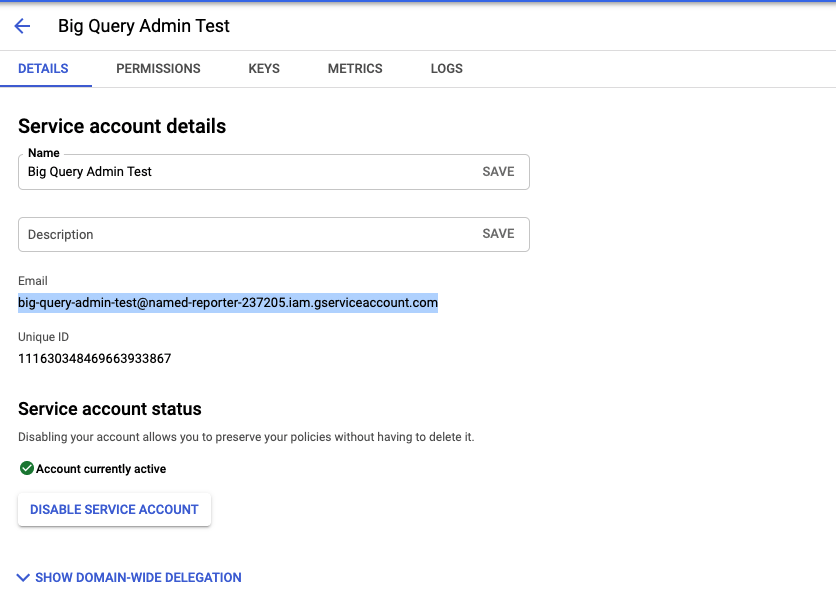 Obtain a GCP Project service account email
Set up a Google service account
View Google service account setup steps
Complete the following steps to set up a Google service account:
Create a service account in your GCP project.
Go to IAM & Admin > Service accounts. Ensure your dashboard is scoped to the project that contains your service account. 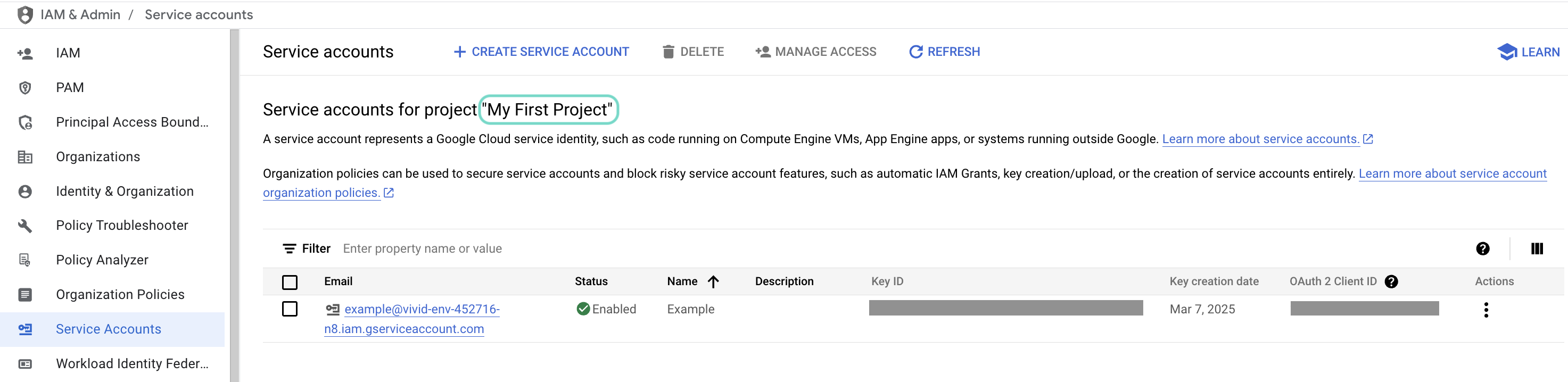 Check the scope of your dashboard.
Click the Email of the service account you intend to use. 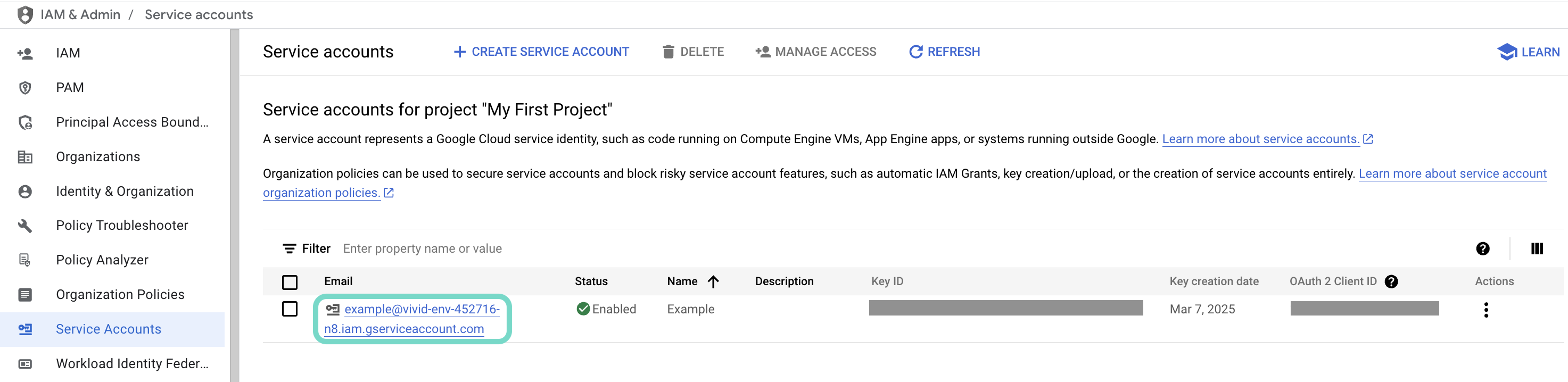 Click the Email of the service account you intend to use.
Copy the service account's Email and save it to configure your connection later. 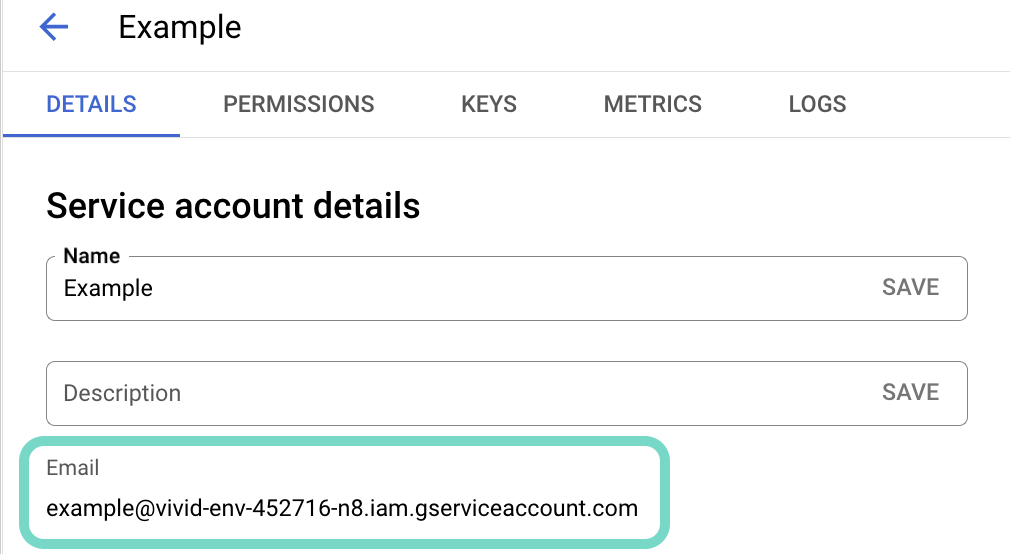 Copy the account's Email.
Go to the KEYS tab.
Generate a private key and download it in JSON format. You can only download the key once.
Open the JSON file, then copy the entire private key from -----BEGIN PRIVATE KEY----- to -----END PRIVATE KEY-----\n (inclusive) and save it to configure your connection later.
Connect to a service account in Workato
View Connect to a service account in Workato steps
Complete the following steps to set up a service account connection:
Sign in to your Workato account and navigate to the project where you plan to add your Gmail connection.
Click Create > Connection (or press C twice), then select Gmail as your connection.
Select the Authentication type drop-down menu.
Click Sign in with Google and sign in to your Google account to complete the setup.
How to use Gmail MCP server tools
Refer to the following sections for detailed information on available tools:
search_threads tool
The search_threads tool searches for email conversation threads that match the criteria you provide and returns matching thread identifiers with summary metadata. Your LLM uses this tool to find conversations with specific people, locate ongoing or historical discussions about topics, identify active deal or project-related threads, or narrow the search space before retrieving full thread content.
Try asking:
Find all email threads with Acme Corp from the last two weeks.Search for conversations about the API migration project.Show me threads with Sarah Chen that mention 'budget approval'.Find all ongoing discussions about the product launch.
search_messages tool
The search_messages tool searches for individual email messages that match the criteria you provide and returns message identifiers with summary metadata. Your LLM uses this tool for message-level precision when you need to find a specific email you sent or received, locate a message with a known subject or phrase, or identify a particular inbound or outbound email.
Try asking:
Find the email I sent to Jordan yesterday about the contract.Search for messages with 'invoice' in the subject line.Locate the message from [email protected] about terms of service.Find the email I received from Sarah with the meeting notes.
list_labels tool
The list_labels tool retrieves the list of system and user-defined labels available to you. Your LLM uses this tool when you refer to labels by name and available labels are unknown, when filtering or organizing messages by label, or when validating label existence before applying it.
Try asking:
What labels do I have in my Gmail account?Show me all my custom labels.List the labels I use for project organization.What system labels are available?
get_thread tool
The get_thread tool retrieves the complete contents of a single email thread identified by its thread ID. Your LLM uses this tool when complete thread context is required, when you ask to review or summarize an email thread, when preparing replies or follow-ups, or when understanding decisions and commitments across messages.
Try asking:
Show me the full conversation thread with Acme Corp.Read the entire email thread about the Q4 planning.Get the complete discussion from the contract negotiation thread.Review all messages in the thread with Sarah about the budget.
get_message tool
The get_message tool retrieves the complete contents of a single email message identified by its message ID. Your LLM uses this tool when you want to read or inspect a specific email, when a message has been identified through search and complete contents are required, or when message-level precision is needed.
Try asking:
Read the email from Jordan sent on January 15th.Show me the complete message about the contract terms.Get the full contents of the meeting invitation from Sarah.Read the message with the project timeline attachment.
list_attachments tool
The list_attachments tool retrieves the list of attachments associated with a specific email message. Your LLM uses this tool when you ask what files were attached to an email, when referencing or including existing attachments in a reply, or when preparing to retrieve an attachment payload.
Try asking:
What files were attached to the email from [email protected]?List the attachments in Sarah's message about the proposal.Show me what documents were included in the contract email.What attachments did Jordan send in the project update?
get_attachment tool
The get_attachment tool retrieves the raw contents of a specific attachment identified by its attachment ID and parent message. Your LLM uses this tool when you explicitly request to download, forward, or re-attach a file, when the attachment needs to be included in an outgoing email, or when another tool will consume the attachment contents.
CONTENT LIMITATIONS
The get_attachment tool doesn't support binary file content.
Try asking:
Download the PDF attachment from the contract email.Get the spreadsheet that Sarah attached to her message.Retrieve the presentation file from Jordan's email.Download the proposal document from the legal team's message.
add_attachment tool
The add_attachment tool adds an attachment to your email draft. Your LLM uses this tool to include document files or image attachments to your email.
SIZE LIMITATIONS
The add_attachment tool has the following size limitations:
- Single file upload: 10 MB or less
- Multiple files upload: 10 MB or less
Try asking:
Add 'roadmap.pdf' to my email.Attach the proposal presentation to this email.Include the sales team spreadsheet as a reference for Josh on this email.
remove_attachment tool
The remove_attachment tool removes an attachment from your email draft. Your LLM uses this tool to remove document files or image attachments from your email.
Try asking:
Remove 'roadmap.pdf' to my email.Remove the proposal presentation attachment from this email.Don't include the sales team spreadsheet as a reference for Josh on this email.
create_draft tool
The create_draft tool creates a new email draft under your identity. Your LLM uses this tool when you ask to start, create, or save a draft email, when you ask to write an email that may be sent now or later, or when you ask to send an email and no draft has been created or referenced earlier in the conversation.
Try asking:
Draft an email to Sarah about tomorrow's meeting.Create a reply to Jordan's message thanking them for the update.Write a follow-up email to Acme Corp about the proposal.Start a new email to the team about the project timeline.
update_draft tool
The update_draft tool updates the contents or metadata of an existing email draft. Your LLM uses this tool when you ask to change, revise, or edit an existing draft.
Try asking:
Update the draft to include the budget numbers.Revise the email draft to mention the deadline change.Edit the draft to add Jordan as a CC recipient.Change the subject line of my draft email.
get_draft tool
The get_draft tool retrieves the complete contents of an existing email draft. Your LLM uses this tool when you ask to review, see, or confirm the current draft.
Try asking:
Show me the draft email I created earlier.Review my draft reply to Sarah.What does my current draft say?Read the draft I started for the team update.
send_draft tool
The send_draft tool sends an existing email draft on your behalf. Your LLM uses this tool when you ask to send an email and its corresponding draft has been created or explicitly referenced earlier in the conversation.
Try asking:
Send the draft email I just created.Send my reply to Sarah now.Go ahead and send that follow-up email.Send the draft about the project update.
mark_message_read_state tool
The mark_message_read_state tool updates the read or unread state of one or more email messages. Your LLM uses this tool when you ask to mark messages as read or unread or when performing explicit inbox triage actions.
Try asking:
Mark all messages from today as read.Set the unread email from Jordan to read.Mark the contract email as unread so I don't forget to review it.Mark all emails in this thread as read.
add_labels tool
The add_labels tool applies one or more labels to email messages or threads you specify. Your LLM uses this tool when you ask to label, tag, or categorize messages or threads, or when label application is part of an explicit organization request.
Try asking:
Add the 'Project Alpha' label to all threads with Acme Corp.Label this email as 'Important' and 'Follow-up Required'.Tag the contract emails with 'Legal Review'.Apply the 'Q4 Planning' label to these messages.
remove_labels tool
The remove_labels tool removes one or more labels from specified email messages or threads. Your LLM uses this tool when you ask to remove labels from messages or threads or when you request cleanup or reclassification of email.
Try asking:
Remove the 'Pending' label from the Acme Corp thread.Unlabel these messages from 'Follow-up Required'.Remove all labels from this archived conversation.Take off the 'Urgent' label from these emails.
archive_threads tool
The archive_threads tool archives one or more email threads. Your LLM uses this tool when you ask to archive emails or conversations or when archiving is part of explicit inbox cleanup.
Try asking:
Archive all threads labeled 'Completed Projects'.Archive the conversation with Jordan about the old proposal.Move all these email threads to the archive.Archive the entire discussion about last quarter's planning.
unarchive_threads tool
The unarchive_threads tool moves one or more archived email threads back to the inbox. Your LLM uses this tool when you ask to move archived conversations back to the inbox.
Try asking:
Unarchive the thread about the Acme Corp contract.Move the archived conversation with Sarah back to my inbox.Bring back the archived thread about the product launch.Unarchive all messages from the Q3 planning discussion.
star_messages tool
The star_messages tool marks one or more email messages as starred. Your LLM uses this tool when you ask to star or flag specific messages.
Try asking:
Star the email from Jordan about the budget approval.Flag the message with the contract attachment.Star all messages from Sarah this week.Mark the important email from legal as starred.
unstar_messages tool
The unstar_messages tool removes the star marker from one or more email messages. Your LLM uses this tool when you ask to unstar or unflag messages.
Try asking:
Unstar the message from Jordan now that I've reviewed it.Remove the star from the contract email.Unflag all starred messages from last month.Unstar these completed action items.
Getting started
View and manage your MCP server tools in the Overview page Tools section. Tool management provides the following capabilities:
TOOLS MUST BE STARTED
Your LLM can only access active tools in your MCP server connector.
Last updated: