Gong MCP server
The Gong MCP server enables LLMs to retrieve and explore customer conversation history from Gong. This allows you to access call recordings, transcripts, and participant information, without signing in to the Gong interface.
The Gong MCP server provides raw conversation data from Gong and your LLM can synthesize the data into prep notes, deal summaries, commitment tracking, or relationship overviews.
Uses
Use the Gong MCP server when you plan to perform the following actions:
- Prepare for upcoming customer meetings using recent call history
- Catch up on what has been discussed with a customer or account
- Review conversation context for pipeline or deal discussions
- Recall commitments, action items, or next steps from past calls
- Locate a specific past conversation based on customer, participant, or timeframe
- Provide managers or coverage owners with quick situational awareness
Example prompts
Use the following example prompts to invoke Gong MCP server tools:
I have a call with Datadog tomorrow. What should I know from our recent conversations?Catch me up on what we've discussed with Stripe in the last monthWhat did we talk about last time we met with this customer?Give me the full picture on the Figma deal—what's happened across our calls?What objections has the customer raised on this opportunity?Who from their side has been involved in our conversations?Walk me through the conversation history for this dealWhat did I promise to send Acme after our call last week?What were the next steps from my call with the procurement team?Did the customer say they'd get back to us on anything?What action items came out of yesterday's call with Notion?What have been the main themes in our discussions with this customer over the past 3 months?
Gong MCP server tools
The Gong MCP server provides the following tools:
| Tool | Description |
|---|---|
| search_calls | Retrieve information about conversations and calls in the Gong application. This tool can help identify the correct call using fields like context, brief, and outline. |
| get_call_details | Retrieve extensive details about a call by ID. This tool can provide additional information, including parties involved, a call outline, outcomes, key points, comments, questions, interactions, speakers, topics, and trackers. |
| get_call_transcript | Use this tool after search_calls to retrieve the full conversation content for a specific call. This tool can help extract action items, requirements, and next steps from a conversation. |
Install the Gong MCP server
Complete the following steps to install a prebuilt MCP server to your project:
Sign in to your Workato account.
Go to AI Hub > MCP servers.
Click + Create MCP server.
Go to the Start with pre-built MCP Servers using your connected apps section and select the prebuilt MCP server you plan to use.
Click Use this server.
Provide a name for your MCP server in the Server name field.
Use the Location drop-down menu to select the project for the MCP server.
Go to the Connections section and connect to your app account.
Select the connection type you plan to use for the MCP server template.
- User's connection: MCP server tools perform actions based on the identity and permissions of the user who connects to the application. Users authenticate with their own credentials to execute the skill.
- Your connection: This option uses the connection established by the recipe builder and follows the same principles as normal app connections.
 Select your connection type
VERIFIED USER ACCESS AUTHENTICATION REQUIREMENTS
Only app connections that use OAuth 2.0 authorization code grant are available for user's connection. Refer to Verified user access for more information.
Complete the app-specific connection setup steps in the following section.
Gong connection setup
The Gong connector uses OAuth 2.0 authentication.
View Gong OAuth 2.0 connection setup steps
Minimum and default scopes
Workato requires the api:users:read scope. Refer to the Gong API documentation for more detailed information about the available scopes.
Gong setup
Complete the following steps in Gong to generate credentials:
Sign in to your Gong developer instance. Refer to Request a developer instance for more information.
Go to Admin center.
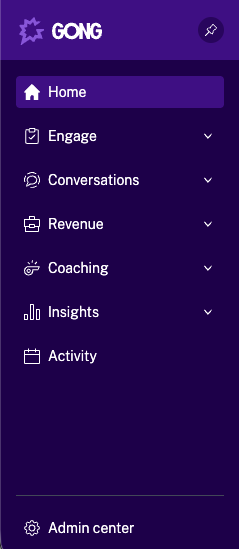 Admin center
Click API in the Ecosystem section.
Click CREATE INTEGRATIONS in the INTEGRATIONS tab.
Complete the CREATE YOUR GONG INTEGRATION page, including name, description, and required authorization scopes. Refer to Submit your integration details to Gong for more information.
SELF-SERVICE (WORKATO FREE, WORKATO PRO, OR DEVELOPER SANDBOX) WORKSPACES
If you created your workspace as a Self-service user, use https://app.trial.workato.com/oauth/callback as the redirect URI or callback URL when you configure the OAuth integration.
Click Save. Your integration information appears as a new row in the list of integrations.
Copy and save the CLIENT ID and CLIENT SECRET for use in Workato.
Connect to Gong with OAuth 2.0
Complete the following steps to connect to Gong in Workato:
Click Create > Connection or press C twice.
Search for Gong.io and select it as your app.
Enter a name for your connection in the Connection name field.
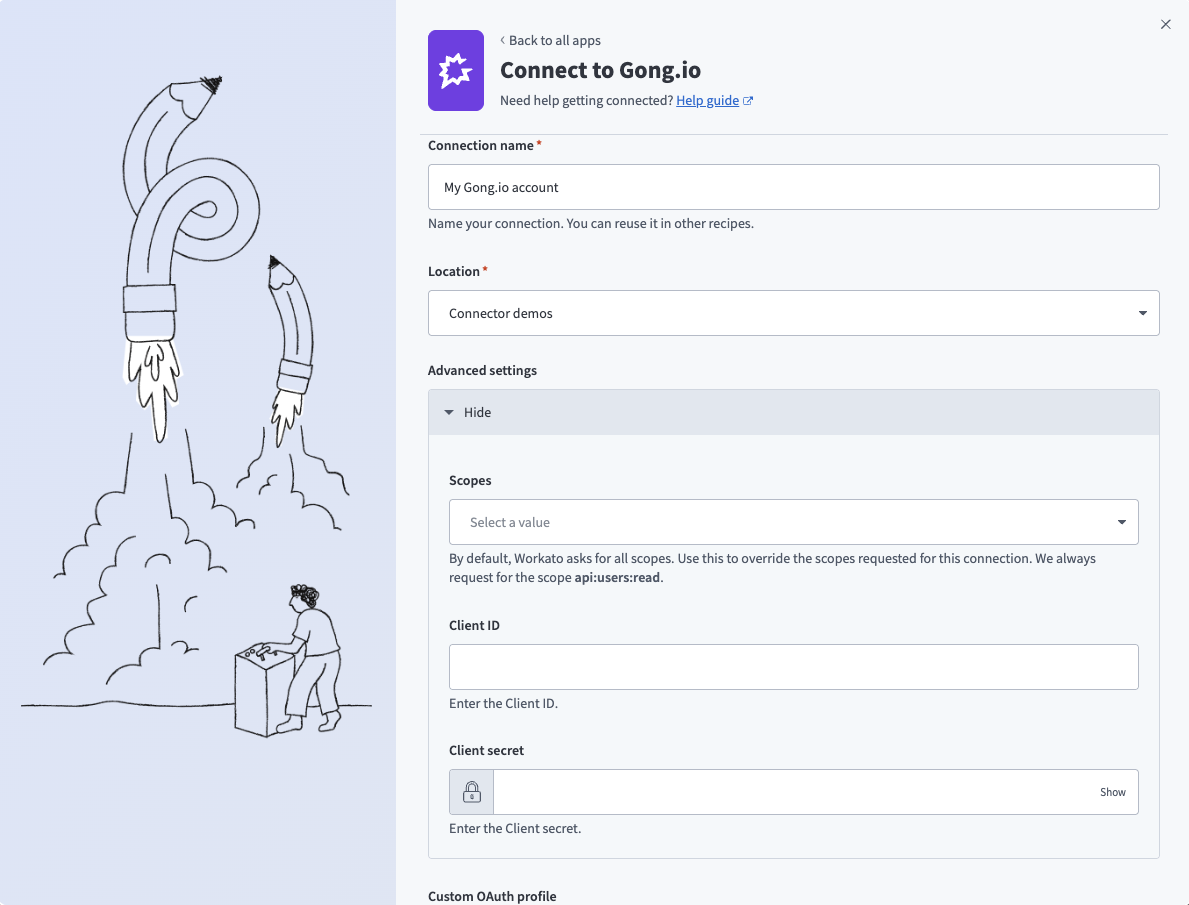 Connect to Gong
Use the Location drop-down menu to select the project where you plan to store the connection.
Expand the Advanced settings section to configure Scopes for your connection. Workato requests all available scopes by default. You can select granular scopes from the multi-select list to limit access.
Enter the Client ID and Client secret. Refer to Gong setup for more information.
Optional. Use the Custom OAuth profile drop-down menu to select a custom OAuth profile for your connection.
Click Connect.
Sign in to Gong using your credentials when prompted.
Click Allow to provision access to Workato.
Project property configuration
You must configure the default timezone for your Gong MCP server at the project level.
Complete the following steps to configure your timezone:
Sign in to your Workato account and go to Projects.
Go to the project that contains your MCP server.
Click the Settings tab.
 Click the Settings tab.
Select Project properties.
Go to the MCP_DEFAULT_TIMEZONE property and click the Edit (pencil) icon.
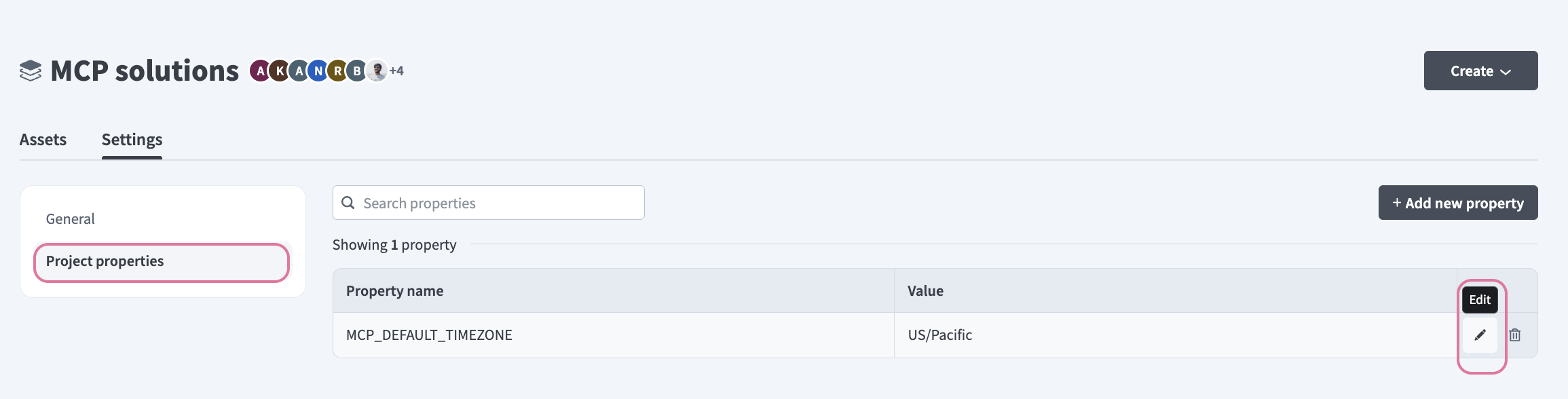 Click the Edit (pencil) icon.
Go to the Value field and enter your timezone. For example: US/Pacific, Australia/Sydney, Asia/Kolkata, or Europe/London.
How to use Gong MCP server tools
Refer to the following sections for detailed information on available tools:
search_calls tool
The search_calls tool retrieves a list of recorded calls associated with a specific customer or account. Your LLM uses this tool to find recent meetings, check the duration of a specific conversation, or see who participated in a call with a client.
Try asking:
Find recent calls with the 'Acme Corp' account.Search for any meetings with 'Global Industries' from last month.What calls have we had with 'John Smith' lately?Show me the metadata for the most recent calls with 'Starlight Ventures'.
get_call_details tool
The get_call_details tool retrieves the complete metadata for a Gong call you specify. Your LLM uses this tool to get a full list of attendees and their email addresses, verify the call duration, and see which sales opportunities or accounts are linked to the conversation.
Try asking:
Get the full details and participant list for the call titled 'Quarterly Business Review'.Who were the external participants in my last meeting with 'Acme Corp'?What was the duration of the 'Acme Corp' call from yesterday?What are the email addresses of the people who attended the 'Initial Discovery' call?
get_call_transcript tool
The get_call_transcript tool retrieves the word-for-word text of a specific call. Your LLM uses this tool to review exactly what was said during a meeting, identify specific quotes from a client, or search for key technical details mentioned during a conversation without re-listening to the audio.
Try asking:
Get the full transcript for the 'Product Demo' call.What exactly did the client say about the budget in call #54321?Show me the transcript for my last meeting with 'Acme Corp' with speaker labels.Read the transcript of the 'Technical Discovery' call to find the database requirements mentioned.
Getting started
View and manage your MCP server tools in the Overview page Tools section. Tool management provides the following capabilities:
TOOLS MUST BE STARTED
Your LLM can only access active tools in your MCP server connector.
Last updated: