Google Calendar MCP server
The Google Calendar MCP server enables LLMs to reliably read, interpret, and modify data stored in Google Calendar. It provides tools to retrieve events, check availability, and create, update, or delete calendar entries. The Google Calendar MCP server respects permission interfaces for Google Calendar sharing and privacy boundaries.
The Google Calendar MCP server supports a wide range of assistant-driven workflows including daily and weekly planning, meeting scheduling, rescheduling, time-off planning, reporting, and workload evaluation by exposing structured event and availability data.
Uses
Use the Google Calendar MCP server when you plan to perform the following actions:
- View upcoming or past calendar events for planning or reporting
- Check availability for yourself or other attendees to support scheduling
- Schedule new meetings, focus time, or out-of-office events
- Reschedule, update, or cancel existing calendar events
Example prompts
Use the following example prompts to invoke Google Calendar MCP server tools:
Schedule 30 minutes with Alex and Priya next week.I’m sick today—move my meetings.When is a good time for me to take a few days off?Prepare my weekly report.Summarize my meetings this month.What did I accomplish last week?Help me improve my meeting load.
Google Calendar MCP server tools
The Google Calendar MCP server provides the following tools:
| Tool | Description |
|---|---|
| add_attendees_to_event | Adds attendees to an event in Google Calendar using email address of the attendee. |
| create_default_event | Creates new calendar events from natural language requests. |
| create_focus_time_event | Blocks calendar time for deep work and auto-declines meetings. |
| create_out_of_office_event | Creates Out of Office events for vacations or PTO and auto-declines meeting invitations. |
| delete_attendees_from_event | Removes an attendee from a Google Calendar event by locating the attendee by email address and updating the event's attendee list accordingly. |
| delete_event | Deletes or cancels an existing Google Calendar event identified by its unique event ID. |
| get_availability | Checks calendar availability for open time slots. |
| get_event | Retrieves the full details of a single Google Calendar event by unique event ID. |
| list_calendars | Retrieves a list of calendars, including personal, shared, and team calendars. |
| list_events | Retrieves a list of user calendar events. |
| update_default_event | Updates existing calendar events by modifying specific fields while preserving unchanged data. |
| update_focus_time_event | Updates existing Focus Time events, such as time, decline settings, or chat status. |
| update_out_of_office_event | Updates Out of Office events, such as dates, decline mode, or messages. |
| get_user_timezone | Retrieves the user's timezone configured in their primary calendar. |
Install the Google Calendar MCP server
Complete the following steps to install a prebuilt MCP server to your project:
Sign in to your Workato account.
Go to AI Hub > MCP servers.
Click + Create MCP server.
Go to the Start with pre-built MCP Servers using your connected apps section and select the prebuilt MCP server you plan to use.
Click Use this server.
Provide a name for your MCP server in the Server name field.
Use the Location drop-down menu to select the project for the MCP server.
Go to the Connections section and connect to your app account.
Select the connection type you plan to use for the MCP server template.
- User's connection: MCP server tools perform actions based on the identity and permissions of the user who connects to the application. Users authenticate with their own credentials to execute the skill.
- Your connection: This option uses the connection established by the recipe builder and follows the same principles as normal app connections.
 Select your connection type
VERIFIED USER ACCESS AUTHENTICATION REQUIREMENTS
Only app connections that use OAuth 2.0 authorization code grant are available for user's connection. Refer to Verified user access for more information.
Complete the app-specific connection setup steps in the following section.
Google Calendar connection setup
View Google Calendar connection setup steps
Refer to the following sections to set up your Google Calendar connection:
OAuth 2.0 authentication
Complete the following steps to set up your Google Calendar connection using OAuth 2.0:
View OAuth 2.0 authentication steps
Click Create > Connection or press C twice.
Search for and select Google Calendar as your connection on the New connection page.
Provide a name for your connection in the Connection name field.
Select the project where you plan to store the connection from the Location drop-down menu.
Select OAuth 2.0 as the Authentication type.
Click Sign in with Google, then sign in to your Google account. Ensure your Google account has sufficient permissions to manage the events and calendars you plan to use in Workato. 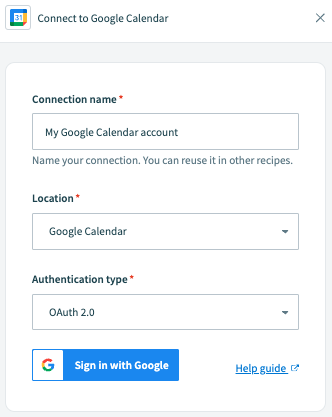 Click Sign in with Google.
Service account authentication
View Service account authentication steps
A Google service account is a specialized Google account associated with a Google Cloud Project (GCP) that can run API requests on your behalf.
Service accounts provide the following benefits:
- Continuous operation: Service accounts ensure that operations continue even if individual user permissions change.
- Dedicated permissions: Service accounts can only access projects that you share with them.
- Dedicated API quotas: You can manage a service account's API quotas through GCP and request quota increases directly from Google.
Refer to the Google service account documentation to learn more about service accounts.
Service account authentication consists of the following actions:
Minimum scopes for service account connections
The following scopes are required to connect to Google Calendar using a service account:
https://www.googleapis.com/auth/calendarhttps://www.googleapis.com/auth/calendar.eventshttps://www.googleapis.com/auth/admin.directory.resource.calendarhttps://www.googleapis.com/auth/taskshttps://www.googleapis.com/auth/userinfo.email
A 401 Unauthorized error may occur when the service account uses the Owner role or lacks required scopes. Assign the Editor role to the service account in the Google Cloud Console and confirm it includes all required scopes listed above. This ensures the service account can authenticate and access Google Calendar successfully.
Refer to the Google Calendar API scopes documentation for a complete list of supported scopes.
Set up a Google service account
View Set up a Google service account steps
Complete the following steps to set up a Google service account:
Create a service account in your GCP project.
Go to IAM & Admin > Service accounts. Ensure your dashboard is scoped to the project that contains your service account. 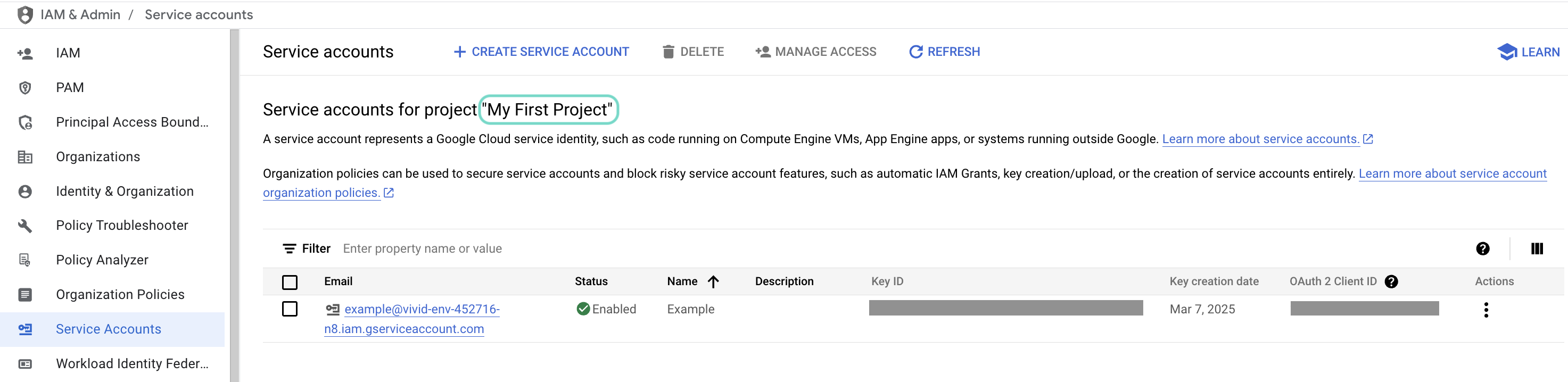 Check the scope of your dashboard.
Click the Email of the service account you intend to use. 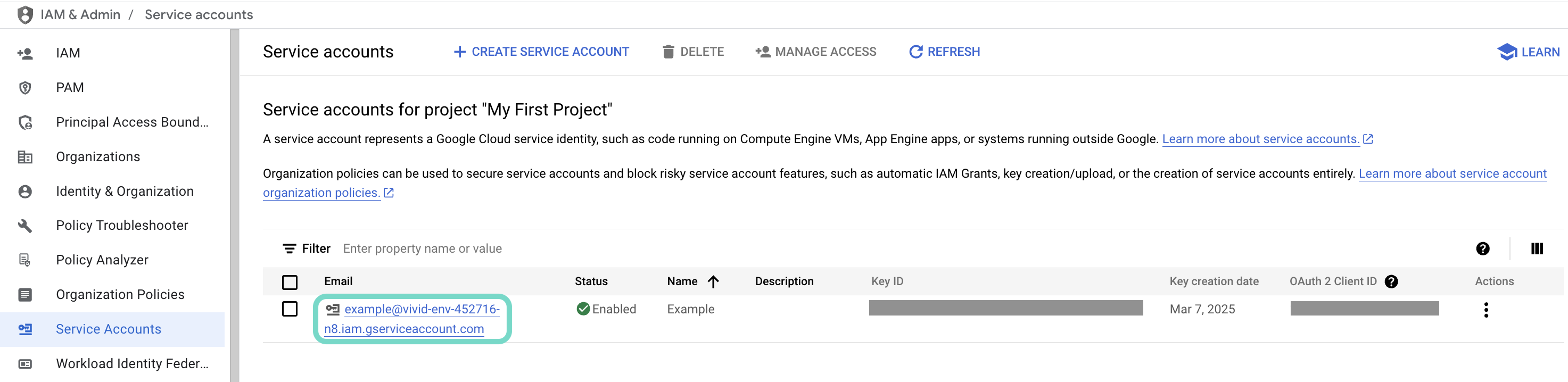 Click the Email of the service account you intend to use.
Copy the service account's Email and save it to configure your connection later. 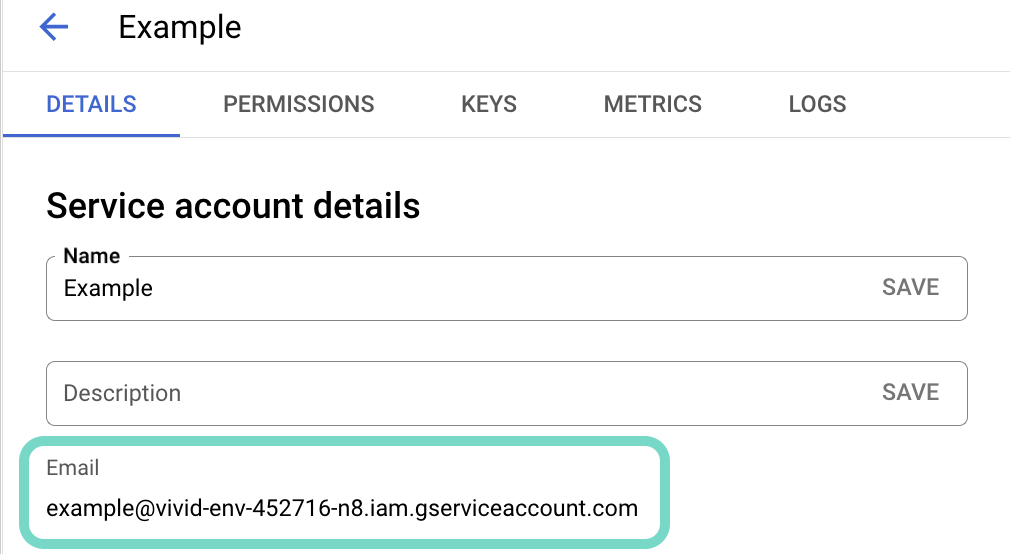 Copy the account's Email.
Go to the KEYS tab.
Generate a private key and download it in JSON format. You can only download the key once.
Open the JSON file, then copy the entire private key from -----BEGIN PRIVATE KEY----- to -----END PRIVATE KEY-----\n (inclusive) and save it to configure your connection later.
Enable the Google Calendar API
View Enable the Google Calendar API steps
You must enable the Google Calendar API before you return to Workato to finish setting up your connection.
Sign in to Google's API library.
Search for and select the Google Calendar API.
Click Enable to enable the API. 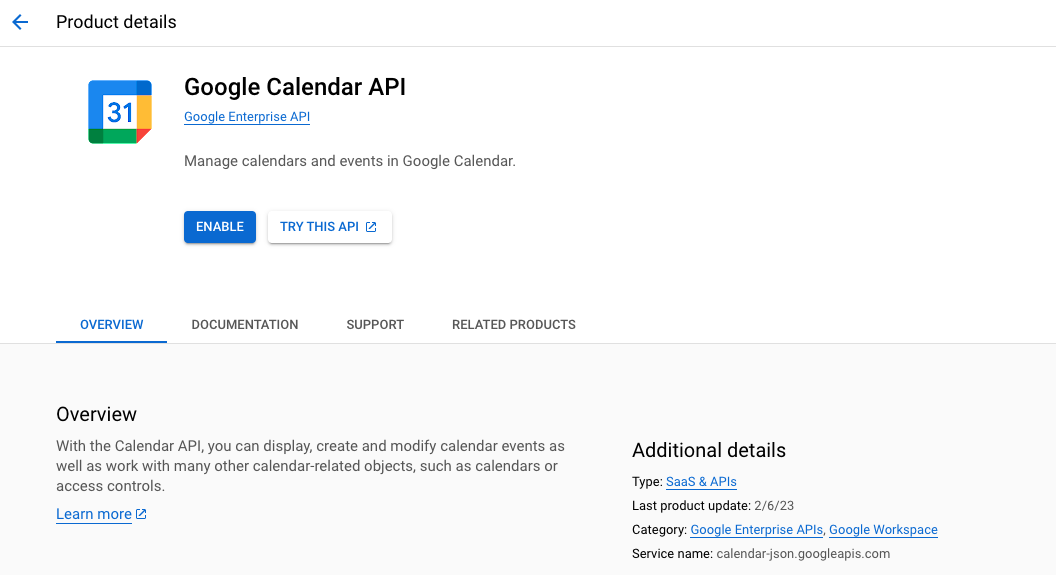 Enable the
 Google Calendar API
Complete setup in Workato
View Workato setup steps
Complete the following steps in Workato to set up your Google Calendar connection using a service account:
Click Create > Connection or press C twice.
Search for and select Google Calendar as your connection on the New connection page.
Provide a name for your connection in the Connection name field.
Use the Location drop-down menu to select the project where you plan to store the connection.
Select Service account as the Authentication type.
Enter your service account's Private key.
Provide the User email of the account you plan to impersonate.
User impersonation lets the service account act on behalf of a designated user, accessing and managing events in their Google Calendar. Impersonating a user ensures data accuracy and enforces the permissions and access controls set for that user in Google Calendar. Refer to Google's Service account impersonation guide for more information.
Click Sign in with Google to complete the setup. 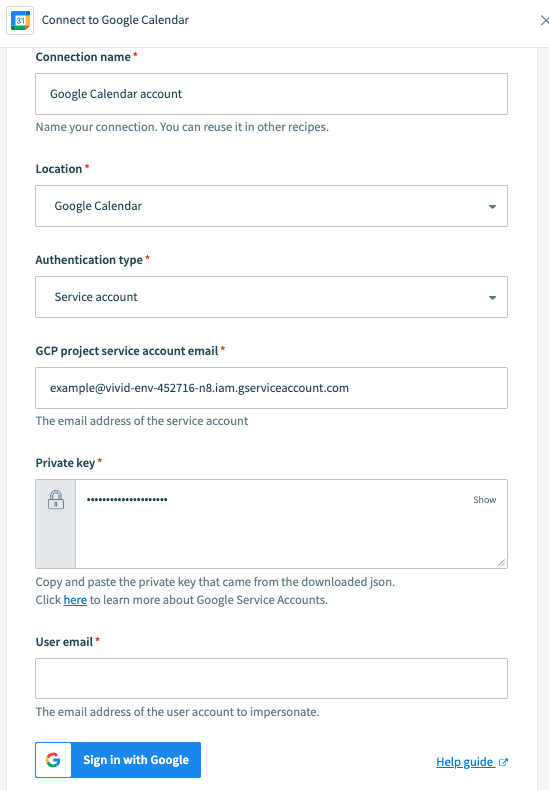 Configure Google Calendar service account connection
How to use Google Calendar MCP server tools
Refer to the following sections for detailed information on available tools:
add_attendees_to_event tool
The add_attendees_to_event tool adds new participants to an existing Google Calendar event using their email addresses. Your LLM uses this tool to expand a meeting invite, include additional stakeholders, or manage guest lists without manually opening the calendar interface.
Try asking:
Add [email protected] to the 'Project Kickoff' meeting.Invite both [email protected] and [email protected] to the 'Weekly Sync' on Friday.Add the engineering lead to my 2 PM appointment tomorrow.Update the 'Client Demo' event to include the sales team alias.
create_default_event tool
The create_default_event tool schedules new meetings, appointments, or all-day events directly on your Google Calendar. Your LLM uses this tool to create a one-time sync, or a recurring team meeting.
Try asking:
Schedule a meeting called 'Design Review' for tomorrow at 2 PM.Create an all-day event for 'Company Picnic' this Friday.Set up a recurring 'Weekly Sync' every Monday at 10 AM with [email protected].
create_focus_time_event tool
The create_focus_time_event tool creates a specialized calendar block dedicated to deep work. Unlike a standard event, this tool specifically sets your status to busy and automatically declines incoming meeting invitations during the scheduled window to help you protect your productivity.
Try asking:
Schedule 2 hours of focus time for tomorrow morning starting at 9 AM.Block out Friday afternoon as focus time to finish the project report.I need some deep work time; create a focus event for 1 PM today.Set up focus time every Wednesday from 2 PM to 4 PM and auto-decline any new meetings.
create_out_of_office_event tool
The create_out_of_office_event tool is designed for managing vacations, PTO, or any period of time where you are completely unavailable. Google Calendar automatically declines any new or existing meeting invitations that overlap with the specified time when your LLM uses this tool.
Try asking:
Set an Out of Office event for my vacation from next Monday to Wednesday.I'm taking PTO this afternoon starting at 1 PM; create an OOO block.Create an Out of Office event for the entire first week of July.Mark me as OOO for the doctor's appointment tomorrow morning and decline any meetings.
delete_attendees_from_event tool
The delete_attendees_from_event tool removes an attendee from a Google Calendar event by locating the attendee by email and updating the event’s attendee list accordingly.
Try asking:
Remove [email protected] from the 'Budget Review' meeting.Take Sarah off the attendee list for tomorrow's sync.Update the 'Client Lunch' event to remove the former account manager.I invited the wrong person to the 'Sprint Planning'—can you remove [email protected]?
delete_event tool
The delete_event tool deletes or cancels an entire event from your calendar using the Event ID.
Try asking:
Cancel my 'Budget Review' meetingDelete the event with ID abc123xyzRemove the 'Team Lunch' from my calendar
get_availability tool
The get_availability tool analyzes your calendar to find open time slots. Your LLM uses this tool to find a gap in your schedule for a new meeting, check if you're free for a lunch date, or see which afternoon has the most open time for deep work.
Try asking:
When am I free for a 30-minute meeting tomorrow?Check my availability for this Friday afternoon.Do I have any open slots between 9 AM and 12 PM on Wednesday?Find a time when I'm available for a 1-hour call next week.
get_event tool
The get_event tool retrieves the comprehensive details of a specific Google Calendar entry using its unique Event ID. Your LLM uses this tool to view the full context of a meeting—including the description, video conferencing links, such as Google Meet, the organizer, and the status of all invited guests.
Try asking:
Get the full details for the meeting with the ID 'abc123xyz'.Show me the description and the meeting link for my 3 PM call.Check the details for the 'Product Launch' event to see if there's a dial-in number.Retrieve the metadata for the 'Team Lunch' to see who has accepted the invitation.
list_calendars tool
The list_calendars tool retrieves a list of all the calendars you can view or edit. This includes your primary personal calendar, shared team calendars, holiday calendars, and any specific project calendars you've added to your Google account.
Try asking:
Show me all the calendars I have access to.What are the IDs for my shared team calendars?List all my calendars so I can find the 'Project X' one.Check which calendars are active on my account.
list_events tool
The list_events tool retrieves user events from your calendar. Your LLM uses this tool to see what your day looks like, find a specific meeting from the past, or get a list of upcoming appointments.
Try asking:
What does my schedule look like for today?List all my meetings for the upcoming week.Find all events on my calendar between January 1st and January 15th.Show me the next 10 events on my primary calendar.
update_default_event tool
The update_default_event tool updates the details of an existing Google Calendar event without having to recreate it. Your LLM uses this tool to change specific fields, such as the time, title, location, or description, while keeping the rest of the event information unchanged.
Try asking:
Change the 'Project Sync' tomorrow to start at 3 PM instead of 2 PM.Update the location of the 'Team Lunch' to 'The Daily Grill'.Rename my 'Catch up' meeting on Friday to 'Quarterly Strategy Session'.Add a description to the 'Client Demo' event explaining the new agenda.
update_focus_time_event tool
The update_focus_time_event tool updates an existing Focus Time block. Your LLM uses this tool to shift your deep-work window to a different time, change whether to automatically decline meetings during that time period, or update your chat availability status while focusing.
Try asking:
Move my focus time this afternoon to start at 4 PM.Update my focus block tomorrow to stop auto-declining meeting invites.Extend my 'Deep Work' session on Wednesday by another hour.Change the settings on my Friday focus time so I appear as 'Available' on chat.
update_out_of_office_event tool
The update_out_of_office_event tool updates existing Out of Office entries. Your LLM uses this tool to shift the dates, update the automated message people see when their invites are declined, or change how the calendar handles conflicting meetings.
Try asking:
Extend my vacation block to include next Thursday.Update the decline message for my OOO tomorrow to: 'I'm at a conference, please contact Sarah for emergencies.Change my PTO on Friday to only start after 12 PM.Modify my 'Out of Office' settings to stop auto-declining invitations for next week.
get_user_timezone tool
The get_user_timezone tool retrieves the timezone configured in your primary calendar. Your LLM uses this tool to properly interpret event times, ensure scheduling accuracy when coordinating across time zones, or verify your timezone settings before creating or updating calendar events.
Try asking:
What timezone is my calendar set to?Check my calendar timezone before scheduling the international team meeting.What's my current timezone setting in Google Calendar?Verify my timezone so we can coordinate the call with the London office correctly.
Getting started
View and manage your MCP server tools in the Overview page Tools section. Tool management provides the following capabilities:
TOOLS MUST BE STARTED
Your LLM can only access active tools in your MCP server connector.
Last updated: