Google Directory End User MCP server
The Google Directory End User MCP server enables LLMs to help you discover people and understand organizational context using Google Workspace directory information through natural conversation. It provides tools to search for colleagues, retrieve profile information, and explore organizational relationships without navigating directory interfaces or admin tools.
The Google Directory End User MCP server helps you answer basic identity and context questions—such as who someone is, what team they're on, or who to contact—by accessing Google Workspace directory information as your system of record for user identities and organizational relationships.
Uses
Use the Google Directory End User MCP server when you plan to perform the following actions:
- Search for colleagues by name, email, or phone number
- Look up someone's role, department, and contact information
- Find the right person to contact for a specific team or function
- Understand organizational relationships and reporting structures
- Discover profile information for people in your organization
- Browse directory listings to explore your organization's structure
Example prompts
Use the following example prompts to invoke Google Directory End User MCP server tools:
Find Sarah Chen in the directory.Who is the engineering manager for the mobile team?Look up the contact information for someone in HR.What's Maria's job title and department?Search for people named Alex in the product organization.Show me everyone in the sales department.
Google Directory End User MCP server tools
The Google Directory End User MCP server provides the following tools:
| Tool | Description |
|---|---|
| search_users | Searches for people in the directory by matching names, email addresses, or phone numbers. |
| get_user_profile | Retrieves profile information for a user you specify, including organizational role, department, and contact details. |
| list_users | Returns a paginated list of users from the directory. |
Install the Google Directory End User MCP server
Complete the following steps to install a prebuilt MCP server to your project:
Sign in to your Workato account.
Go to AI Hub > MCP servers.
Click + Create MCP server.
Go to the Start with pre-built MCP Servers using your connected apps section and select the prebuilt MCP server you plan to use.
Click Use this server.
Provide a name for your MCP server in the Server name field.
Use the Location drop-down menu to select the project for the MCP server.
Go to the Connections section and connect to your app account.
Select the connection type you plan to use for the MCP server template.
- User's connection: MCP server tools perform actions based on the identity and permissions of the user who connects to the application. Users authenticate with their own credentials to execute the skill.
- Your connection: This option uses the connection established by the recipe builder and follows the same principles as normal app connections.
 Select your connection type
VERIFIED USER ACCESS AUTHENTICATION REQUIREMENTS
Only app connections that use OAuth 2.0 authorization code grant are available for user's connection. Refer to Verified user access for more information.
Complete the app-specific connection setup steps in the following section.
Google Directory connection setup
View Google Directory connection setup steps
The Google Workspace connector supports the following authentication methods:
You can use a service account to authenticate without a personal user account. For consistent use, Workato recommends service account authentication.
You must enable the Google Workspace API to complete the connection setup.
REQUIRED SCOPES FOR SERVICE ACCOUNT AUTHENTICATION
Ensure that you have the following required permissions to successfully connect to Google Workspace using a service account:
admin.directory.useradmin.directory.orgunitadmin.directory.domainadmin.directory.groupadmin.directory.group.memberadmin.datatransferadmin.directory.device.mobile.actionadmin.directory.userschemaadmin.reports.audit.readonlyadmin.reports.usage.readonlyadmin.directory.rolemanagementadmin.directory.user.security
The service account impersonates the user based on the email address you provide during the connection setup after authentication is complete.
Service account authentication
A Google service account is a specialized Google account associated with a Google Cloud Project (GCP) that can run API requests on your behalf.
Service accounts provide the following benefits:
- Continuous operation: Service accounts ensure that operations continue even if individual user permissions change.
- Dedicated permissions: Service accounts can only access projects that you share with them.
- Dedicated API quotas: You can manage a service account's API quotas through GCP and request quota increases directly from Google.
Refer to the Google service account documentation to learn more about service accounts.
View Service account authentication steps
Complete the following steps to connect to Google Workspace using service account authentication:
Service account authentication requires the following prerequisites:
Click Create > Connection or press C twice.
Search for and select Google Workspace as your connection.
Provide a unique name for the connection in the Connection name field.
Use the Location drop-down menu to select the project where you plan to store the connection.
Use the Authentication type drop-down menu to select Service account.
Enter the service account's email address in the GCP project service account email field.
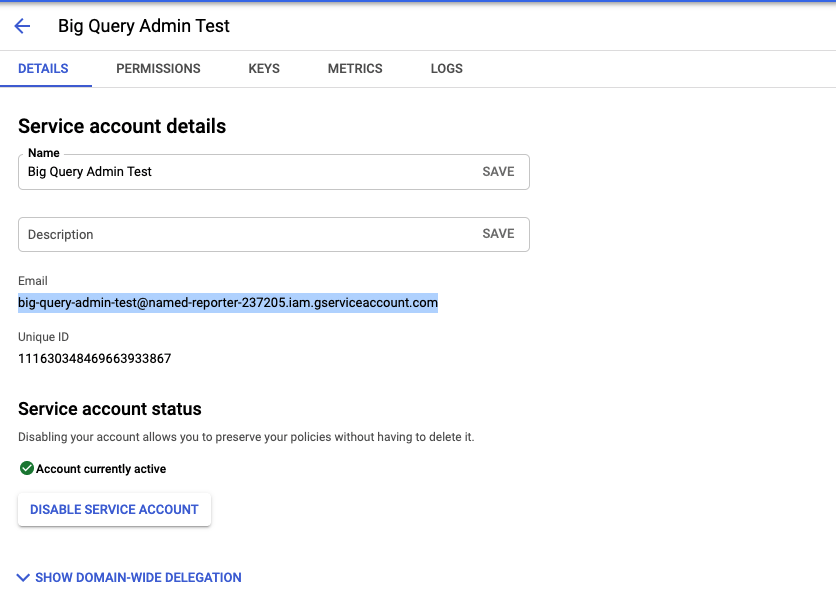 Retrieve your GCP Project service account email
Enter the Private key and User email. Retrieve the private key from the downloadable JSON. Include both the -----BEGIN PRIVATE KEY----- to -----END PRIVATE KEY-----\n.
Click Sign in with Google.
Set up a Google service account
View Google service account setup steps
Complete the following steps to set up a Google service account:
Create a service account in your GCP project.
Go to IAM & Admin > Service accounts. Ensure your dashboard is scoped to the project that contains your service account. 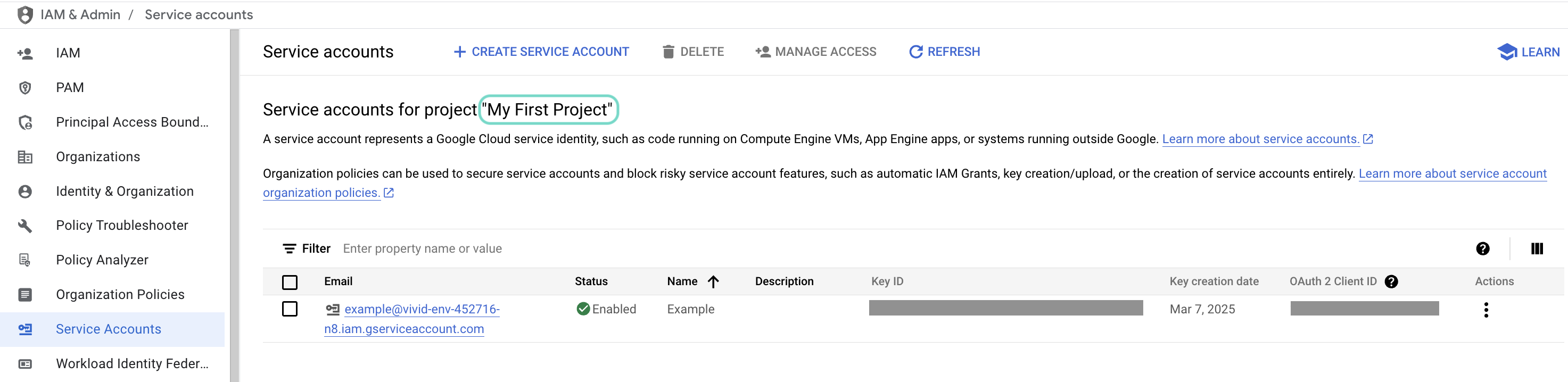 Check the scope of your dashboard.
Click the Email of the service account you intend to use. 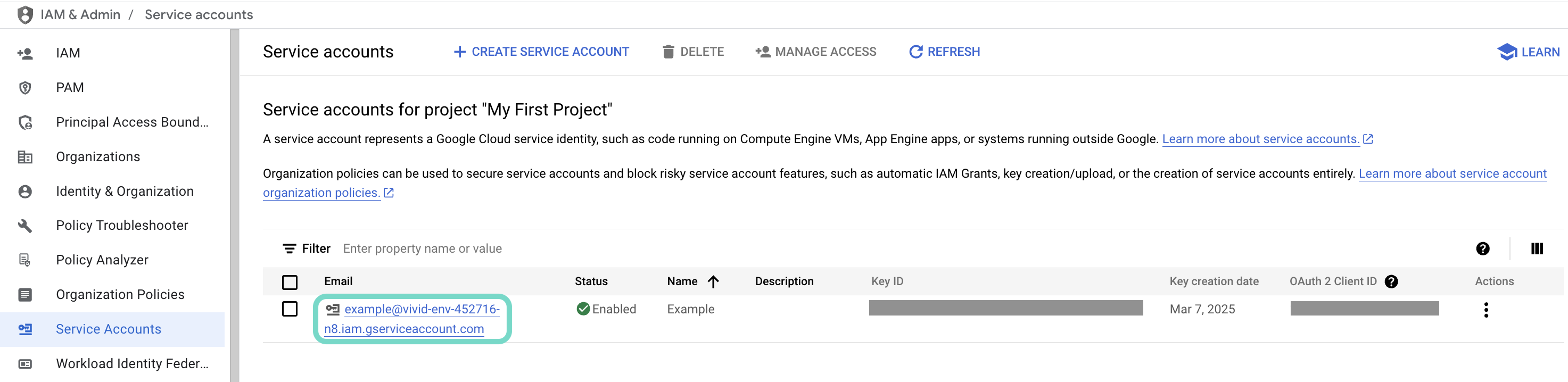 Click the Email of the service account you intend to use.
Copy the service account's Email and save it to configure your connection later. 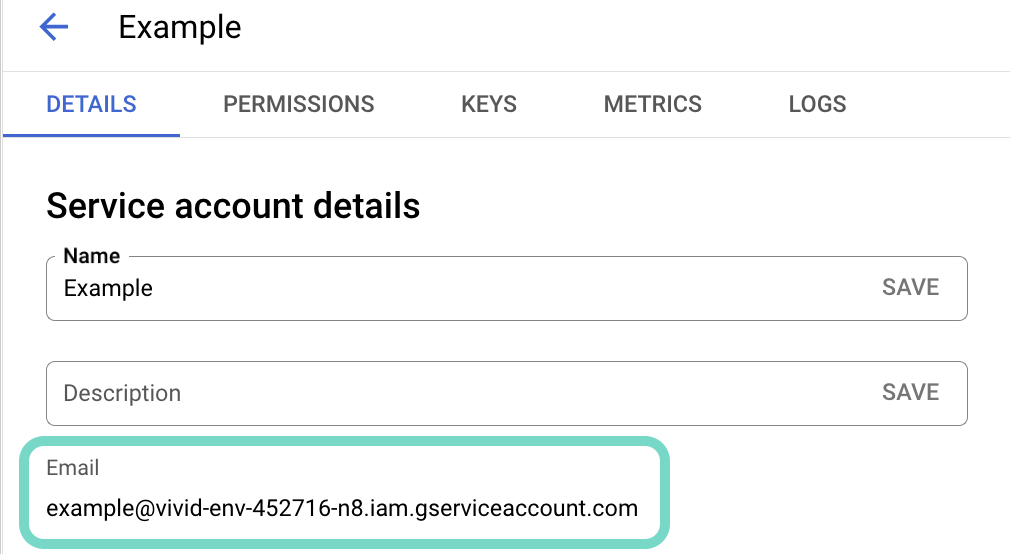 Copy the account's Email.
Go to the KEYS tab.
Generate a private key and download it in JSON format. You can only download the key once.
Open the JSON file, then copy the entire private key from -----BEGIN PRIVATE KEY----- to -----END PRIVATE KEY-----\n (inclusive) and save it to configure your connection later.
OAuth 2.0 authentication
View OAuth 2.0 authentication steps
Complete the following steps to connect to Google Workspace using OAuth 2.0 authentication:
Click Create > Connection or press C twice.
Search for and select Google Workspace as your connection.
Provide a name for your connection in the Connection name field.
Use the Location drop-down menu to select the project where you plan to store the connection.
Use the Authentication type drop-down menu to select OAuth 2.0.
Optional. Expand the Advanced settings section and select OAuth 2.0 scopes to request for your connection.
Workato requests the following scopes by default in addition to the scopes you select:
| Description | Scope requested |
|---|---|
| View and manage the provisioning of users on your domain | admin.directory.user |
| View and manage organization units on your domain | admin.directory.orgunit |
| View and manage the provisioning of domains for your customers | admin.directory.domain |
| View and manage the provisioning of user schemas on your domain | admin.directory.userschema |
| View and manage the provisioning of groups on your domain | admin.directory.group |
| View and manage group subscriptions on your domain | admin.directory.group.member |
| View and manage data transfers between users in your organization | admin.datatransfer |
| Manage your mobile devices by performing administrative tasks | admin.directory.device.mobile.action |
| View audit reports for your Google Workspace domain | admin.reports.audit.readonly |
| View usage reports for your Google Workspace domain | admin.reports.usage.readonly |
| Manage delegated admin roles for your domain | admin.directory.rolemanagement |
| Manage data access permissions for users on your domain | admin.directory.user.security |
Refer to the Google Directory API scopes or OAuth 2.0 Scopes for Google APIs guide for more information about scopes.
Click Sign in with Google.
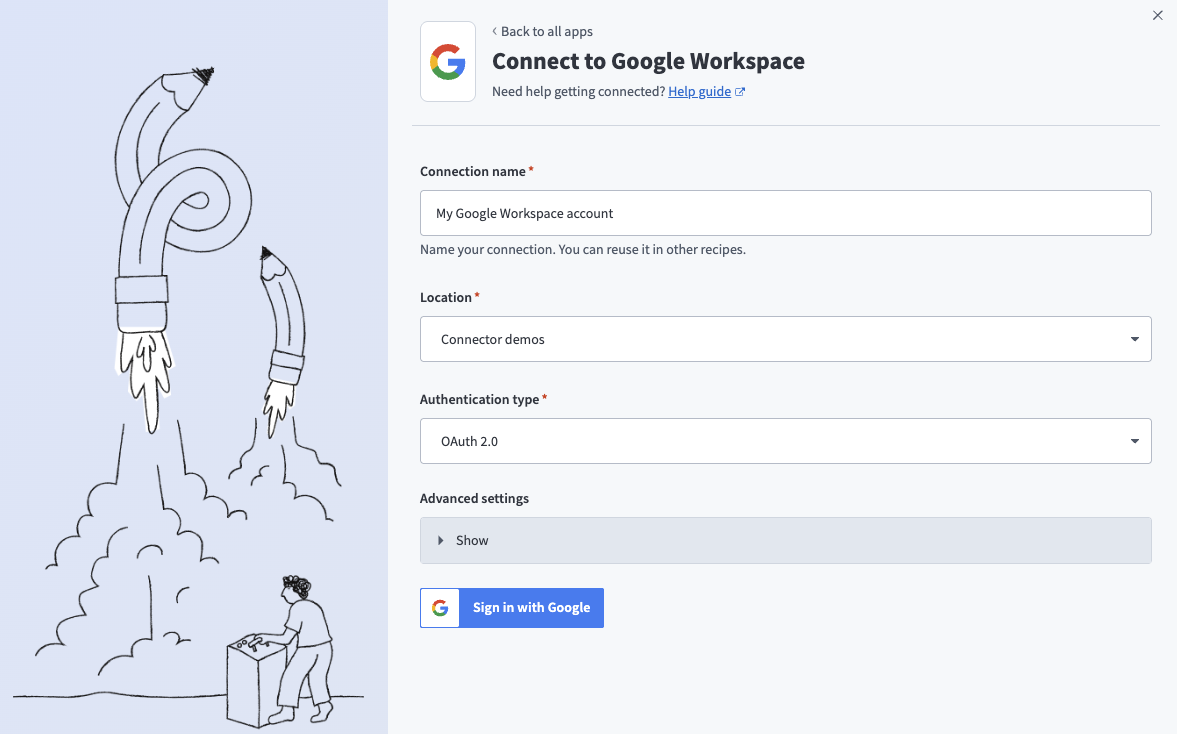 Connect to Google Workspace
Sign in with your Google account. Your Google account must have admin privileges to make organization-wide changes in Google Workspace.
Click Allow to enable Workato to access your Google account.
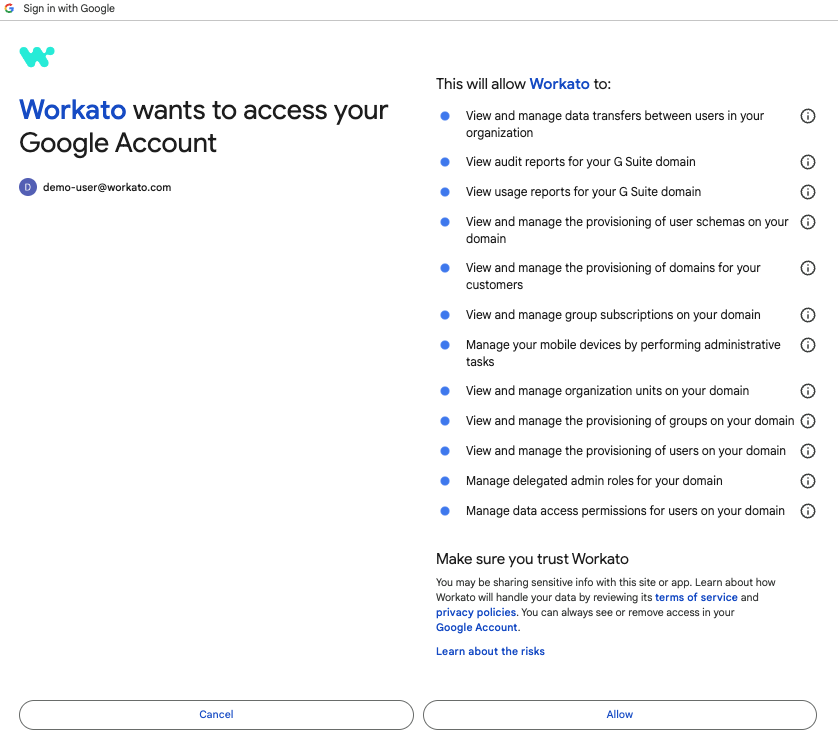 Enable Workato to access your Google account
How to use Google Directory End User MCP server tools
Refer to the following sections for detailed information on available tools:
search_users tool
The search_users tool searches the Google Workspace directory for users matching the criteria you provide and returns basic identity and organizational information for each matching user. Your LLM uses this tool to find people when you provide partial, ambiguous, or informal references to colleagues.
CLARIFY AMBIGUOUS SEARCHES
If your search query is likely to return many results, your LLM may ask a clarifying question to narrow down the results (such as department or location).
Try asking:
Find Sarah Chen in the directory.Search for people named Alex in engineering.Look up someone with the email address starting with j.anderson.Who works in the San Francisco office with 'Manager' in their title?
get_user_profile tool
The get_user_profile tool retrieves profile and organizational information for a user by their unique directory identifier. Your LLM uses this tool to provide authoritative identity context after discovering or selecting a person, including profile attributes and organizational relationship information visible in the directory.
Try asking:
What's Maria Rodriguez's job title and department?Show me the full profile for [email protected].Get the contact details and organizational info for Alex Johnson.Who does Jordan Kim report to and what team are they on?
list_users tool
The list_users tool returns a paginated list of users from the directory. Your LLM uses this tool to browse the directory, explore organizational structure, or get an overview of people in specific departments or locations.
Try asking:
List all users in the engineering department.Show me everyone in the New York office.Give me a list of people in the product organization.Browse the directory to see who's on the sales team.
Getting started
View and manage your MCP server tools in the Overview page Tools section. Tool management provides the following capabilities:
TOOLS MUST BE STARTED
Your LLM can only access active tools in your MCP server connector.
Last updated: