Google Docs MCP server
The Google Docs MCP server enables LLMs to create, read, update, and collaborate on Google Docs in a reliable, permission-respecting manner through natural conversation. It provides tools to author content, apply edits, propose suggestions, manage comments, surface mentions, and understand recent changes without requiring direct interaction with the Google Docs interface.
Uses
Use the Google Docs MCP server when you plan to perform the following actions:
- Create new Google Docs with specified titles and initial content
- Read and review document content for summarization or analysis
- Update and revise specific sections of existing documents
- Find specific blocks or sections within documents
- Add, list, and reply to comments for feedback and collaboration
- Manage suggested edits and track pending changes
- Identify and review mentions within documents
- Resolve comment threads when feedback is addressed
Example prompts
Use the following example prompts to invoke Google Docs MCP server tools:
Create a new Google Doc called 'Q4 Product Roadmap' with an outline.Read the quarterly report document and summarize the key findings.Update the executive summary section in the proposal document.Find the paragraph that mentions revenue projections.Add a comment to the budget section asking about the timeline.Show me all the comments on the project plan document.Reply to Jade's comment about the deadline.Who is mentioned in the marketing strategy document?
Google Docs MCP server tools
The Google Docs MCP server provides the following tools:
| Tool | Description |
|---|---|
| create_document | Creates a new Google Doc under your identity with the title and optional initial content you specify. |
| get_document_info | Retrieves metadata about a Google Doc needed for tab selection and safe write operations. |
| get_document_content | Retrieves the content of a Google Doc. |
| find_blocks | Identifies content blocks within a Google Doc that match the text or structural criteria you provide. |
| update_document_content | Updates an existing Google Doc. |
| list_suggestions | Retrieves suggested edits in a Google Doc with structured context. |
| add_comment | Adds a new comment to a Google Doc. |
| list_comments | Retrieves comment threads for a Google Doc. |
| reply_to_comment | Adds a reply to an existing comment thread in a Google Doc. |
| resolve_comment | Resolves an existing comment thread in a Google Doc. |
| list_mentions | Retrieves mentions in a Google Doc with context about who or what is mentioned and where. |
Install the Google Docs MCP server
Complete the following steps to install a prebuilt MCP server to your project:
Sign in to your Workato account.
Go to AI Hub > MCP servers.
Click + Create MCP server.
Go to the Start with pre-built MCP Servers using your connected apps section and select the prebuilt MCP server you plan to use.
Click Use this server.
Provide a name for your MCP server in the Server name field.
Use the Location drop-down menu to select the project for the MCP server.
Go to the Connections section and connect to your app account.
Select the connection type you plan to use for the MCP server template.
- User's connection: MCP server tools perform actions based on the identity and permissions of the user who connects to the application. Users authenticate with their own credentials to execute the skill.
- Your connection: This option uses the connection established by the recipe builder and follows the same principles as normal app connections.
 Select your connection type
VERIFIED USER ACCESS AUTHENTICATION REQUIREMENTS
Only app connections that use OAuth 2.0 authorization code grant are available for user's connection. Refer to Verified user access for more information.
Complete the app-specific connection setup steps in the following section.
Google Docs connection setup
View Google Docs connection setup steps
Google Docs supports the following authentication types:
SERVICE ACCOUNT AUTHENTICATION
You can use a service account to authenticate without a personal user account. For consistent use, Workato recommends service account authentication.
Download the Google Docs connector from the Community library
View steps to download the Google Docs connector from the community library
Complete the following steps to install the connector from the community library:
Open the recipe editor and search for a connector. Alternatively, you can search for a connector in the community library.
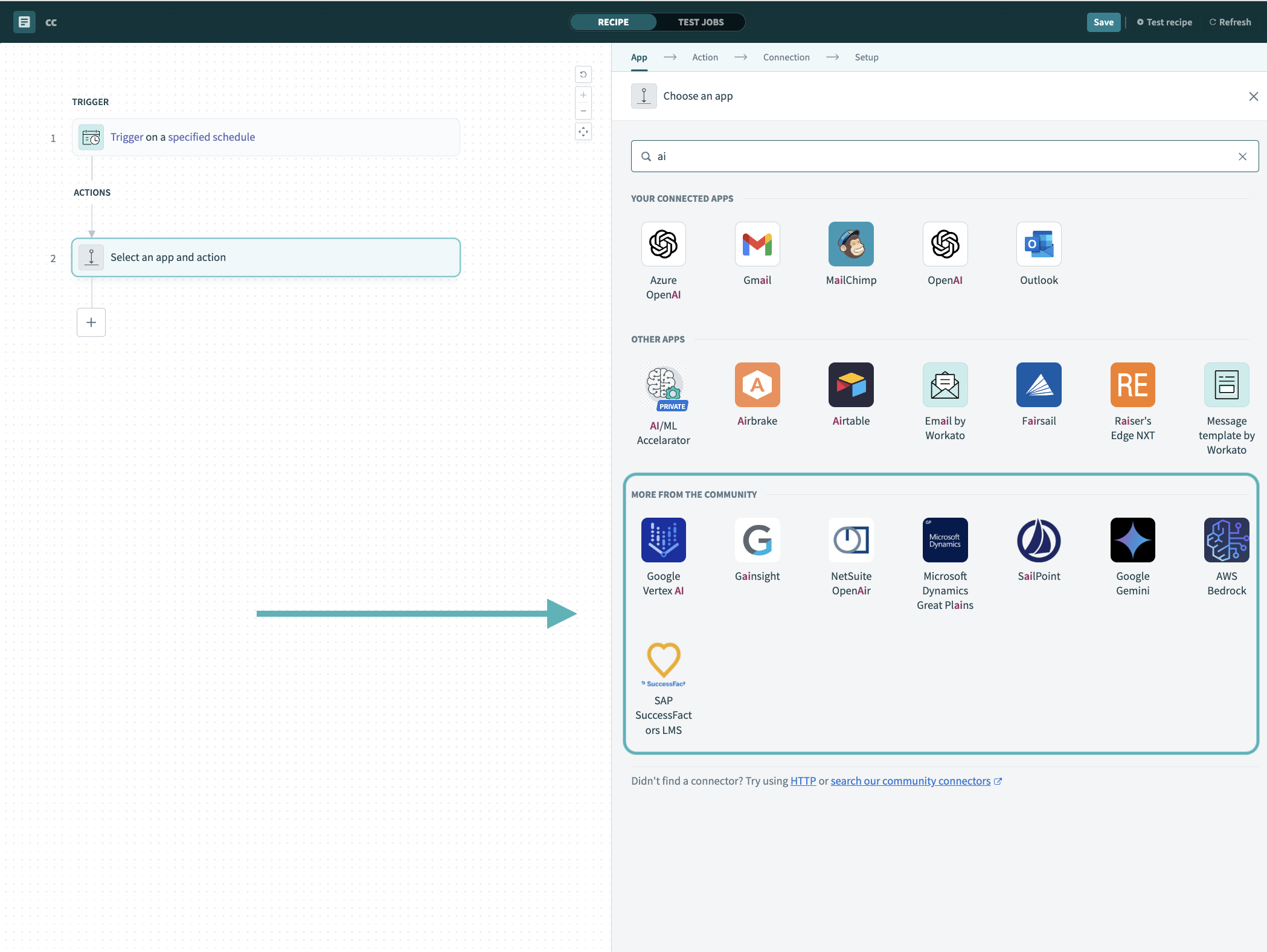 Search for community connectors in the recipe editor
Select the community connector you plan to install.
Click Install to install the connector from the community library.
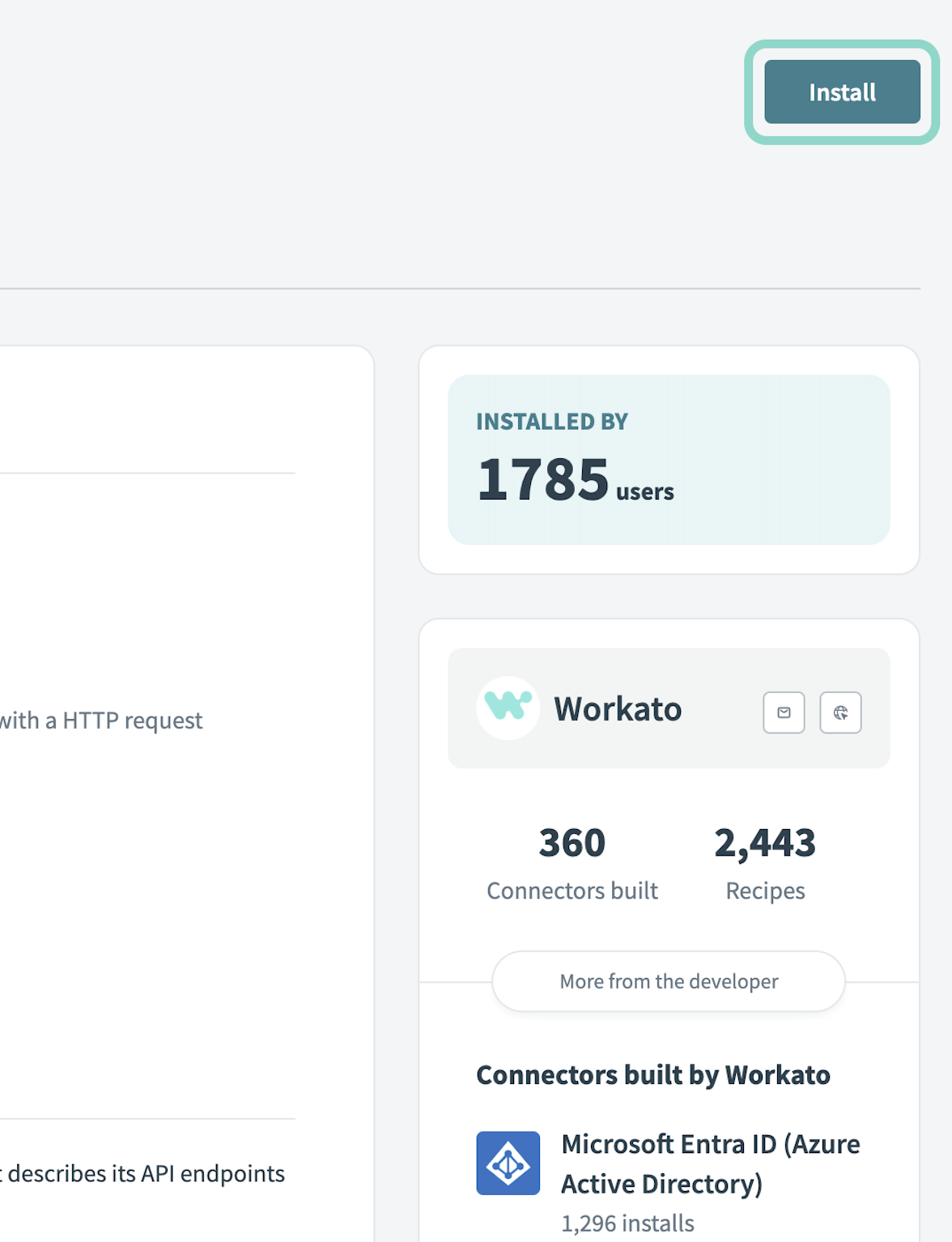 Click Install
Select Release connector. Alternatively, select Review code to review and modify the connector code before releasing it to the workspace.
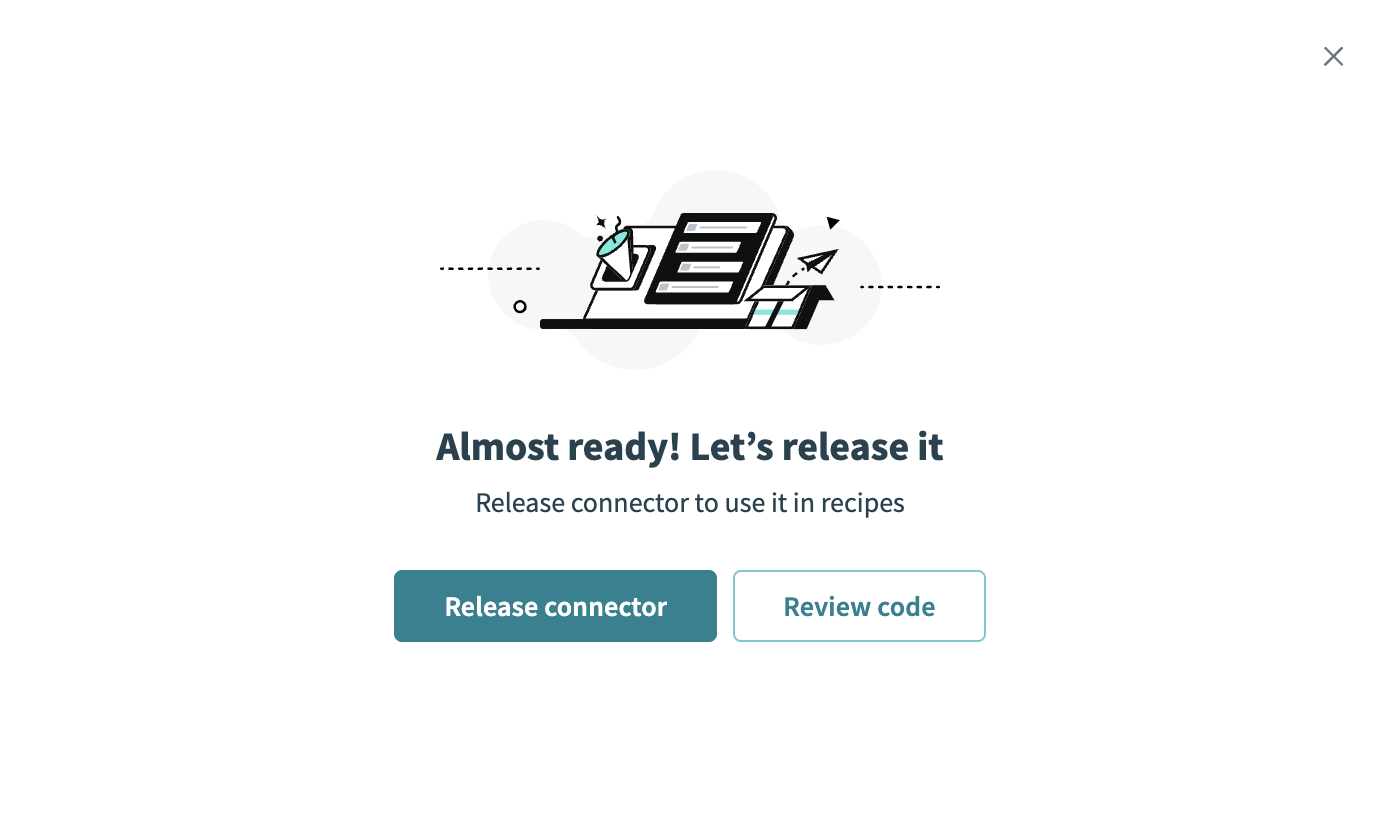 Release the connector
Summarize any changes you made to the connector, then click Release to allow workspace collaborators to use the connector in recipes.
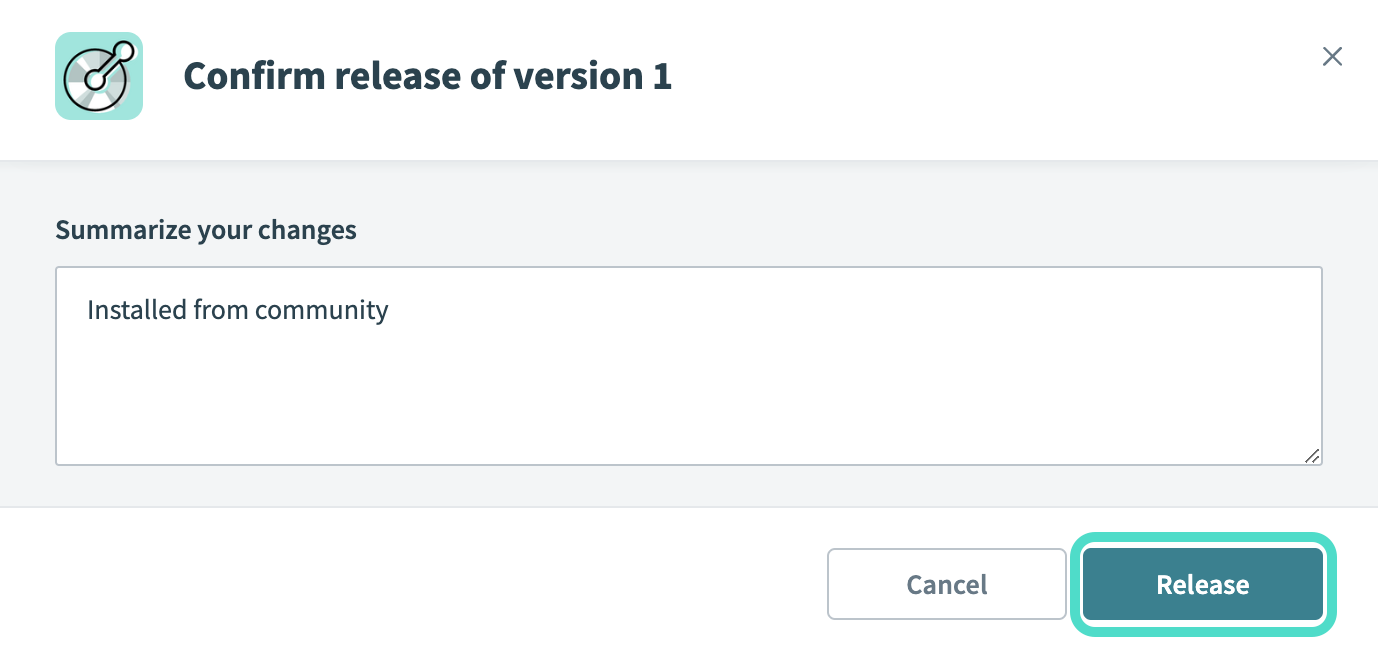 The Confirm release dialog
OAuth 2.0
View OAuth 2.0 connection setup steps
Complete the following steps to connect to Google Docs in Workato with OAuth 2.0 authentication:
- Configure the OAuth consent screen
- Delegate domain-wide authority to the service account
- Generate a client ID and client secret
- Connect to Google Docs with OAuth 2.0
Configure the OAuth consent screen
View configure the OAuth consent screen steps
Complete the following steps to configure the OAuth consent screen:
Open the Google Cloud Console and go to APIs & Services > OAuth consent screen.
Click Get started.
Enter Workato in the App name field.
Enter an email in the User support email field.
Click Next.
Select External as the Audience. Refer to Manage App Audience to learn more about user types.
Click Next.
Enter an email address in the Contact information section.
Select the checkbox to agree to Google API Services User Data Policy and click Continue. Refer to Google API Services User Data Policy for more information.
Click Create.
Click the Data access tab and select Add or Remove Scopes.
Select the necessary scopes, such as:
https://www.googleapis.com/auth/documentshttps://www.googleapis.com/auth/documents.readonly
Click Save.
Delegate domain-wide authority to the service account
View delegate domain-wide authority to the service account steps
Complete the following steps to delegate domain-wide authority to the service account:
Open the Google Admin console and go to the Main menu.
Go to Security > Access and data control > API Controls.
Go to Security > Access and data control > API Controls > Domain-wide Delegation.
Click Manage Domain Wide Delegation.
Click Add new.
Enter the Client ID from the service account JSON file.
Add the necessary scopes for your OAuth consent screen configuration in the OAuth scopes (comma-delimited) field.
Click Authorize.
Generate a client ID and client secret
Refer to the Google Manage OAuth Clients guide to create a client ID and secret using https://www.workato.com/oauth/callback as the redirect URI.
Connect to Google Docs with OAuth 2.0 authentication
View connect to Google Docs with OAuth 2.0 authentication steps
Complete the following steps to set up your connection with OAuth 2.0 authentication:
Click Create > Connection or press C twice.
Search for Google Docs and select it as your app.
Provide a name for your connection in the Connection name field. 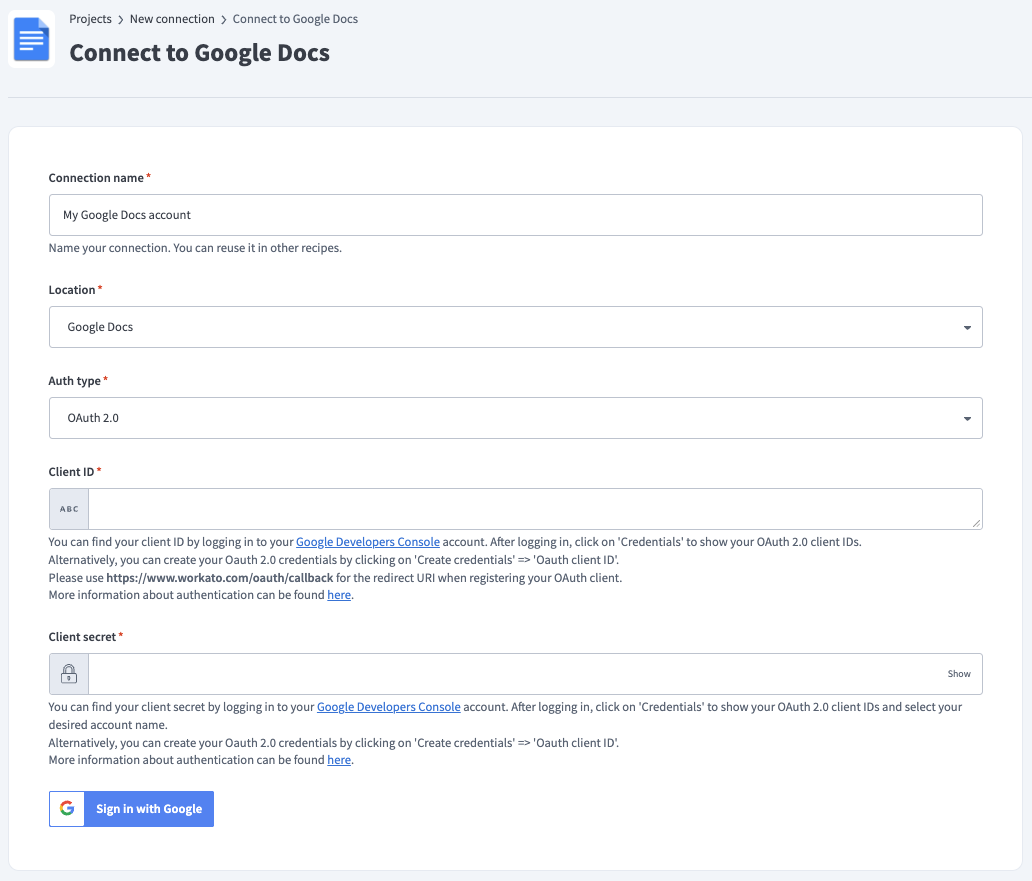 OAuth 2.0 connection
Use the Location drop-down menu to select the project where you plan to store the connection.
Enter the Client ID and Client secret. Refer to the Google Manage OAuth Clients guide to generate these values using https://www.workato.com/oauth/callback as the redirect URI.
Optional. Use the Custom OAuth profile drop-down menu to select a custom OAuth profile for your connection.
Click Sign in with Google.
Service account authentication
A Google service account is a specialized Google account associated with a Google Cloud Project (GCP) that can run API requests on your behalf.
Service accounts provide the following benefits:
- Continuous operation: Service accounts ensure that operations continue even if individual user permissions change.
- Dedicated permissions: Service accounts can only access projects that you share with them.
- Dedicated API quotas: You can manage a service account's API quotas through GCP and request quota increases directly from Google.
Refer to the Google service account documentation to learn more about service accounts.
View service account connection setup steps
Complete the following steps to connect to Google Docs in Workato with service account authentication:
- Create a service account and generate a private key
- Share Google Docs with the service account
- Connect to Google Docs with service account authentication
PREREQUISITES
You must Enable the Google Docs API in the Google Cloud API console before you can connect to Google Docs with service account authentication.
Set up a Google service account
View set up a Google service account steps
Complete the following steps to set up a Google service account:
Create a service account in your GCP project.
Go to IAM & Admin > Service accounts. Ensure your dashboard is scoped to the project that contains your service account. 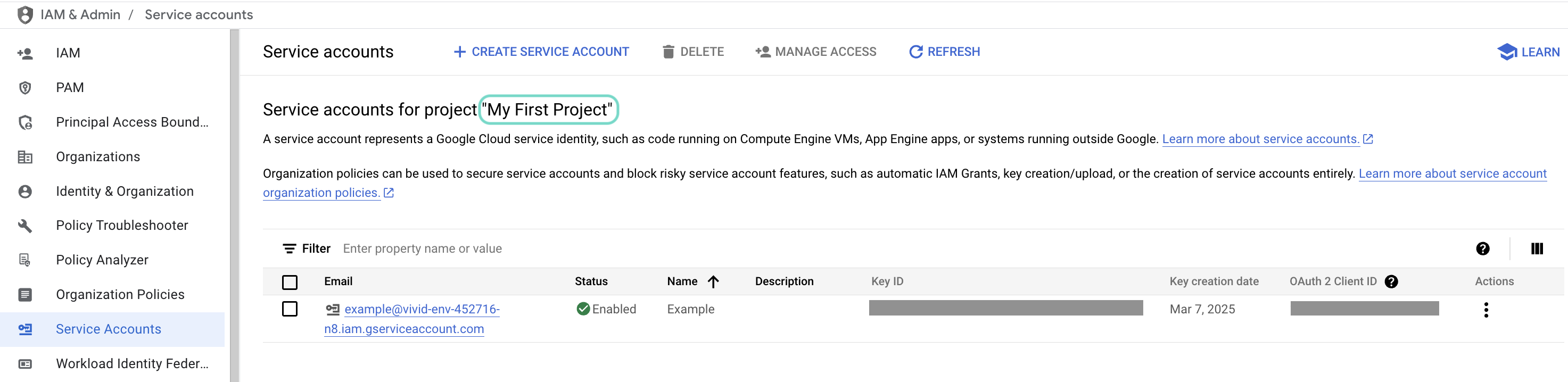 Check the scope of your dashboard.
Click the Email of the service account you intend to use. 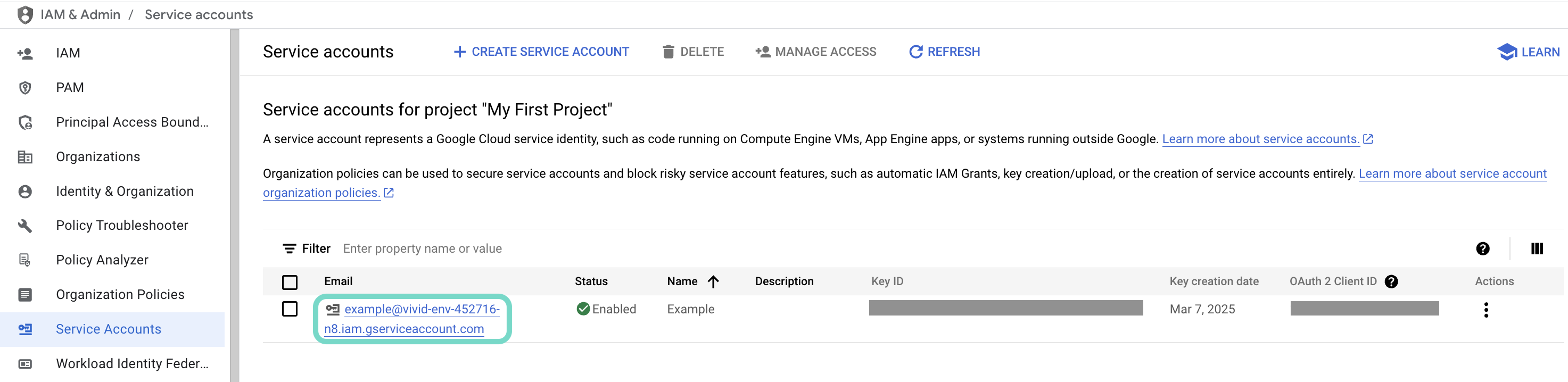 Click the Email of the service account you intend to use.
Copy the service account's Email and save it to configure your connection later. 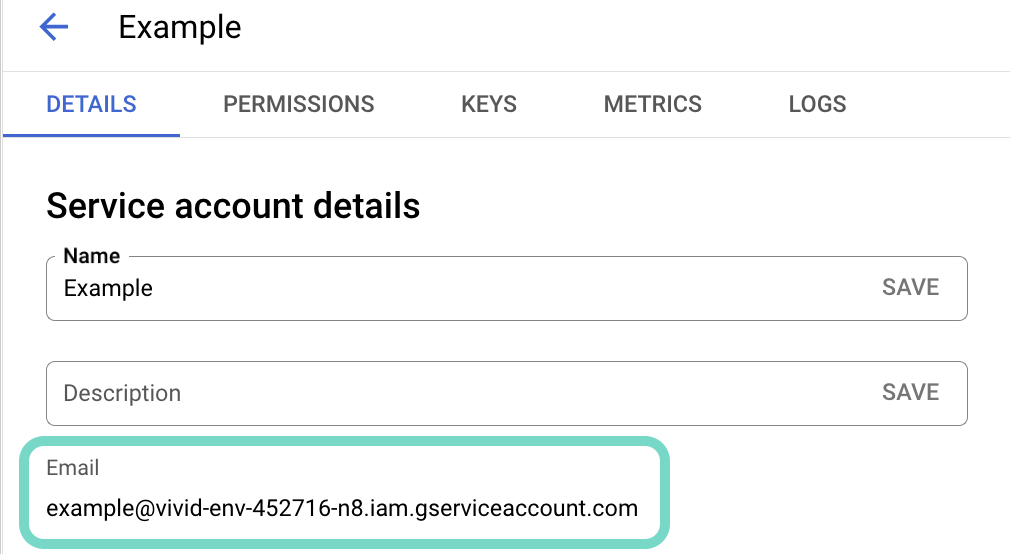 Copy the account's Email.
Go to the KEYS tab.
Generate a private key and download it in JSON format. You can only download the key once.
Open the JSON file, then copy the entire private key from -----BEGIN PRIVATE KEY----- to -----END PRIVATE KEY-----\n (inclusive) and save it to configure your connection later.
Share Google Docs with the service account
View share Google Docs with the service account steps
Complete the following steps to share a Google Doc with the service account:
Open Google Docs and select the document you plan to integrate.
Click Share and enter the service account email.
Assign the appropriate permissions.
Click Send.
Connect to Google Docs with service account authentication
View connect to Google Docs with service account authentication steps
Complete the following steps to set up your connection with a service account:
Click Create > Connection or press C twice.
Search for Google Docs and select it as your app.
Provide a name for your connection in the Connection name field. 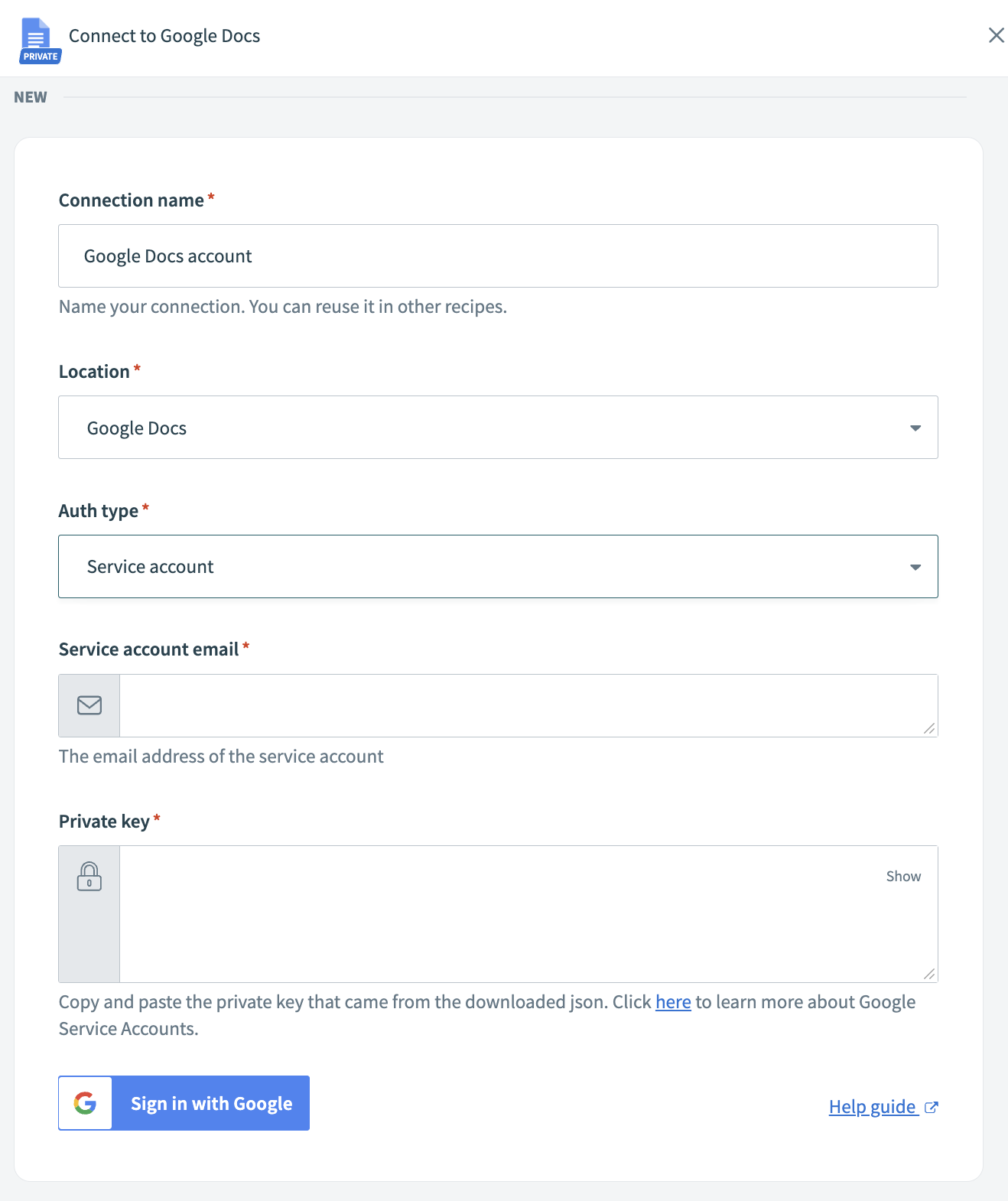 Service account connection
Use the Location drop-down menu to select the project where you plan to store the connection.
Use the Auth type drop-down menu to select Service account.
Enter your service account email address in the Service account email field.
Enter your private key from the downloaded JSON in the Private key field. Refer to Create a service account and generate a private key for more information.
Click Sign in with Google.
How to use Google Docs MCP server tools
Refer to the following sections for detailed information on available tools:
create_document tool
The create_document tool creates a new Google Doc under your identity with the title and optional initial content you provide. Your LLM uses this tool to create a new Google Doc or turn a discussion, notes, or outline into a document. Try asking:
Create a new Google Doc called 'Q4 Product Roadmap' with section headers for Goals, Timeline, and Resources.Turn our meeting notes into a new document titled 'Project Kickoff Meeting'.Make a new Google Doc for the customer proposal with an executive summary section.Create a document called 'Team OKRs' with an outline structure.
get_document_info tool
The get_document_info tool retrieves metadata about a Google Doc needed for tab selection and safe write operations, without returning document content blocks. Your LLM uses this tool to refer to a specific tab, obtain the current revision ID before attempting a write operation, or understand document structure.
Try asking:
Get the metadata for the quarterly report document.What tabs exist in the project plan Google Doc?Show me the document info for the Appendix tab.Check the revision ID for the proposal before I update it.
get_document_content tool
The get_document_content tool retrieves the content of a Google Doc. Your LLM uses this tool to read, review, or use a document as input for downstream tasks such as rewriting, summarization, or quality checks.
Try asking:
Read the quarterly report and summarize the key findings.Show me the contents of the project requirements document.Review the customer proposal and identify any gaps.Extract the action items from the meeting notes document.
find_blocks tool
The find_blocks tool identifies content blocks within a Google Doc that match the text or structural criteria you provide. Your LLM uses this tool to locate specific sections before applying edits, refer to content by description, or find sections by matching text.
Try asking:
Find the paragraph that starts with 'Our revenue projections'.Locate the Executive Summary section in the proposal.Find all headings that mention 'Timeline' in the project plan.Identify the block containing the budget breakdown.
update_document_content tool
The update_document_content tool updates an existing Google Doc. Your LLM uses this tool to revise, polish, or update an existing document, including structural changes such as inserting sections or changing heading levels.
Try asking:
Update the executive summary to include the new revenue figures.Change the Timeline section heading to 'Project Timeline and Milestones'.Insert a new paragraph after the introduction explaining the methodology.Revise the conclusion to emphasize the next steps.
list_suggestions tool
The list_suggestions tool retrieves suggested edits in a Google Doc with sufficient context to understand what suggestions are pending. Your LLM uses this tool to identify suggested edits that are still pending, review suggested changes before applying direct edits, or understand who suggested what and where.
Try asking:
Show me the suggestions on the quarterly report.What edits have been suggested in the project plan?List all pending suggestions in this document.Who suggested changes to the executive summary?
add_comment tool
The add_comment tool adds a new comment to a Google Doc. Your LLM uses this tool to leave feedback, ask a question, or add commentary in a document without proposing a specific content change.
Try asking:
Add a comment to the budget section asking about the contingency allocation.Leave feedback on the timeline requesting clarification on Phase 2.Comment on the executive summary suggesting we add customer testimonials.Ask a question in the methodology section about the data sources.
list_comments tool
The list_comments tool retrieves comment threads for a Google Doc with sufficient context to allow follow-on actions such as replying or resolving. Your LLM uses this tool to identify open feedback to address, find a comment thread to reply to, or see what comments are still outstanding.
Try asking:
Show me all the comments on the project plan.What feedback is still open on the quarterly report?List the comment threads that need responses.What comments are outstanding on this document?
reply_to_comment tool
The reply_to_comment tool adds a reply to an existing comment thread in a Google Doc. Your LLM uses this tool to respond within an existing comment thread.
Try asking:
Reply to Josh's comment about the timeline with an updated deadline.Respond to the feedback on the budget section.Answer Erin's question about the methodology.Reply to the comment asking for more details on Phase 2.
resolve_comment tool
The resolve_comment tool resolves an existing comment thread in a Google Doc, marking it as addressed. Your LLM uses this tool to mark feedback as addressed or close completed comment threads.
Try asking:
Resolve the comment about the budget now that it's updated.Mark Sarah's feedback as addressed.Close the comment thread about the timeline.Resolve all comments related to the executive summary.
list_mentions tool
The list_mentions tool retrieves mentions in a Google Doc with context about who or what is mentioned and where. Your LLM uses this tool to find who is mentioned in the document, identify where someone is referenced, or understand who is tagged in specific sections.
Try asking:
Who is mentioned in the project plan document?Where is Sarah referenced in the quarterly report?Show me all mentions of the engineering team.Find where Jordan is tagged in this document.
Getting started
View and manage your MCP server tools in the Overview page Tools section. Tool management provides the following capabilities:
TOOLS MUST BE STARTED
Your LLM can only access active tools in your MCP server connector.
Last updated: