Slack MCP server
The Slack MCP server enables LLMs to interact with your Slack workspace for posting messages and discovering channels and users. It provides tools to send updates to channels or direct messages, explore available communication spaces, and retrieve user profile information without switching to the Slack interface.
The Slack MCP server helps you streamline communication workflows by allowing you to post announcements, share updates, and find the right channels or people to contact directly from your AI conversation.
Uses
Use the Slack MCP server when you plan to perform the following actions:
- Post meeting summaries, standup updates, or announcements to channels
- Send direct messages to team members
- Discover available public channels in your workspace
- Find channels you're already a member of
- Get information about specific channels (purpose, member count, etc.)
- Look up user profile information including title, department, and timezone
Example prompts
Use the following example prompts to invoke Slack MCP server tools:
Post a summary of our standup to #engineering-updatesSend a DM to Sarah letting her know the project plan is approvedWhat public channels are available for engineering discussions?What channels am I a member of?Get details about the #product-team channelWhat is Sarah's job title and department?
Slack MCP server tools
The Slack MCP server template provides the following tools:
| Tool | Description |
|---|---|
| get_channel_info | Retrieves detailed information about a single channel by ID. |
| list_member_channels | Retrieves a list of channels the user is a member of, including group chats and direct messages. |
| post_message | Posts a new message to a specified channel or direct message conversation on behalf of the authenticated user. |
| get_user_info | Retrieves profile information for a workspace user, including display name, real name, title, department, timezone, and current status. |
| list_public_channels | Retrieves a list of public channels the user can access. |
Install the Slack MCP server
Complete the following steps to install a prebuilt MCP server to your project:
Sign in to your Workato account.
Go to AI Hub > MCP servers.
Click + Create MCP server.
Go to the Start with pre-built MCP Servers using your connected apps section and select the prebuilt MCP server you plan to use.
Click Use this server.
Provide a name for your MCP server in the Server name field.
Use the Location drop-down menu to select the project for the MCP server.
Go to the Connections section and connect to your app account.
Select the connection type you plan to use for the MCP server template.
- User's connection: MCP server tools perform actions based on the identity and permissions of the user who connects to the application. Users authenticate with their own credentials to execute the skill.
- Your connection: This option uses the connection established by the recipe builder and follows the same principles as normal app connections.
 Select your connection type
VERIFIED USER ACCESS AUTHENTICATION REQUIREMENTS
Only app connections that use OAuth 2.0 authorization code grant are available for user's connection. Refer to Verified user access for more information.
Complete the app-specific connection setup steps in the following section.
Slack connection setup
View Slack connection setup steps
You must authorize Workato to access your Slack organization using the OAuth 2.0 standard.
Complete the following steps to connect to Slack in Workato:
Click Create > Connection or press C twice.
Search for and select Slack as your connection on the New connection page.
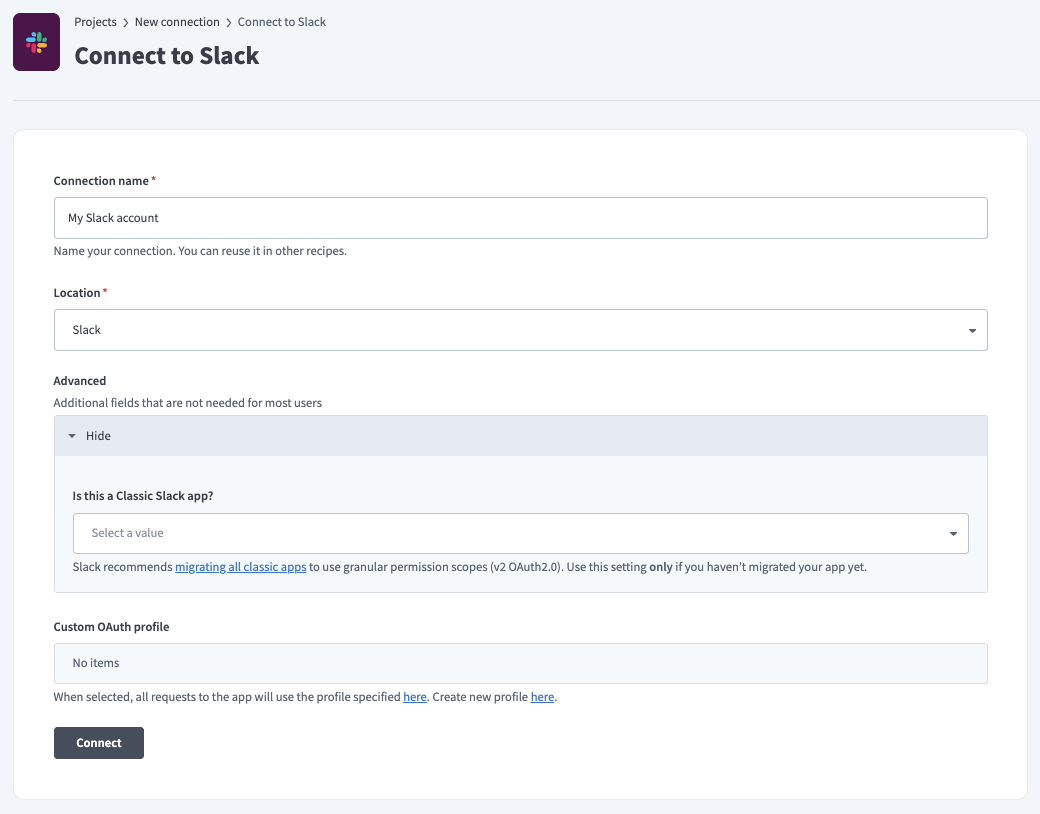 Slack Connection
Use the Location drop-down menu to select the project where you plan to store the connection.
Optional. Expand Advanced and use the Is this a Classic Slack app? drop-down menu to select Yes or No.
Optional. Use the Custom OAuth profile drop-down menu to select a custom OAuth profile for your connection. Refer to Custom OAuth profiles for Slack for more information.
Click Connect.
Click Allow to grant Workato permission to access your account.
How to use Slack MCP server tools
Refer to the following sections for detailed information on available tools:
post_message tool
The post_message tool allows the AI to send messages to Slack channels or direct messages on your behalf. Your LLM uses this tool to share summaries, post project updates, announce decisions, or send quick follow-ups without leaving your AI chat.
Try asking:
Post a summary of our meeting notes to the #marketing-team channel.Send a DM to @Sarah letting her know the project plan is approved.Announce the v2 launch in #product-announcements and tag the @engineering-lead.
get_user_info tool
The get_user_info tool retrieves profile details for workspace members, including their job title, department, timezone, and current status. Your LLM uses this tool to identify a message author, get context on a person mentioned in a discussion, or understand someone's role before reaching out.
Try asking:
Who is Sarah Chen and what is her role on the team?What department does @James work in?What is @Sarah's current status and timezone?Find out who the 'Project Apollo' lead is and tell me their job title.
get_channel_info tool
The get_channel_info tool retrieves detailed information about a specific Slack channel, including name, description, purpose, member count, creation date, and whether it's archived or private. Your LLM uses this tool to verify channel details before posting, understand a channel's purpose, or check membership information when coordinating team communication.
Try asking:
What is the #engineering channel used for and how many members does it have?Get the details for the customer-feedback channel.Is the #project-alpha channel archived or still active?Show me the description and member count for #sales-team.
list_member_channels tool
The list_member_channels tool retrieves all channels you're a member of, including public channels, private channels, group chats, and direct messages. Your LLM uses this tool to discover where you're already participating, find a specific conversation space, or get a complete view of your active Slack channels.
Try asking:
What channels am I a member of?Show me all the private channels I'm in.List my group chats and DMs.What are all the active channels I participate in?
list_public_channels tool
The list_public_channels tool retrieves all public channels available in your workspace, including those you haven't joined yet. Your LLM uses this tool to discover channels you can join, find the right place to post information, or explore what communication spaces exist in your organization.
Try asking:
What public channels are available in our workspace?Show me all the engineering-related public channels I can join.List all public channels so I can find the right place to share this update.What channels exist for product discussions that I'm not yet a member of?
Getting started
View and manage your MCP server tools in the Overview page Tools section. Tool management provides the following capabilities:
TOOLS MUST BE STARTED
Your LLM can only access active tools in your MCP server connector.
Last updated: