Stripe Billing Operations
The Stripe Billing Operations MCP server enables developers and founders to manage Stripe billing operations through natural conversation. It provides tools for customer lookup, payment troubleshooting, subscription management, invoice handling, and dispute visibility without requiring direct interaction with the Stripe Dashboard.
Uses
Use the Stripe Billing Operations MCP server when you plan to perform the following actions:
- Search for customers by email, name, or metadata
- Find and investigate payment history and failed charges
- Get detailed payment information including refund history
- Issue full or partial refunds for captured payments
- View subscription details and billing information
- Search for invoices by customer or status
- Send open invoices to customers through email
- Cancel subscriptions immediately or at period end
- Search for and manage payment disputes (chargebacks)
- Submit evidence to fight disputes or accept them
Example prompts
Use the following example prompts to invoke Stripe MCP server tools:
Find the customer with email [email protected].Search for failed payments from last week.Get the details for payment pi_123456.Refund $50 to the customer for payment ch_789012.What subscription plan is customer cus_ABC123 on?Find all unpaid invoices for Acme Corp.Send invoice in_XYZ789 to the customer.Cancel the subscription for customer cus_ABC123.Show me disputes that need a response.Get the evidence requirements for dispute dp_456789.
Stripe Billing Operations MCP server tools
The Stripe Billing Operations MCP server provides the following tools:
| Tool | Description |
|---|---|
| search_customers | Finds Stripe customers by email, name, or custom metadata fields. |
| search_payments | Searches for payments by customer, status, amount range, date range, or metadata. |
| get_payment_details | Retrieves complete payment details including refund history and failure information. |
| refund_payment | Issues a full or partial refund for a captured payment. |
| get_subscription_details | Retrieves subscription status, plan details, and billing information. |
| search_invoices | Searches for invoices by customer, status, or date range. |
| send_invoice | Sends an open invoice to the customer through email. |
| cancel_subscription | Cancels a customer's subscription either at period end or immediately. |
| search_disputes | Searches for payment disputes (chargebacks) by status, date range, or associated payment. |
| get_dispute_details | Retrieves complete dispute details including evidence requirements. |
| submit_dispute_evidence | Submits text evidence to fight a dispute. |
| accept_dispute | Accepts a dispute, allowing the customer to keep the disputed funds. |
Install the Stripe Billing Operations MCP server
Complete the following steps to install a prebuilt MCP server to your project:
Sign in to your Workato account.
Go to AI Hub > MCP servers.
Click + Create MCP server.
Go to the Start with pre-built MCP Servers using your connected apps section and select the prebuilt MCP server you plan to use.
Click Use this server.
Provide a name for your MCP server in the Server name field.
Use the Location drop-down menu to select the project for the MCP server.
Go to the Connections section and connect to your app account.
Select the connection type you plan to use for the MCP server template.
- User's connection: MCP server tools perform actions based on the identity and permissions of the user who connects to the application. Users authenticate with their own credentials to execute the skill.
- Your connection: This option uses the connection established by the recipe builder and follows the same principles as normal app connections.
 Select your connection type
VERIFIED USER ACCESS AUTHENTICATION REQUIREMENTS
Only app connections that use OAuth 2.0 authorization code grant are available for user's connection. Refer to Verified user access for more information.
Complete the app-specific connection setup steps in the following section.
Stripe connection setup
View Stripe connection setup steps
The Stripe connector supports the following authentication types:
LIMITATIONS
Stripe allows only one connection per Stripe account and Stripe App pair. When you create a new App-based Stripe connection for the same Stripe account, it invalidates the tokens of any existing App-based connections for that account, making them inactive. However, if the connection is linked to a different Stripe account, existing connections remain unaffected.
This limitation doesn't impact pre-existing extension-based Stripe connections in Workato, which can coexist with App-based connections.
API key
View API key steps
Use API key authentication to connect to Stripe using a secret key from your Stripe account.
Obtain an API key
Refer to Create an API key or Reveal an API key in the Stripe documentation.
Use your test mode secret key (sk_test_...) to test without affecting live data, or your live mode secret key (sk_live_...) to connect to your live Stripe account.
Connect to Stripe using API key
Complete the following steps to set up an API key connection to Stripe in Workato:
Click Create > Connection or press C twice.
Search for and select Stripe on the New connection page.
Enter a name for your connection in the Connection name field.
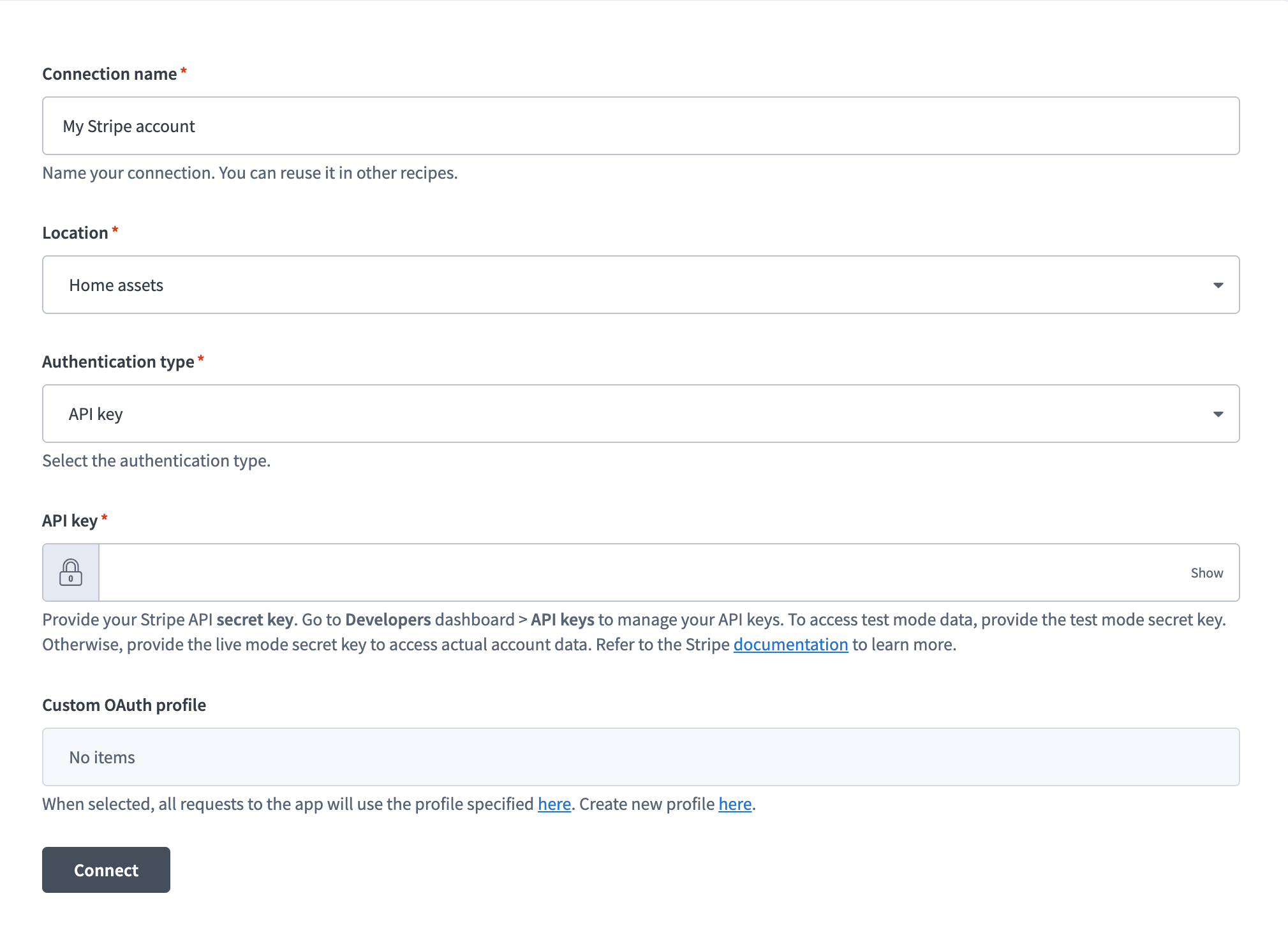 Stripe API key connection setup
Use the Location drop-down menu to select the project where you plan to store the connection.
Use the Authentication type drop-down menu to select API key.
Enter your API key in the API key field.
Optional. Use the Custom OAuth profile drop-down menu to select a custom OAuth profile for your connection.
Click Connect.
Authorization code grant
View Authorization code grant steps
Use authorization code grant to connect to Stripe by signing in through Stripe's authorization flow.
Connect to Stripe using authorization code grant
Complete the following steps to set up an authorization code grant connection to Stripe in Workato:
Click Create > Connection or press C twice.
Search for and select Stripe on the New connection page.
Enter a name for your connection in the Connection name field.
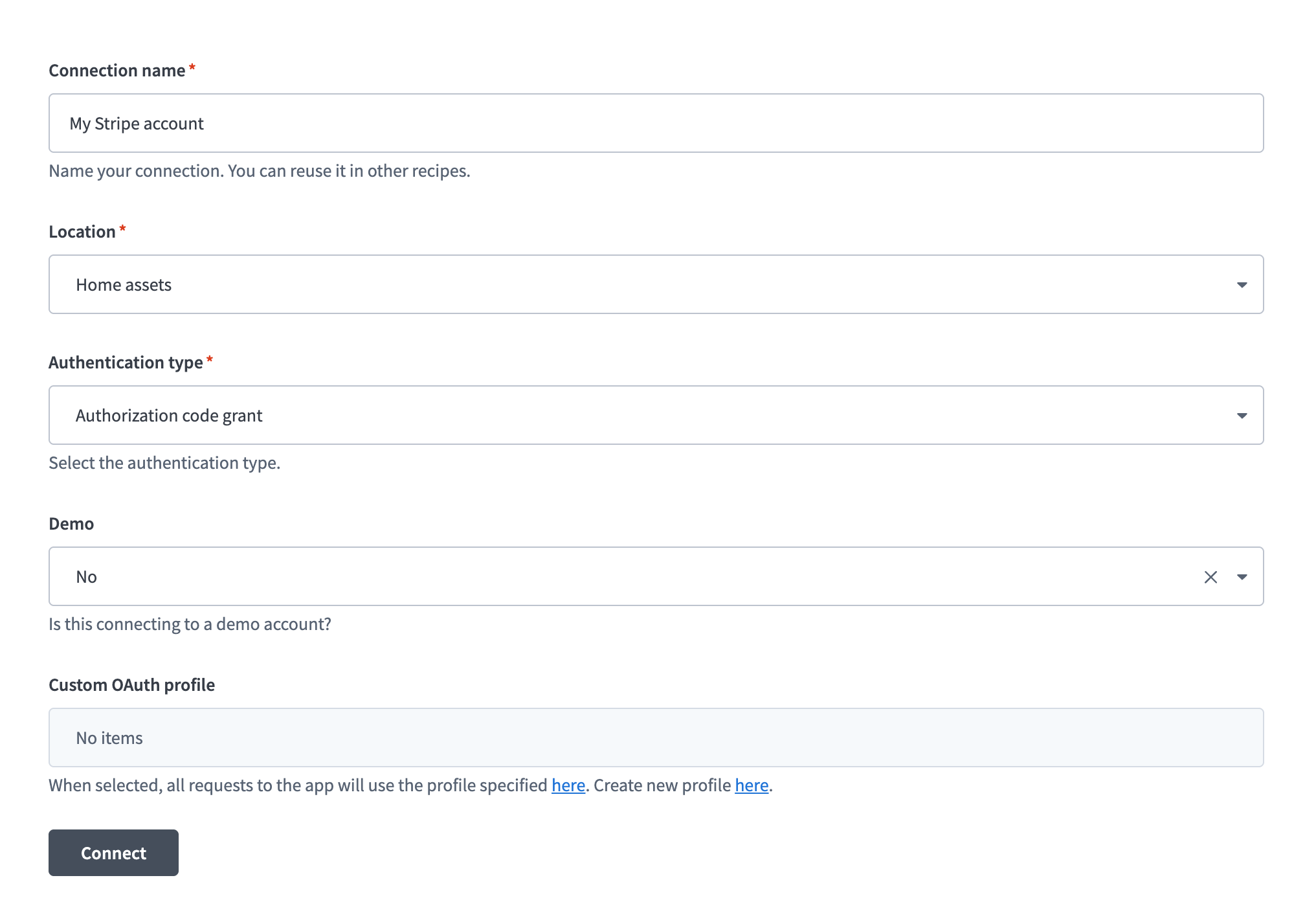 Stripe authorization code grant connection setup
Use the Location drop-down menu to select the project where you plan to store the connection.
Use the Authentication type drop-down menu to select Authorization code grant.
Use the Demo drop-down menu to select whether the Stripe account you plan to connect to is a demo account.
Optional. Use the Custom OAuth profile drop-down menu to select a custom OAuth profile for your connection.
Click Connect.
Sign in to your Stripe account when prompted and authorize the connection.
How to use Stripe Billing Operations MCP server tools
Refer to the following sections for detailed information on available tools:
search_customers tool
The search_customers tool finds Stripe customers by email, name, or custom metadata fields. Your LLM uses this tool to find or look up a customer.
Try asking:
Find the customer with email [email protected].Search for customers named Josh Hernandez.Look up the customer with company metadata 'Acme Corp'.Find customers who signed up this month.
search_payments tool
The search_payments tool searches for payments by customer, status, such as succeeded, failed, or pending, amount range, date range, or metadata. Your LLM uses this tool to investigate payment history, find failed payments, or verify charges.
Try asking:
Search for failed payments from last week.Find all successful payments for customer cus_ABC123.Show me payments over $1000 from this month.Find pending payments that need attention.
get_payment_details tool
The get_payment_details tool retrieves complete payment details including amount, status, payment method, such as last4 or brand, detailed decline code and message for failed payments, full refund history, associated invoice, and metadata. Your LLM uses this tool to investigate why a payment failed, check refund status, or get full context on a specific charge.
Try asking:
Get the details for payment pi_123456789.Why did payment ch_987654321 fail?Show me the refund history for this payment.Get the complete information for the declined charge.
refund_payment tool
The refund_payment tool issues a full or partial refund for a captured payment. Your LLM uses this tool when you need to return funds to a customer. Payment must be captured because the LLM can't refund authorized-only payments. The refund appears on the customer's statement within 5-10 business days.
Try asking:
Refund payment pi_123456789 in full.Issue a partial refund of $50 for charge ch_987654321.Refund this payment due to customer request.Process a $25 refund marked as duplicate transaction.
get_subscription_details tool
The get_subscription_details tool retrieves subscription status, plan or product name, price, billing interval, current period dates, renewal date, and cancellation status. Your LLM uses this tool to answer questions about a customer's plan or renewal date.
Try asking:
What subscription plan is customer cus_ABC123 on?When does the subscription for sub_XYZ789 renew?Show me the subscription details for this customer.What's the billing interval for this subscription?
search_invoices tool
The search_invoices tool searches for invoices by customer, status, such as draft, open, paid, void, or uncollectible, or date range. Your LLM uses this tool when you need to find unpaid invoices, review billing history, or locate specific invoices for action.
Try asking:
Find all unpaid invoices for Acme Corp.Search for open invoices from this quarter.Show me draft invoices that need to be sent.Find paid invoices for customer cus_ABC123.
send_invoice tool
The send_invoice tool sends an open invoice to the customer by email. Your LLM uses this tool to send or resend invoices. Draft invoices are automatically finalized before sending. This tool only works for invoices with a draft or open status.
Try asking:
Send invoice in_123456 to the customer.Email the open invoice to Acme Corp.Send the draft invoice for approval.Email this invoice with the payment link.
cancel_subscription tool
The cancel_subscription tool cancels a customer's subscription either at period end or immediately. Your LLM uses this tool to cancel subscriptions. It doesn't automatically issue refunds.
Try asking:
Cancel the subscription for customer cus_ABC123 at period end.Immediately cancel subscription sub_XYZ789.End this customer's subscription when the current period finishes.Cancel the subscription right now.
search_disputes tool
The search_disputes tool searches for payment disputes by status, date range, or associated payment. Your LLM uses this tool to find disputes that require a response or review dispute history. Results are sorted by evidence deadline with the most urgent disputes listed first.
Try asking:
Show me disputes that need a response.Find all open disputes from last month.Search for disputes associated with payment pi_123456.What disputes are approaching their evidence deadline?
get_dispute_details tool
The get_dispute_details tool retrieves complete dispute details including amount, reason, status, evidence deadline, evidence requirements for this dispute type, evidence already submitted, and associated payment or customer information. Your LLM uses this tool to analyze and collect evidence before reviewing a dispute.
Try asking:
Get the evidence requirements for dispute dp_123456.Show me the details and deadline for this dispute.What evidence has been submitted for dispute dp_789012?What's the reason for this chargeback?
submit_dispute_evidence tool
The submit_dispute_evidence tool submits text evidence to fight a dispute. Your LLM uses this tool when you need to provide proof to challenge a chargeback. Evidence is saved as a draft by default.
Try asking:
Submit evidence for dispute dp_123456 with our tracking number and delivery confirmation.Add proof of delivery evidence to this dispute as a draft.Submit and finalize the evidence showing customer communication.Provide evidence that the service was delivered as promised.
accept_dispute tool
The accept_dispute tool accepts a dispute, allowing the customer to keep the disputed funds. Your LLM uses this tool to concede a dispute because you agree with it, lack evidence, or determine the amount isn't worth contesting.
Try asking:
Accept dispute dp_123456 because we agree with the customer.Concede this dispute since we don't have evidence.Accept the chargeback for this low-value transaction.Let the customer win this dispute.
Getting started
View and manage your MCP server tools in the Overview page Tools section. Tool management provides the following capabilities:
TOOLS MUST BE STARTED
Your LLM can only access active tools in your MCP server connector.
Last updated: