# Okta SAML configuration
This guide describes how to configure Okta as a SAML identity provider (IdP) for Workato Identity.
SAML enables secure authentication between an IdP, such as Okta, and a service provider like Workato. Users authenticate once through Okta and gain access to Workato with a single login instead of managing separate credentials for each application.
PREREQUISITES
Workato Identity is available for Agent Studio, Workato GO, MCP, and the API developer portal.
Configure SAML-based authentication in Workato Identity before you begin. The Specify Single sign-on URL and Service provider (SP) entity ID values from that setup are required to complete the following steps.
# Configure SAML authentication in Okta
Complete the following steps to configure SAML authentication in Okta:
NOT FOR WORKFLOW APPS SAML-BASED SSO
This documentation is specific to Workato Identity. Refer to SAML-based single sign-on authentication to configure SAML authentication for Workflow apps.
Sign in to your Okta (opens new window) account.
Go to Applications > Applications and click Create App Integration.
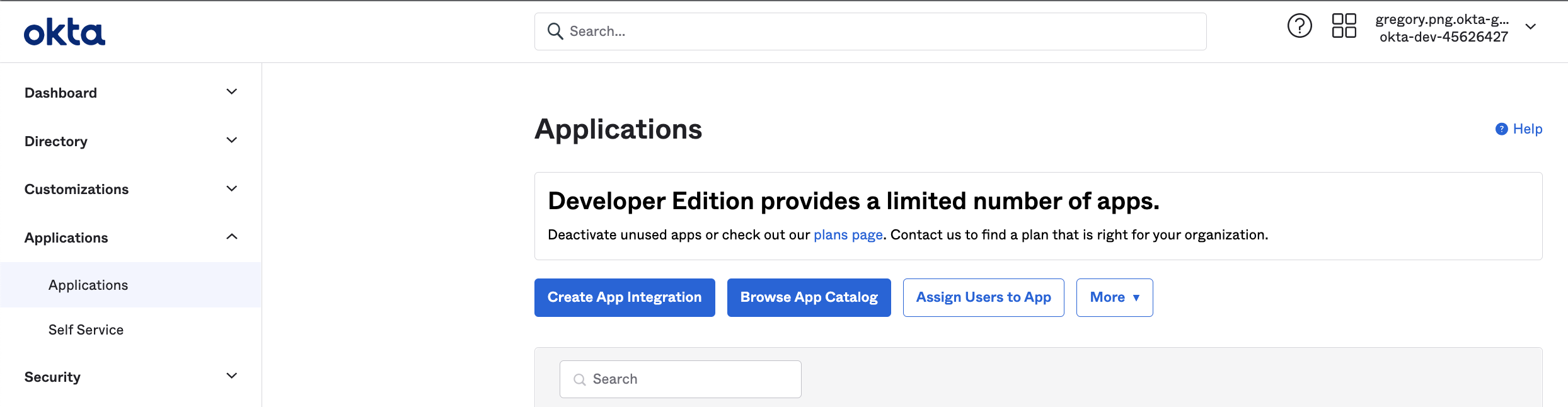 Add application in Okta
Refer to the Okta documentation (opens new window) for more information.
Select SAML 2.0 as the Sign-in method and click Next.
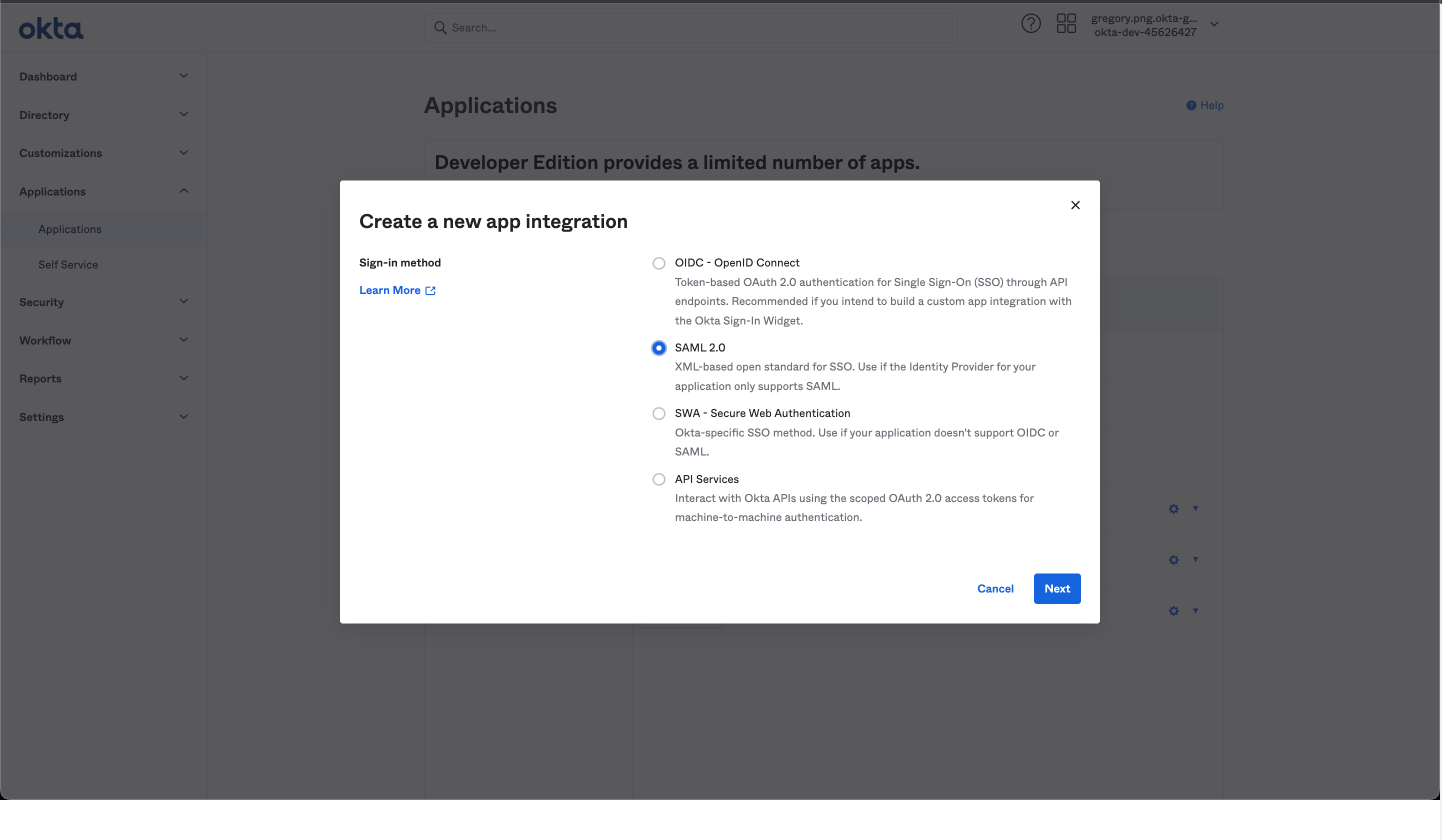 Create a new application in Okta
Enter a name for the app in the App name field. For example, Workato Agentic or MCP Servers.
Click Next.
Paste your Workato Specify Single sign-on URL into the corresponding field in Okta.
Select the Use this for Recipient URL and Destination URL checkbox.
Paste the Service provider (SP) entity ID into the Audience URI (SP Entity ID) field.
Set Name ID format to EmailAddress.
Go to the Attribute Statements section and add the following attributes:
| Name | Value |
|---|---|
workato_end_user_name | user.displayName |
workato_end_user_groups | appuser.workato_end_user_groups |
Click Next.
Use the App type drop-down menu to choose This is an internal app that we have created.
Click Finish.
Go to Directory > People and add one or more users. You must complete the verification steps for each user.
Go to Applications > My App > Assignments.
Click Assign > Assign to People and add one or more users for My App.
Click Done.
Go to Applications > [Your App] > Sign On in Okta.
Copy the Metadata URL. You must use this URL in the Do you have your identity provider metadata URL? section of the Set up a new provider wizard in Workato Identity.
Click Save changes.
Set your Okta app visibility to hide the application icon from users. This prevents users from attempting IdP-initiated login which isn't supported for Workato features.
DIRECT SIGN-IN FROM IDP UNSUPPORTED
You can't sign in to Workato directly from your IdP. Authentication is only supported when initiated through a conversation in your connected LLM.
Last updated: 4/14/2026, 3:25:07 PM