# Workato Identity SAML-based SSO
SAML-based single sign-on (SSO) authentication enhances security when accessing Workato features and improves user experience.
SAML-based SSO enables you to add an identity provider (IdP) for authentication management. This adds robust security measures and reduces the risk of password-related breaches. Your organization can enforce SAML-based authentication to comply with internal security policies and regulatory requirements to ensure that only authorized users access sensitive data.
SAML-based SSO also streamlines the user experience by allowing users to sign in once and access multiple Workato features without separate logins. Additionally, it allows centralized management of user identities and access controls through your IdP to apply access policies consistently.
# SAML-based SSO key features
Workato Identity supports SAML-based SSO to provide the following key features:
Just-in-Time (JIT) Provisioning
You can enable JIT provisioning to automatically create user accounts when they first sign in through SSO. This eliminates the need for administrators to manually create accounts and keeps user information current.
Customizable attributes
You can configure both your Identity Provider (IdP) and Service Provider (SP) to sync user group information using SAML attributes, such as group memberships.
Selective enforcement
Your organization can choose to enforce SAML-based authentication for all users or add users manually. This option supports compliance requirements while allowing flexibility for development and testing.
# SAML-based SSO workflow
Your IdP and Workato Identity exchange SAML metadata to enable SAML-based SSO authentication. You must set up a SAML application in your IdP with specific values, such as the single sign-on URL and metadata URL. You can also configure user group syncing.
SSO configuration can vary based on your specific IdP. Refer to the Enforce SAML-based SSO authentication for Okta guide to learn how to enable this capability for Okta. This guide includes instructions for enabling user groups sync, which allows you to sync group assignments between the Workflow apps portal and your IdP.
# Configure SAML-based authentication
Complete the following steps to configure SAML-based authentication in Workato Identity:
NOT FOR WORKFLOW APPS SAML-BASED SSO
This documentation is specific to Workato Identity. Refer to SAML-based single sign-on authentication to configure SAML authentication for Workflow apps.
Sign in to your Workato account and go to Workspace admin.
Click Authentication & Groups in the sidebar.
Select the environment you plan to configure. The environment End-user group page displays by default.
ENVIRONMENT AVAILABILITY
Workspaces without Environments provisioned only have one environment available.
Select the Authentication tab.
Ensure that the SAML-based SSO authentication toggle is enabled.
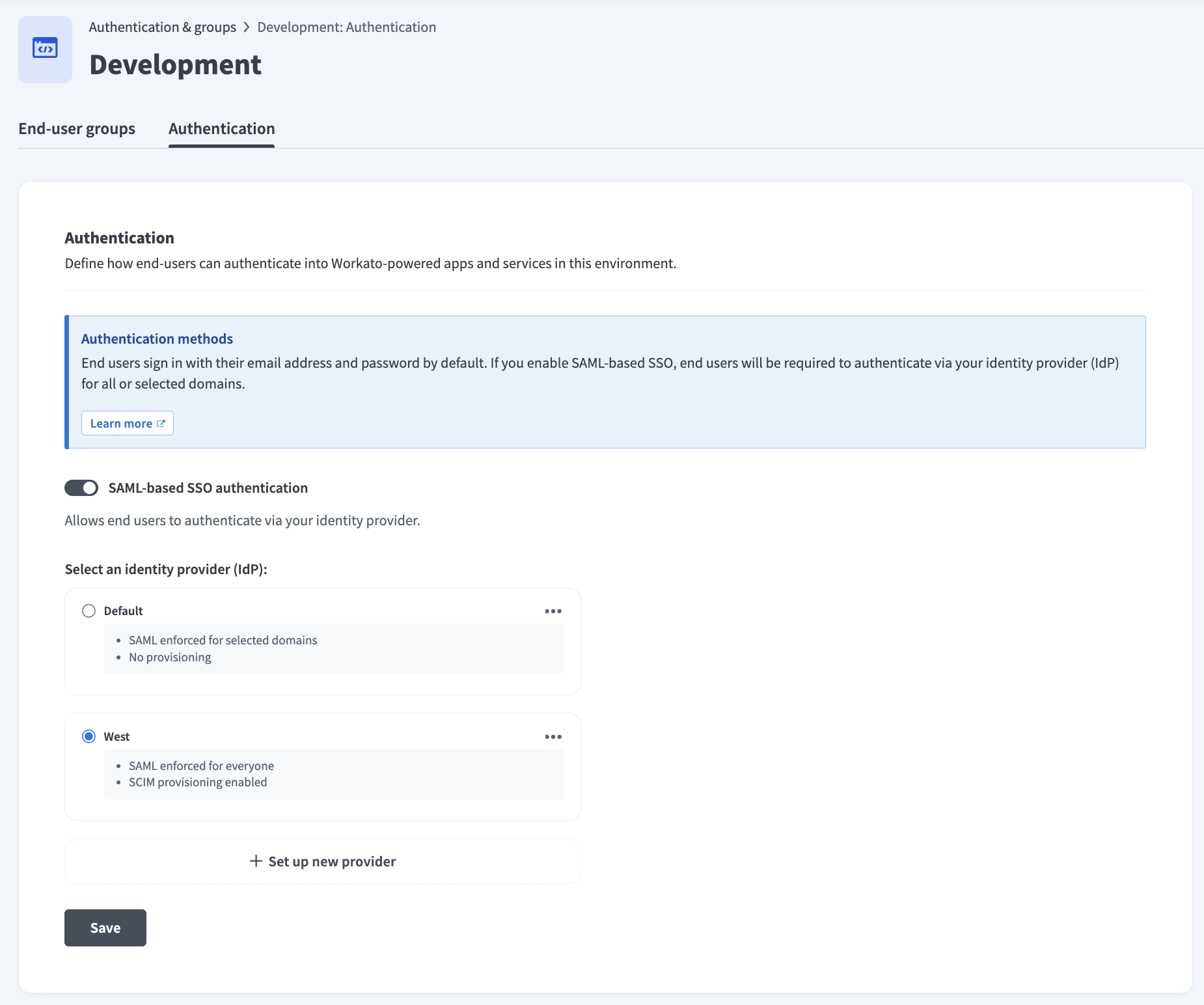 Ensure the SAML-based SSO authentication toggle is enabled
Go to the Select an identity provider (IdP) section and click + Set up new provider.
Provide a name for your IdP in the Identity provider (IdP) name field. For example: Okta Prod.
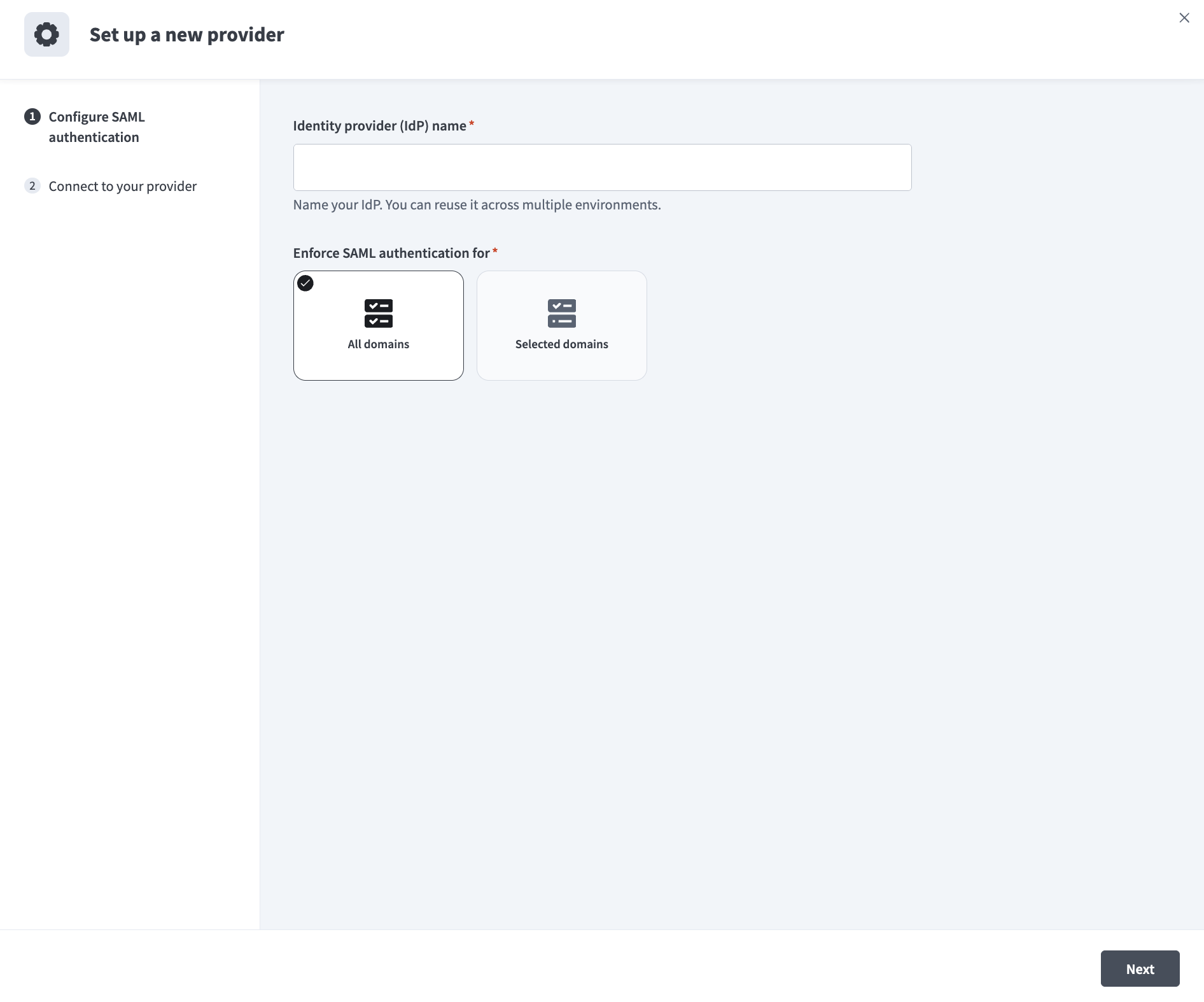 Configure SAML authentication
Use the Enforce SAML authentication for drop-down menu to select who is required to use SAML-based authentication.
Copy the Specify Single sign-on URL and Service provider (SP) entity ID values.
Go to the Do you have your identity provider metadata URL? section and select the option that applies to you.
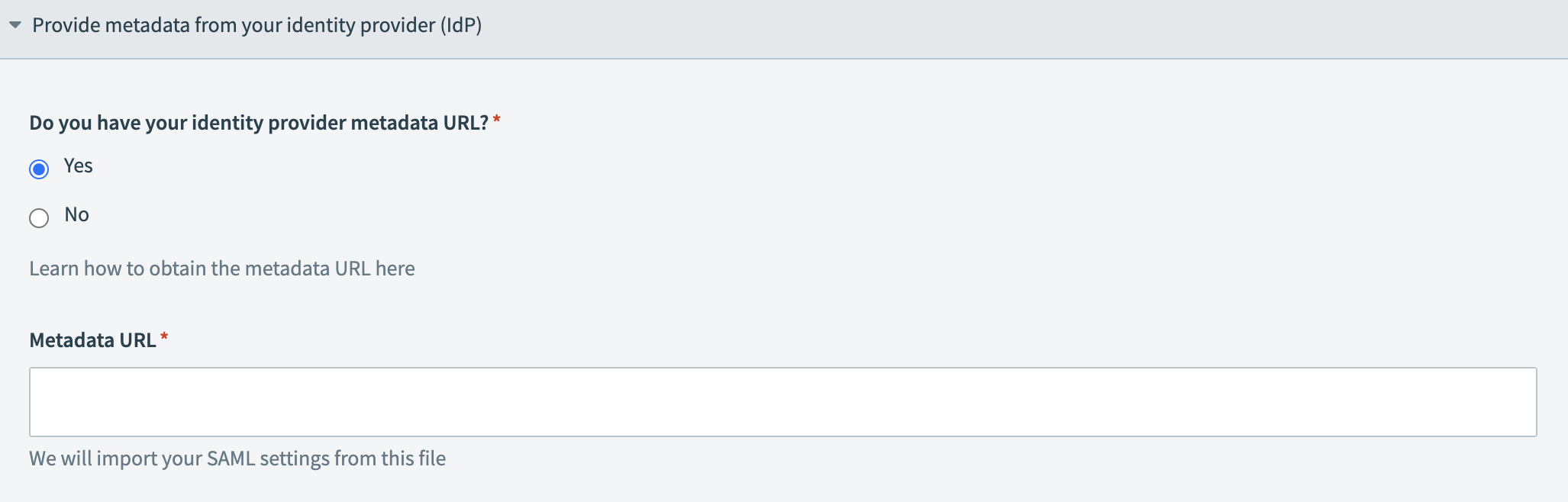 Provide your metadata URL
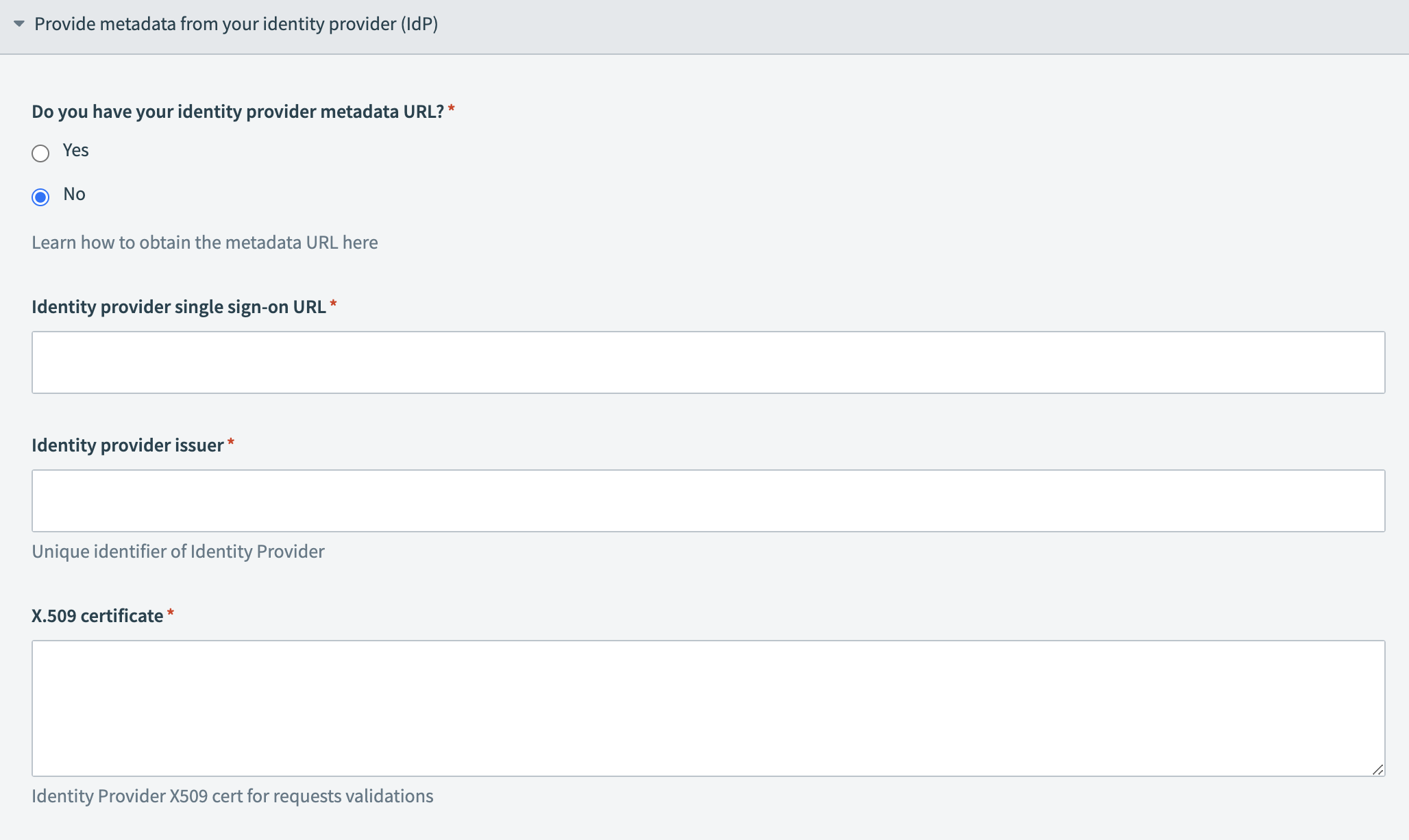 Provide your IdP information
Click Set up.
# Configure IdP user access
You must configure your IdP to send the required user attributes in its SAML assertions after you complete the SAML-based SSO configuration. Workato uses these attributes to populate user profiles and manage group memberships.
DIRECT SIGN-IN FROM IDP UNSUPPORTED
You can't sign in to Workato directly from your IdP. Authentication is only supported when initiated through a conversation in your connected LLM.
Add the following attributes to your IdP's SAML attribute statements:
| Name | Value | Description |
|---|---|---|
workato_end_user_name | user.displayName | Maps the user's display name from your IdP to their Workato profile. |
workato_end_user_groups | appuser.workato_ | Maps the user's group memberships from your IdP to Workato. Required only if you plan to enable user group syncing. |
Refer to the following IdP guides for a step-by-step guide on how to configure SAML and SAML attribute statements:
Last updated: 3/16/2026, 4:21:50 PM